Managing Visits to Retail Stores
In this article, learn how to create visits, perform tasks, and work with the CG Cloud objects in the CT Mobile app.
Basic CT Mobile Functionalities
Mobile users can work with the Retail Store and Visit records in the same way as with records of any other offline objects.
-
use mini-layouts to create new records;
-
add custom related lists to track related records;
-
using the Reports and Dashboards widget, display the store- and account-related analytics, for example, the visit reports filtered by the status field on the Home screen;
-
using the Calendar widget, track the upcoming visits in your schedule for a day;
-
working with Retail Stores and Visits objects in the Calendar, Nearby Accounts, and Routes modules:
-
retail stores are present in the Retail Stores tab;
-
manage retail stores using list views and list view filters;
-
switch among records using reference fields or tapping the
 button to minimize the Visit record screen;
 -
and more.
Creating Required Records to Complete Tasks
To work with CG cloud tasks, administrators should prepare the Visit record screen in the CT Mobile app by splitting the Visit record layout into several tabs using CT Layouts. Administrators can use the preconfigured template or create a new one based on it. For more information about CT Layouts, refer to CT Layouts Solution.
If the CT Layouts is not in use, the mobile user will see the  button on the Visit record. Tapping the button triggers the mini-layout to create the Action Plan record. In this case, mobile users cannot work with the CG Cloud tasks, but admins can check that all required records of Action Plan, Retail Visit KPIs, and various Tasks are generated. button on the Visit record. Tapping the button triggers the mini-layout to create the Action Plan record. In this case, mobile users cannot work with the CG Cloud tasks, but admins can check that all required records of Action Plan, Retail Visit KPIs, and various Tasks are generated.
|
The administrator should configure the process of creating an Action Plan record with the Visit Execution action plan type based on the selected template. Assessment tasks should be linked to the Action Plan and current Visit records, and the related Retail Visit KPI records should be created for the Inventory Check, Planogaram Check, Promotion Check, and Other task types to store the actual values achieved as a result of the retail execution. One of the following should be set up:
-
specify a workflow to create the Action Plan and all related records.
-
add a button with the Create Record action type to create an Action Plan record and add a button with the $Class.generateCGCloudTasks context to generate all required records to the first tab of the Visit record.
When configured, mobile users can create a visit:
-
Go to the Visit menu item.
-
Tap the desired Visit record or create a new one.
-
Perform predefined actions to create the Action Plan and required records.
The Visit record is created. Follow the visit path on the tabs to complete tasks.
Managing Visits in the Calendar Module
Mobile users may need to create ad-hoc visits on the go and make unplanned visits to certain stores, for example, a rep may get a call from a store that’s having an inventory issue, or a manager may inform her about a promotion or upsell activity that she must complete on the same day.
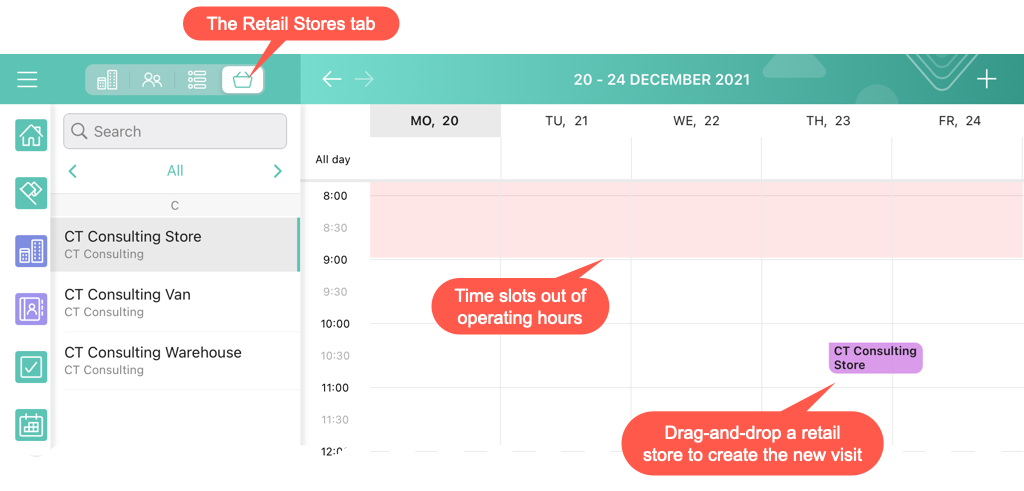
With the help of the Calendar module, a rep can create a new visit by tapping on the Retail Stores tab and drag-and-dropping a Retail Store record to the calendar grid.
| The drag-and-drop action is prohibited in the month view. |
-
Each retail store has operating hours based on the time slots, and a mobile user cannot create a visit to the retail store outside operating hours. Calendar cells outside the opening hours of a retail store will be highlighted with a red color during the visit creation.
-
The visit cannot be moved to the time slot out of operating hours.
-
When copying or moving records of a day or week, if at least one record on the new date does not fall into the opening hours of retail stores, a warning is displayed
-
Tap Cancel to cancel the action.
-
Tap OK to copy or move only records fit within the opening hours.
-
-
After creating a visit, mobile users should associate an action plan template that contains the required task definitions and metric associations to the visit.
Viewing Upcoming Visits in the Nearby Accounts Module
Reps can track retail stores on the map and create new visits with the help of the Nearby Accounts module.
-
The Retail Stores tab is available in the left menu.
-
To view retail stores on the map, the Account Geolocation Field should be specified on the CT Mobile Control Panel: General / CT Mobile Control Panel 2.0: General tab. Alternatively, add the Account Full Address Field (refer to CT Mobile Control Panel: General / CT Mobile Control Panel 2.0: General).
-
Retail stores are presented with a square icon on the map. The color for the retail store icon can be customized on the CT Mobile Control Panel: Color Settings / CT Mobile Control Panel 2.0: Colors tab.
-
To create a new visit, tap the mark.
Build Routes to Retail Stores in the Routes Module
In the Routes module, mobile users can work with retail stores the same way as with accounts.
-
To view retail stores on the map, the Account geolocation field should be specified on the CT Mobile Control Panel: General tab. Alternatively, add the Account Full Address Field (refer to CT Mobile Control Panel: General / CT Mobile Control Panel 2.0: General).
-
The visits to the retail stores are displayed on the map.
-
Routes to retail stores can be built both on Apple or Google maps.
Performing Tasks during the Visit
We recommend learning more about prerequisites for creating an assessment task definition.
In-Store Survey
To perform an assessment task with the In-Store Survey type, for example, to capture feedback from buyers, the Record List section with the Survey Subject records should be added to the tab of the Visit record.
When a mobile user taps an invitation link in the Invitation Link field, the survey opens in a pop-up. The Status field of the related Assessment Task record has the Not Started value that will be changed to In Progress and then, when all answers are captured, to Completed.
| An Internet connection is required to take surveys. Otherwise, a warning will be displayed. |
.png)
Inventory Check
To perform an assessment task with the Inventory Check type, for example, to count inventories of a product category, the Record List section with the Retail Visit KPI records and the specific Target Value and Actual Value fields should be added to the tab of the Visit record.
When a mobile user adds actual values, the Status field of the related Assessment Task record has the Not Started value that will be changed to In Progress and then, when all actual values are specified, to Completed.
.png)
Other
To perform an assessment task with the Other type, for example, to perform asset checks for refrigerator displays and shelves, the Record List section with the Retail Visit KPI records and the specific Target Value and Actual Value fields should be added to the tab of the Visit record.
When a mobile user adds actual values, the Status field of the related Assessment Task record has the Not Started value that will be changed to In Progress and then, when all actual values are specified, to Completed.
Planogram Check
To perform an assessment task with the Planogram Check type, for example, to check share of shelf:
-
The CT Vision module is activated and the CG Cloud Einstein provider is set up. To activate the CT Vision module, refer to the Adding CT Vision to the CT Mobile App article.
-
The Record List section with the
 button should be added to the tab of the Visit record.
When a mobile user taps the button she goes to the CT Vision module screen and sends the desired photos for recognition. The Visit record tab will be minimized.
After closing the CT Vision module screen, the user returns to the Visit tab, and the actual values for the corresponding products are set to values according to the recognition. The Status field of the related Assessment Task record has the Not Started value that will be changed to In Progress and then, when all product images are recognized, to Completed.
.png)
Place Order
To perform an assessment task with the Place Order type to capture orders:
-
The CT Orders module is configured. To integrate CG Cloud with CT Orders, refer to the CG Cloud Support article.
-
The Record List section with the Order records should be added to the tab of the Visit record.
To create an order, a mobile user taps the Plus button, fills out the mini layout, and taps the Create button. The Order Cart screen is open. The Visit record tab will be minimized.
After closing the Order Cart screen, the user returns to the Visit tab. The Status field of the related Assessment Task record depends on the value in the Stage field of the Order record that is related to the current Visit record.
| Order: Stage | Assessment Task: Status | Description | ||
|---|---|---|---|---|
— |
Not Started |
There is no related Order record to the current Visit record. |
||
On Hold |
In Progress |
If at least one related Order record to the current Visit record has the On Hold value in the Stage field. |
||
Completed |
Completed |
If at least one related Order record has the Completed value in the Stage field.
|
Promotion Check
To perform an assessment task with the Promotion Check type, for example, to track customer reaction to new promotional offers, the Record List section with the Retail Visit KPI records and the specific Target Value and Actual Value fields should be added to the tab of the Visit record.
When a mobile user adds actual values, the Status field of the related Assessment Task record has the Not Started value that will be changed to In Progress and then, when all actual values are specified, to Completed.
Task
To perform an assessment task with the Task type, the Record List section with the Task records and their Status field should be added to the tab of the Visit record.
The Status field of the related Assessment Task record depends on the value in the Status field of the Task record.
-
If the Status field has the IsClose attribute set as false, the Status field of the related Assessment Task record has the Not Started value.
-
If the Status field has the IsClose attribute set as true, the Status field of the related Assessment Task record has the Completed value.