CT Mobile Control Panel 2.0: Tools
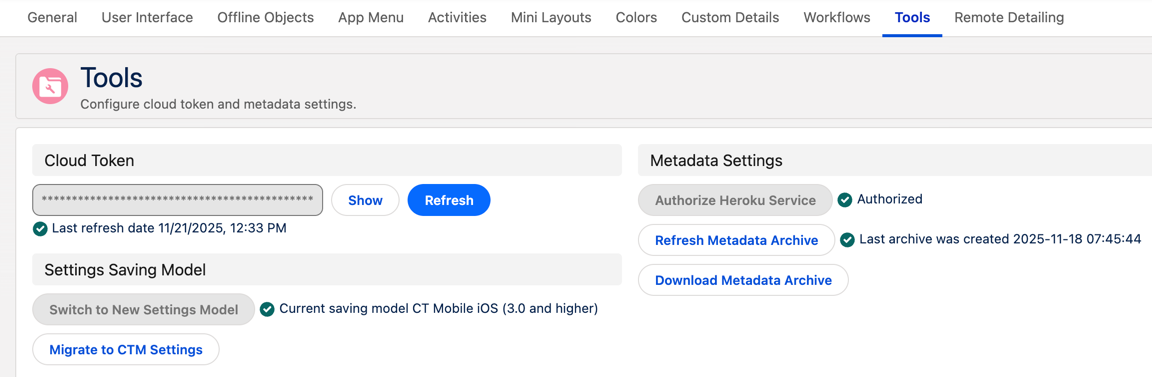
The Tools tab is intended to set up parameters for the proper operation of the CT Mobile app. The tab has the following sections:
| The user interface may vary according to the CT Mobile package version and environments. The current interface is related to the production environment. |
Cloud Token
| To use cloud token, check remote site settings. |
Click Show to view the cloud token value. Click the Refresh button to update a cloud token.
-
The cloud token update is necessary in case of a cloned sandbox. Also, the corresponding record should be activated again in Remote Site Settings.
-
When the current token is changed, the previous one is stored in the Cloud-token-history document in the CT СLM folder. To view the history of token modifications, switch to Salesforce Classic, then go to the Documents → CT CLM → open the cloud-token-history document.
Cloud token:
-
Is a password, which encrypts a data dump before sending it to support via e-mail or to Salesforce, depending on settings in CT Mobile Control Panel 2.0: General.
-
Is a part of the salt key that is used for encrypting administrator credentials.
-
Is used to create an archive with actual metadata of the current Salesforce organization and download this metadata archive to the device.
-
Is used when sending requests to external CT CLM services, such as:
-
Creating and updating slides in the Application Editor, including PowerPoint and PDF files converting.
-
The Plain Applications Editor, including PowerPoint files converting.
-
The Remote Detailing functionality for CT Mobile iOS and CT Mobile Windows users.
-
Settings Saving Model
| Refer to Settings Saving Model for CT Mobile iOS for details. |
In this section, you can switch the settings model to one compatible with CT Mobile iOS versions starting from 3.0.
| Add clm.Manage Settings Mode custom permission to your user profile to enable this section. |
-
Click Switch Panel to New Settings Model button. The pop-up window will be displayed:
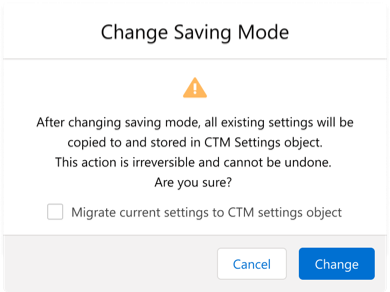
-
If you want to migrate all existing settings to the new model, select the Migrate current settings to CTM settings object checkbox. If not selected, you can do this migration later by clicking Transfer Settings to New Model button (the CT Mobile Administrator permission set should be assigned for your user profile).
Existing settings will not be deleted from the old settings storage model, as well as modified by future changes made in the CT Mobile Control Panel 2.0. -
If you want to migrate all existing settings back to the old model, click the Transfer Settings to Old Model button (the CT Mobile Administrator permission set should be assigned for your user profile).
-
Click Change to switch the mode.
Metadata Settings
In this section, you can manage the metadata archive. To work with the metadata archive, specify the Cloud token first. Read more about the metadata archive here.
Authorize Heroku Service
Click this button if the Heroku service is not yet authorized, otherwise you will not be able to sync with the CT Mobile app.
Refresh metadata archive
| Please remove the archive component custom metadata type before refreshing the metadata archive. |
Use the Refresh Metadata Archive button to refresh the metadata archive instead of the manual metadata archive collecting.
This button is displayed only for users with the Modify All permission or who have been assigned the CT Mobile Administrator permission set.
Download metadata archive
Use the Download metadata archive button to download the metadata archive to the device. It can be useful for QA support in case of any issues with CT Mobile.
In this section, you can manage the metadata archive. To work with the metadata archive, specify the Cloud token first. Read more about the metadata archive here.