Notification Center
Send push notifications from Salesforce to mobile users.
Set up Notification Center
To send notifications from Salesforce to users:
-
In Mobile Application Setup, set the value for the PUSH Identifier field. For the CT Mobile app installed from the App Store, the push identifier is ctmobile.
-
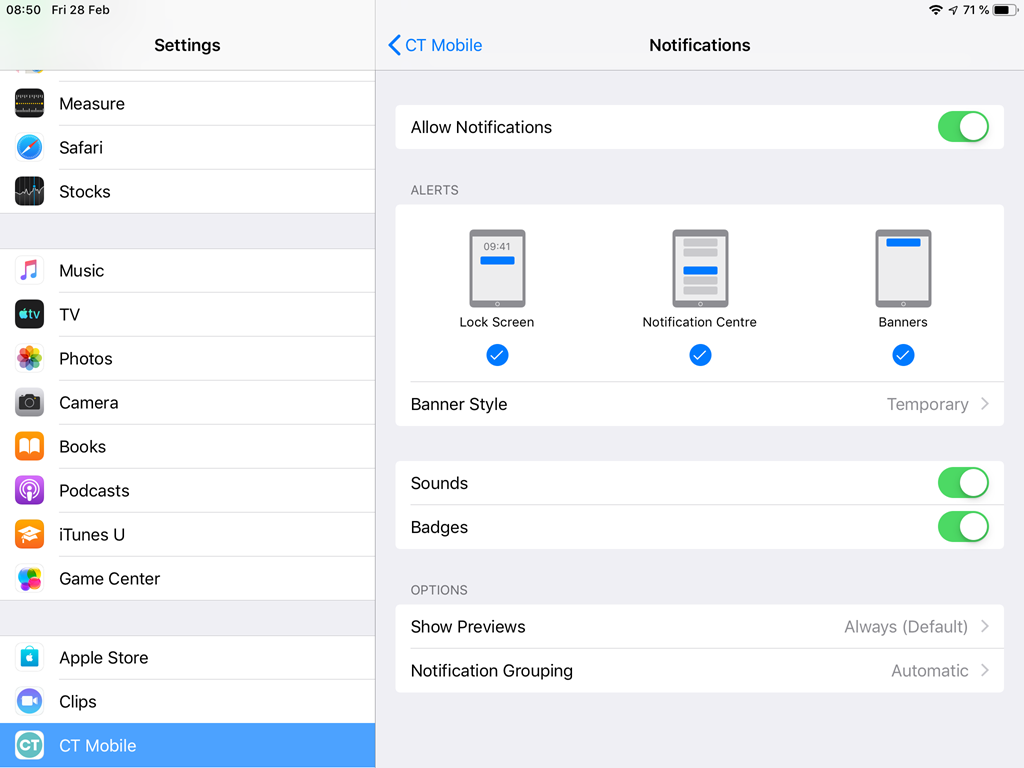
Allow notifications for CT Mobile in the Settings on a mobile device.
-
Please make sure that the Device Token field for the current record of the User object is filled with a value. Users with empty Device Token field cannot be selected for sending notifications.
According to that value, Salesforce defines the user device to send push notifications. If you authorize with the same credentials on several devices (but no more than 5), the field will contain the token of the last device on which you synchronized.
The setup is complete. Users who have a device token are active and can receive push notifications from Salesforce.
Sending Messages from Notification Center
To send a notification to a mobile user:
-
Go to the Notification Center tab.
-
Select one or several users from the Available users list and click Select users.
-
Use the Filter field to select a list view.
-
To find a mobile user, use the Search box.
-
To exclude mobile users from the mail list, select them in the Selected users list and click Remove selected.
-
-
Enter a message in the Message box and click Send.
The max length of a push notification depends on the iOS version on a mobile device. 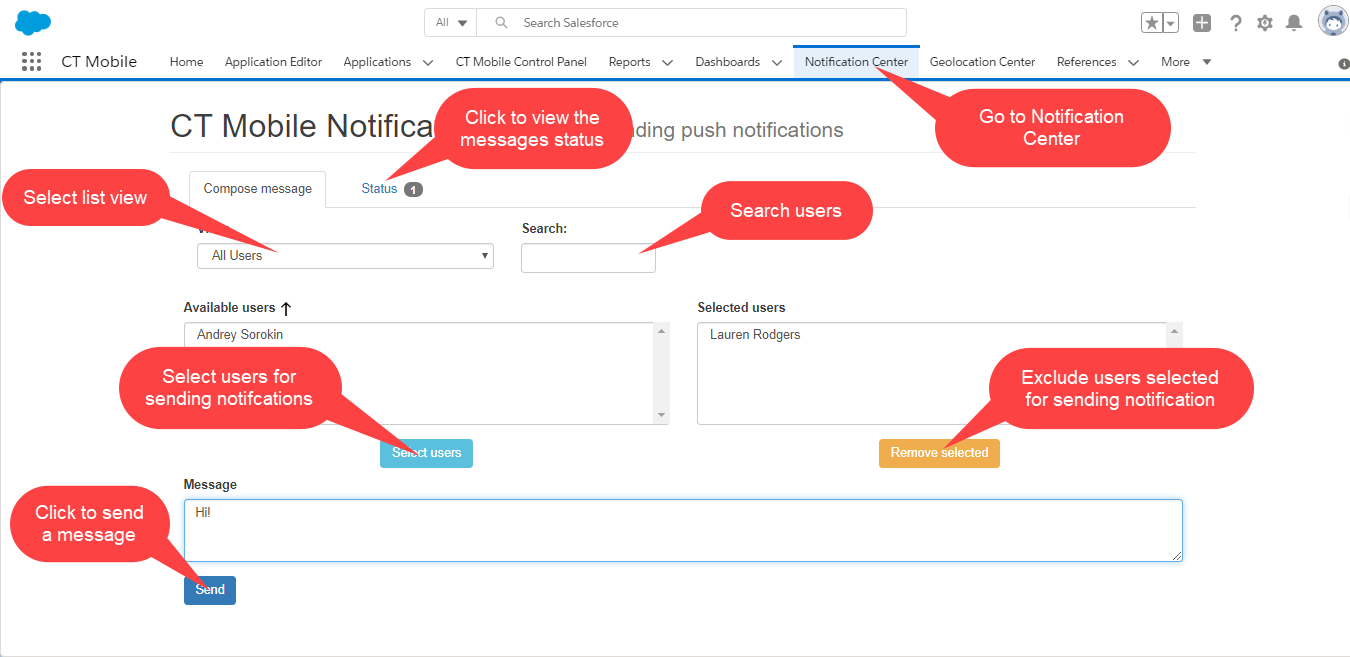
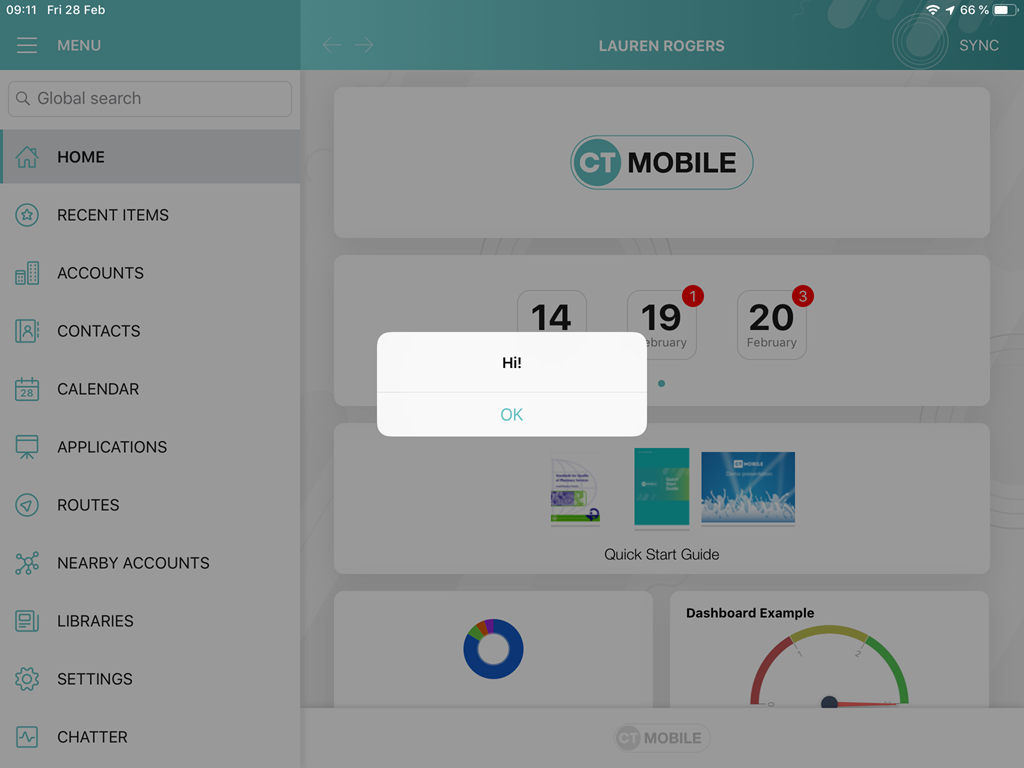
The message was sent.
The info pop-up appears if the message was successfully sent.
-
To see the status of messages, go to the Status tab.

-
If the message is successfully sent, the push notification appears on the mobile user’s device.