Quizzes
The Quizzes module allows you to fill out questionnaires and conduct surveys depending on your business goals. Only the simple quizzes are supported (there is no functionality for questions depending on the previous answer). To use the Quizzes functionality offline, install CT Mobile: Quizzes to your Salesforce organization and the Quizzes module to the app menu.
Installing the CT Mobile: Quizzes Package
Follow the direct link to install the unmanaged CT Mobile: Quizzes package into your Salesforce organization.
Go to the Quiz Management and Configuring Quizzes articles to get familiar with the Quizzes objects, settings, and features on the Salesforce side.
-
Create a quiz with the Internal or External record type.
-
Use the Questionnaire Editor to add questions of the Number, Text, Picklist, or Multipicklist type to the Quiz record and to assign users as quiz partakers.
-
Pass the Quiz online.
Adding Quizzes to the Menu
To add the Quizzes module to the app menu:
-
In CT Mobile Control Panel
-
In CT Mobile Control Panel 2.0
-
Go to CT Mobile Control Panel: App Menu tab.
-
Select the required profile in the Location picklist. To apply settings to all the profiles, select General Settings.
-
Click the
 button to open the Add menu item tool.
 -
Select the Quizzes item.
The installation link for the unmanaged CT Mobile: Quizzes package is available when you hover the Quizzes tile.
-
Click Add to close the Add menu item tool.
-
Click Save.
-
Go to CT Mobile Control Panel 2.0: App Menu tab.
-
Select the required profile in the Profile picklist. To apply settings to all the profiles, select General Settings.
-
Click Show Module Menu.
-
On the All or Application Modules tab, select the Quizzes item.
-
Click Save.
Take the Quiz
A quiz is available to conduct when:
-
the Quiz record is active;
-
the current date lies between the Start Date and End Date of the Quiz record;
-
the current user has access to Quiz objects;
-
the current user is assigned as the Quiz Partaker.
To start the quiz:
-
Tap Quizzes in the app menu.
-
Tap the appropriate Quiz record.
-
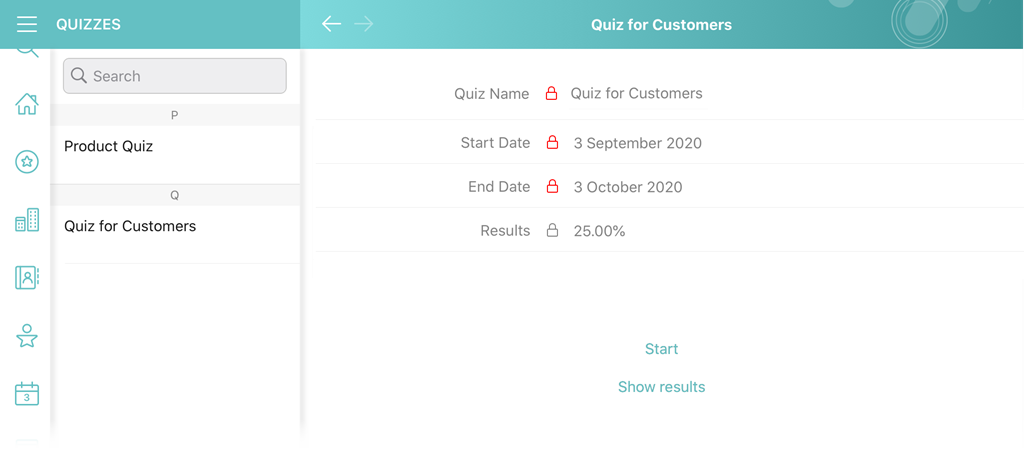
On the Start Quiz screen, tap the Start button.
-
the Start Quiz layout cannot be changed;
-
the Results field will contain the percentage of correct answers if the current user has already passed the quiz or, otherwise, the No results value.
-
the Show Results button will be displayed if the current user has passed the quiz. The Show Results checkbox should be selected on the Quiz record. Tap the button to view the results.
-
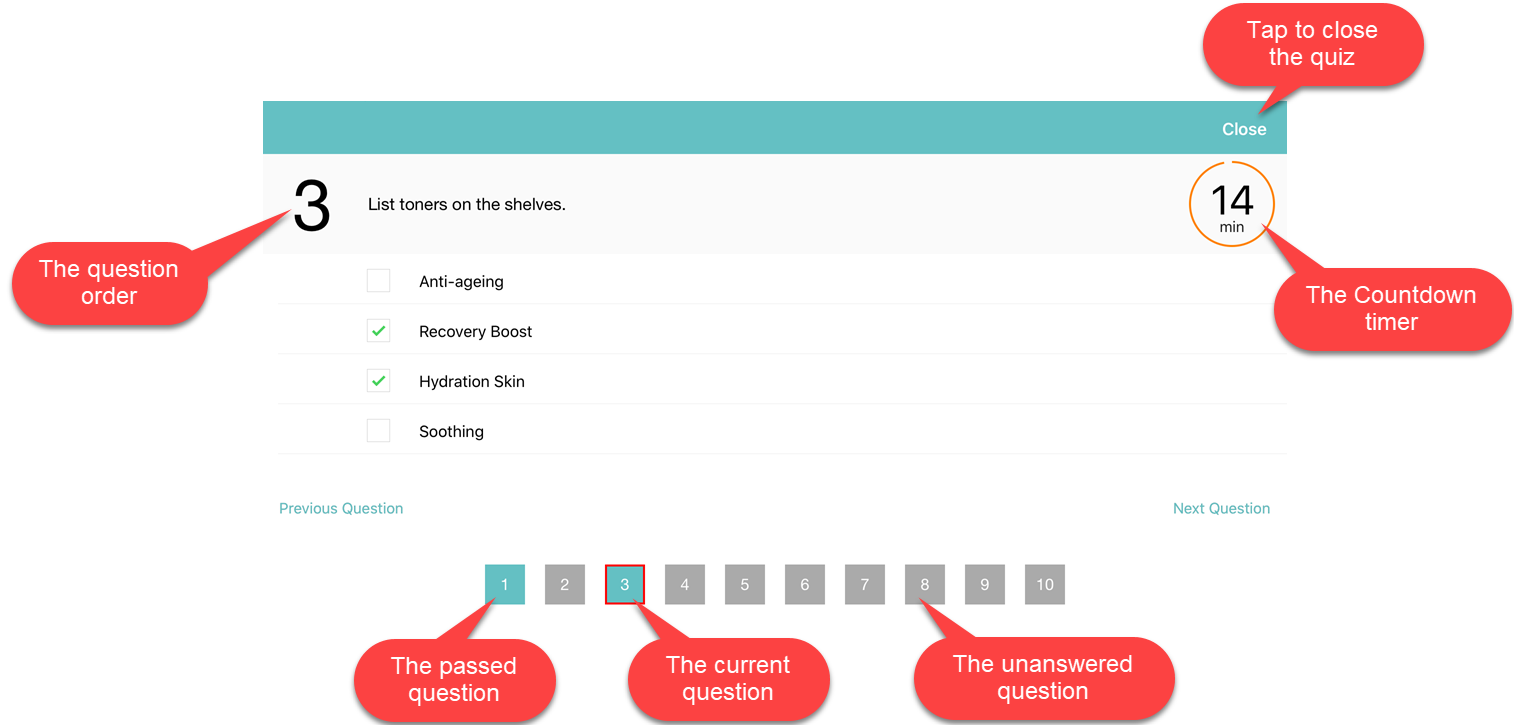
The Quiz is started. Depending on selected options:
-
the Countdown Timer will be displayed. After the quiz time elapsed, the quiz stops and is not considered as completed. Also, select the Stop Timer on app exit checkbox on the Quiz record to stop the timer if the user taps the Close button.
-
the quiz will be considered as completed after achieving the pass rate specified in the Correct Answer Percentage field of the Quiz record and be locked for the re-passing.
Complete the Quiz
After answering the questions, tap the Send button. Depending on the selected options:
-
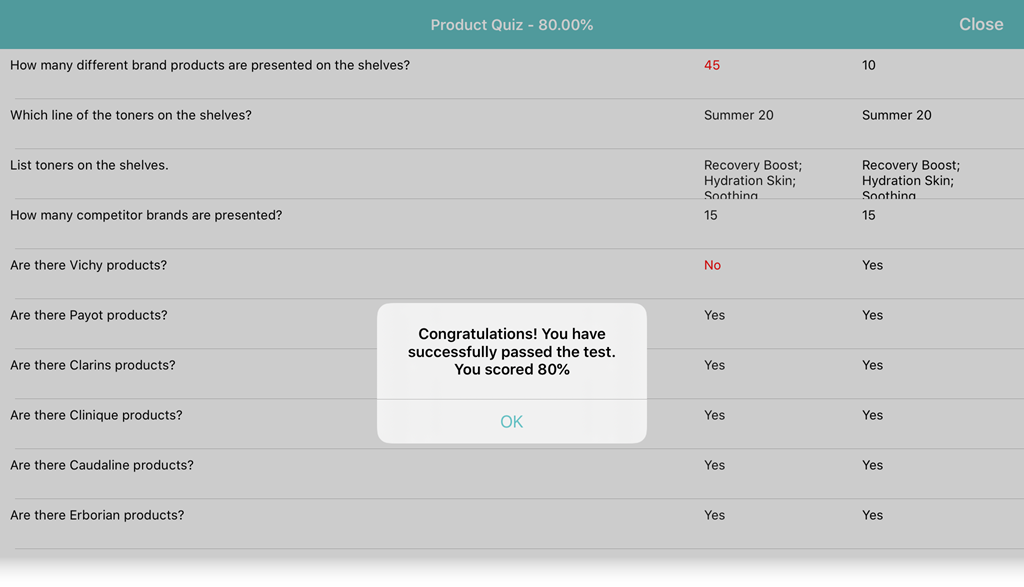
the table with the quiz results will be shown to the user if the Is Write Answers On Exit checkbox is selected on the Quiz record;
-
the correct answers will be displayed if the Show Correct Answers checkbox is selected on the Quiz record.
During each attempt to pass the quiz, the Quiz Completion record is created. It contains the quiz information, the linked Quiz Partaker record, the number of user’s attempts, the correct answers rate, the time spent, etc. The quiz is complete when the user attained the percentage of correct answers above the specific pass rate. Otherwise, the user can attempt to pass the quiz again.