CT Mobile Workflows: Use Cases
See the common use cases and important notes working with CT Mobile Workflows.
Set up CT Mobile Workflow
CT Mobile Workflows are intended to override the logic defined by the code and perform custom business scenarios triggered in the CT Mobile app.
-
Change the values of the fields on the record itself or any other record through the relationship.
-
Trigger by events, such as after create, after update, after delete, or tapping the appropriate button.
To set up a CT Mobile Workflow and steps, go to the CT Mobile Control Panel: Workflows tab.
-
CT Mobile Workflows are available offline, do not require the CT Mobile app update, and could be downloaded during any synchronization mode.
-
CT Mobile Workflow can be applied only to one record at one time. To perform multiple actions, specify them as steps of the same CT Mobile Workflow.
Important Notes
-
Please get familiar with the full description of CT Mobile Workflow and CT Mobile Workflow Step objects.
-
The Lock/Unlock record action and the before create, before update, and before delete events are not supported yet.
-
Currently, the after create and after delete events are not supported.
-
The after update event should only trigger after a record has been edited. Currently, this action also triggers when a message is created.
Simple Scenarios
Update a Record
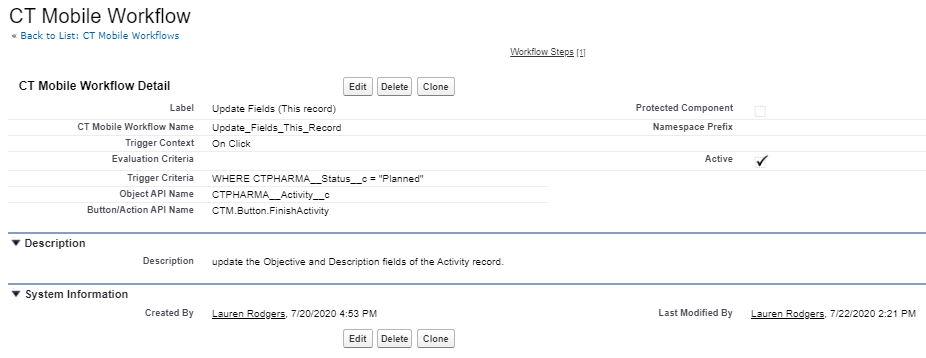
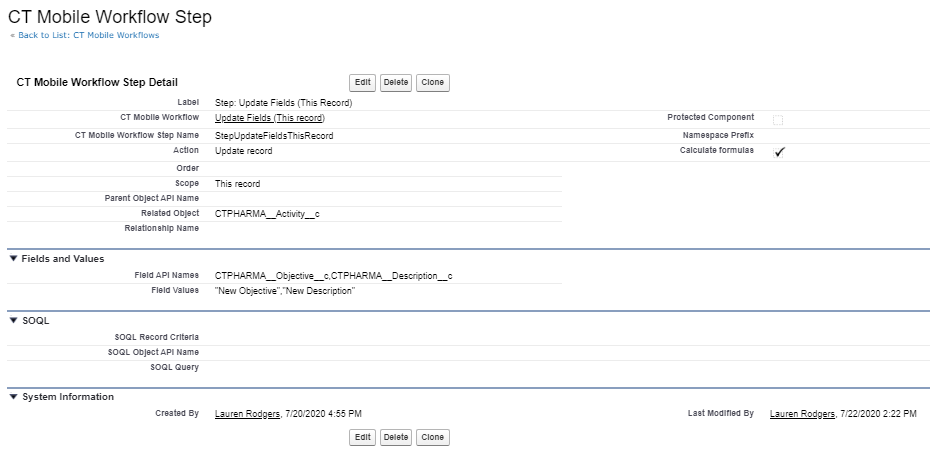
Every time the mobile user taps the Finish button, specific fields will be populated on the Activity record with the Planned status.
-
Specify the On Click action, the API name of the button, and evaluation criteria.
-
Specify the trigger criteria and API name of the object that runs the CT Mobile Workflow.
-
Specify the Update record action and the This record scope.
-
Specify the API name of the object to update its fields.
-
Specify API names of the fields of the selected object to populate with specific values.
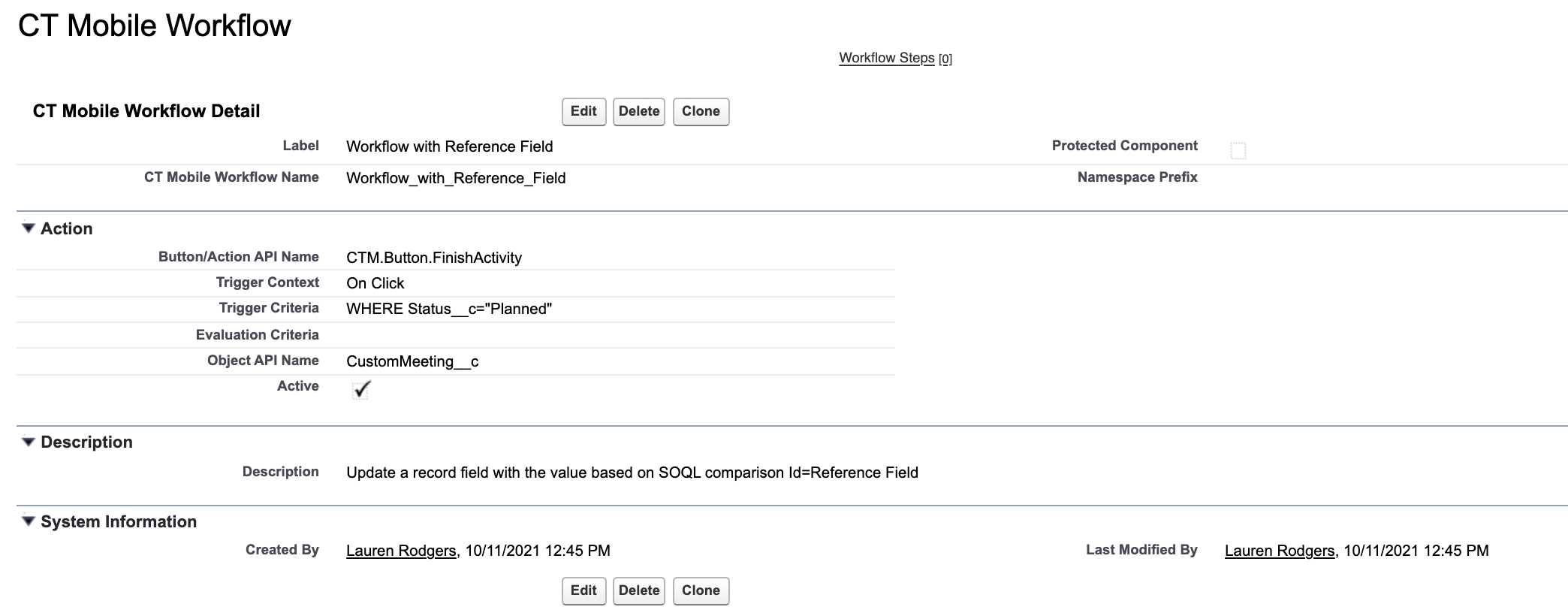
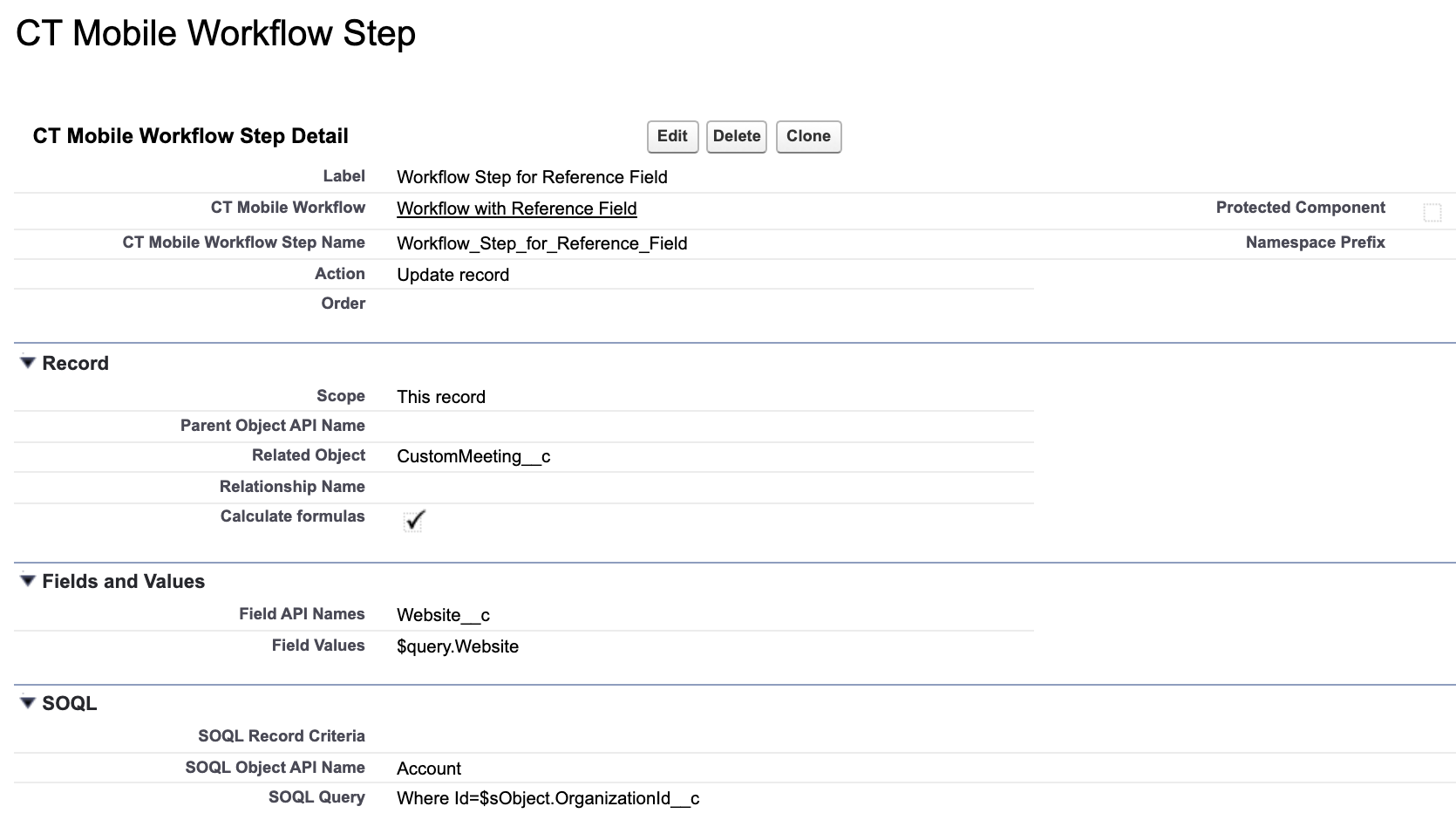
Also, you can use reference fields in SOQL query, for example, to fill out the Website field on the custom Activity record with the value from the Website field of the related Account record.
Click to view the example
CT Mobile Workflow
CT Mobile Workflow Step
Update Related Records
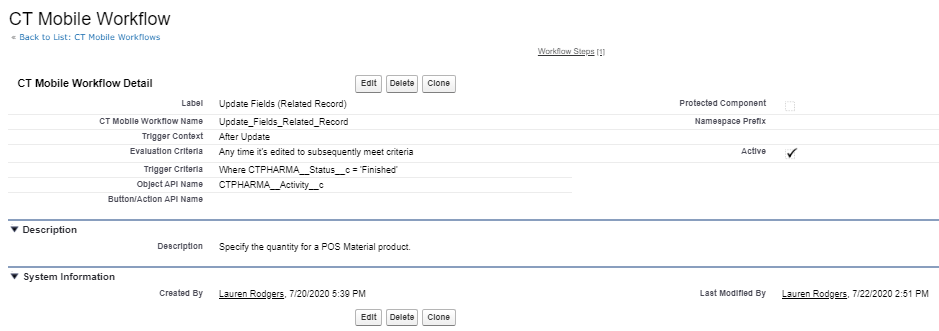
Add the quantity for a corresponding POS Material record every time the status of the Activity record has changed to the Finished value.
Create a new record of CT Mobile Workflow:
-
Specify the after update event and evaluation criteria.
-
Specify the trigger criteria and API name of the object that runs the CT Mobile Workflows.
Create a new record of CT Mobile Workflow Step:
-
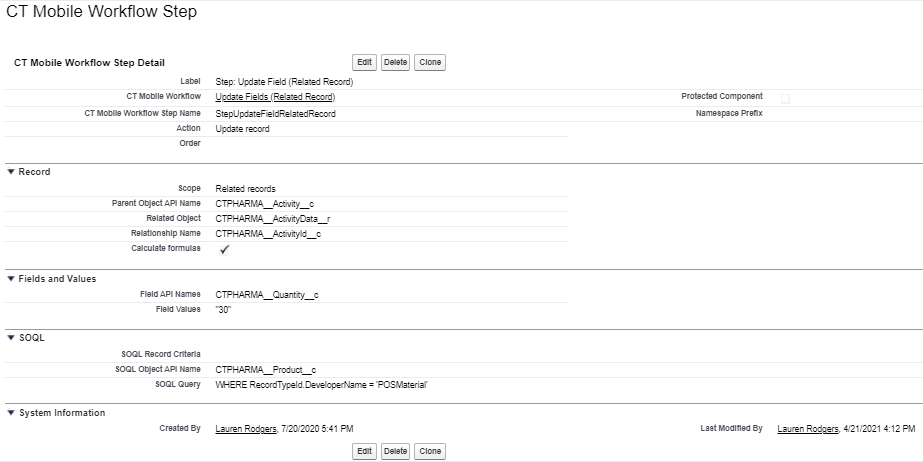
Specify the Update record action and the Related records scope.
-
Specify the related object to update its field:
-
the API name of the object that runs the CT Mobile Workflow as a parent.
-
the API name of the related object.
-
the API name of the lookup field that is responsible for the relationship between the parent and related objects.
-
-
Specify the SOQL filter for records to update:
-
the API name of the Product object as a SOQL object.
-
the SOQL query for the Product records.
-
-
Specify API names of the fields of the related object to populate with specific values.
Update a Parent Record
According to the criteria, update a parent Account record every time a user taps the Start button on the Activity record.
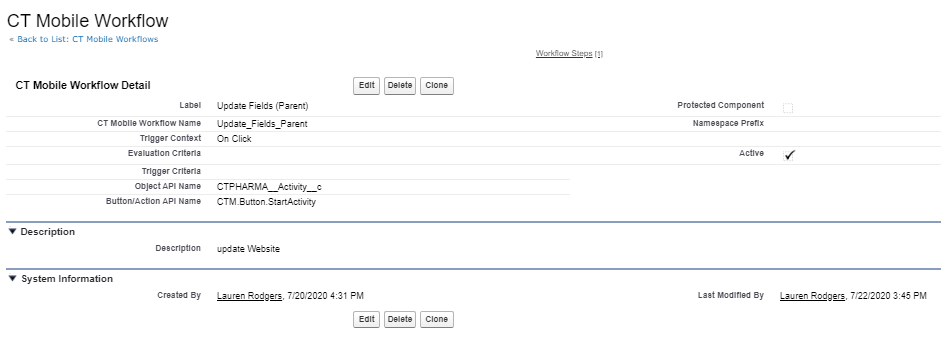
Create a new record of CT Mobile Workflow:
-
Specify the On Click action, the API name of the button, and evaluation criteria.
-
Specify the API name of the object that runs the CT Mobile Workflow.
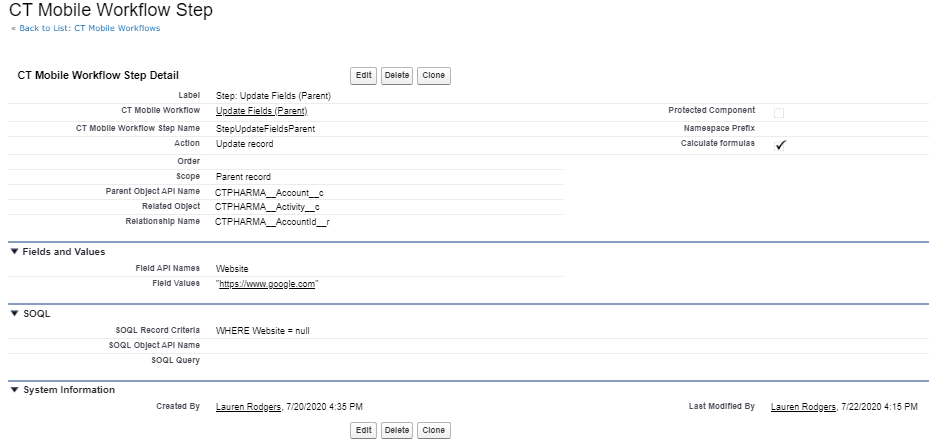
Create a new record of CT Mobile Workflow Step:
-
Specify the Update record action and the Related records scope;
-
Specify the parent object to update its field:
-
the API name of the parent object.
-
the API name of the object that runs the CT Mobile Workflow as a related object.
-
the API name of the lookup field that is responsible for the relationship between the parent and related objects.
-
-
Specify the SOQL criteria for a parent object.
-
Specify API names of the fields of the parent object to populate with specific values.
Advanced Scenario
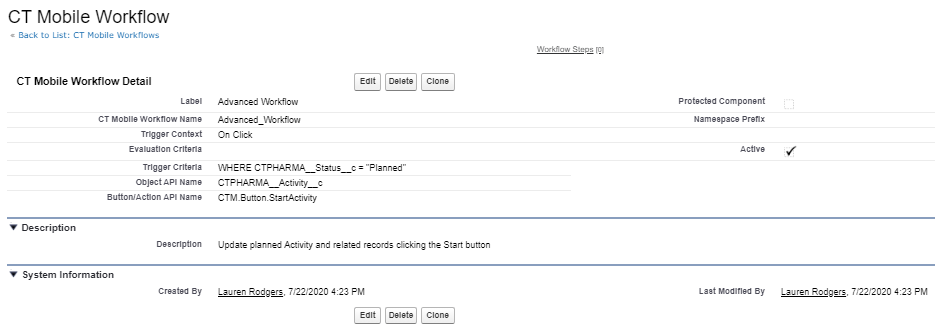
Create several sequential actions within the same CT Mobile Workflow. The order number for each action should be specified in the Order field.
Create a new record of CT Mobile Workflow to launch the serial of actions every time a mobile user taps the Start button on the Activity record with the Planned status.
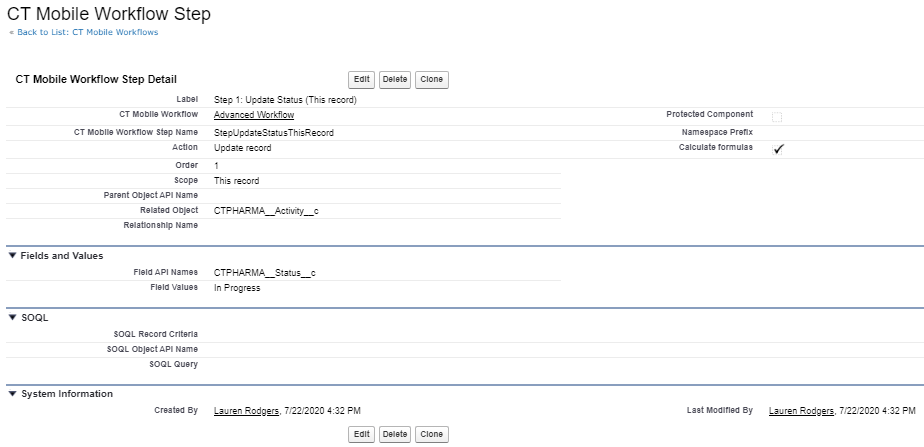
Step 1: Update the status on a record
Create a new record of CT Mobile Workflow Step to set the In Progress status for the Activity record.
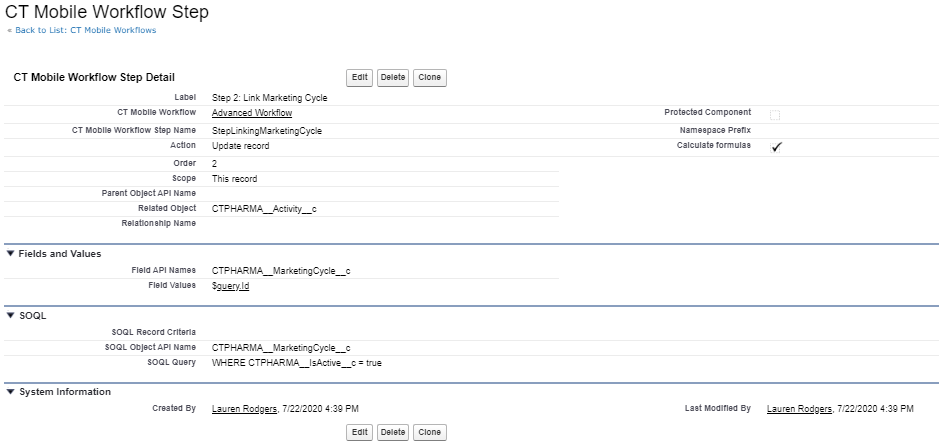
Step 2: Link a record to the active marketing cycle
Create a new record of CT Mobile Workflow Step to link the active marketing cycle to the Activity record.
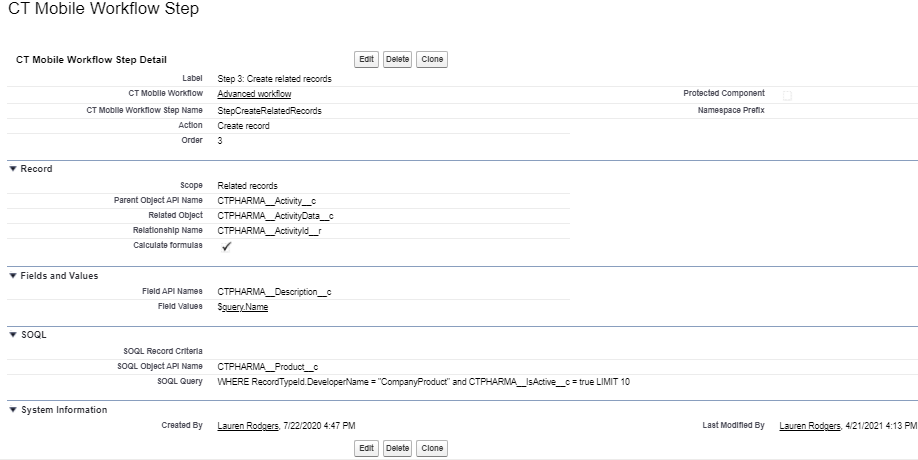
Step 3: Create related records
Create a new record of CT Mobile Workflow Step to generate the Activity Data records of the Company Product Tracking record type. Found records will be filtered by the SOQL query, and their fields will be populated with appropriate values.
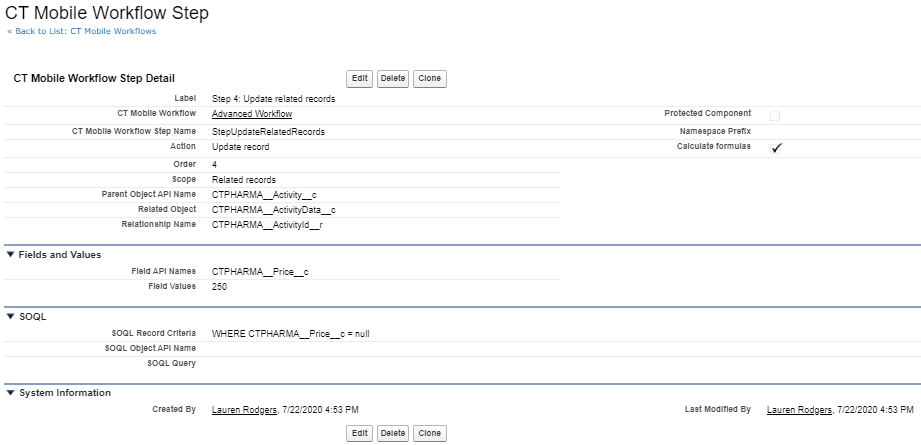
Step 4: Update related records
Create a new record of CT Mobile Workflow Step to update the Price field on the Activity Data records if this field is blank.
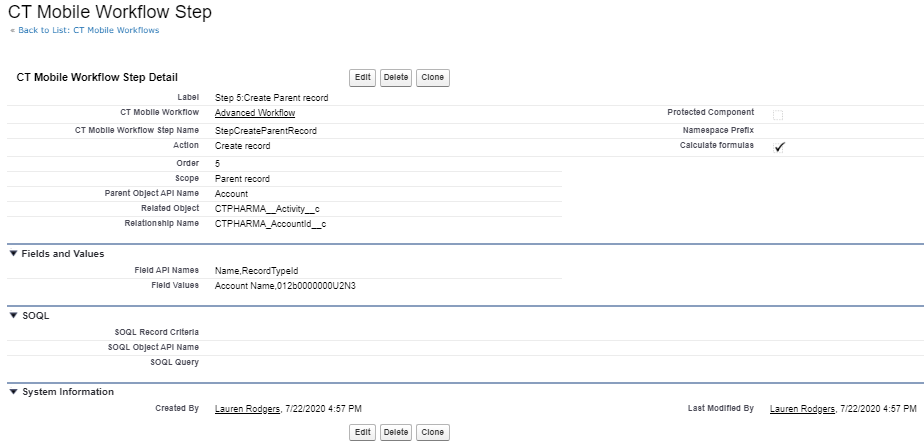
Step 5: Create a parent record
Create a new record of CT Mobile Workflow Step to generate a parent Account record and populate its fields.