Remote Detailing 1.0: UI for Presenter
A presenter can launch the CLM presentation from Salesforce or the CT Mobile app. Read Remote Detailing: F.A.Q. to check supported browsers, recommended bandwidth, and CLM-presentations features availability.
Start a Remote Detailing session
To start the meeting:
-
Click the invitation link to start the CLM presentation.
-
Click the Presenter Login button.
-
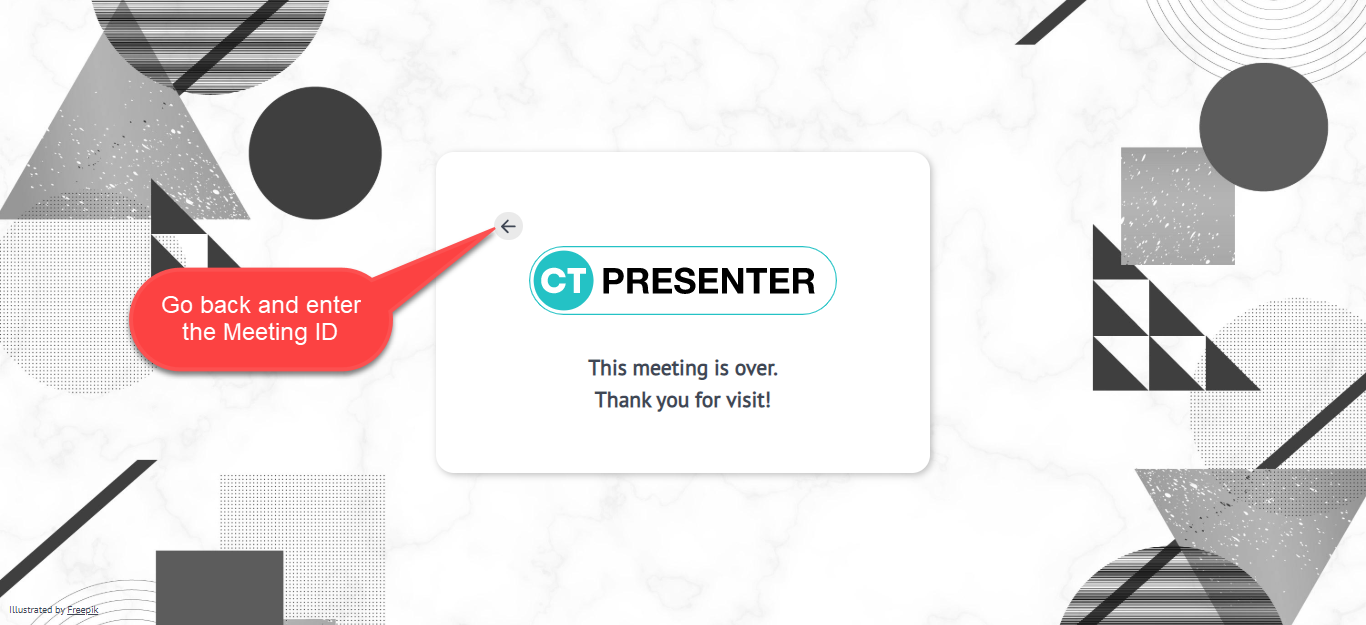
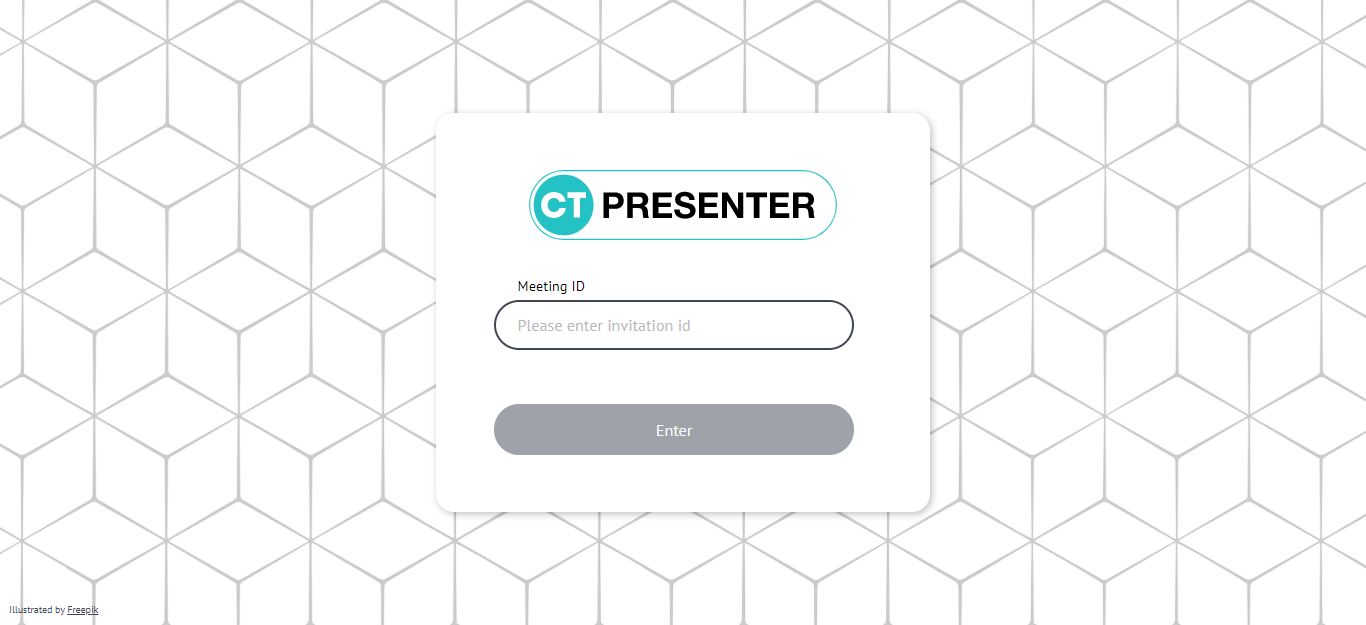
If you enter participant details and click Join, you can log out on the next screen and re-enter as the presenter. Also, you can return to the CT Presenter site and join the meeting by entering the Meeting ID.
-
If you start the Remote Detailing meeting from the CT Mobile app, you do not need to re-enter as the presenter. The CLM presentation will be launched in the new app window. You can click to
 minimize the CLM presentation and continue to work with the CT Mobile app.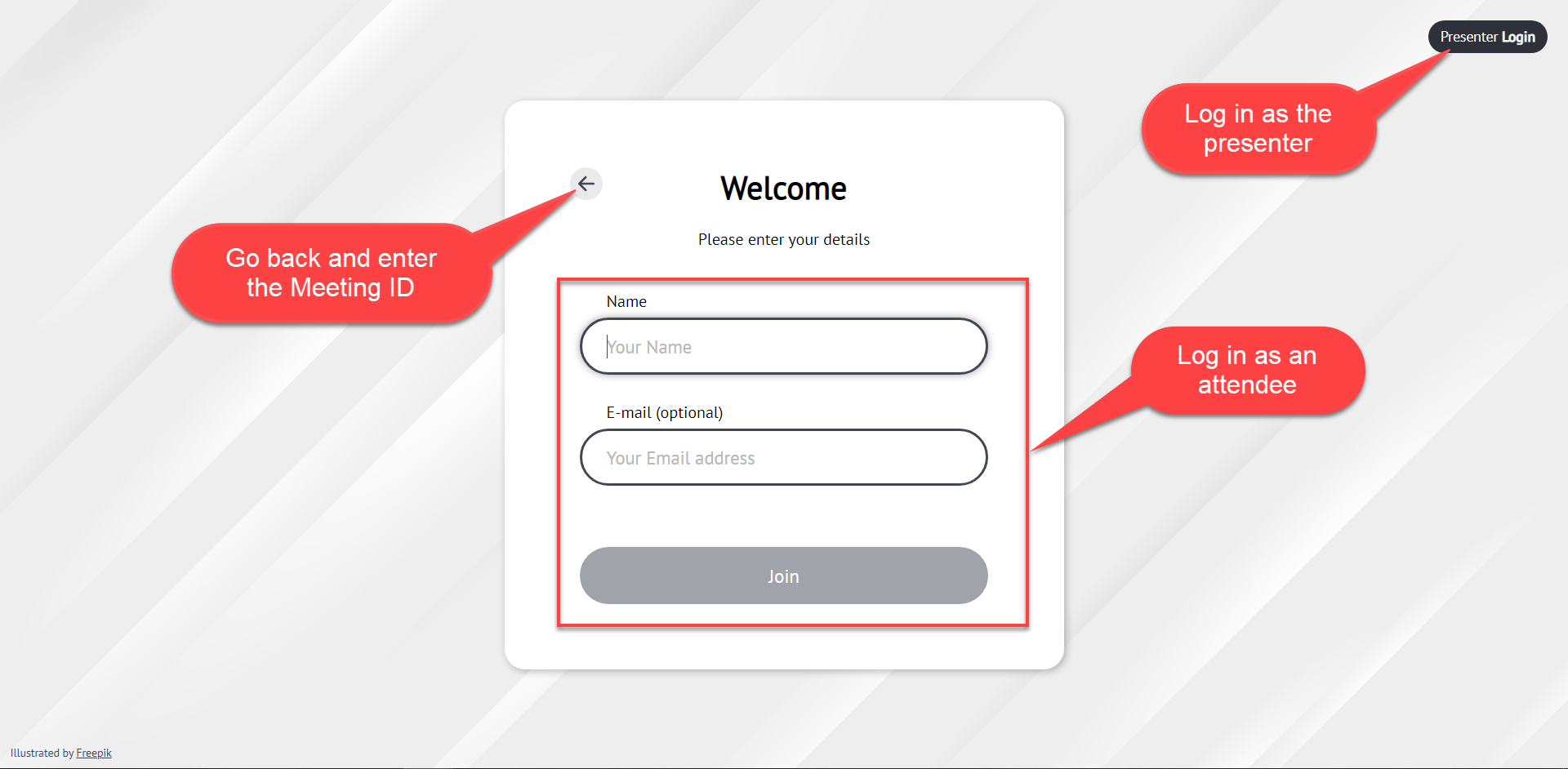
-
-
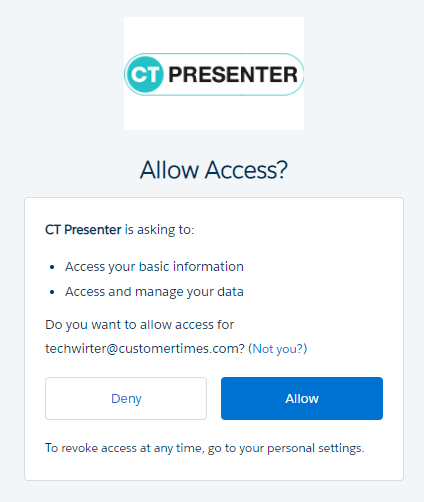
Allow the request access (if you are logging in first time in this browser).
You’re logged in and the meeting is started.
Manage a Remote Detailing session
When you started the meeting, participants can join and participate.
-
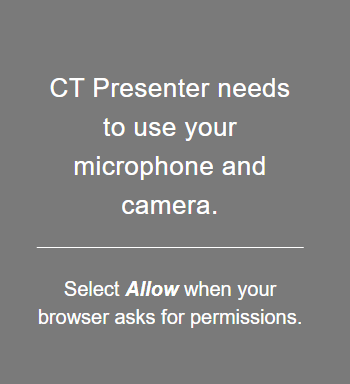
If you did not allow the camera and microphone access, the browser asks the permission.
-
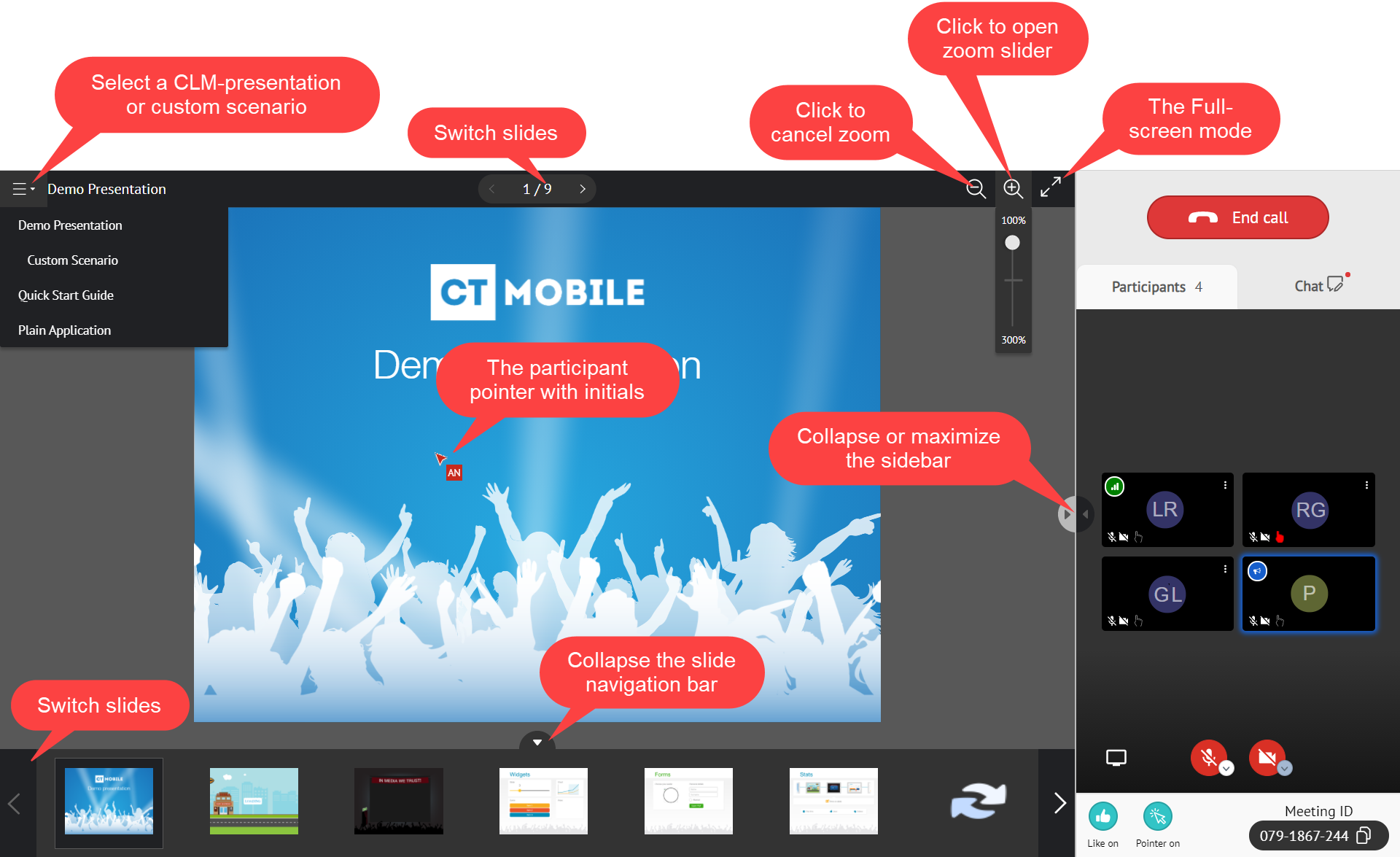
In the case of several CLM presentations, select a CLM presentation or its custom scenario if available.
-
Zoom in or out with the slider for a comfortable view, or use the pinch gesture on tablets.
-
Activate the full-screen mode or maximize the sidebar.
-
You can hide/show the slide navigation bar and the sidebar.
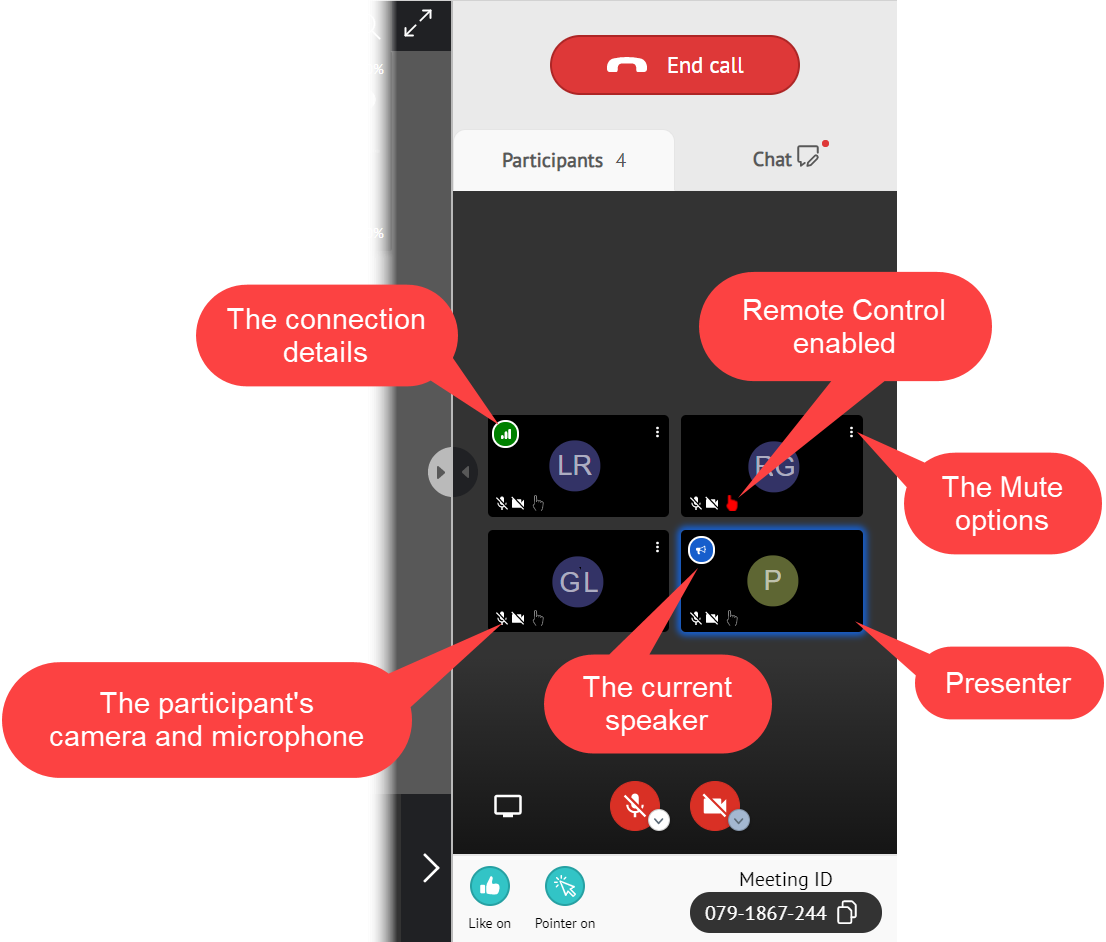
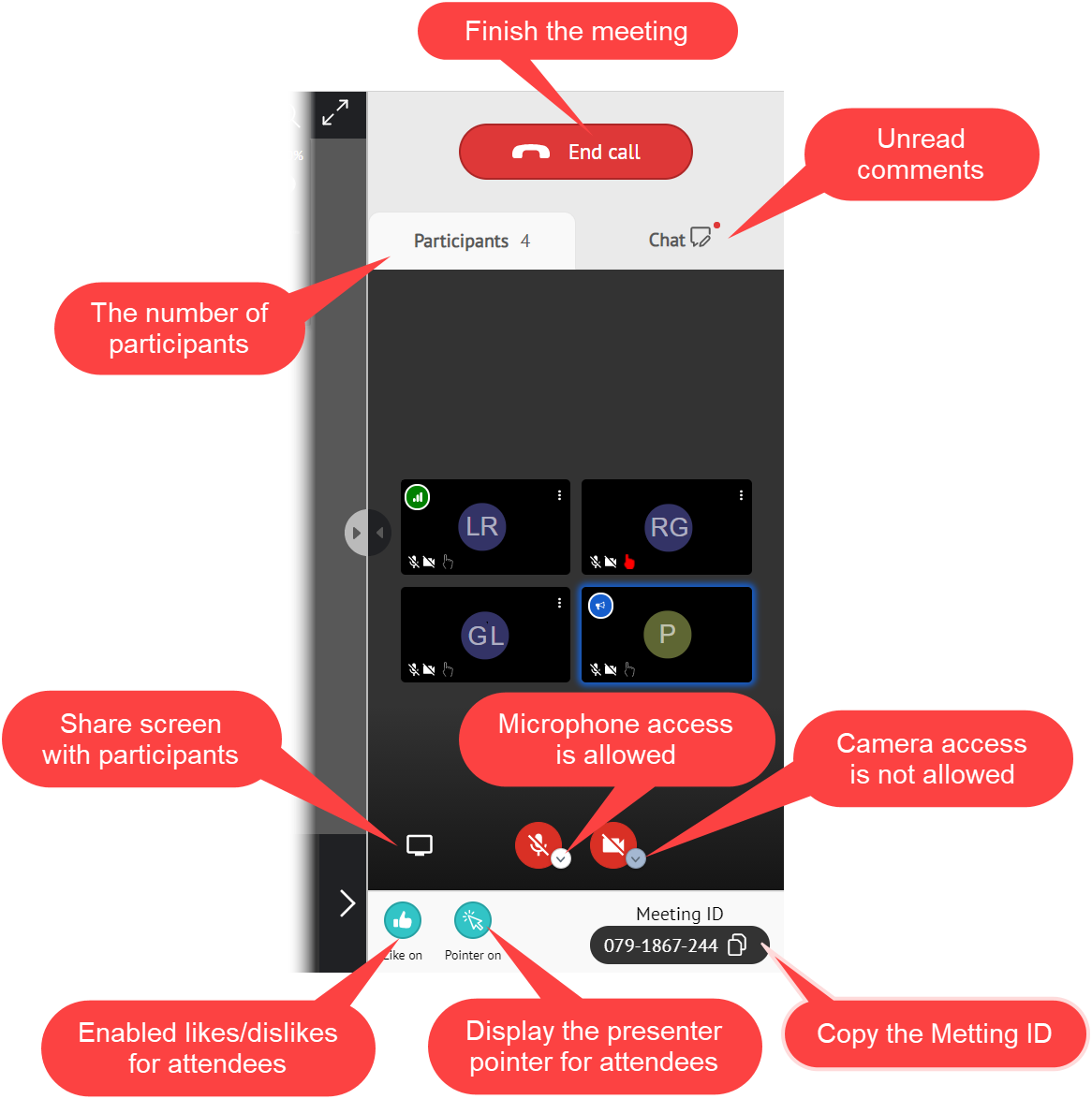
On the Participants tab of the sidebar, set up options for participants and meeting settings.
-
The Chat tab and video streaming may be enabled on the CT Mobile Control Panel: Presenter / CT Mobile Control Panel 2.0: Remote Detailing tab.
-
Click to enable the presenter’s microphone and camera. The warning will be displayed if permission is not granted.
-
If selected, the presenter pointer will be displayed for all participants.
-
If selected, permission for likes/dislikes will be granted to all participants.
To view the likes/dislikes of participants in the statistics, the Track slide likes/dislikes option should be enabled on the CLM presentation record. -
Share your screen with the participants if needed.
-
Click the End call button to finish the meeting.
The pop-ups tip you about the newly joined users and users who left the meeting.
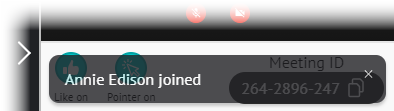
View the participant’s on the sidebar.
-
Check their network details.
-
Grant the remote control if needed. If a participant has the remote control, the participant pointer will be displayed for all participants.
-
Open the Mute options and use the slider to set up a microphone volume for the selected participant. Mute the participant or mute all participants including yourself except for the selected participant.