Geolocation Center Setup
To use features of Geolocation Center:
-
Make sure the required remote site settings are specified and active.
-
Get a Google Maps API Key(s) and enable the following APIs:
-
Maps SDK for iOS and Maps JavaScript API;
Google recommends adding a separate API key with the required restriction.
-
Configure settings in the CT Mobile Control Panel/CT Mobile Control Panel 2.0:
-
CT Mobile Control Panel
-
CT Mobile Control Panel 2.0
-
Go to the Geolocation section on CT Mobile Control Panel: General:
-
Enable Location Tracking.
-
Enable Background Location Tracking.
-
Specify the frequency of tracking a user location in seconds.
Tracking can reduce the battery life of the mobile device. The more often the location is tracked, the faster the battery will drain. -
Select the Account Geolocation and Account Full Address fields. The account geolocation settings are required to display account marks on the map in Geolocation Center.
-
If at least one of these fields is blank, activities will be available in the Geolocation Center but not displayed on the map.
-
The user should have permission to read and edit the field selected in the Account Geolocation and Account Full Address fields.
-
-
Specify Google Maps iOS API Key.
-
Specify Google Maps Javascript API Key.
-
Click Save.
-
-
Go to the Activity Setting section on the CT Mobile Control Panel: Calendar tab:
-
Specify the Activity object.
On the Activity object, there should be a field with the lookup relationship type to link the Account object.
-
Specify Activity Start Date field API name and Activity End Date field API name.
-
Specify Activity Geolocation Field API Name. The activity geolocation settings are required to display activity marks on the map in Geolocation Center.
The user should have permission to read and edit the field selected in the Activity Geolocation field.
-
Click Save.
-
-
Go to the Maps section on CT Mobile Control Panel 2.0: General:
-
Enable Background Location Tracking.
-
Specify the interval of tracking a user location in seconds.
Tracking can reduce the battery life of the mobile device. The more often the location is tracked, the faster the battery will drain. -
Select the Account Geolocation and Account Full Address Field fields. The account geolocation settings are required to display account marks on the map in Geolocation Center.
-
If at least one of these fields is blank, activities will be available in the Geolocation Center but not displayed on the map.
-
The user should have permission to read and edit the field selected in the Account Geolocation Field and Account Full Address Field.
-
-
Specify Google Maps iOS API Key.
-
Specify Google Maps Javascript API Key.
-
Click Save.
-
-
Go to the CT Mobile Control Panel 2.0: Activities tab:
-
In the Calendar Activities section, specify the Activity object.
On the Activity object, there should be a field with the lookup relationship type to link the Account object.
-
Specify Start Date Field and End Date Field.
-
Specify Geolocation Field. The activity geolocation settings are required to display activity marks on the map in Geolocation Center.
The user should have permission to read and edit the field selected in the Geolocation Field.
-
Click Save.
-
-
-
Assign permission to read, create, and edit the following fields of the Sync Log object to users:
-
clm__Date__c
-
clm__Description__c
-
clm__GeoTiming__c
-
clm__GeoTracing__c.
-
-
Obtain the push identifier and enable push notifications.
-
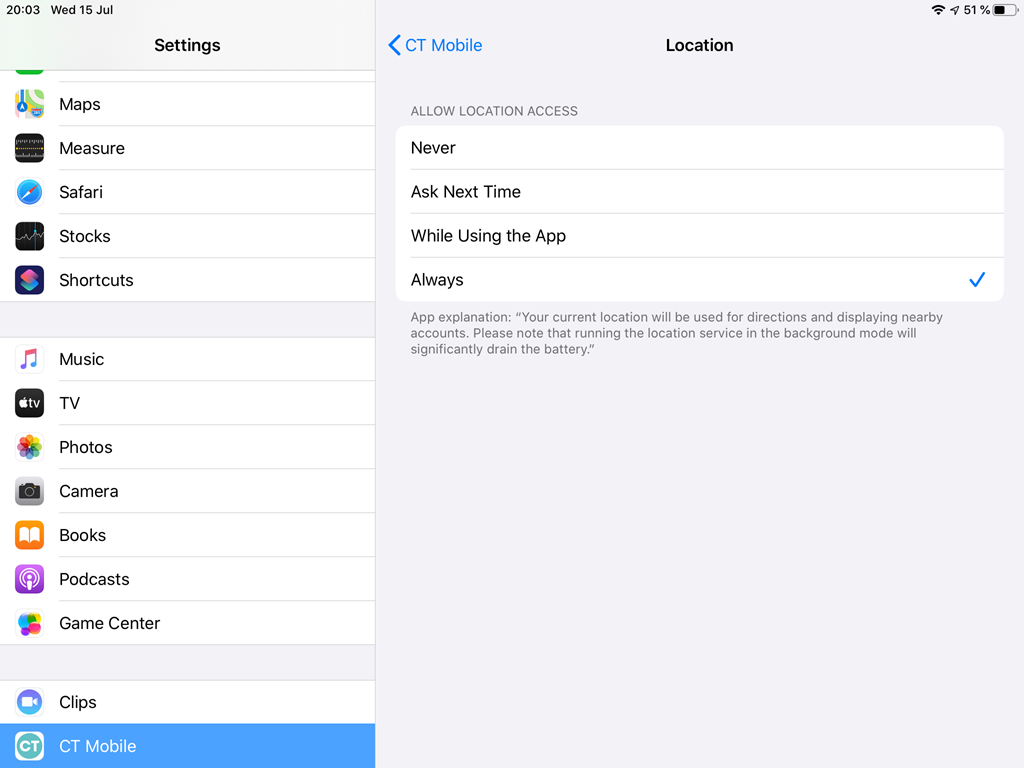
Enable location tracking for the CT Mobile app in Settings on a mobile device.
-
The current location of the user will be logged when the CT Mobile app is active or collapsed. Logging does not occur when the CT Mobile app is unloaded from the memory.
-
To determine the approximate location, the iOS geolocation services are using GPS and Bluetooth (where available), as well as available Wi-Fi access points and cell towers.
-
The setup is complete.