CT Mobile Control Panel: Workflows
The Workflows tab is intended to set up CT Mobile Workflows. According to the selected profile, the settings on this tab will be saved in the records of the CT Mobile Workflow and CT Mobile Workflow Step.
Click to view the interface
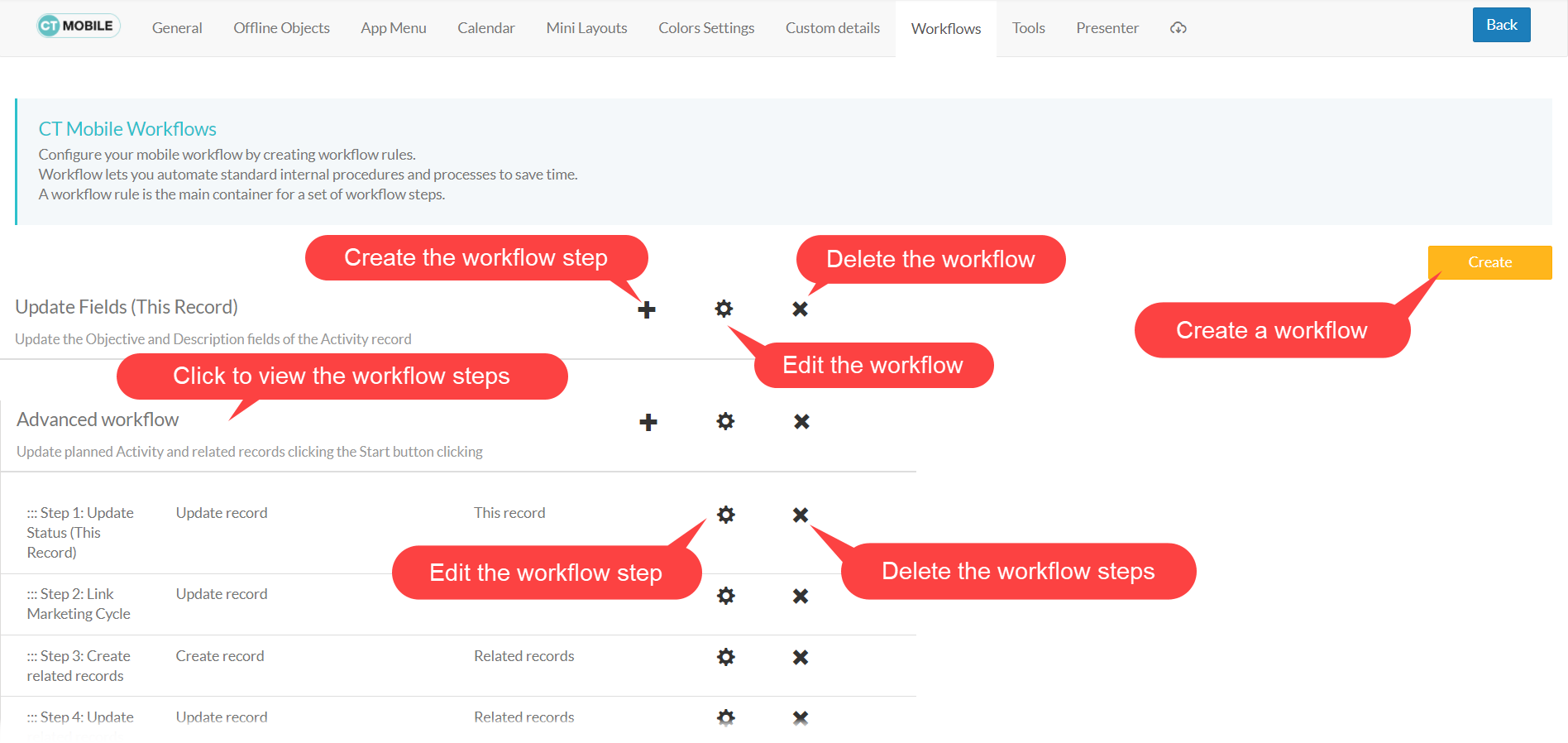
CT Mobile workflows allow managing the business logic of the mobile application using no code. Workflow is a set of automated steps invoking in a specified order and with specified criteria, and consists of two objects:
-
Workflow rule: describes the condition (trigger) of the workflow. Available triggers:
-
After updating an object.
-
On Click—for interface objects.
-
-
Workflow step: describes an action on a record(s). Available actions:
-
Updating current record, parent record or related records.
-
Creating new related record or parent record.
-
Deleting related record or parent record.
-
Capturing and updating geo-position of the current record, parent record or related records.
| Workflow rules override application settings. For example, if you apply a workflow to the Start visit button, the parameters specified in the CT Mobile Control Panel (removing a geo position, blocking a record or updating date fields) will not be processed. |
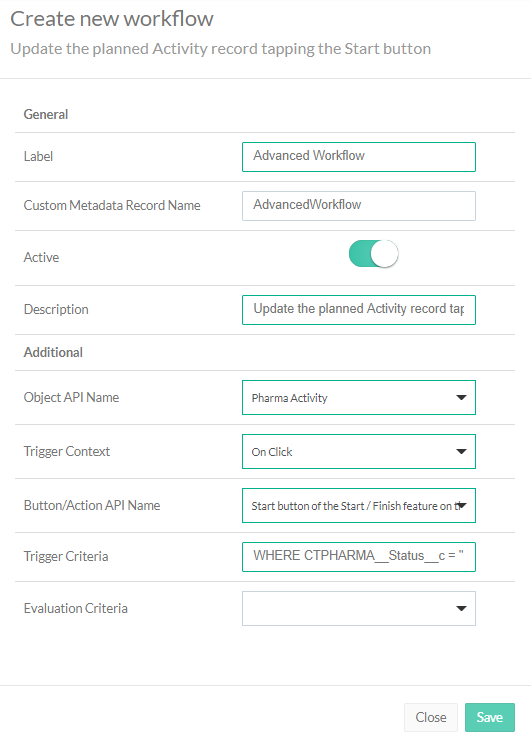
Create a CT Mobile Workflow Rule
First, create a CT Mobile workflow rule:
-
Click Create.
-
Fill out the fields. Refer to CT Mobile Workflow Field Reference to know more about each field.
-
Click Save.
The CT Mobile workflow rule is created.
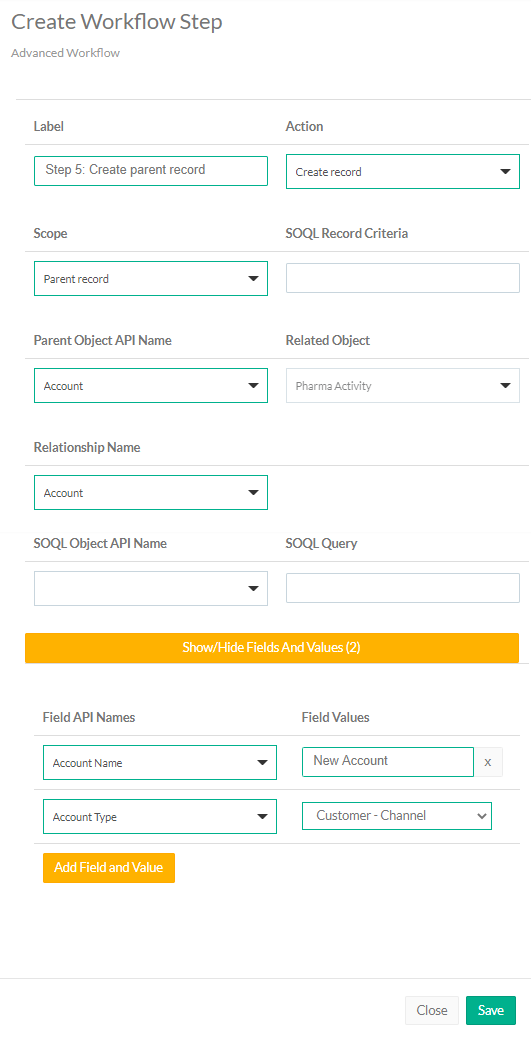
Create a CT Mobile Workflow Step
Then, create CT Mobile workflow steps:
-
Click
 next to the appropriate workflow.
 -
Fill out the fields. Refer to CT Mobile Workflow Step Field Reference to know more about each field.
-
Click Save.
The CT Mobile workflow step is created. Repeat the actions 1–3 to create as many steps as you need.
See also: