Remote Detailing 2.0: Audio Recording
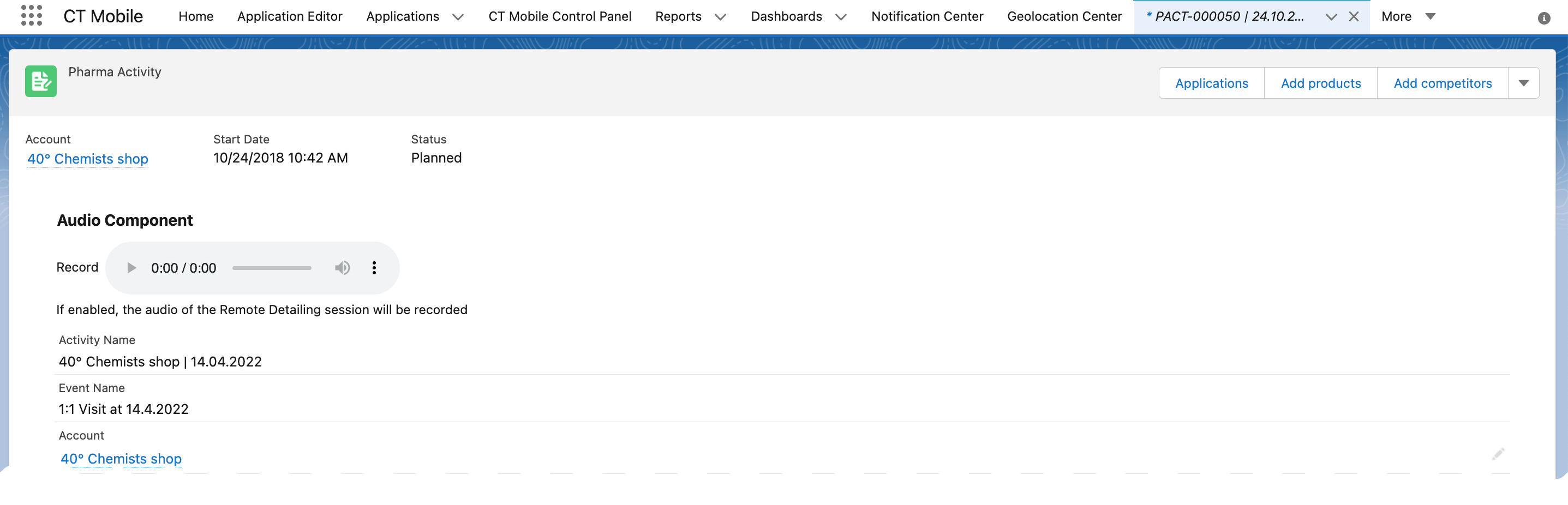
The presenter can make the audio recording of the Remote Detailing meeting that will be attached to the corresponding Activity record.
| Currently, only one audio record can be stored. |
To set up an audio recording for the Remote Detailing meetings:
-
Go to Setup → Security → CSP Trusted Sites.
-
Click New Trusted Site:
-
In the Trusted Site Name field, enter any name.
-
In the Trusted Site URL field, enter
https://api.rd.ctclm.com.
-
-
Click Save & New.
-
In the Trusted Site Name field, enter any name.
-
In the Trusted Site URL field, enter
https://rd-presentations.s3.eu-west-1.amazonaws.com.
-
-
Click Save.
-
Go to Setup → User Interface → Lightning App Builder → click Edit next to the desired record page, for example, Pharma Activity Record Page.
-
In the Lightning App Builder, drag the Audio Component section from the components tab on the left to the record page layout.
-
Click Save.
-
Go to the CT Control Panel: Presenter tab and enable the Audio Record Enabled checkbox (or Audio Recording toggle in the CT Mobile Control Panel 2.0: Remote Detailing tab).
-
Click Save.
The setup is complete.
During the meeting, tap the Record On/Off button to start the audio recording. The record will be available on the corresponding Activity record page.