Attaching Files in the Notes & Attachments Section
| To use this feature in a custom CT Mobile app, developers should specify it in their project. |
Supported file formats:
-
video: .avi, .wmf, .3gp, .mp4
-
images: .jpg, .bmp, .png , .heic. Images in .heic format will be automatically converted to .jpg
-
documents: .txt, .doc, .rtf, .docx, .pdf
-
audio: .mp3, .wma, .wav
-
other: .rar, .zip, .apk
Use the standard  button to attach any files to the records of offline objects.
-
By default, the Accounts, Contacts, and Activity objects are available.
-
To attach a file, the Notes & Attachments section for the appropriate offline object should be available in the CT Mobile app.
-
The file size must not exceed 20 MB.
To attach a file in the Notes & Attachment Section:
-
Open the appropriate file.
-
Tap the
button. -
Tap Copy to CT Mobile.
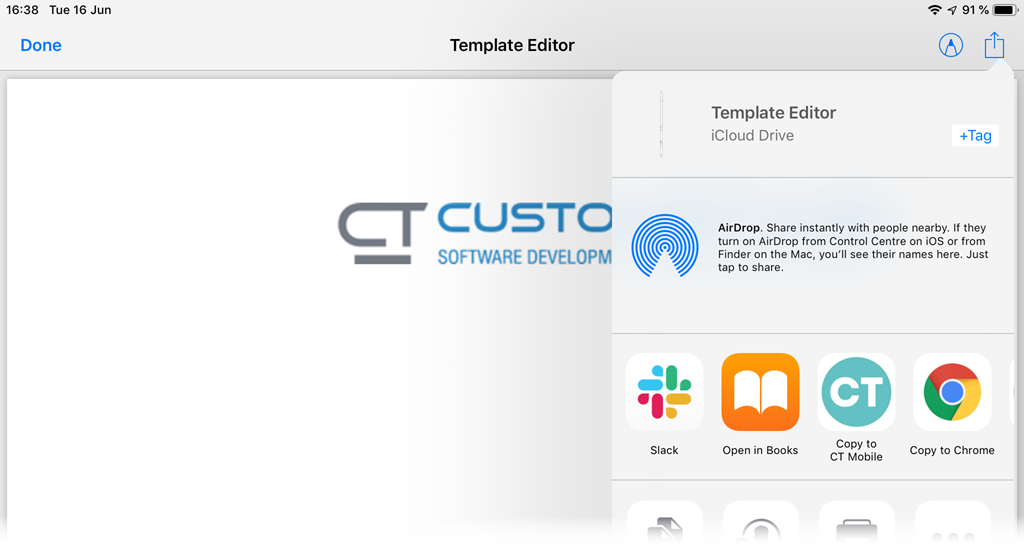
-
In the pop-up, select an object and then a record to attach the file.
When you tap an object without the Notes & Attachment section, the «There are no records to which you can attach the file» info message will be displayed. 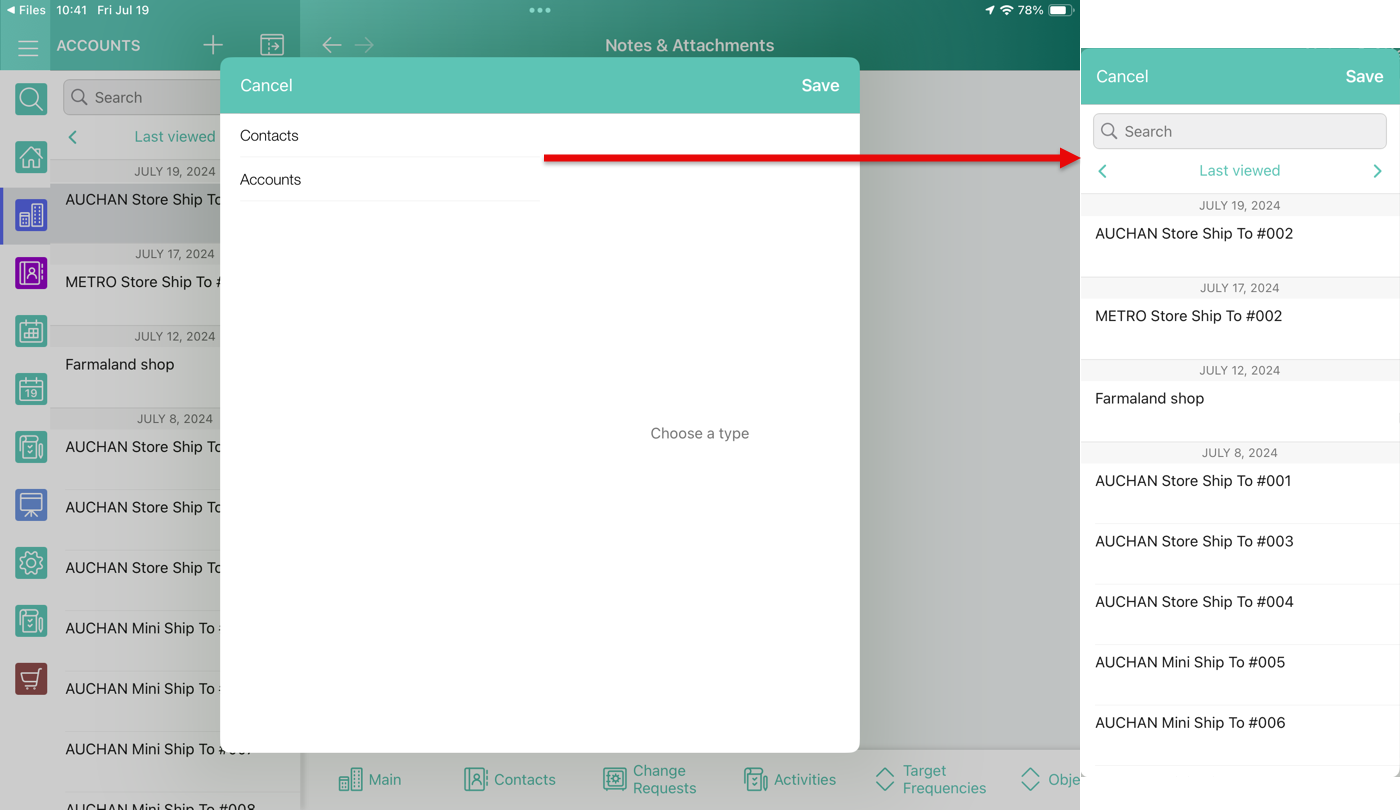
-
Click Save.
The record’s main screen is open. Go to the Notes & Attachment section of the record and perform quick record synchronization to update the record in Salesforce.