List Views
A list view allows you to see a filtered list of records in the CT Mobile app.
List Views
The list views are pulled from Salesforce and available in:
-
Offline objects, such as Accounts, Contacts, Opportunities, etc.
-
Reference fields, for example, for Accounts, Contacts, Opportunities, etc.
-
The Routes module for the Activity objects.
-
The Nearby Accounts module for Account, Activity, and Contact objects.
-
The Calendar module for Activity and Account objects.
-
The Applications module (if list views are created).
Some list views in CT Mobile do not come from Salesforce:
-
All{Object Name}
-
Last viewed
Values are displayed based on the Last Viewed Date field retrieved from Salesforce. When a user opens a record in the CT Mobile app, the value in the Last Viewed Date field of this record is also changed, but this change will not be sent into Salesforce.
-
My{Object Name}
Records available to the user according to the sharing rules will not be displayed.
-
This week
-
Today
If the object has no standard Name field, the column of the field with the nameField = true attribute will be displayed. In other cases, the ID column will be displayed.
List views are displayed above records in the left menu.
-
The last selected list view of one of the offline objects or modules will be displayed the next time a user opens the corresponding offline object (including reference fields) or module.
-
Tap the current list view to select another list view.
-
To pin the selected list view as default, tap
 .
. -
Tap Done to save changes.
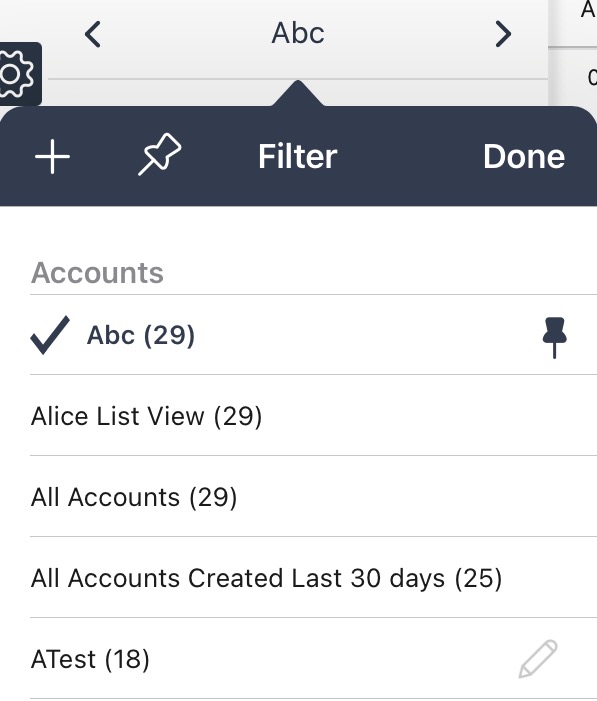
-
-
To add a new list view, tap
 . In the list view creation form, specify its parameters:
-
Filter name: type desired list view name.
-
Filter conditions:
-
tap
 to add new list view condition
 -
tap
 to expand list view conditions
-
-
In the Record preview, tap
 to select columns to display in the records list.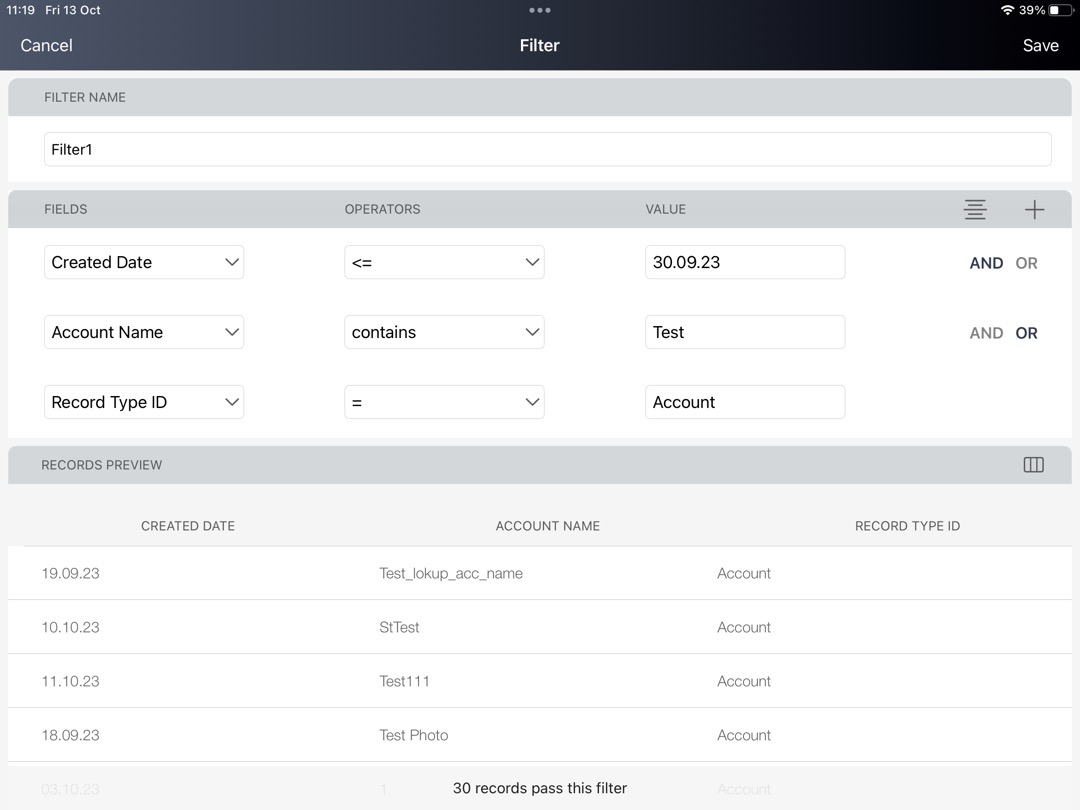
-
Tap Save to create a list view.
-
-
You can sort records by configured sorting fields.
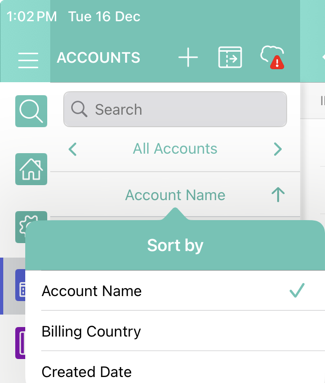
-
Records (regardless of case) are displayed in the list views if they match the filter criteria, for example, Record and RECORD. Next to the list view name the counter of records is displayed.
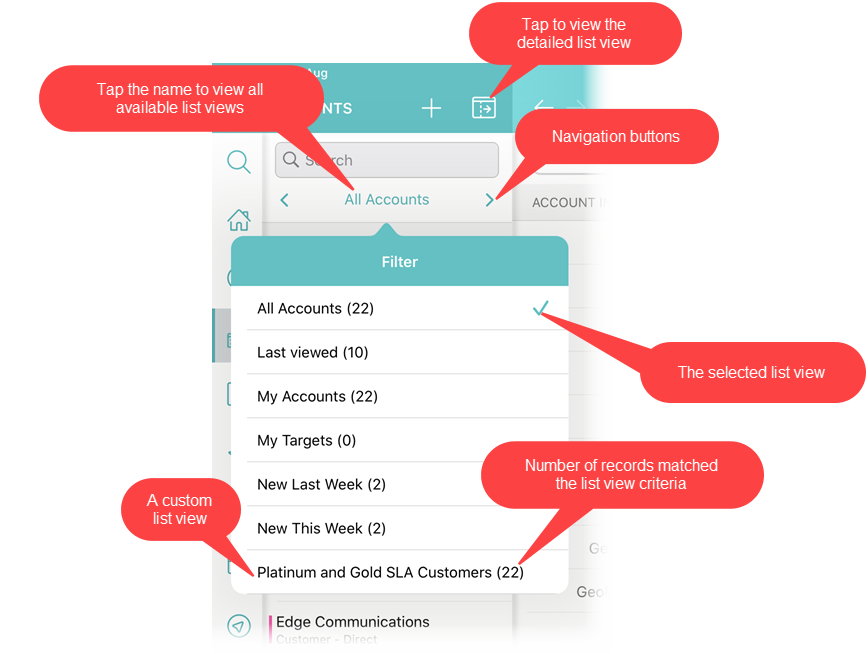
Detailed List Views
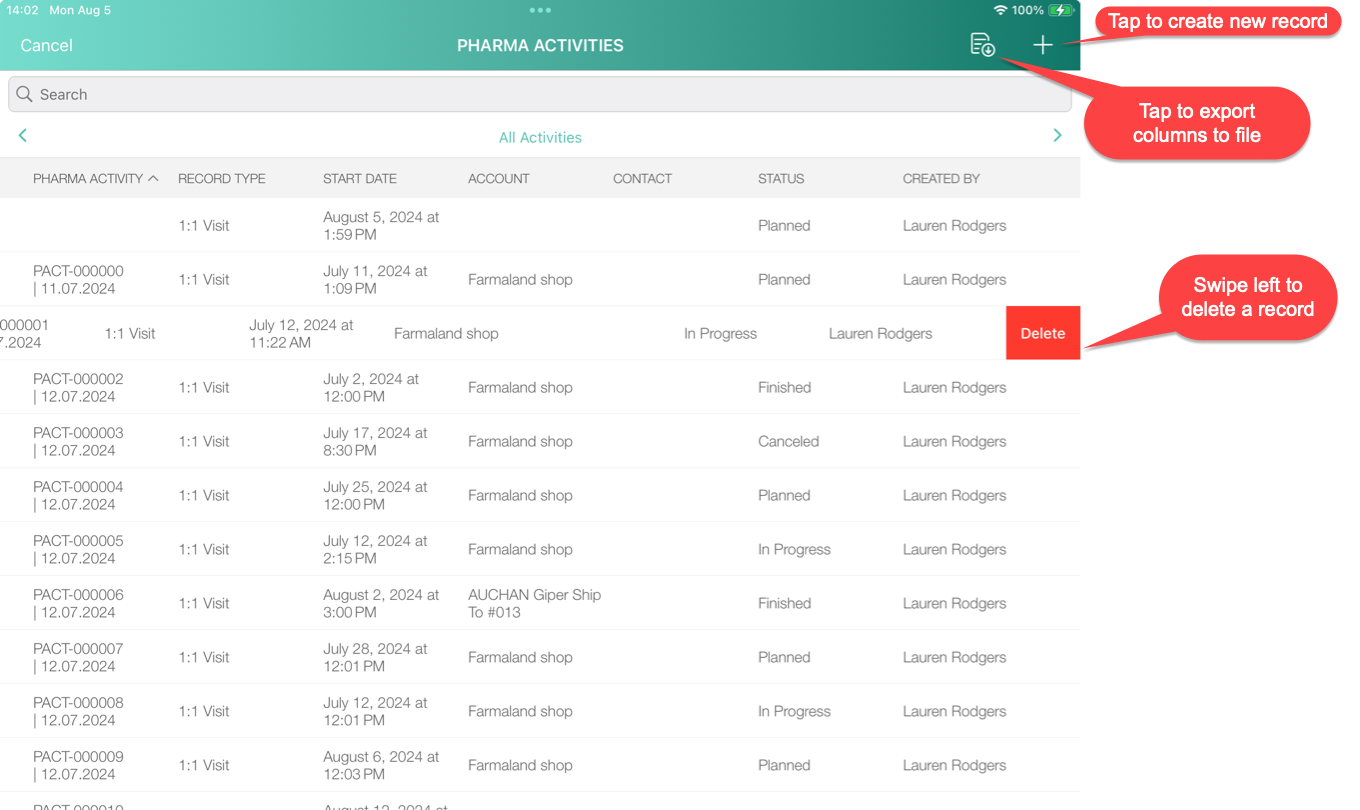
Tap  to maximize the list view display:
-
create and delete records if permission is granted;
-
the created or opened record will be displayed in the standard view with the left record list;
-
sort records by columns. Records will be sorted in the alphabetic order regardless of the case;
-
search records;
-
the last selected list view will be saved and displayed the next time a user opens the corresponding offline object;
-
export columns to a CSV file if the setting is enabled.
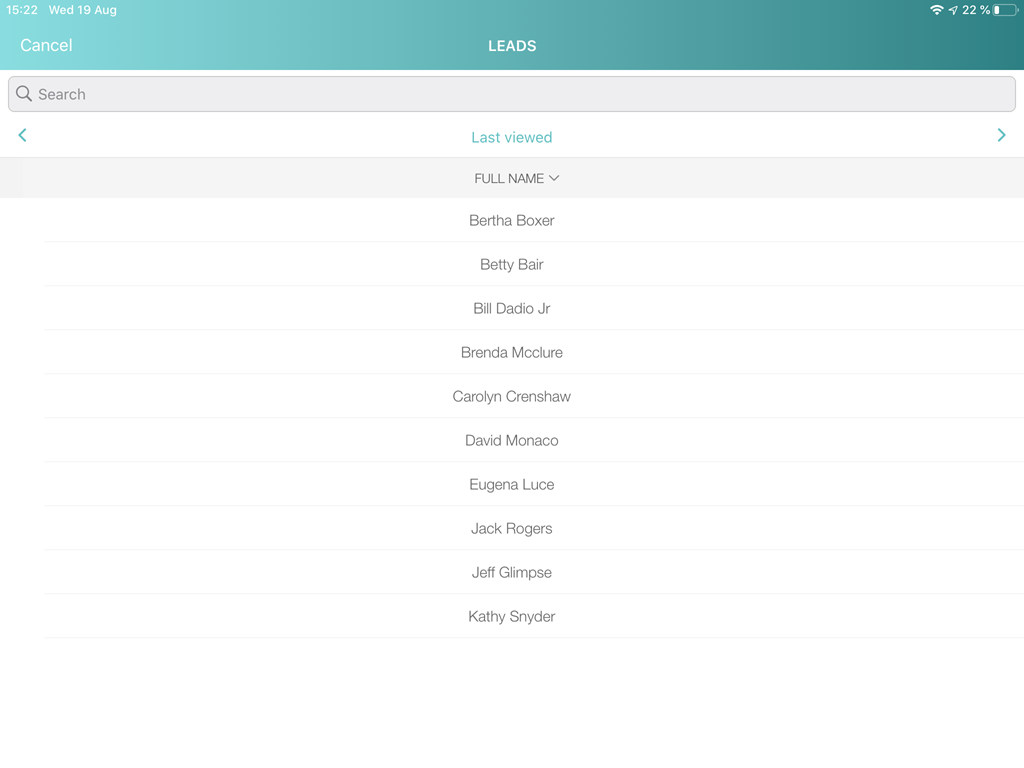
For the list views not sourced from Salesforce, only the Name column is displayed.
If the object has no standard Name field, the column of the field with the nameField = true attribute will be displayed. In other cases, the ID column will be displayed.
Mobile List Views
The user can create list views in the CT Mobile app.
-
The conditions for the mobile list view will be written in the CTM User Settings record after the sync process.
-
To create the mobile list view, the user should have permission to create the CTM User Settings records and edit its fields.
-
To edit the mobile list view in the CT Mobile app, the user should have permission to edit the CTM User Settings object and its fields.
To create a mobile list view:
-
Tap the required menu item to open it.
-
Tap the list view name in the left records list.
-
Tap the Plus button in the pop-up with the available list views.
-
Under the Filter Name section, specify the list view name.
-
Next, specify the criteria.
-
Customize the Records Preview section by adding the required fields to display the matched records.
You can set list of fields displayed in criteria setting and Records preview section by specifying them in the Fields field of the CTM Settings → Menu object.
-
-
Tap Save.
The mobile list view is created. According to permissions, the mobile user can or not edit the mobile list view.