Grouping Records
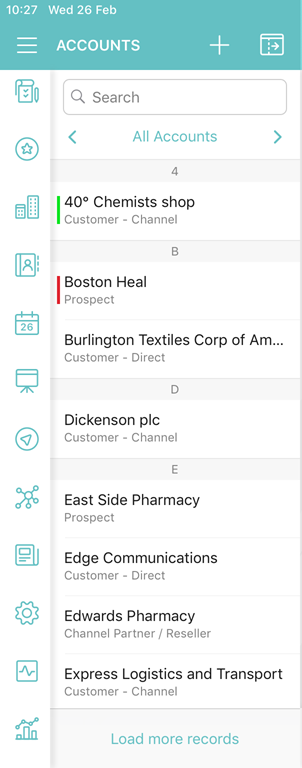
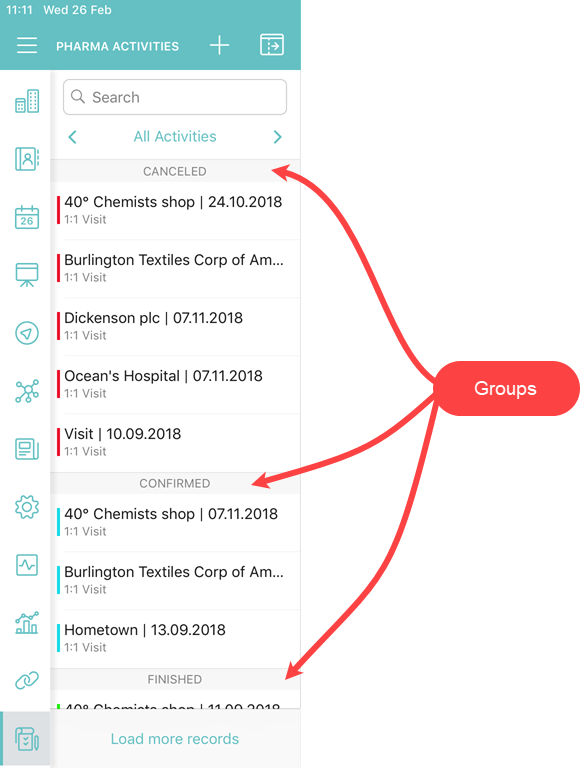
Initially, the records are grouped in alphabetical order. You can rearrange the records according to the selected field.
To group the records:
-
In CT Mobile Control Panel
-
In CT Mobile Control Panel 2.0
-
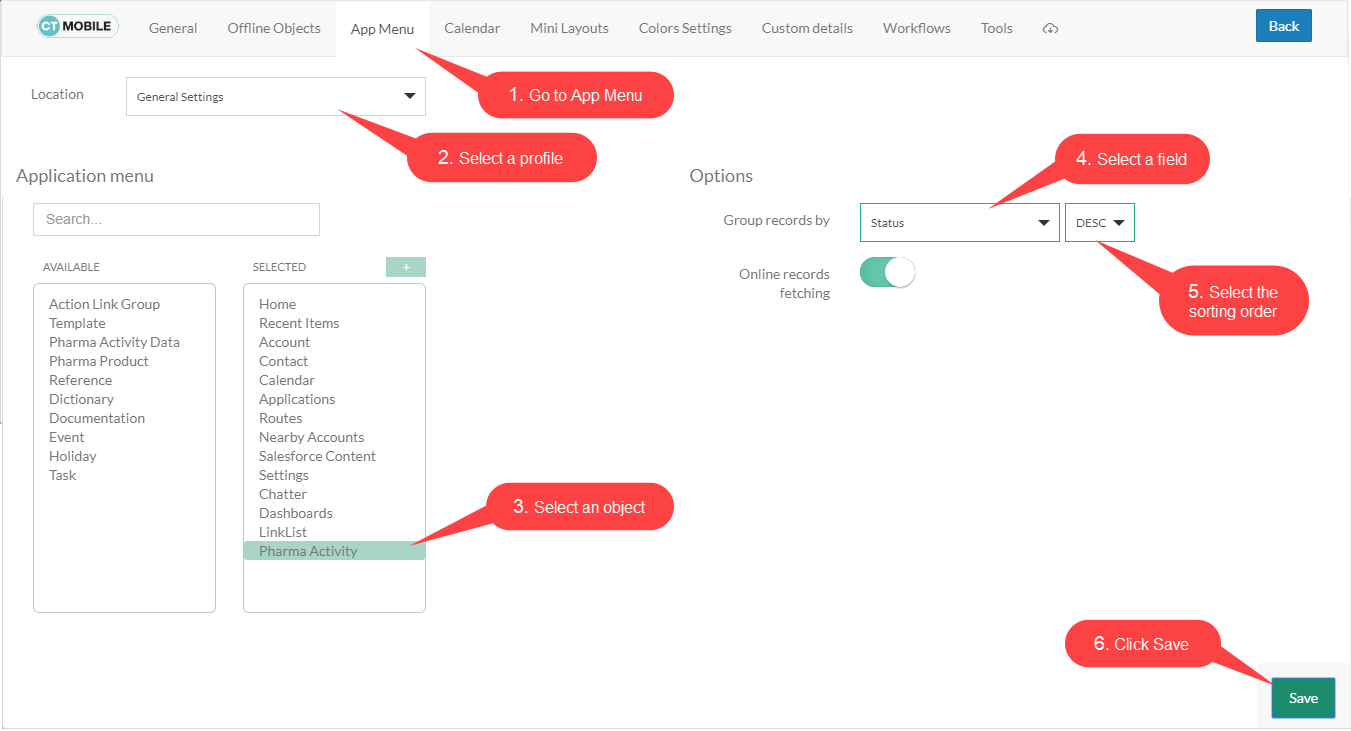
Select the required profile in the Location picklist. To apply settings to all the profiles, select General Settings.
-
Select an object from the Selected list.
-
In the Group records by picklist, select a field for grouping.
-
Select ascending/descending records grouping order.
-
Click Save.
-
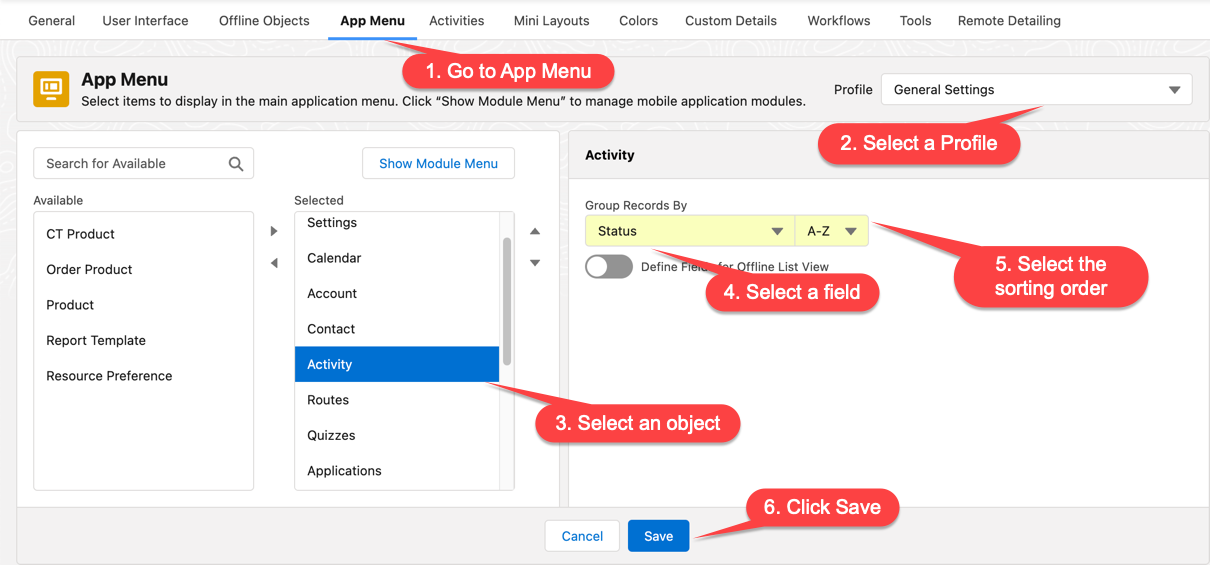
Go to the CT Mobile Control Panel 2.0: App Menu.
-
Select the required profile in the Profile picklist. To apply settings to all the profiles, select General Settings.
-
Select menu item from the Selected list.
-
If you selected a module, for which grouping records is available:
-
In the Group records by picklist, select a field for grouping.
-
Select ascending/descending records grouping order.
-
-
If you selected an offline object:
-
Turn on Sorting and Grouping in List View.
-
Select Grouping from the Type picklist.
-
Click Add Grouping Field.
-
Select field from the Group Records By picklist and their grouping order (A-Z or Z-A).
You can add only one grouping fields. Click
 to remove selected field.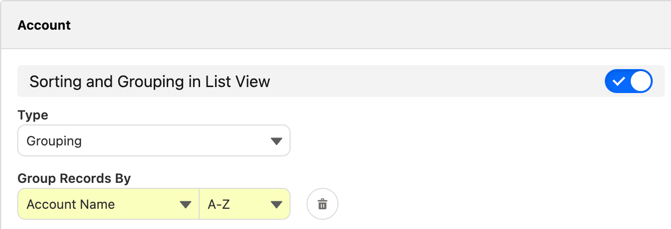
-
-
-
Click Save.
Launch the full synchronization on the mobile device to apply changes. Records are grouped according to the specified field.
| Alphabetical Order | Grouping Oder |
|---|---|
|
|