Application PIN Code
Use a passcode to log in to the CT Mobile app and to call the application if it was collapsed or closed.
The passcode can be set up only for the current session, and it is stored locally on a mobile device. It means that you should set up a passcode anytime you log out of the mobile application.
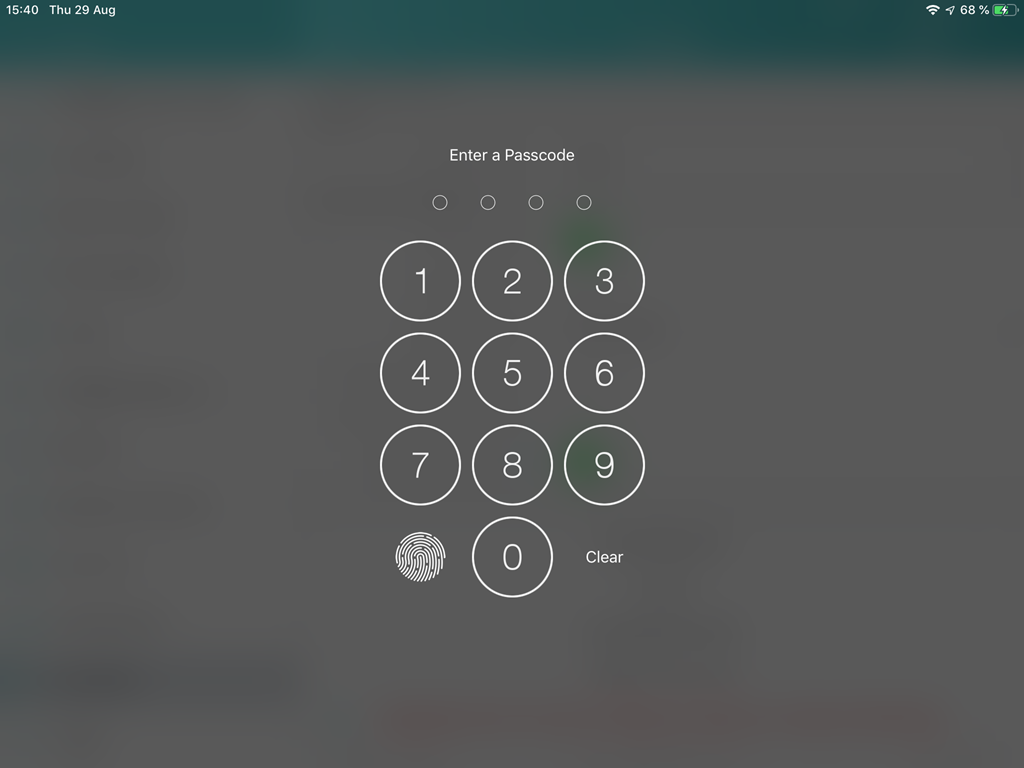
Set Up a Passcode
To enable a passcode:
-
In CT Mobile Control Panel
-
In CT Mobile Control Panel 2.0
-
Set a flag next to Passcode Enabled.
-
Click Save.
-
Launch the full synchronization on the mobile device to apply the settings.
-
Enable the Passcode toggle.
-
Click Save.
-
Launch the full synchronization on the mobile device to apply the settings.
The setup is complete.
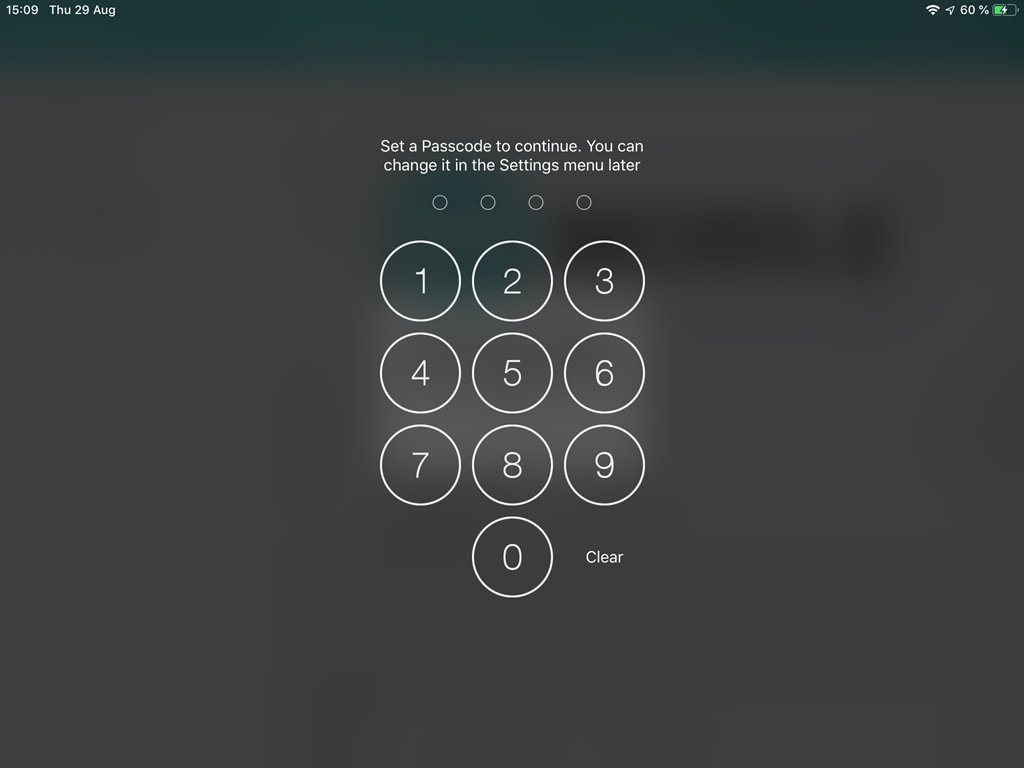
When you run CT Mobile on the mobile device, the application asks you to set a passcode after logging in and allowing access to the requested parameters.
-
Enter a new passcode.
-
Re-enter a passcode.
The passcode is set. Next, the application asks you to send anonymously logs and diagnostic data.
If a mobile user enters the wrong passcode three times in a row, the database will be reset.
Change a Passcode
To change the passcode:
-
On a mobile device, open the CT Mobile app.
-
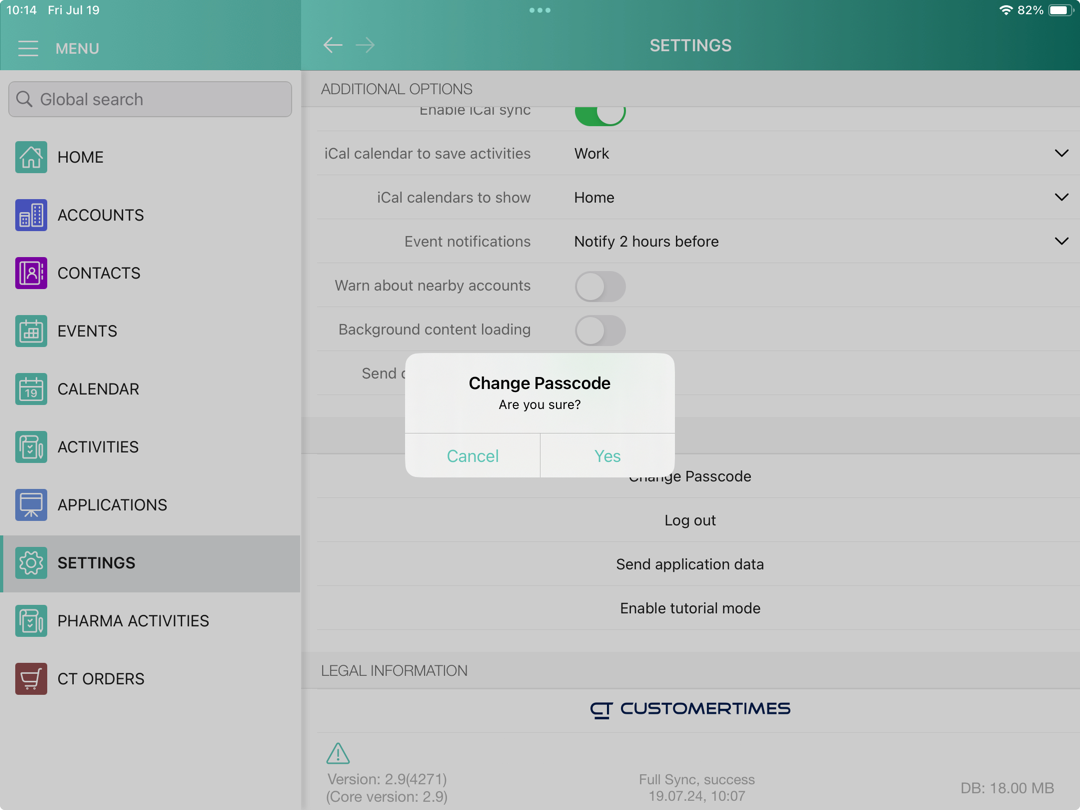
Tap Settings on the main menu.
-
Tap Change Passcode. The confirmation pop-up will be open.
-
Tap Yes.
-
Enter the current passcode.
-
Create and enter a new passcode.
-
Re-enter a new passcode.
The passcode is changed.