Mobile Layouts: Maps
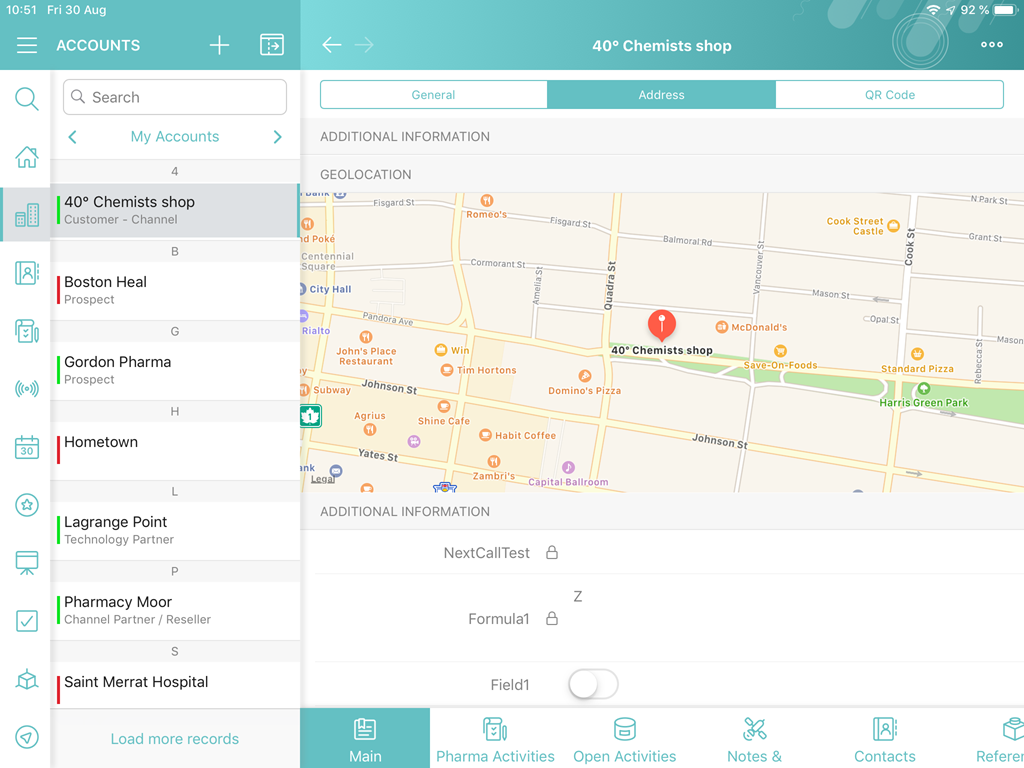
The Maps widget allows you to display a map fragment with an object location.
Specify Google Maps API Key
If you selected Google Maps service as the map type in the CT Mobile app settings, you need Google Maps API Key.
To specify the Google Maps API key:
-
Generate the Google Maps API key.
-
Go to the CT Mobile Control Panel: General / CT Mobile Control Panel 2.0: General tab and insert the generated key in the Google Maps iOS API Key field.
-
Click Save.
The setup is complete.
Specify Account Address
The Maps widget can display Accounts on the map using address information from the specific field:
-
field with the Geolocation type to store geolocation data such as account coordinates.
-
field with the Formula type to store an account address as text and geocoding.
CT Mobile checks if there is geolocation data in the field with the geolocation type. If the geolocation data is empty, the location will be set according to the address in the field with the formula type.
To set an account address:
-
Go to Setup → Object Manager → the Account object.
-
Click Fields & Relationships.
-
Create a new field.
-
To use account coordinates, create a field with the Geolocation type.
-
To use geocoding, create a field with the Formula type.
-
-
Go to CT Mobile Control Panel: General / CT Mobile Control Panel 2.0: General:
-
In the Account Geolocation Field picklist, select the field with the Geolocation type.
-
In the Account Full Address Field picklist, select the field with the Formula type.
-
-
Click Save.
The setup is complete.
Add Accounts to the Menu
To add the Account to the app menu:
-
In CT Mobile Control Panel
-
In CT Mobile Control Panel 2.0
-
Go to CT Mobile Control Panel: App Menu tab.
-
Select the required profile in the Location picklist. To apply settings to all the profiles, select General Settings.
-
Drag and drop Accounts from the Available column to the Selected.
-
Click Save.
-
Select the required profile in the Profile picklist. To apply settings to all the profiles, select General Settings.
-
Move Accounts from the Available column to the Selected.
-
Click Save.
The setup is complete.
Add Maps to the Mobile Layout
To add the Maps widget to the mobile layout:
-
Go to Setup → Object Manager → select the Account object.
-
Click Page Layouts and select the mobile layout.
-
Drag and drop the Section element to the area below the Address section.
-
In the Section Properties window, enter MAPS in the Section Name field, and select the 1-Column layout. Ensure that the Display Section Header On checkbox is enabled.
Do not translate the MAPS section name. It is responsible for displaying Maps on the mobile layout and should be left intact. 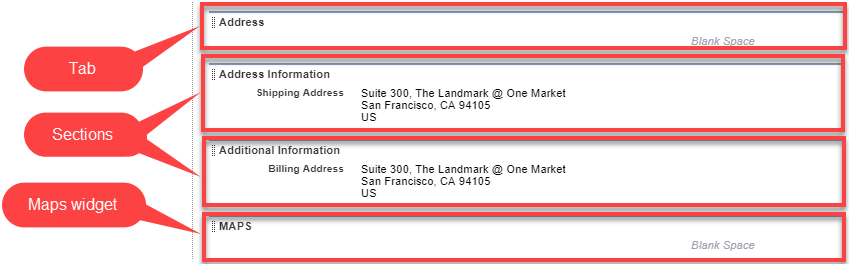
-
Click OK.
-
Drag and drop the Blank Space element below the MAPS element.
-
Click Save.
The Maps widget is configured.
Use the Determine Location button to determine the current device location data.