Chatter Push Notifications
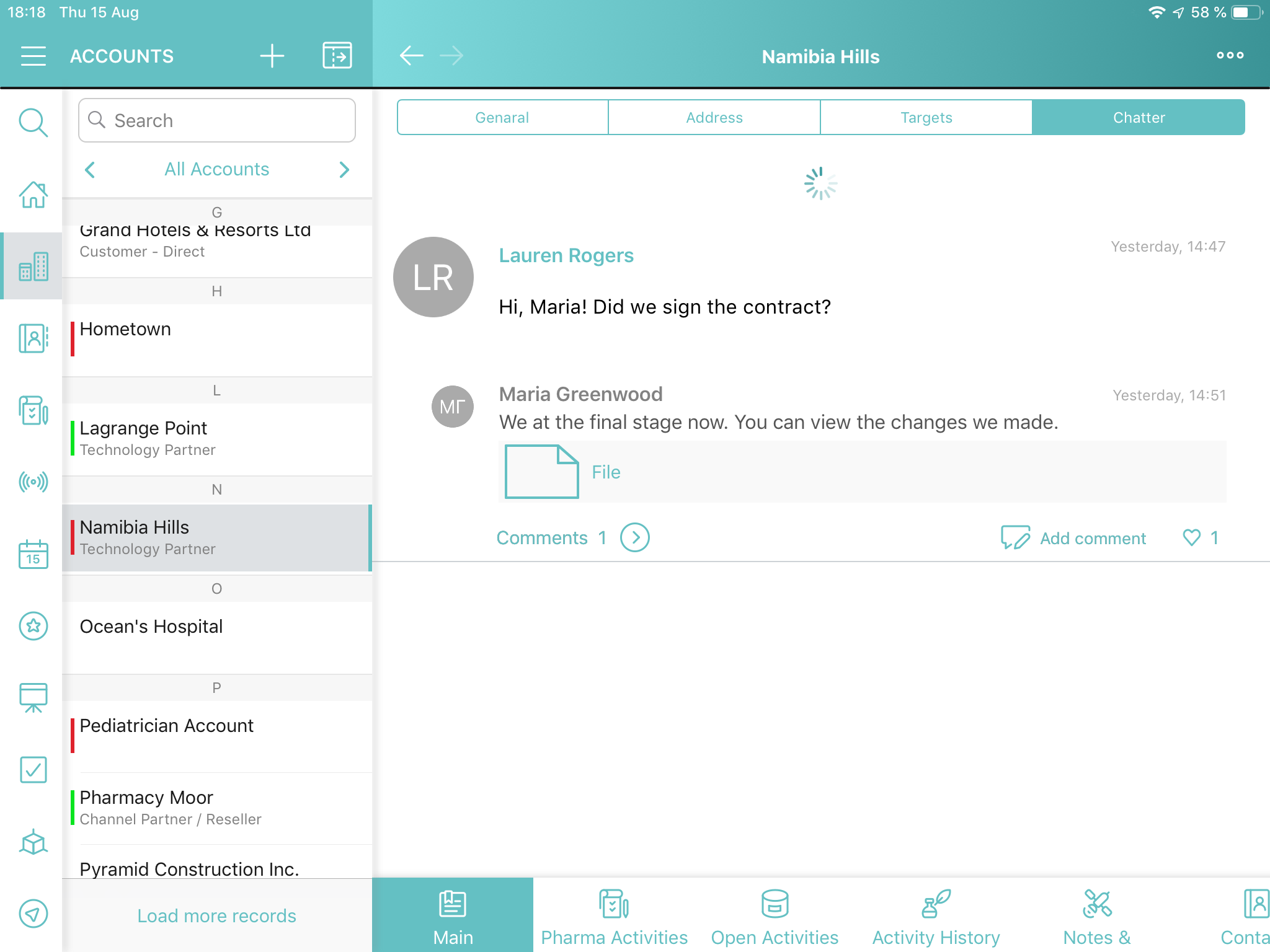
Chatter feed is a widget to display messages on the Chatter module screen or in the Chatter tab of the selected record.
Enable push notifications on a mobile device to see new messages from Salesforce right at the moment. With the stable internet connection on a mobile app, a user can receive a push notification when:
-
a new post is published on the user’s feed
-
a user was mentioned in somebody else’s feed as @UserName
-
a new post is published in the group of which the user is a member
-
a new post is published for the object’s record, of which the user is an owner.
To set up push notifications:
-
In Mobile Application Setup, set the value for the PUSH Identifier field.
For the CT Mobile app installed from the App Store, the push identifier is ctmobile. -
Allow Notifications for CT Mobile in the Settings on a mobile device.
-
Please make sure that the Device Token field for the current record of the User object is filled with a value.
According to that value, Salesforce defines the user device to send push notifications. If you authorize with the same credentials on several devices (but no more than 5), the field will contain the token of the last device on which you synchronized.
-
Create the FeedItemProcess trigger.
Go to Setup → Feature Settings → Chatter → Triggers → FeedItemTrigger, click New, enter the code below, and click Save.
trigger FeedItemProcess on FeedItem (before insert, after insert) { if (trigger.isAfter && trigger.isInsert) { CLM.FeedItemHandler.onAfterInsert(trigger.new, null, null, null); } } -
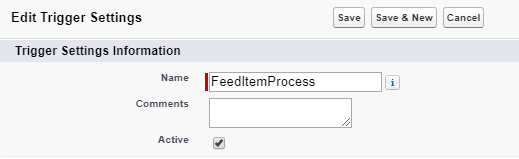
Add the FeedItemProces setting.
Go to Setup → Custom Code → Custom Settings → click Manage next to Trigger Settings, create a new active setting with the FeedItemProcess name, and click Save.
Push notifications are set up.
When someone adds a post which is matched one of the criteria above, a push notification is sent on a mobile device.
-
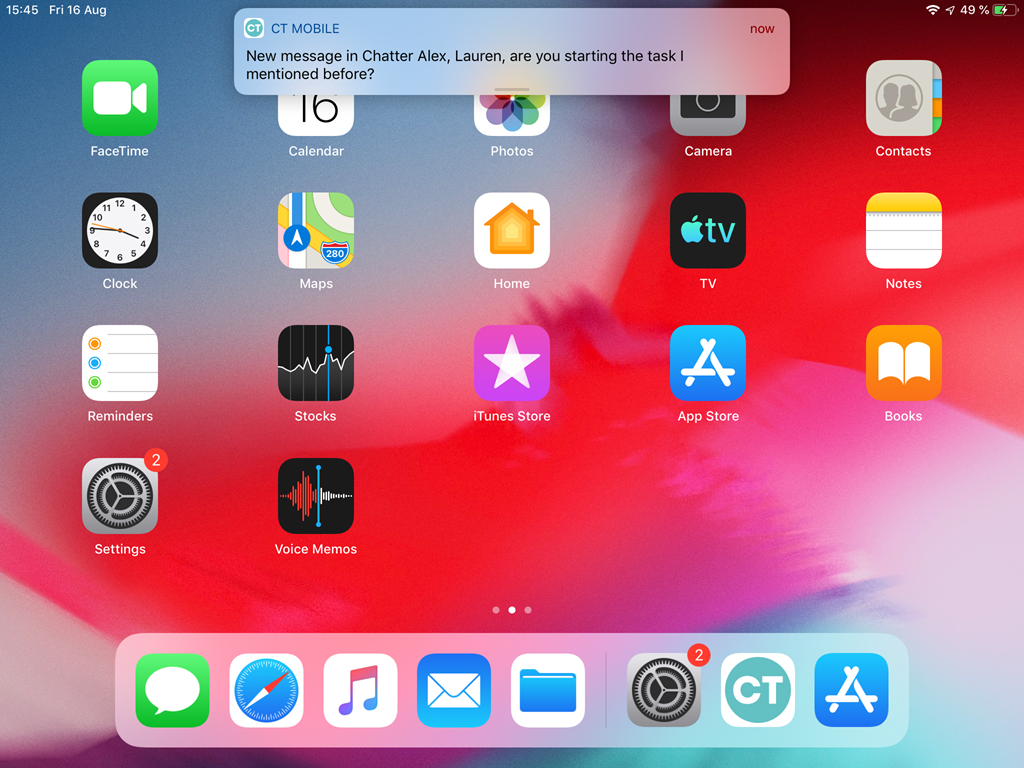
If the CT Mobile application is closed, a user receives a push notification. Tap on it to open the app. Tap OK in the pop-up window to download a record. According to the record location, the Chatter tab of the record or the Chatter module opens.
-
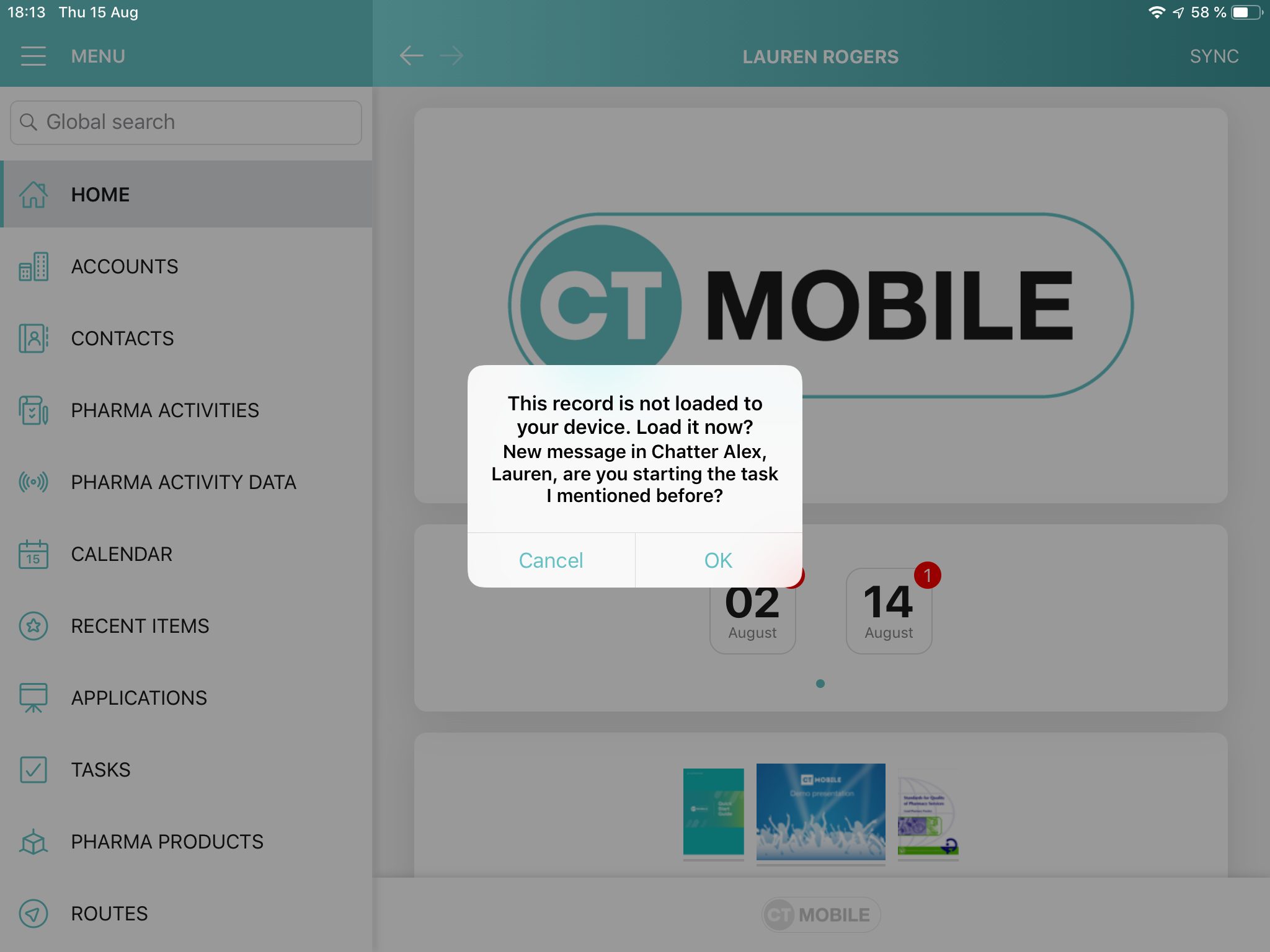
If the CT Mobile application is opened, a user receives a push notification to load a new post. Tap OK to download it. According to the record location, the Chatter tab of the record or the Chatter module opens.
-
Synchronize the Chatter feed by dragging down the screen of the Chatter module with an open group and the Chatter tab screen of the selected record.
This sync process is not affected by the Quick Record Sync setting for the object on the CT Mobile Control Panel: Offline Objects tab.