Reference Fields
A reference field contains an ID value that points to a unique record on another object. The main record may be associated with a record in the reference field via a lookup or master-detail relationship.
For the reference field, a mobile user can:
-
download additional record if the reference field refers to the not downloaded record;
-
search value or create a new record to add;
-
use lookup filters to see records that match required or optional criteria.
Online One Record Fetching
Along with online records fetching, a mobile user can download one additional record tapping  next to the field, which refers to the not downloaded record, on the mobile layout of the linked record.
Online one record fetching is available when:
-
one of the downloaded records is linked to a not downloaded record;
-
the object of the not downloaded record is available offline.
For example, an Activity record has a lookup field with the Contact record value and another lookup field with the Account record value. The linked record of the Contact object was downloaded on a mobile device, but the linked record of the Account object is not available offline due to Related List Filters. When a mobile user opens the Activity record, they can open the available related Contact record and download the related Account record to the mobile device.
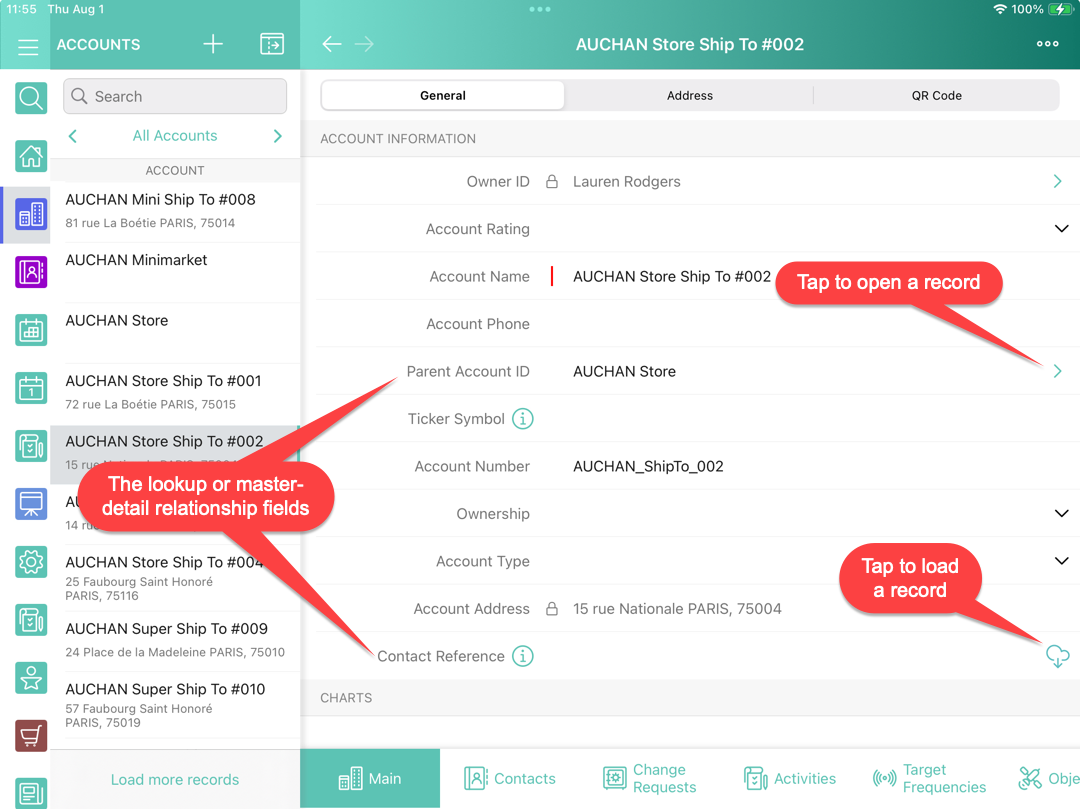
To download a record:
-
Open the desired record that is associated with the not downloaded record.
-
Tap
next to the reference field. -
Tap Yes to download the record.
The record is synchronized. The mobile layout of the record opens.
-
If a current user launches one of the synchronization modes, the loaded record via online one record fetching will still be available on a mobile device. The record will only be removed after the database is reset.
-
If the record’s object is not available offline, a mobile user cannot download a record.
-
A mobile user can clear value from the reference field by tapping on a field with the record and then tapping the Clear button.
-
If a record in the reference field was deleted in the CT Mobile app, the
 icon next to the reference field will be shown.
Online record search
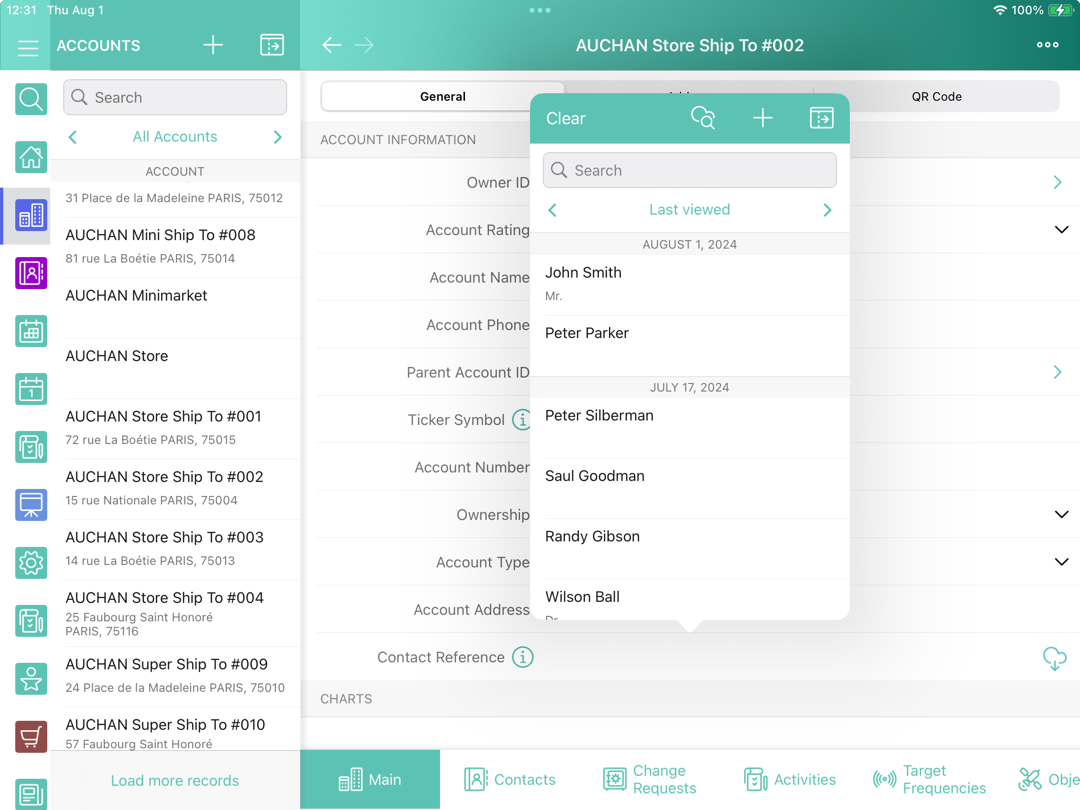
Enter a record in the reference field using search. Search is carried out in the fields that are listed on the Search Results search layout.
To find a record and populate the reference field with it:
-
Open the mobile layout of the linked record.
-
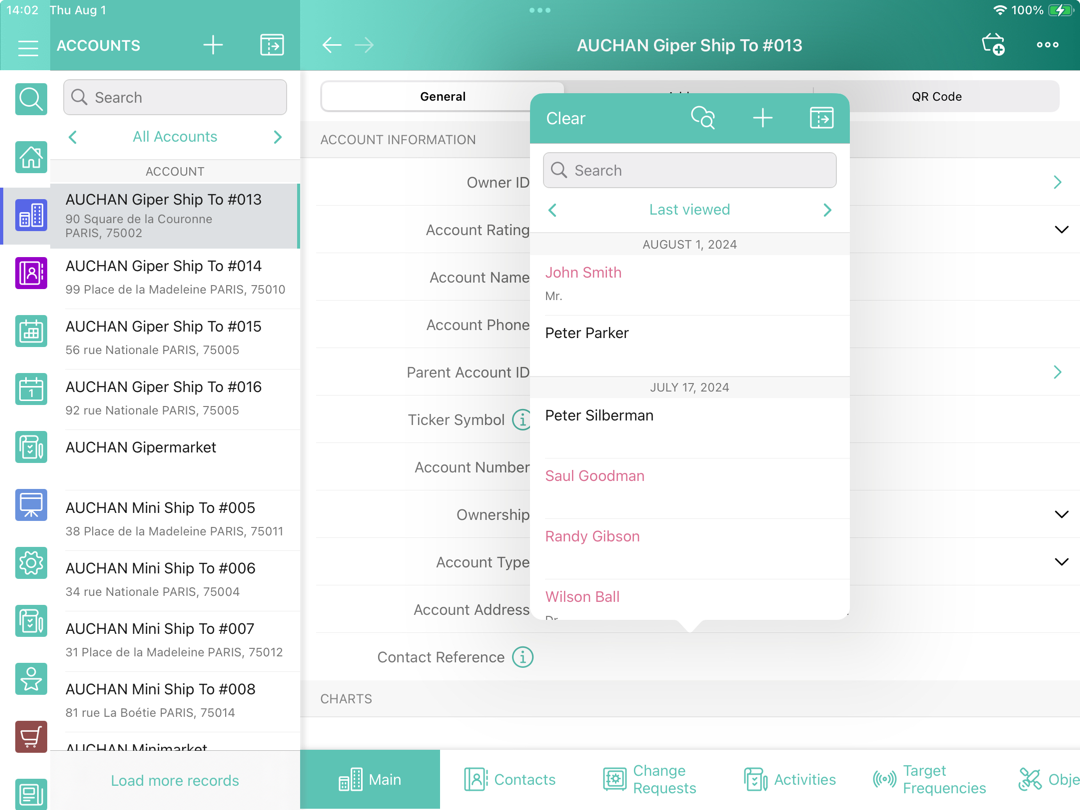
Tap a reference field. The pop-up for searching records opens.
-
Enter a text in the Search box to find a downloaded record. In the search results, tap a record you want to specify in the reference field.
-
Tap
 to create and add a new record to the reference field using a mini layout.
 -
Tap
 to expand the detailed list view.
 -
Tap
 to online search for a record in Salesforce. In the search results, tap a record and confirm to download it.
-
| The CT Mobile app searches the value across all fields listed in Search Results using the SOQL query, for example: WHERE Name LIKE '%Boston%' OR Website LIKE '%Boston%' OR Phone LIKE '%Boston%' |
Lookup Filters
Lookup filters restrict the valid values and lookup dialog results for the reference field. To create a lookup filter, refer to Salesforce Help.
| If you created or changed the lookup filter, it is necessary to rebuild a metadata archive using one of the available options to download the proper lookup filters via synchronization. |
Lookup filter can be required or optional:
Required filter
Only the records that match the lookup filter criteria are available when a user fills out the reference field.
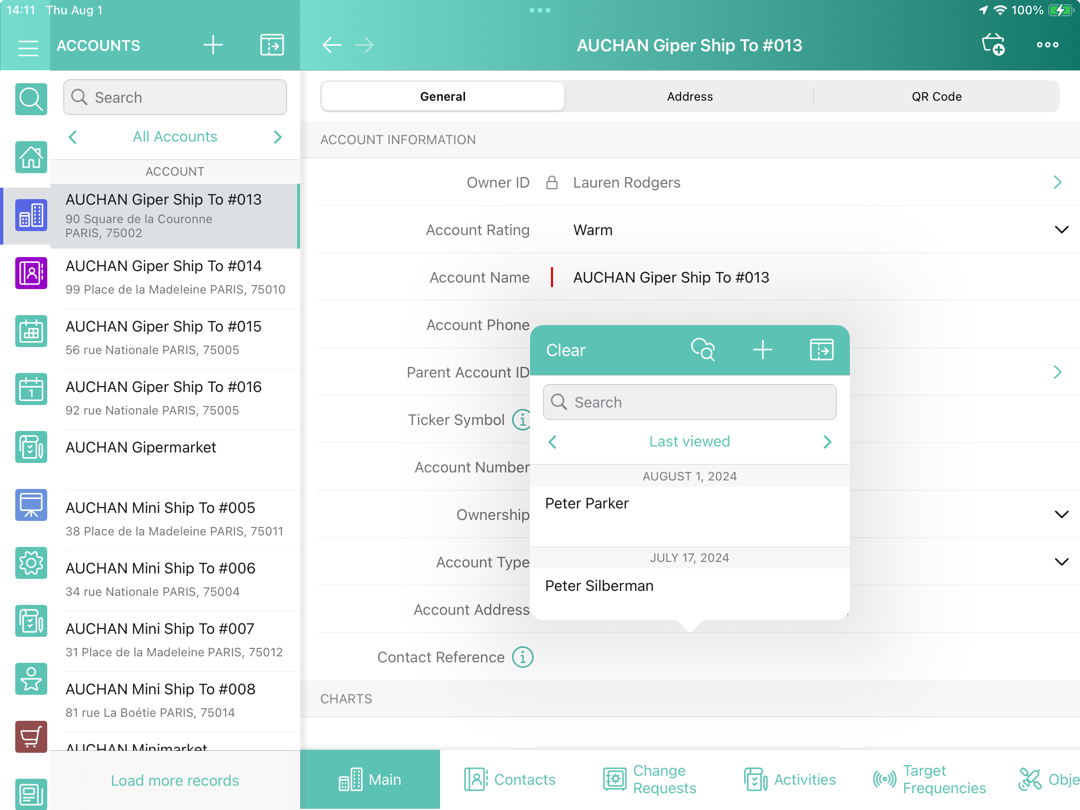
If the created record doesn’t match the filter criteria, the lookup field will be empty and the corresponding message will be displayed:
Optional filter
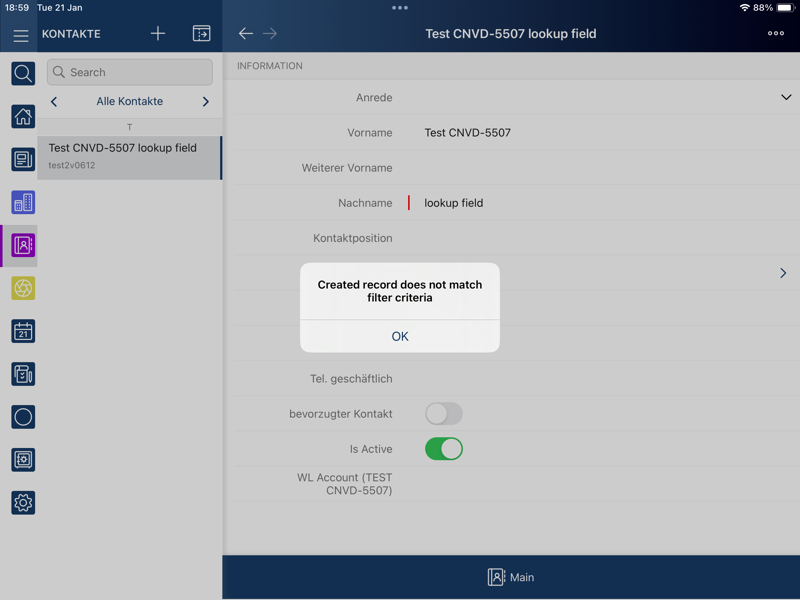
All object records are available when a user fills out the reference field. Records that do not match the lookup filter criteria are highlighted in red color.
Limitations on Lookup Filters
-
Filter logic with subconditions is not supported. For example, such filter logic will not work:
(Condition 1) OR Condition 2) AND (Condition 3
In turn, this filter condition will work:
(Condition 1) OR (Condition 2) AND (Condition 3)
-
Cross objects are not supported. For example, such object specification will not work:
Territory: Region: Channel
In turn, this object specification will work:
Account: Channel