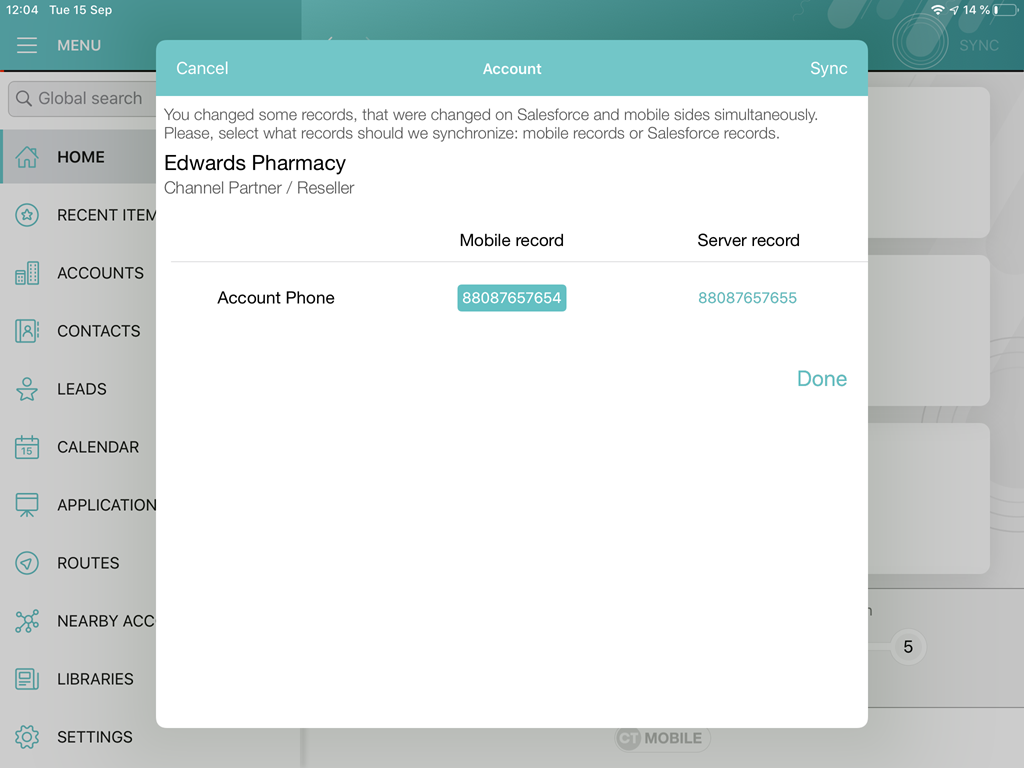
Conflict Manager Control
Enable Conflict Manager to track the changes made in a single record in CT Mobile and on the Salesforce side based on the date of the last synchronization and the date in the SystemModStamp attribute of a record.
The record’s field was changed on the Salesforce side if the date in the SystemModStamp attribute was later than the last synchronization date. In this case, if a record’s field in the mobile application was changed too, a user will be asked to choose the correct version of this field during the synchronization.
If the Conflict Manager is disabled, the changes made in CT Mobile will replace the changes made on the Salesforce side.
The Conflict Manager can be enabled for each object separately. To enable the Conflict Manager:
-
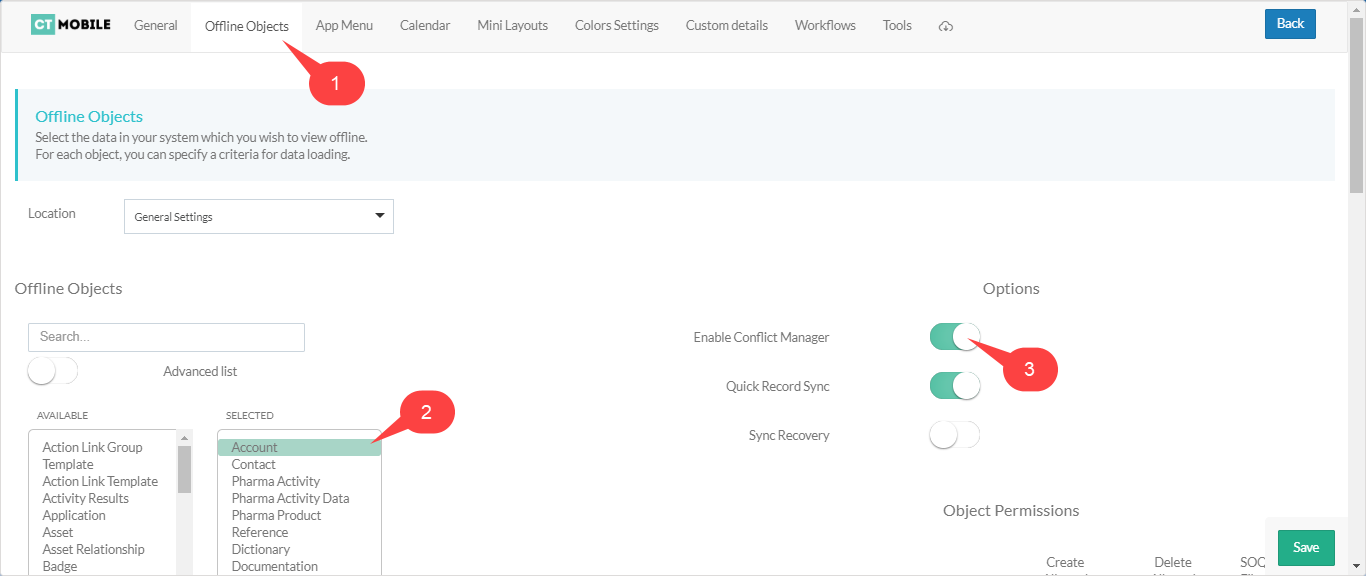
In CT Mobile Control Panel
-
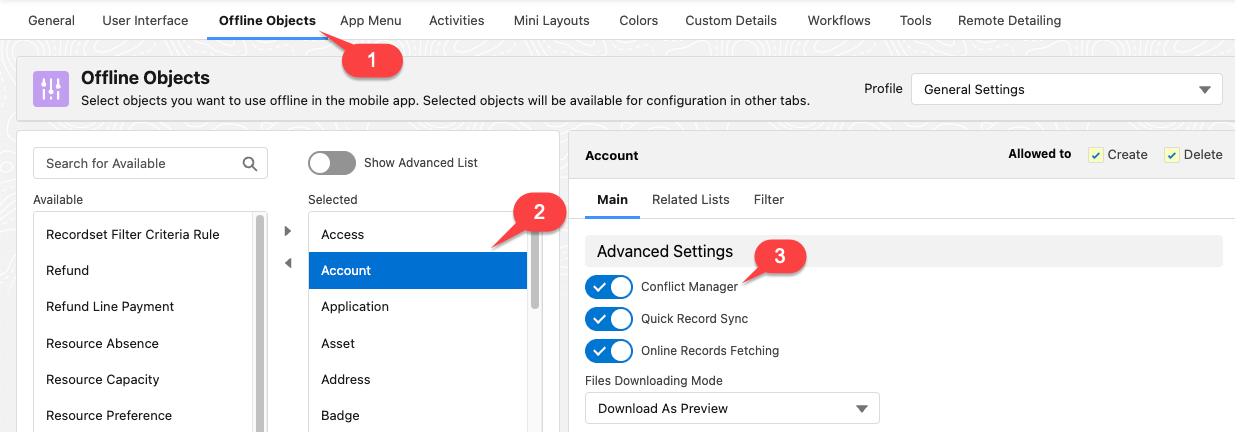
In CT Mobile Control Panel 2.0
-
Select an object from the Selected list.
-
Enable the Conflict Manager option.
-
Select an object from the Selected list.
-
Enable the Conflict Manager option.
The setup is complete.
When the mobile user launches the sync process after changing the fields of the record in CT Mobile and on the Salesforce side, they can select a correct version of the fields' value to keep.
-
Tap to select the Mobile record or Server record and then tap Done to keep the record.
-
Tap Sync to keep the mobile record.
-
Tap Cancel to cancel the synchronization process.