CT Mobile Control Panel 2.0: Workflows
The Workflows tab is intended to set up CT Mobile Workflows. According to the selected profile, the settings on this tab will be saved in the records of the CT Mobile Workflow and CT Mobile Workflow Step.
CT Mobile workflows allow managing the business logic of the mobile application using no code. Workflow is a set of automated steps invoking in a specified order and with specified criteria, and consists of two objects:
-
Workflow rule: describes the condition (trigger) of the workflow. Available triggers:
-
On Click—for buttons.
-
After updating an object.
-
-
Workflow step: describes an action on a record(s). Available actions:
-
Updating current record, parent record or related records.
-
Creating new related record or parent record.
-
Deleting related record or parent record.
-
Capturing and updating geo-position of the current record, parent record or related records.
-
Syncing current or parent record.
-
Workflow rules override application settings. For example, if you apply a workflow to the Start visit button, the parameters specified in the CT Mobile Control Panel (removing a geo position, blocking a record or updating date fields) will not be processed.
Creating a Workflow
To create a workflow:
-
Click Add Workflow.
-
Select an object from the list.
-
In the field on the right, specify the workflow name.
-
Click
 to confirm.
 -
Configure the workflow as described below.
-
Add the workflow description if needed.
-
Toggle Activate to enable the workflow.
-
Rule
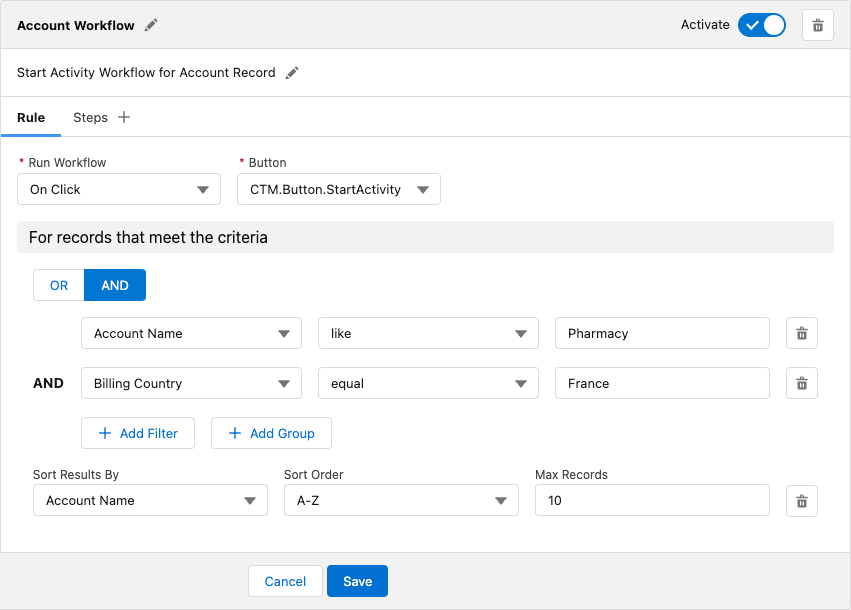
On the Rule tab, select:
-
Run Workflow: On Click or After Update.
-
Button (if the On Click trigger has been selected).
-
When (if the After Update trigger has been selected).
-
For records that meet the criteria: add filter, and sorting and limit options for the workflow trigger.
Steps
| Workflow steps execute in order they have been created. To change the order, change the number in the Order field in every Workflow Step record. |
On the Steps tab:
-
Click
 to add a workflow step.
 -
Specify the step name and click
to confirm.
Main
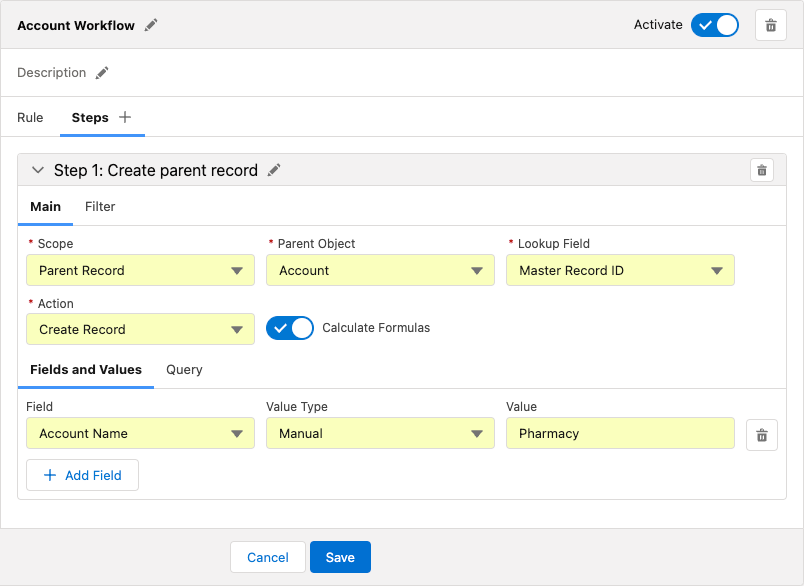
On the Main tab, select:
-
Apply to:
-
This Record
-
Related Records (in this case, also select Related Object and Lookup Field)
-
Parent Record (in this case, also select Parent Object and Lookup Field)
-
-
Action:
-
Create Record
-
Update Record
-
Delete Record (only for Related Records)
-
Capture Geoposition
-
Sync Record
-
-
For Create Record and Update Record actions, configure:
-
Fields and Values: click Add Field to add a new field and specify its Value Type and Value.
-
Query: specify a SOQL criteria to define records selection from external sources to predefine new records generated by the action.
-
-
For Capture Geoposition action, specify Location Field.
-
Toggle Calculate Formulas to recalculate formulas on this step.
Filter
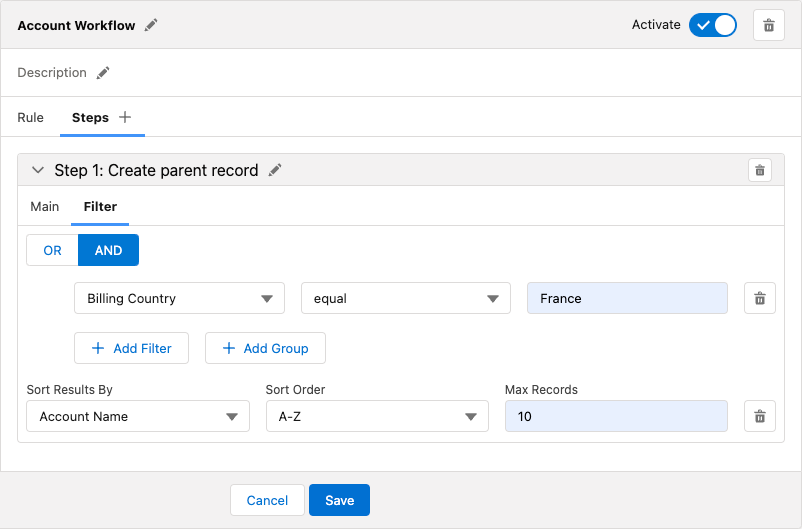
On the Filter tab, set up SOQL filters to apply the workflow step only for records that match the criteria:
-
Use Add Filter and Add Group buttons to build the filter criteria.
-
Click Add Sorting and Limit button to specify sorting options for the filter results, configuring the fields:
-
Sort Results By
-
Sort Order
-
Max Records
-
Click Save to apply settings.
See also: