Online Records Fetching
Set up SOQL filters for the appropriate offline object to speed up synchronization. Enable Online Records Fetching to allow users to load additional records via the Load more records button in the application.
-
Records should be available for the current user and not downloaded according to SOQL filters.
-
This option is not available for the number of CT Orders objects. If turned on, the synchronization will result in an error.
To enable the Online Records Fetching option:
-
In CT Mobile Control Panel
-
In CT Mobile Control Panel 2.0
-
Select the required profile in the Location picklist. To apply settings to all the profiles, select General Settings.
-
Select a menu item in the Selected list.
-
Enable the Online Records Fetching option.
-
Click Save.
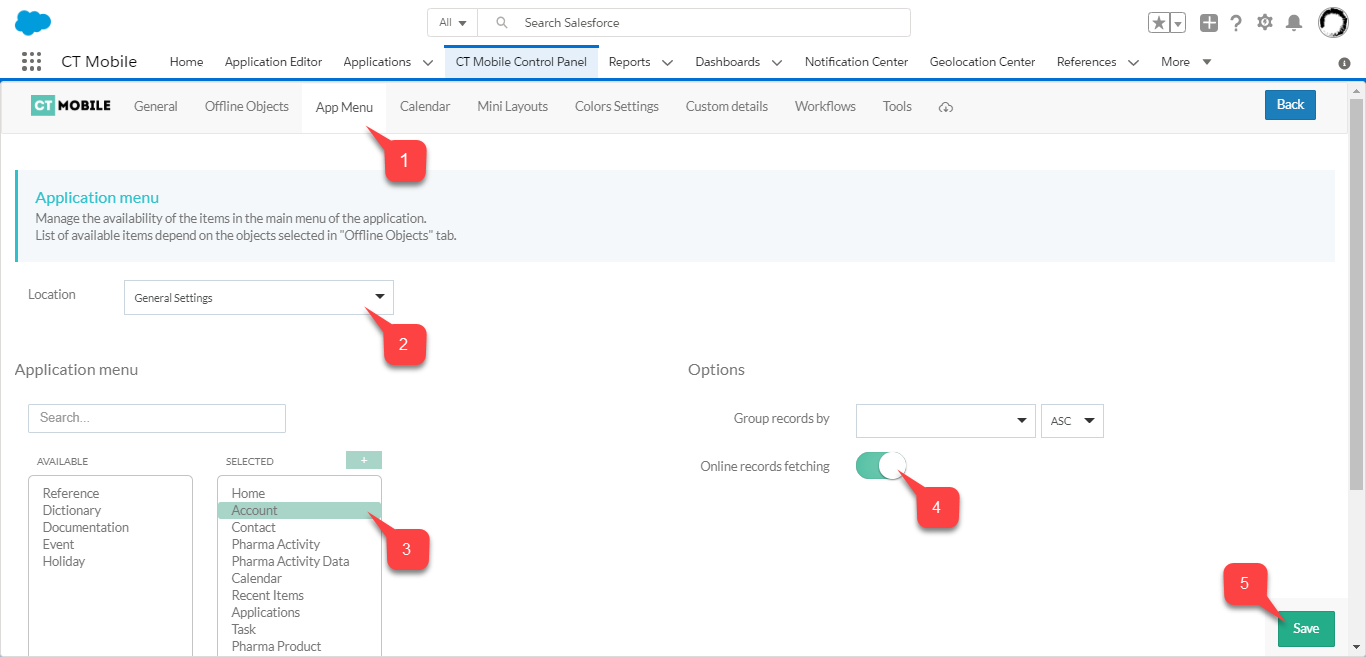
-
Select the required profile in the Profile picklist. To apply settings to all the profiles, select General Settings.
-
Select an offline object in the Selected list.
-
Enable the Online Records Fetching option.
-
Click Save.
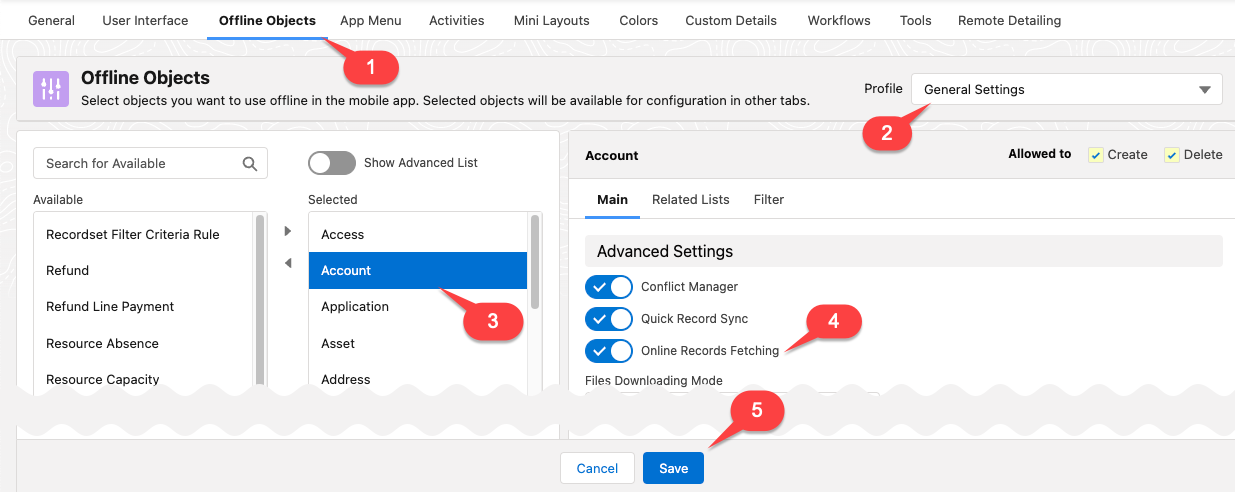
The setup is complete.
In the CT Mobile app:
-
Select the menu item and tap Load more records to open list views with records.
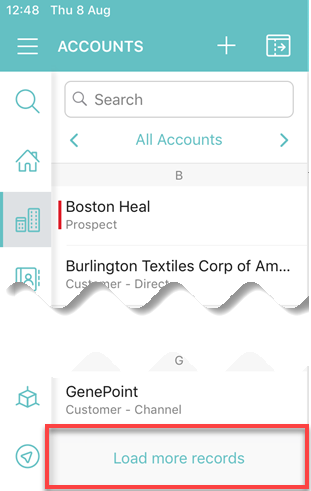
-
Select the list view to display available records of the selected list view, which are matched its SOQL filters and not downloaded on a mobile device.
-
Tap a record to select it.
-
Tap Load selected.
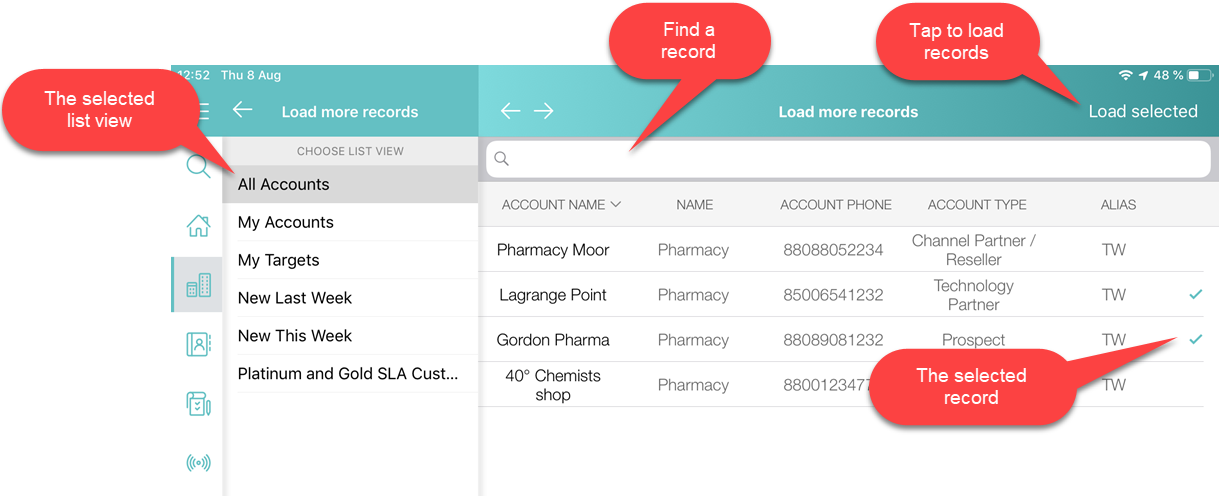
The records are synchronized.
If a current user launches synchronization, the loaded records via Online Records Fetching will be still available on a mobile device. Records will be removed only after the database reset.