Columns' Widths for Standard and Custom Related Lists
By default, the columns' widths of standard and custom related lists are spread evenly along the working area. Customize column width if needed.
| The actual metadata is required to successfully apply the settings. For more information, go to Metadata Archive and Metadata Checker. |
Configuring Column Width in Field Properties
This setting is applied to fields in standard and custom related lists. To specify the columns' width:
-
Go to Setup → Object Manager and select the object.
-
In Fields & Relationships, click a field and then click Edit.
-
In Description, type in the value: ctmobile.columnWidth(X) where X is an integer between 0 and 100 %.
-
Click Save.
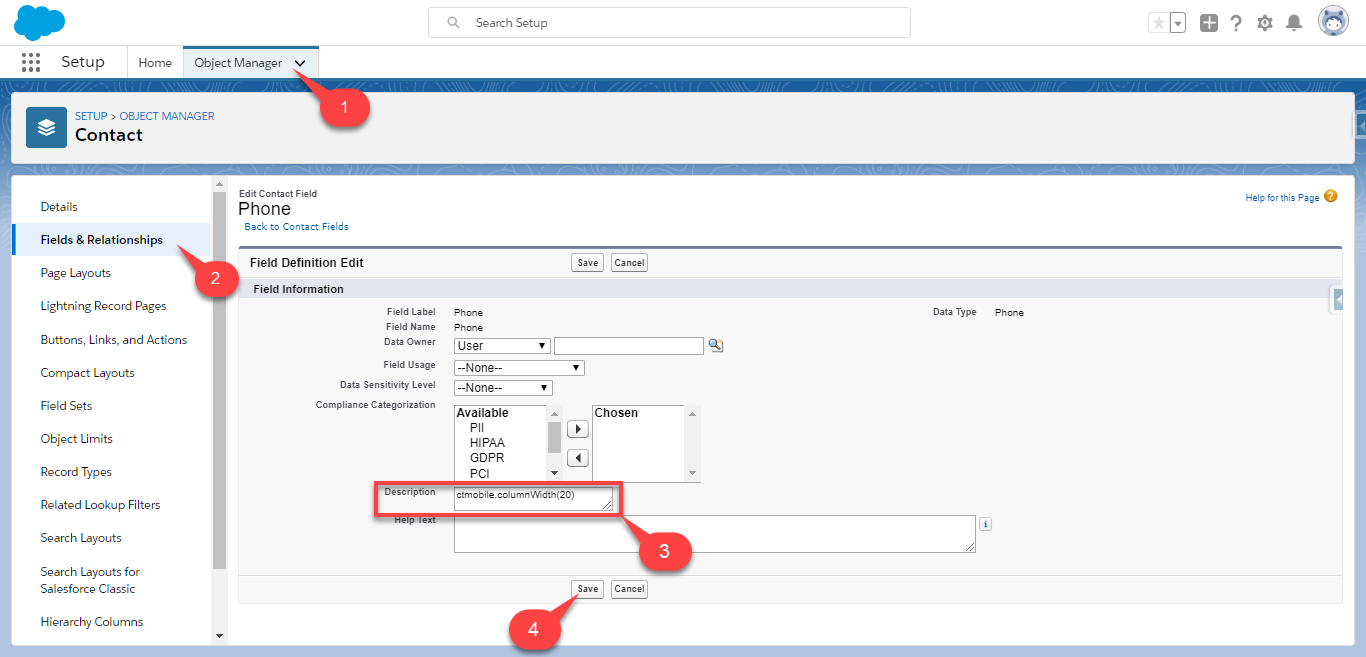
The configuration is completed. Perform the full synchronization to apply the changes.
-
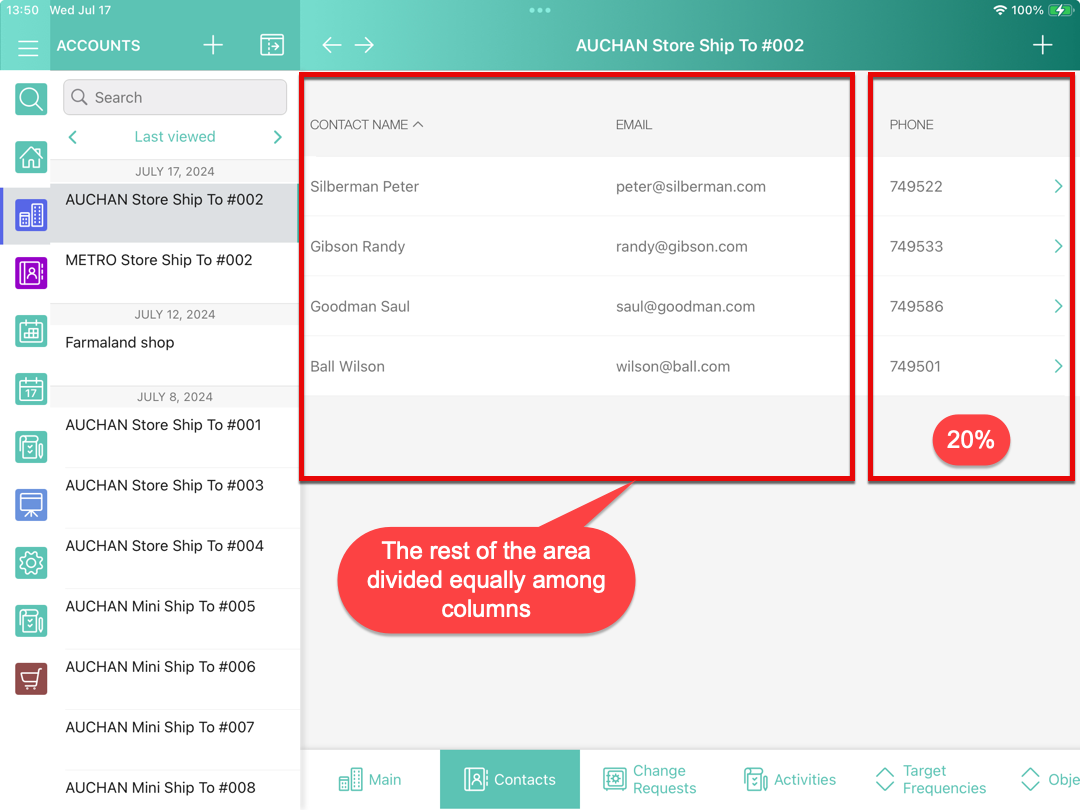
If a related list consists of several columns, the non-configured columns will be spread evenly along the rest of the working area.
-
Here is a standard related list tab screen as an example:
Configuring Column Widths on the CT Mobile Control Panel
This setting is applied to fields in custom related lists. To specify the columns' width:
-
Click
 next to the custom related list to open its settings.
 -
Select the required profile in the Location picklist. To apply settings to all the profiles, select General Settings.
-
Enable the Adjust Width switch to reveal the columns' widths setting.
-
Define the widths of columns.
-
Click Save.
This setting overrides the configured column width in the object field properties.
The configuration is completed. Perform the full synchronization to apply the changes.
-
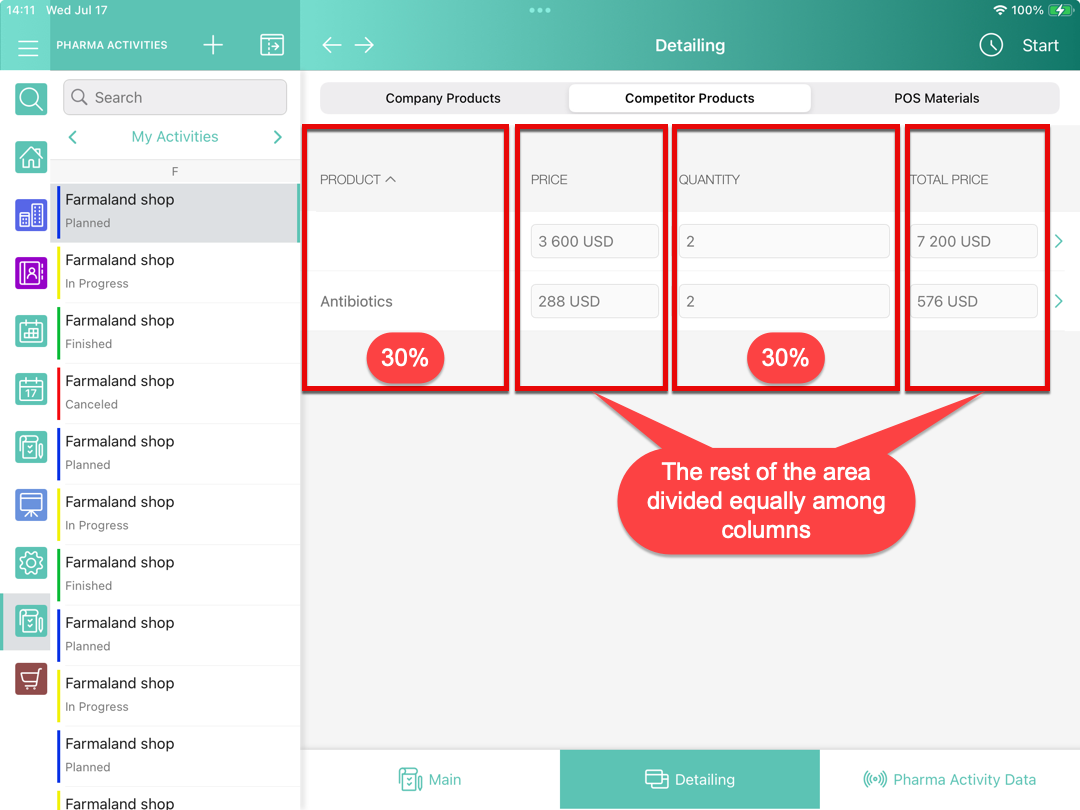
If a custom related list consists of several columns, the non-configured columns will be spread evenly along the rest of the working area.
-
Here is a custom related list tab screen as an example:
Important Notes
Please read the best practices for the Sync Recovery setting.
-
The 0 value means that the column is not affected by width setting, i.e., it will occupy the rest of the working area.
-
The 100 value means that the column will squeeze out all the other columns from the working area.
-
If the total sum of values is greater than 100, then the columns' widths setting is not applied to the related list.
-
If the total sum of values is less than 100, the rest percentages are divided into the number of columns and added to the width value of each column.
-
If the setting is applied only to some columns, and the total sum of values is less than 100, the rest percentages are spread evenly among the non-configured columns.
-
The setting can take a value of an integer between 0 and 100. If this requirement is not met, the setting is not applied.