Send Application Data Dump
The CT Mobile app allows sending a dump with the current user’s data of the application to the Salesforce or support service.
Configure Data Dump Sending
To configure data dump sending:
-
In CT Mobile Control Panel
-
In CT Mobile Control Panel 2.0
-
Select the required profile in the Location picklist. To apply settings to all the profiles, select General Settings.
-
In the Support and logs field, enable Sync Logs.
-
In the Debug Level field, select the appropriate option.
-
In the Send database dump to field, select the appropriate way to send the database dump:
-
Salesforce.com
The ZIP archive with the data will be transferred as an attachment to the Sync Log record. The size of the ZIP archive cannot be larger than 25 MB. In case of exceeding the limit, the database dump will be split into a few ZIP archives and each one will be attached to its own Sync Log record.
To use this option, the cloud token should be valid. In the case the cloud token is not specified, the password will be ctmobile.
-
E-mail
Selecting this option, specify the email to send the data logs and screenshots of synchronization errors in the Support Email field.
The size of the data dump can exceed the limit of sending data.
-
-
Click Save.
-
Select the required profile in the Profile picklist. To apply settings to all the profiles, select General Settings.
-
In the Logs and Support section, select the appropriate option from the Debug Level picklist.
-
In the Send database dump to picklist, select the appropriate way to send the database dump:
-
Salesforce.com
The ZIP archive with the data will be transferred as an attachment to the Sync Log record. The size of the ZIP archive cannot be larger than 25 MB. In case of exceeding the limit, the database dump will be split into a few ZIP archives and each one will be attached to its own Sync Log record.
To use this option, the cloud token should be valid. In the case the cloud token is not specified, the password will be ctmobile.
-
E-mail
Selecting this option, specify the email to send the data logs and screenshots of synchronization errors in the Support Email field.
The size of the data dump can exceed the limit of sending data.
-
-
Click Save.
The setup is complete.
Sending Data Dump
To send a data dump from the CT Mobile app:
-
Go to Settings from the main menu.
-
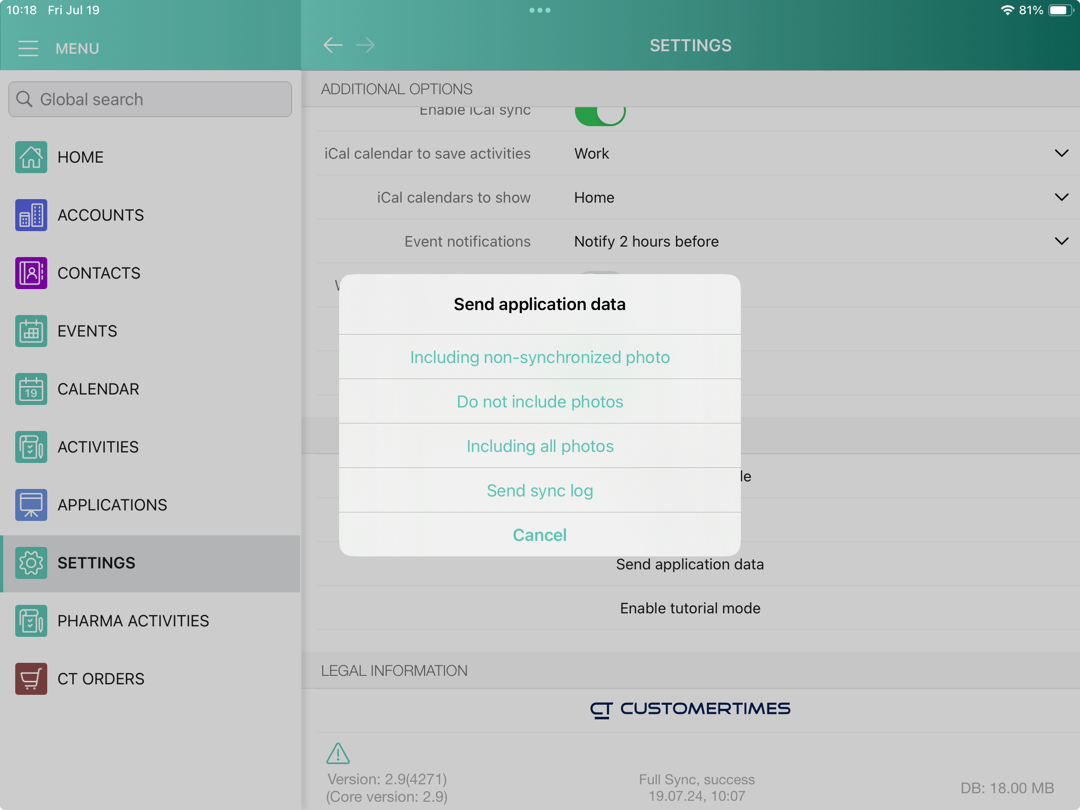
Tap Send application data.
-
In the open window, select which data you want to send.
-
Send sync logs
A user can send only sync logs instead of the entire data dump. Sync logs will be sent in a text format.
-
Include all photos or not
Including all the photos in a dump significantly increases the duration of sending. -
Include non-synchronized photos
-
The data has been sent.
A Sync Log Record with Data Dump
Sync Logs
When sending sync logs in Salesforce, the Sync Log record with an attachment will be created.
Parameters of a Sync Log record:
| Field | API Name | Value |
|---|---|---|
Date |
clm__Date__c |
Date and time of sending. |
Description |
clm__Description__c |
Part 1 from 1 |
Operation |
clm__Operation__c |
Sync Log History |
Parameters of an Attachment record:
| Field | Value |
|---|---|
Name |
sync.log |
ParentId |
The identifier of the Sync Log record. |
Description |
Part 1 from 1 |
Data Dump without Photos
When sending a data dump without photos in Salesforce, the Sync Log record with a ZIP attachment will be created. The ZIP attachment stores data dump with all files and sync logs. In case of exceeding the limit of 25 MB, the database dump will be split into a few ZIP archives and each one will be attached to its own Sync Log record.
Parameters of a Sync Log record:
| Field | API Name | Value |
|---|---|---|
Date |
clm__Date__c |
Date and time of sending. |
Description |
clm__Description__c |
Part n from m, where n is the order number of an attachment, and m is the number of attachments. |
Operation |
clm__Operation__c |
Export Data |
Parameters of an Attachment record:
| Field | Value |
|---|---|
Name |
In case of a single Attachment record: Documents.zip In case of several Attachment records: Documents.z0[n], where [n] is the order number of an attachment. |
ParentId |
The identifier of the Sync Log record. |
Description |
Part n from m, where n is the order number of an attachment, and m is the number of attachments. |
Data Dump with Photos or Unsynchronized Photos
When sending a data dump with all photos or only unsynchronized photos in Salesforce, the Sync Log record with a ZIP attachment will be created. The ZIP attachment stores data dump with all files, all photos or only unsynchronized photos, and sync logs. In case of exceeding the limit of 25 MB, the database dump will be split into a few ZIP archives and each one will be attached to its own Sync Log record.
Parameters of a Sync Log record:
| Field | API Name | Value |
|---|---|---|
Date |
clm__Date__c |
Date and time of sending. |
Description |
clm__Description__c |
Part n from m, where n is the order number of an attachment, and m is the number of attachments. |
Operation |
clm__Operation__c |
Export Data. |
Parameters of an Attachment record:
| Field | Value |
|---|---|
Name |
In case of a single Attachment record: Documents.zip In case of several Attachment records: Documents.z0[n], where [n] is the order number of an attachment. |
ParentId |
The identifier of the Sync Log record. |
Description |
Part n from m, where n is the order number of an attachment, and m is the number of attachments. |