Custom Color Settings
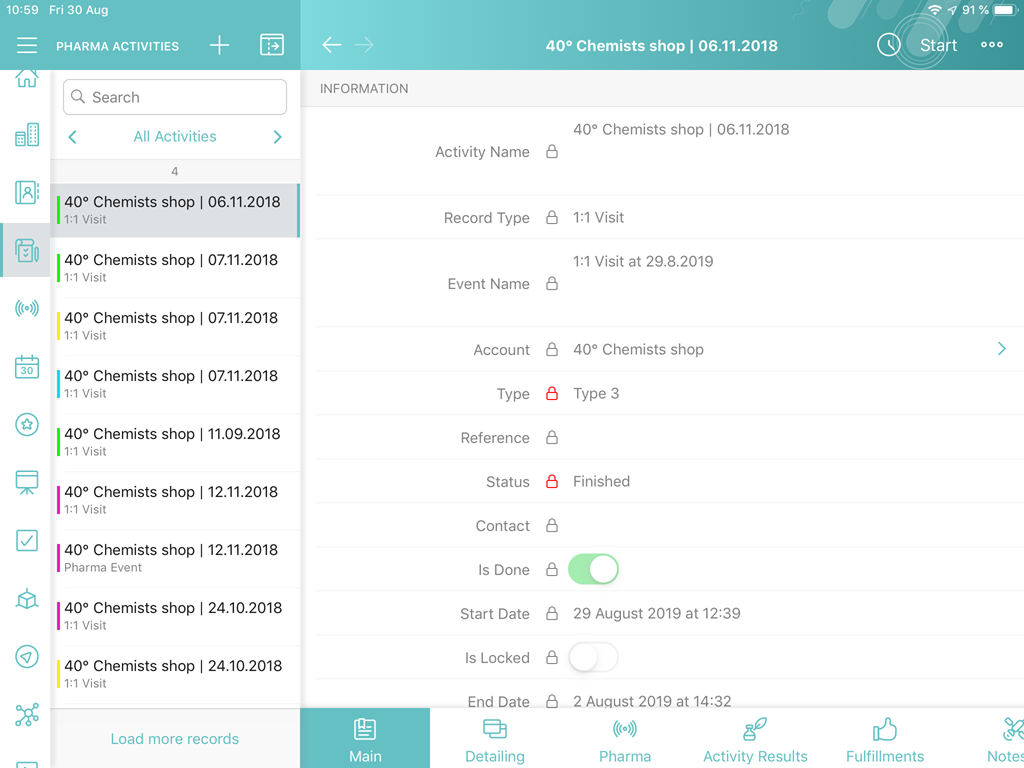
Use color settings to distinguish records of an offline object by the specific criterion, for example, records in the left menu, activities in the Calendar module, and records in the Nearby Accounts module. Each offline object can have only one coloring criterion.
Set up a Color for an Offline Object
To set up colors for the records:
-
In CT Mobile Control Panel
-
In CT Mobile Control Panel 2.0
-
Select the required profile in the Location picklist. To apply settings to all the profiles, select General Settings.
-
Click Create.
-
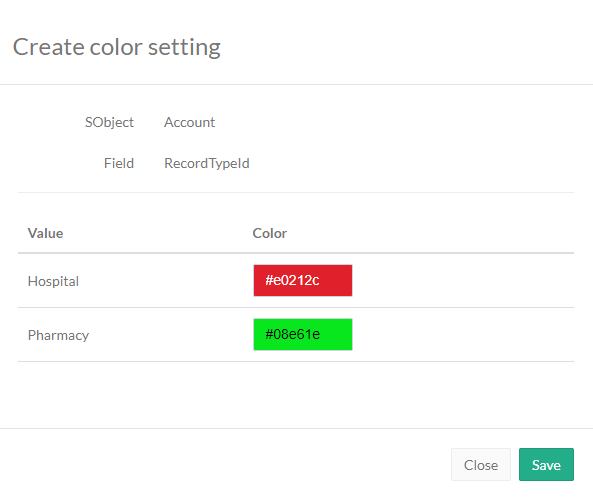
Select an offline object in the SObject drop-down list.
-
Select a criterion in the Field drop-down list. Only fields with the Picklist type or record types of the selected offline object can be used as the criterion.
-
Click the field in the Color column to open the color picker.
-
Select the colors for each record type or type in the color code.
-
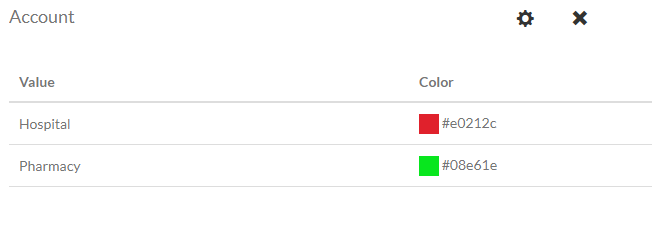
Click Create.
-
Click
 next to an offline object to edit color settings.
 -
Click
 next to an offline object to remove color settings for the offline object.
-
-
Select the required profile in the Profile picklist. To apply settings to all the profiles, select General Settings.
-
Select an offline object from the left list.
-
Click Add Settings.
-
Select a criterion from the list. Only fields with the Picklist type of the selected offline object can be used as the criterion.
-
Click the picklist on the field to open the color picker.
-
Select the colors for each record type or type in the color code.
-
Click Save.
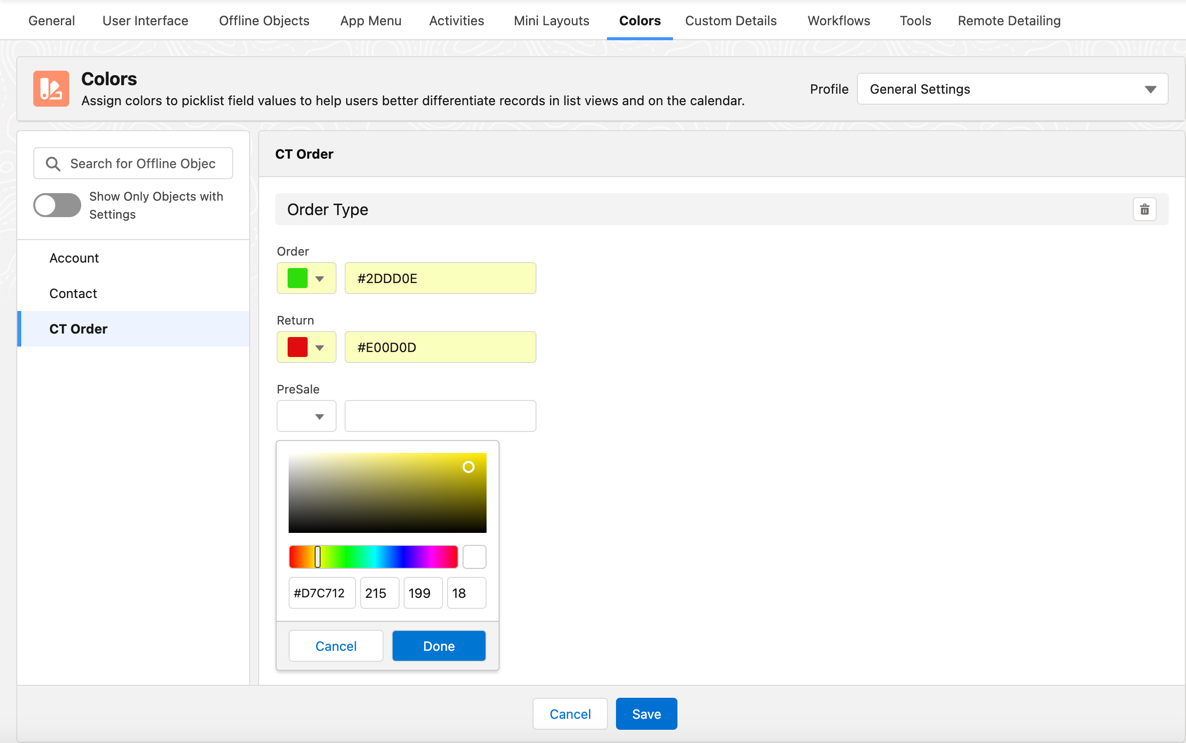
The setup is complete. Launch synchronization to apply the changes.