Installing CT Mobile Package
|
Salesforce Edition Enterprise, Unlimited, Force.com, Developer, Performance |
Here you can find how to install the CT Mobile package and further actions to take.
-
If you want to install a version of the CT Mobile package below the available one on the AppExchange, please contact the Customertimes team.
-
If you install one of the versions below, please click the link to learn more:
Install the CT Mobile Package
To install the CT Mobile package:
-
Follow the direct link to the managed CT Mobile package on the AppExchange site.
-
Click Get It Now.
-
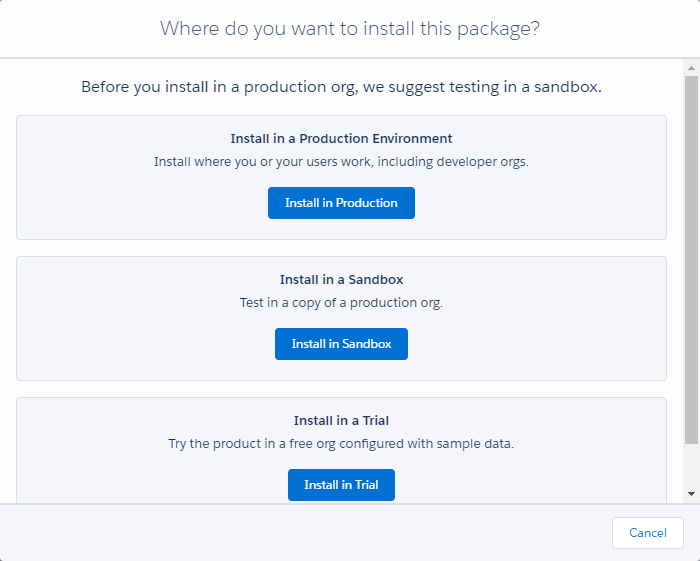
Select the Installation type.
-
Install in Sandbox installation type requires production org credentials.
-
Regardless of installation type, you can use the CT Mobile package for 30 days in trial mode.
-
-
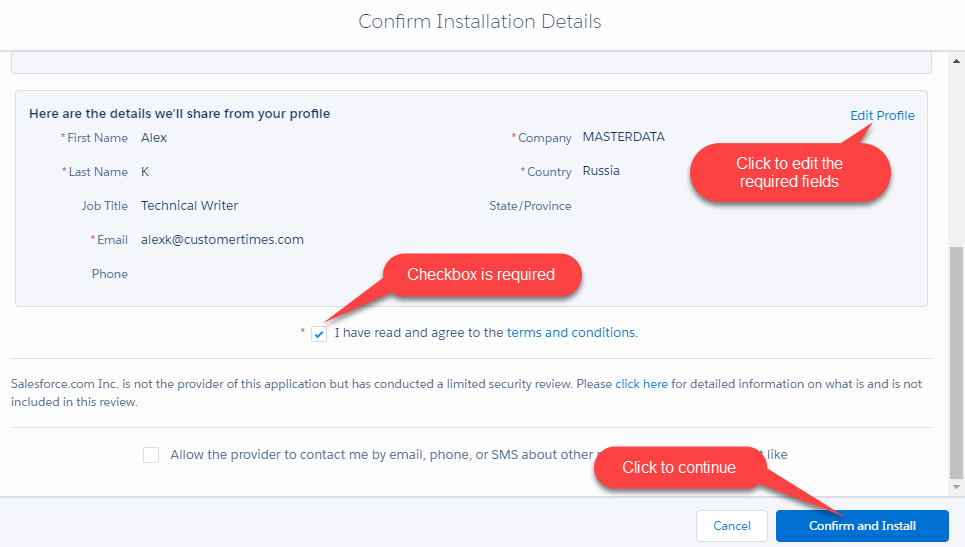
Read the installation details, agree with the terms and conditions, and click Confirm and Install.
-
Select the security level of installation and click Install.
It is recommended to select Install for Admins Only security level. An org can contain numerous profiles. It may be unwise to give admin permissions to all the users. Admin can set the permissions for specific users after the package installation. 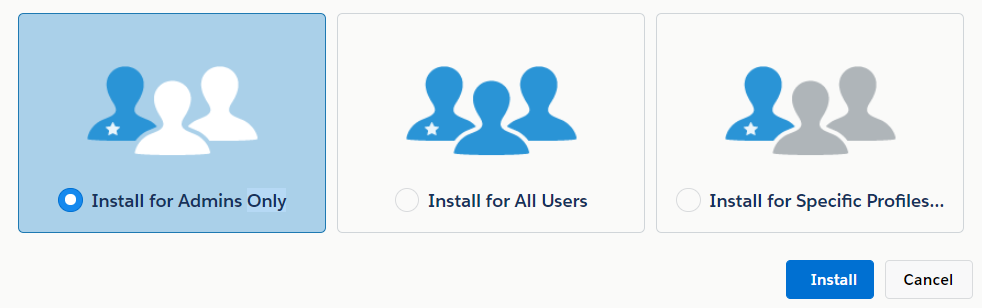
-
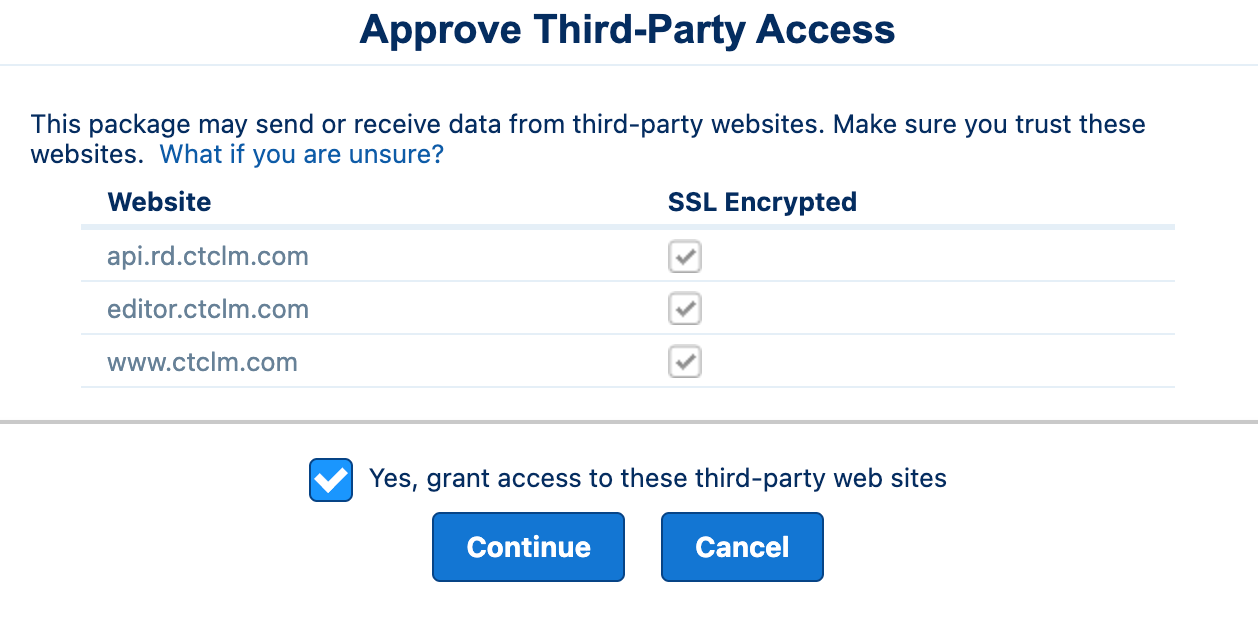
Grant access to the third-party websites and click Continue. These third-party websites are the servers used to store and edit presentation components.
It will take some time for the CT Mobile package to install. You will receive the email at the specified email address when the process is finished.
Further Steps
To view and manage the installed package:
-
From the gear icon, click Setup.
-
Type Installed Packages in the Quick Find search box and select Installed Packages.
After the CT Mobile package installation:
-
Please set up the required remote sites.
-
Assign CT Mobile license to users.
-
Specify permissions to users:
-
Check that the user’s profile has permission to read or edit necessary objects and fields.
-
Assign required permission sets to users according to their roles.
-
-
Ensure that all required objects are available offline and use SOQL filters to reduce the synchronization time and the amount of data to download.
-
Log in to the CT Mobile app using your Salesforce credentials.
-
Perform the first full synchronization.
In case of using clickjack protection, follow the instructions here.