Nearby Accounts
The Nearby Accounts module allows you to observe the nearest accounts on the map.
-
You can view the contacts or references and activities related to an account, and create activities.
-
By default, records are grouped by the start date in decreasing order. You can select the appropriate list view.
Requirements
Add the Nearby Accounts module to the app menu.
-
To use Google Maps, specify the Google Maps API key on the CT Mobile Control Panel: General / CT Mobile Control Panel 2.0: General tab.
Algorithm for Finding the Lookup Field on Activity
To view an Activity record on the map, it should have a lookup field to the Account record for which the geolocation data is collected or the full address is specified.
-
the Activity object should be specified on the CT Mobile Control Panel: Calendar / CT Mobile Control Panel 2.0: Activities tab.
-
the Account Geolocation Field should be specified on CT Mobile Control Panel: General / CT Mobile Control Panel 2.0: Activities tab. Alternatively, add the Account Full Address Field (refer to CT Mobile Control Panel: General / CT Mobile Control Panel 2.0: General).
CT Mobile app finds the corresponding lookup field according to the algorithm:
-
If there is only one lookup field on the Activity object to the Account object, this field is in use.
-
If there are two and more lookup fields on the Activity object to the Account object, the lookup field with the Account keyword in the API name is in use, for example, AccountId__c. If several lookup fields have the Account keyword in the API name, any of them can be in use.
-
If there are two and more lookup fields on the Activity object to the Account object, and none of them has the lookup field with the Account keyword in the API name, any of them can be in use.
For the Event and Task objects, the filling of the Name (Whatid) fields is applied.
Adding Nearby Accounts to the Menu
To add the Nearby Accounts module to the app menu:
-
In CT Mobile Control Panel
-
In CT Mobile Control Panel 2.0
-
Go to CT Mobile Control Panel: App Menu tab.
-
Select the required profile in the Location picklist. To apply settings to all the profiles, select General Settings.
-
Click the
 button to open the Add menu item tool.
 -
Select the Nearby Accounts item.
-
Click Add to close the Add menu item tool.
-
Click Save.
-
Go to CT Mobile Control Panel 2.0: App Menu tab.
-
Select the required profile in the Profile picklist. To apply settings to all the profiles, select General Settings.
-
Click Show Module Menu.
-
On the All or Application Modules tab, select the Nearby Accounts item.
-
Click Save.
The setup is complete.
Working with Nearby Accounts
Any error that occurred while working with maps will be shown in the Sync Log record, for example, an invalid Google Maps API Key.
Left Menu
The left menu consists of tabs with a list of accounts, contacts or references, or activity records with the specified geolocation.
-
Records will be randomly grouped in the section without a title if the current user profile has no access to the start date field (refer to CT Mobile Control Panel: Calendar or CT Mobile Control Panel 2.0: Activities) or this field is blank.
-
Records will be grouped by day according to the Activity object with a title that contains the day, month, and year:
-
Records are displayed by the start date of the Date type.
-
Records are displayed by the start date of the Date/Time type.
-
The unsynchronized records are randomly displayed within sections according to the start date value. Sections are sorted in ascending or descending order according to the day. Records in the sections are sorted in ascending or descending order according to the start date (first displayed records with the start date of the Date type).
To view related contacts or references, specify the API name of the required object on the CT Mobile Control Panel: General tab and add this object to offline objects (refer to CT Mobile Control Panel: Offline objects or CT Mobile Control Panel 2.0: Offline Objects). There should be a field with the Lookup type on the Contact or Reference object to link them with the Account object.
Main Screen
Only marks that are within the 10 km radius of the selected records are displayed. A mark can contain an unlimited number of records depending on the geolocation of records and scale.
Available Options
-
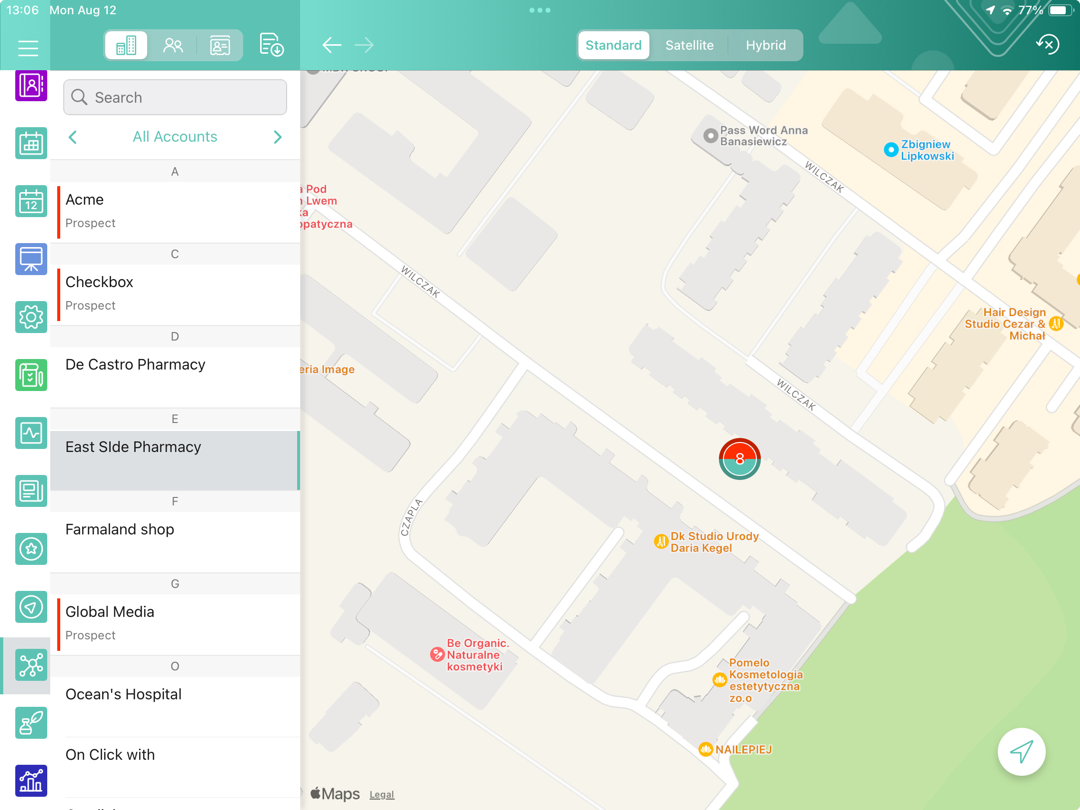
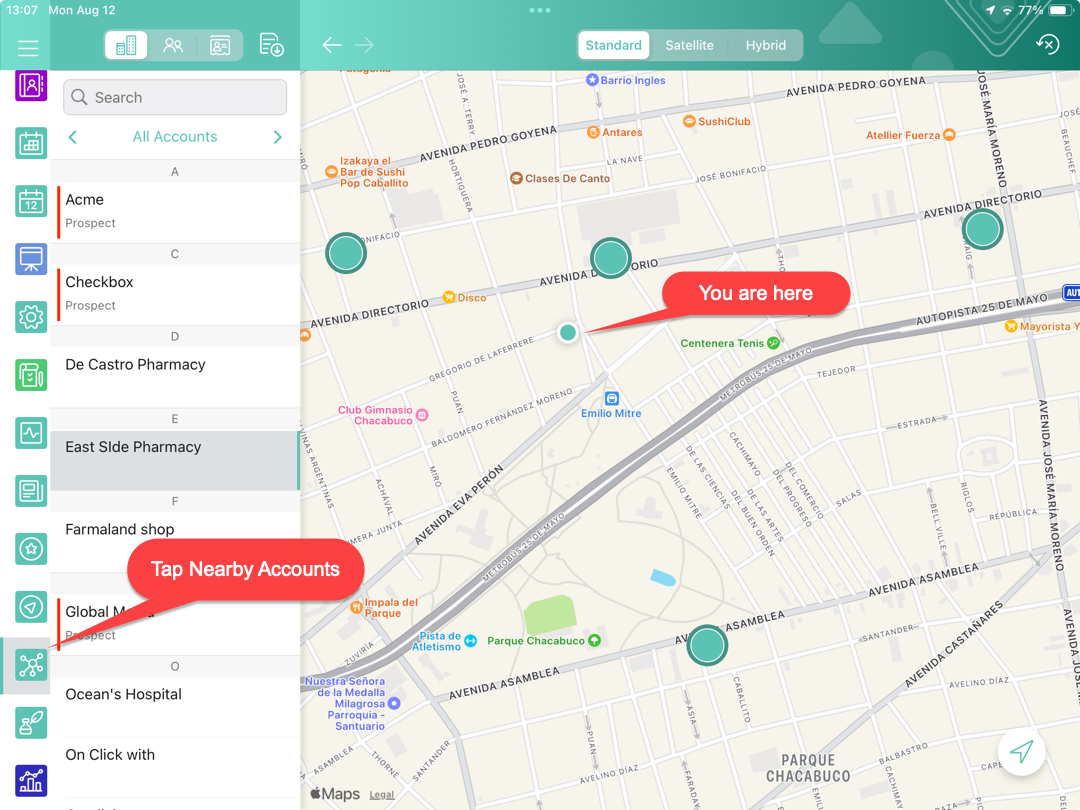
Tap Nearby Accounts in the main menu to open a map centered on your current location (if enabled in the device settings).
-
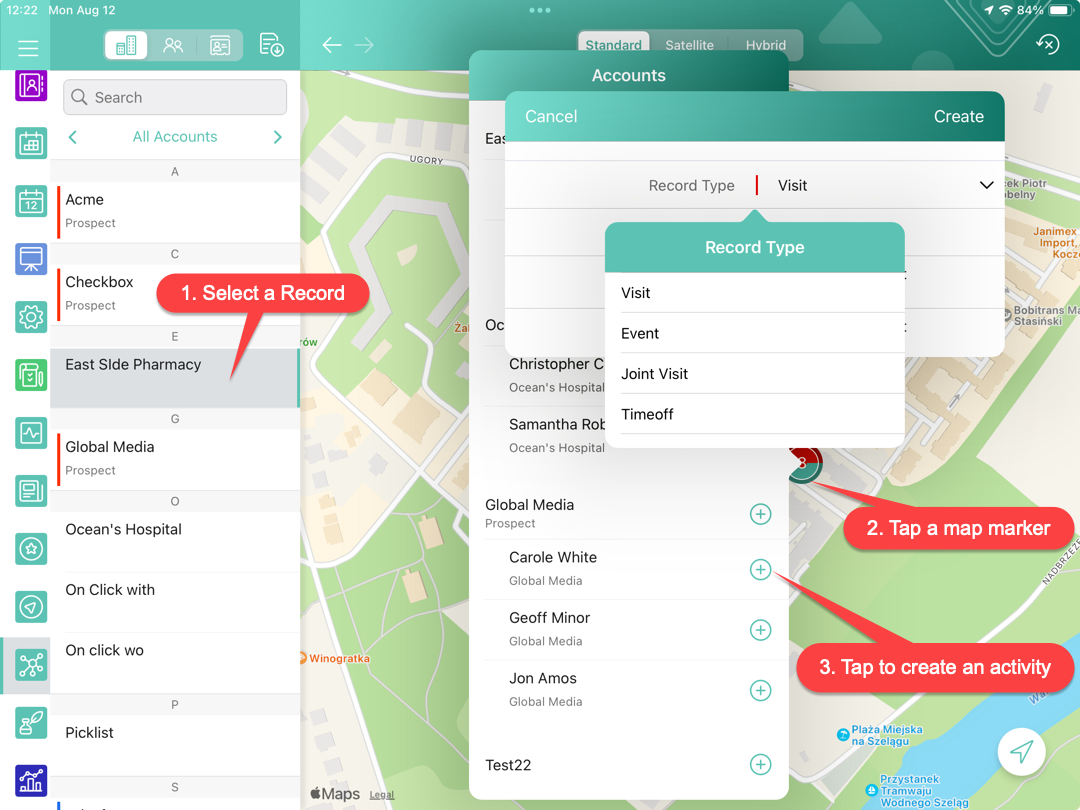
Tap a type of record in the upper menu and then select a record in the left menu to open a record and center the map around the selected record:
-
Tap
 to view the list of Account records. Select an Account from the list to show it on the map.
 -
Tap
 to view the list of Contact records. Select a Contact from the list to show its related Accounts on the map.
 -
Tap
 to view the list of Activity records. Select an Activity from the list to show its related Accounts on the map.
 -
Tap
 to view the list of retail stores (the CG Cloud must be activated). Select a retail store from the list to show it on the map.
-
| The record details from the compact layout will be displayed at the top of the mark; the alert will be shown if you tap an activity without specified geolocation. |
-
Tap on the map marker to open a list of related records. Tap
 to create an activity.