Mobile Layouts: Chatter Feed
The Chatter feed is a widget to display user messages on the Chatter module or in the Chatter tab of the selected record screen. Users can create posts and comments, and add attachments.
Important Notes
-
Some standard objects, e.g., Account or Contact, are tracked regardless of whether feed tracking is enabled or not.
-
To display Chatter on the mobile layout of the custom object record, e.g., custom activity or custom meeting, feed tracking should be enabled for the corresponding custom object.
-
To use the Chatter widget:
-
Enable Chatter Feed tracking to allow users to see feed updates, such as new records, comments on them, and likes, they follow.
-
Enable push notifications if needed.
-
Add Chatter to the Menu
To add the Chatter module to the app menu:
-
In CT Mobile Control Panel
-
In CT Mobile Control Panel 2.0
-
Go to CT Mobile Control Panel: App Menu tab.
-
Select the required profile in the Location picklist. To apply settings to all the profiles, select General Settings.
-
Click the
 button to open the Add menu item tool.
 -
Select the Chatter item.
-
Click Add to close the Add menu item tool.
-
Click Save.
-
Go to CT Mobile Control Panel 2.0: App Menu tab.
-
Select the required profile in the Profile picklist. To apply settings to all the profiles, select General Settings.
-
Click Show Module Menu.
-
On the All or Application Modules tab, select the Chatter item.
The setup is complete.
Add Chatter to the Mobile Layout
To add the Chatter widget to the mobile layout:
-
Go to Setup → Object Manager → select the Account or Contact object.
-
Click Page Layouts and select the mobile layout.
-
Drag and drop the Section element to the Account or Contact Detail area.
-
In the Section Properties window, enter CHATTER in the Section Name field, and select the 1-Column layout. Ensure that the Display Section Header On checkbox is enabled.
Do not translate the CHATTER section name. It is responsible for displaying Chatter on the mobile layout and should be left intact. -
Click OK.
-
Drag and drop the Blank Space element below the CHATTER element.
-
Click Save.
The Chatter widget is configured.
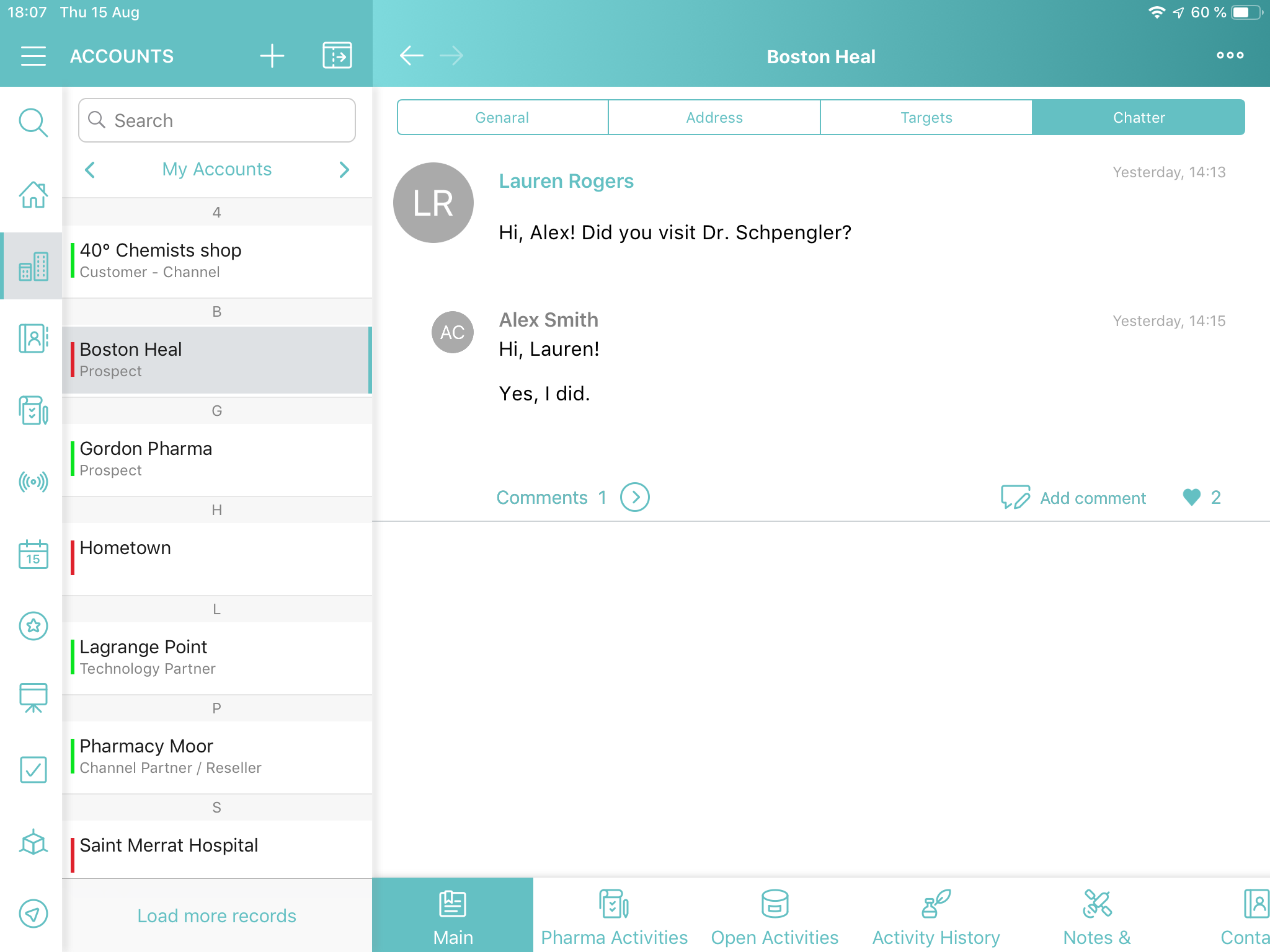
Posts and Comments
By default, posts and comments for the last 6 weeks are downloaded. To update posts and comments, pull down the chatter screen. The records (text posts, link posts, and content posts), comments, and likes will be synchronized.
Tap  and then tap Add post to create a new message for the record.
| The user profile should have permission to edit records of the object to which the Chatter tab is added. |
-
Take a photo or select a photo from the gallery.
-
Attach the audio message or select the audio from the device.
-
Attach a link.
Tap  under the post to comment. Tap
  to view comments for the related post.
-
Take a photo or select a photo from the gallery.
-
Attach the audio message or select the audio from the device.
| Only one attachment can be added to a post or comment. |
Tap  to like a post or comment.