Set Up Holidays
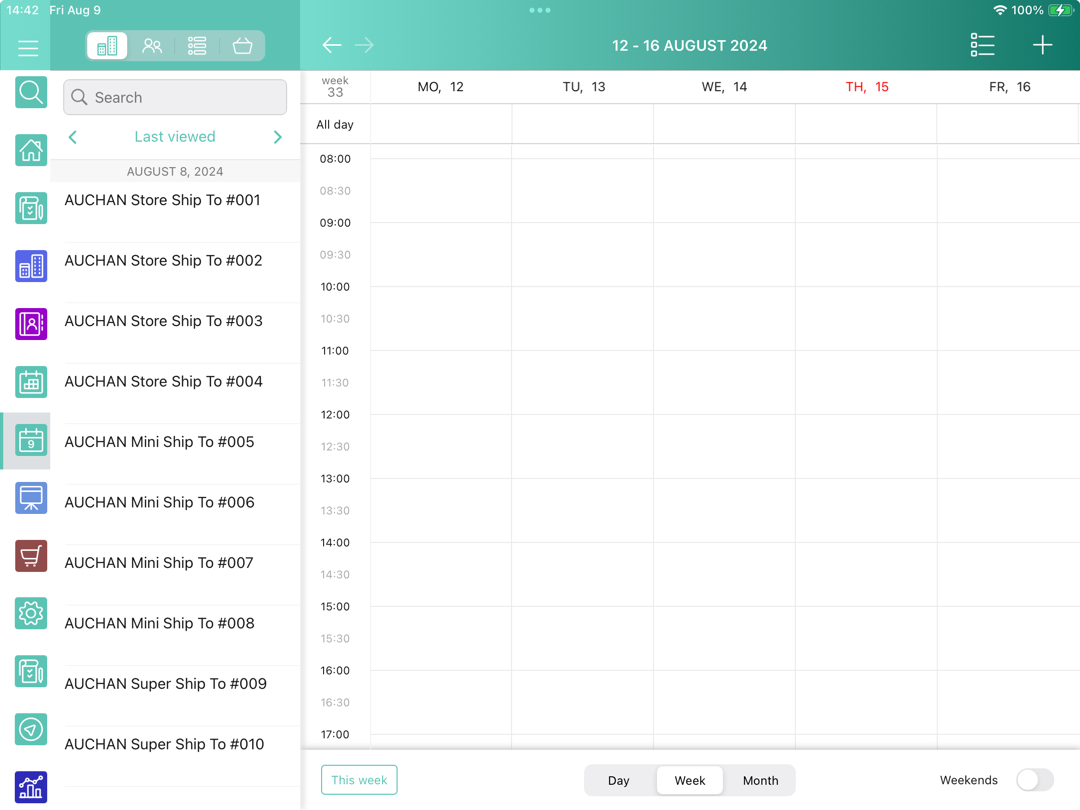
Use the standard Holidays functionality in Salesforce to view holiday dates in your calendar.
-
The holidays are marked with red color in the Calendar module.
-
Holidays can be set for one day or recurring.
-
Holidays can be set for users of a specific country or all users.
State and Country / Territory Picklists
By default, the following steps are required to set a country for a user:
-
Go to Setup → Users → Users → click Edit next to the required one.
-
In the Mailing Address section, enter the country name or code in the Country field.
-
Click Save.
Use this country code while creating a Holiday record.
The administrator can let users add the country code from the picklist with values of predefined, standardized lists, instead of entering country data into text fields. The country picklist offers faster and easier data entry. It helps to ensure cleaner data that can be harnessed for other uses, for example, in reports and dashboards.
To implement the country picklist:
-
Go to Setup → Data → click State and Country / Territory Picklists.
-
Follow a step-by-step guide—refer to Let Users Select State and Country from Picklists.
Use the predefined, standardized code for a user of a specific country.
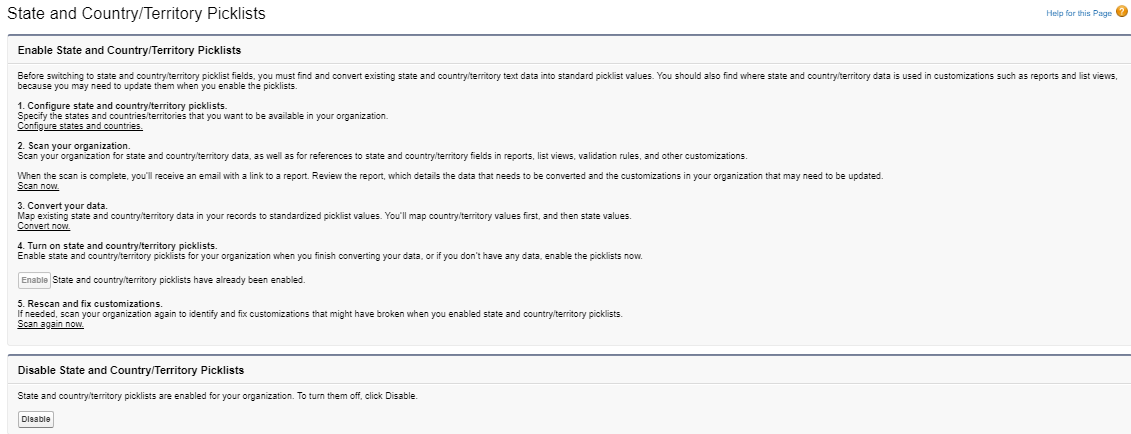
The setup is complete.
Holidays
Holidays must be created per each desired country.
To create a holiday:
-
Add Holiday object to Offline Objects in CT Mobile Control Panel / CT Mobile Control Panel 2.0.
-
Go to Setup → Company Settings → Holidays → click New.
-
Enter the following:
-
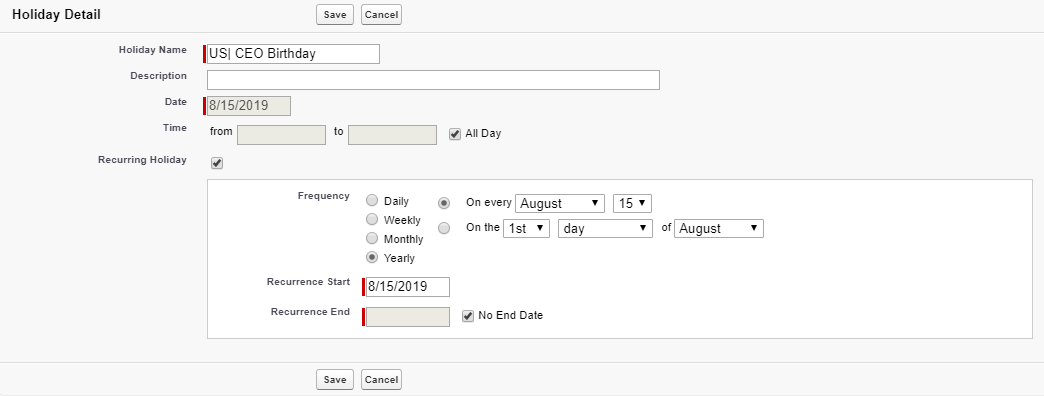
Type the Holiday name and specify the country if needed:
-
the country name or code: Value| Name for the holiday.
-
the country code from the picklist: The predefined, standardized code| Name for the holiday.
If you do not specify the country code, the holiday will be added to the calendars of all users.
-
-
Add Description.
-
Type the Holiday date.
-
Select and customize Recurring Holiday if needed.
-
-
Click Save.
The setup is complete. Launch full synchronization to view holidays in the Calendar module.