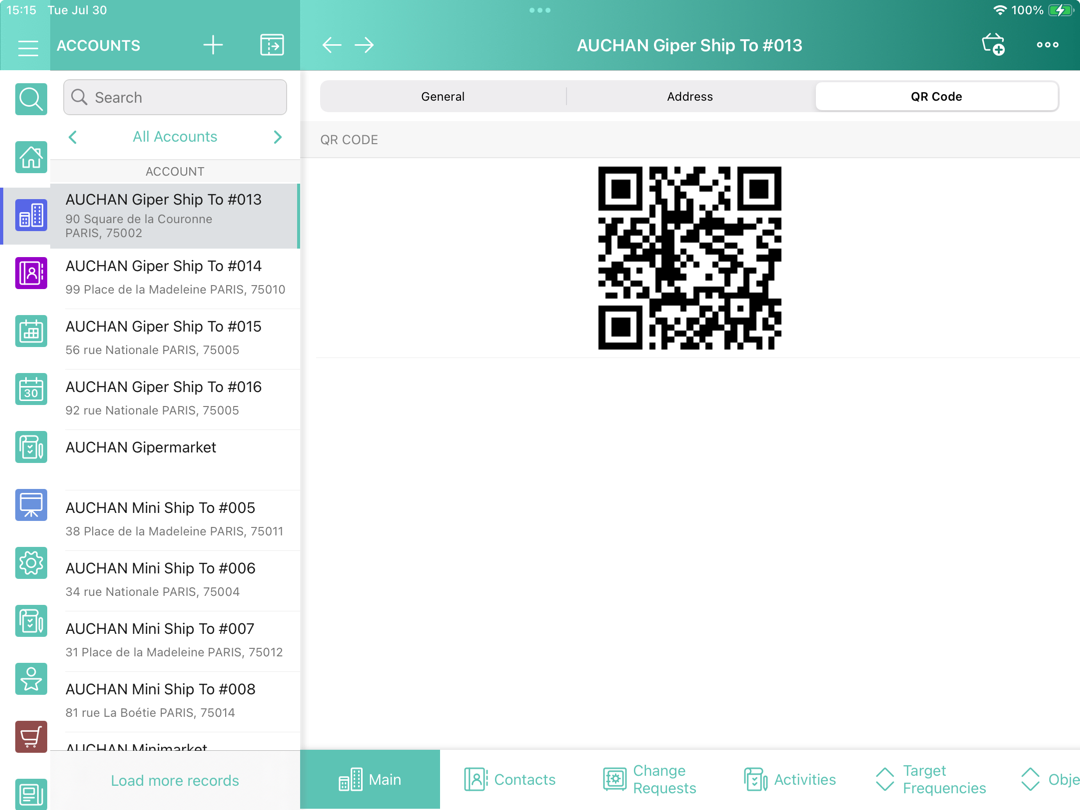
Mobile Layouts: QR Code
The QR Code widget is used to generate and display a QR code on the records page screen. It may contain a URL, pictures, text, and any other useful information.
Creating the Data Source Field
To create a data source field:
-
Go to Setup → Object Manager → the Account object → Page Layouts → Fields & Relationships.
-
Create a new field:
-
In the data type, select Text.
-
In the Field Name field, enter QRCodeSource.
-
In the Field Label field, enter the field label, e.g., QR Code Source.
-
-
Go to Page Layouts → Account Layout → add the QR Code Source field to the layout.
-
Go to the record and fill in the URL address in the QR Code Source field.
The data source field is configured.
Add QR Code to the Mobile Layout
To add the QR Code widget to the mobile layout:
-
Go to Setup → Object Manager → the Account object.
-
Click Page Layouts and select the mobile layout.
-
Add the QR Code tab or use the existing tab.
-
Drag and drop the Section element to the area below the existing tab on which you want to display QR code.
-
In the Section Properties window, enter QRCODE in the Section Name field, and select the 1-Column layout. Ensure that the Display Section Header On checkbox is enabled.
Do not translate the QRCODE section name. It is responsible for displaying QR Code on the mobile layout and should be left intact. -
Click OK.
-
Drag and drop the Blank Space element below the QRCODE element.

-
Click Save.
The QR Code widget is configured. QR code is displayed in the tab on the mobile layout.