Mobile Layouts: Dashboards
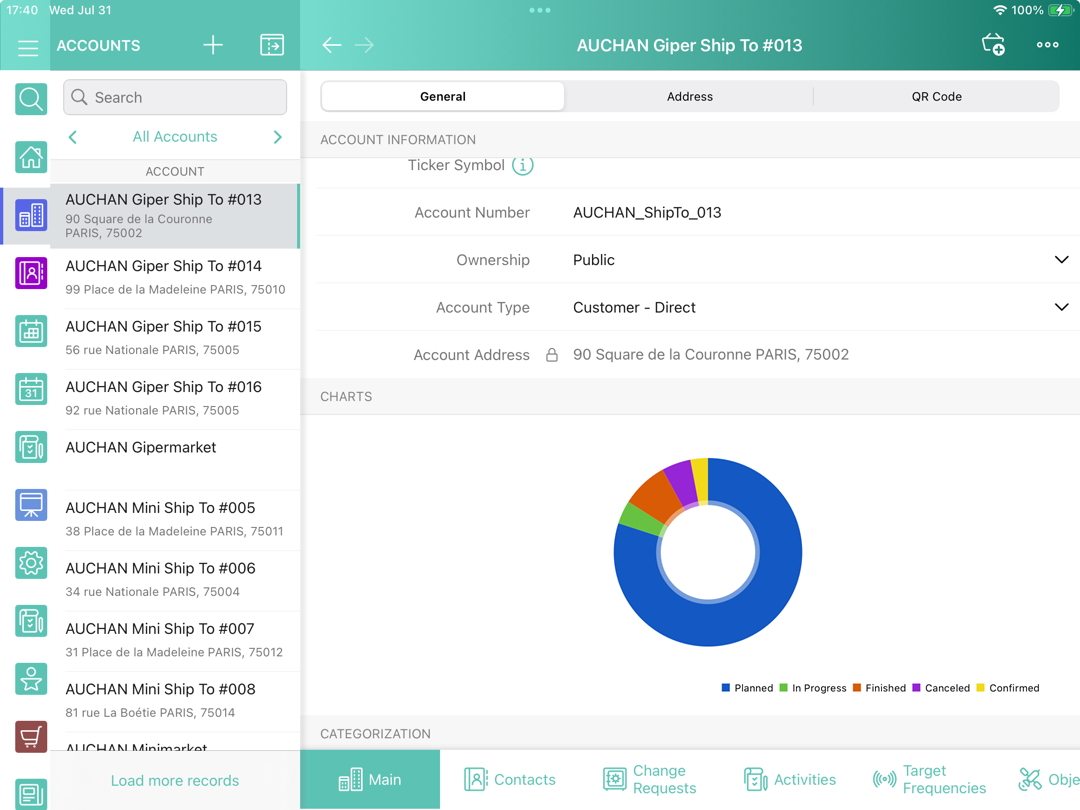
The Dashboards widget is aimed to display the dynamic data in the form of charts (graphs) on the record details page.
Important Notes
-
A dashboard reflects only the records, which are loaded to the mobile device.
-
A dashboard should be located in a custom folder, not in a default package folder.
-
A user profile must have at least View permissions for the objects used in the report.
-
Proper sharing settings with users and roles must be configured for the report and dashboard folders.
-
Note that using the Fiscal year criterion in filters and reports and dashboards criteria is working as the Calendar year.
-
If you create dashboard based on a custom report, which uses custom Report Types, only with type conditions are supported for related objects, with or without type conditions are not supported.
Add Dashboards to the Menu
To add the Dashboards module to the app menu:
-
In CT Mobile Control Panel
-
In CT Mobile Control Panel 2.0
-
Go to CT Mobile Control Panel: App Menu tab.
-
Select the required profile in the Location picklist. To apply settings to all the profiles, select General Settings.
-
Click the
 button to open the Add menu item tool.
 -
Select the Dashboards item.
-
Click Add to close the Add menu item tool.
-
Click Save.
-
Go to CT Mobile Control Panel 2.0: App Menu tab.
-
Select the required profile in the Profile picklist. To apply settings to all the profiles, select General Settings.
-
Click Show Module Menu.
-
On the All or Application Modules tab, select the Dashboard item.
The setup is complete.
Add Dashboards to the Mobile Layout
To add the Dashboards widget to the mobile layout:
-
Go to Setup → Object Manager → select an object.
-
Click Page Layouts and select the mobile layout.
-
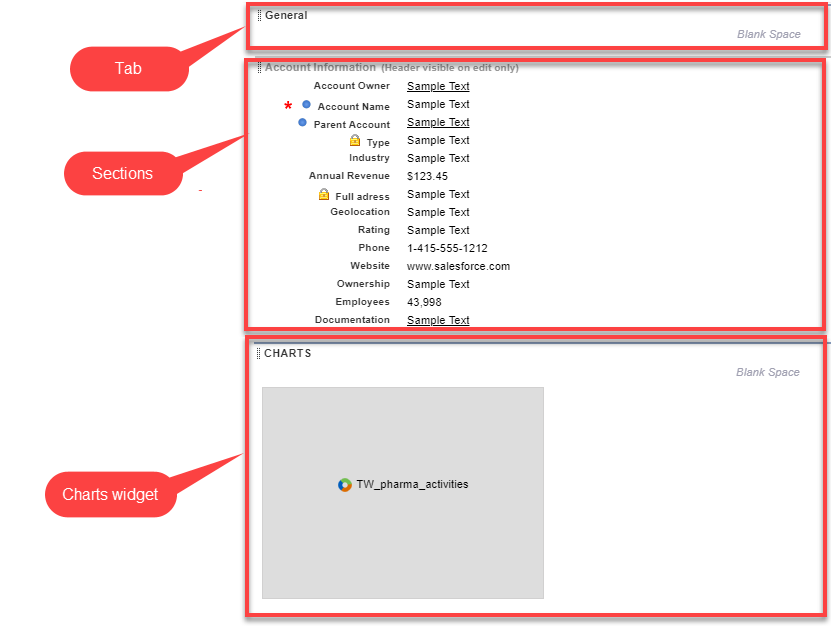
Drag and drop the Section element to the area below the existing tab on which you want to display dashboards.
-
In the Section Properties window, enter CHARTS in the Section Name field, and select the 1-Column layout. Ensure that the Display Section Header On checkbox is enabled.
Do not translate the CHARTS section name. It is responsible for displaying Dashboards on the mobile layout and should be left intact. -
Click OK.
-
Drag and drop the Blank Space element below the CHARTS element.
-
Go to Report Charts.
-
Select a chart from the Report Charts list and drop it below the Blank Space element.
A report must have a configured dashboard to display in the Report Charts list.
-
Click Save.
The Dashboard widget is configured. Charts display in the tab on the mobile layout.