Timeline View
The timeline view is the alternative way to display records of the standard related lists as a tree of records in chronological order according to the criterion.
| The timeline view does not apply to custom related lists. |
The timeline view may be used for multiple standard related lists on the same layout.
-
The standard related lists will be merged into a single timeline named Activities.
-
It will contain the records of all the standard related lists for which timeline view is enabled, for example, records of the Event and Case objects.
Timeline View Setup
To display the timeline view:
-
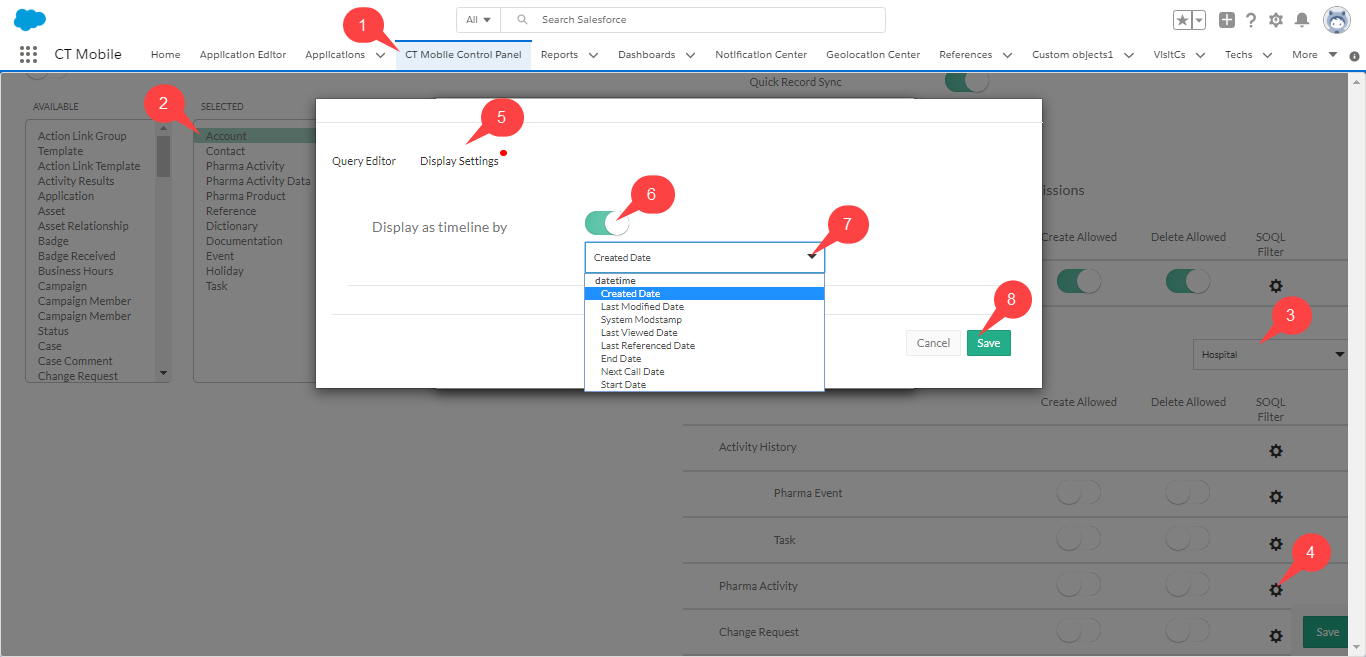
In CT Mobile Control Panel
-
In CT Mobile Control Panel 2.0
-
Select an object from the Selected list.
-
Select the required record type from the drop-down list.
-
Click
 next to the required related list. The related list settings window opens.
 -
Switch to the Display Settings tab.
-
Enable the Display as a timeline by setting.
-
Select the date or the date/time type field from the drop-down list to sort the records in the timeline.
-
Click Save in the related list settings window.
-
Click Save on the CT Mobile Control Panel tab.
-
Select an object from the Selected list.
-
Click the Related Lists tab.
-
Click
 to expand desired related list.
 -
In the Display as Timeline section:
-
Switch the Enabled toggle.
-
In the Ordered by Selected Field, picklist select the date or the date/time type field.
-
-
Click Save.
Using Timeline View
Go to the record and open the standard related list configured in the timeline view.
-
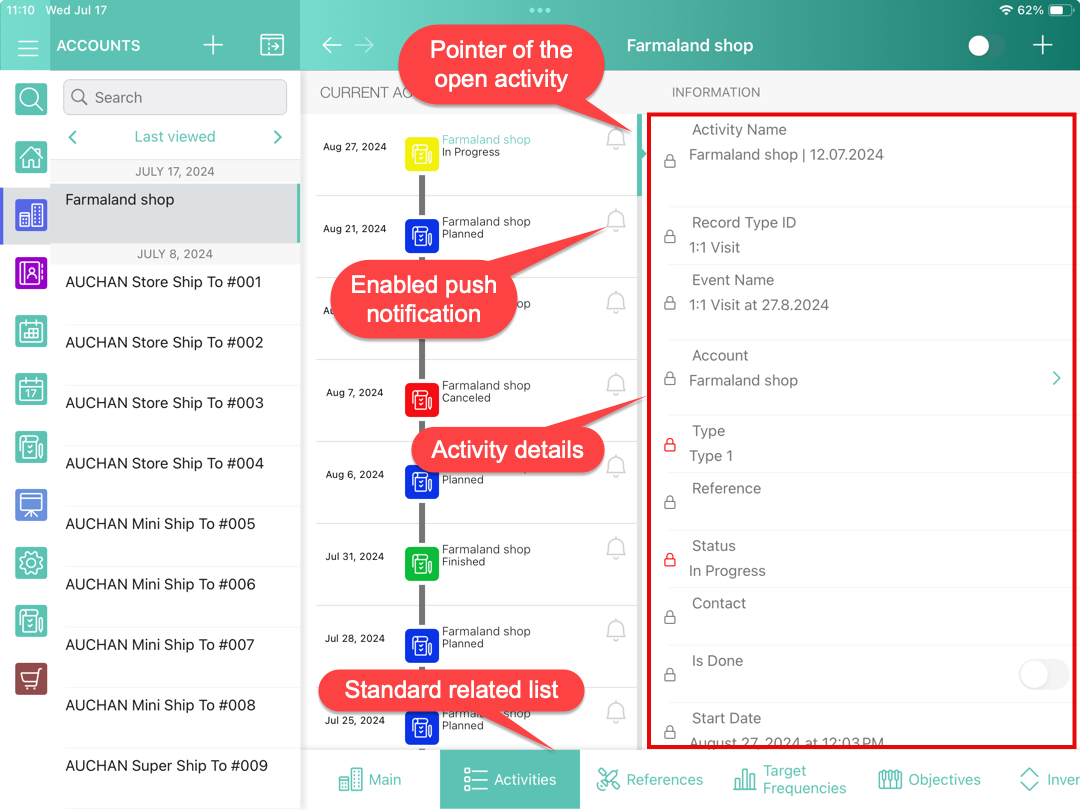
On the left, activities are displayed as icons of the relevant type in chronological order. Observe the icons to quickly identify the activity type.
-
On the right, the details about the earliest future activity are displayed.
-
Tap an activity to display its details on the right part of the screen.
-
Double-tap an activity to open it.
-
If needed, set the colors for each activity type.
-
If enabled, it is possible to create activity records.
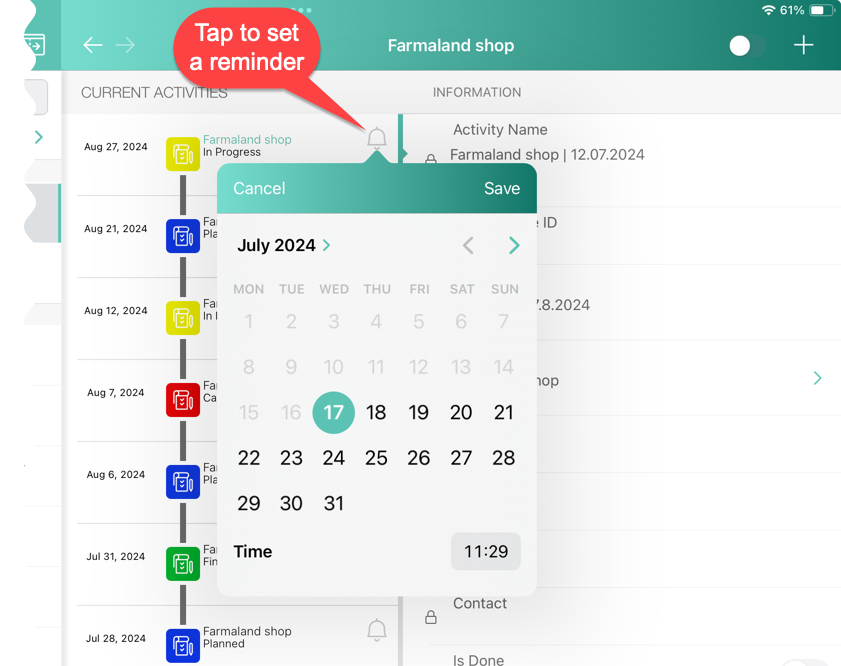
Tap the icon next to the future activity to set a reminder.