Chatter
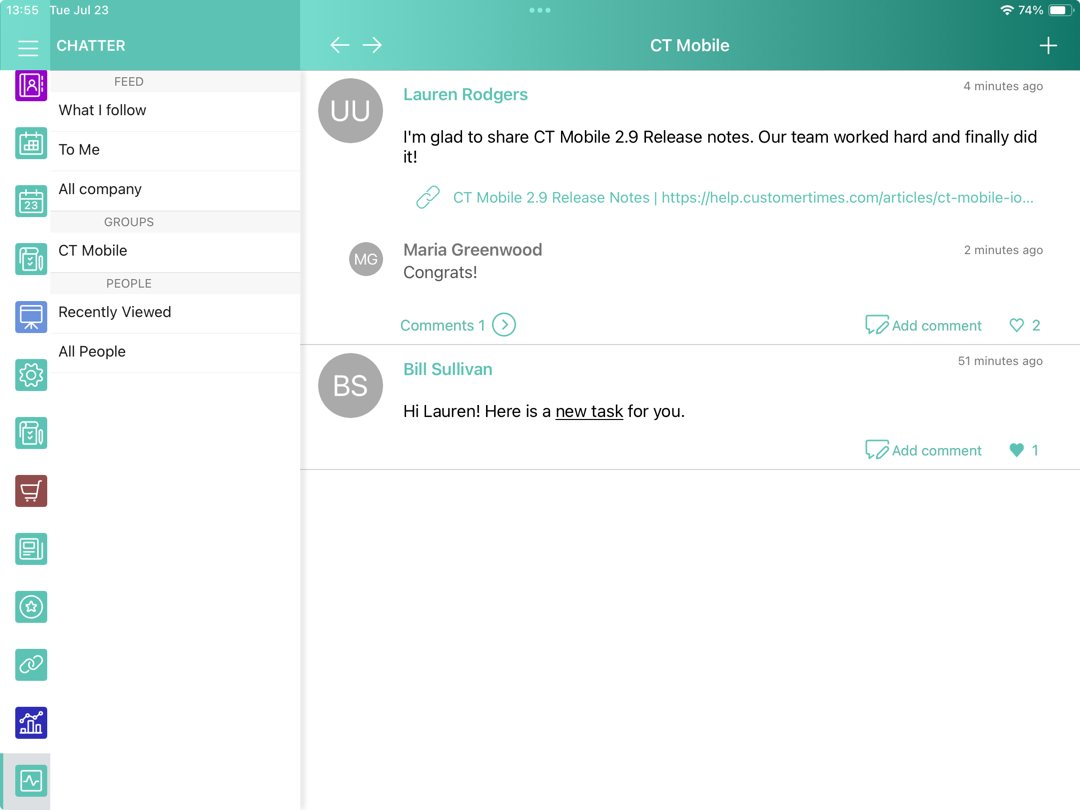
The Chatter module displays users' messages. Users can create posts and comments, add attachments, and receive push notifications. You can add Chatter to the mobile layout.
The red dot on the Chatter item in the left menu means that new application records have been downloaded since the last synchronization:

Adding Chatter to the Menu
To add the Chatter module to the app menu:
-
In CT Mobile Control Panel
-
In CT Mobile Control Panel 2.0
-
Go to CT Mobile Control Panel: App Menu tab.
-
Select the required profile in the Location picklist. To apply settings to all the profiles, select General Settings.
-
Click the
 button to open the Add menu item tool.
 -
Select the Chatter item.
-
Click Add to close the Add menu item tool.
-
Click Save.
-
Go to CT Mobile Control Panel 2.0: App Menu tab.
-
Select the required profile in the Profile picklist. To apply settings to all the profiles, select General Settings.
-
Click Show Module Menu.
-
On the All or Application Modules tab, select the Chatter item.
-
Click Save.
The setup is complete.
Chatter Menu
In the Chatter menu, the feeds, groups, and people sections are available. Tap a group, a contact, or select a feed to view the related posts and comments.
| Due to SOAP limitations, polls and @mention are not supported. |
Feeds
The following Chatter feeds are available by default. Click the feed to view posts and comments.
-
What I follow
All posts and comments of the feeds the current user is subscribed to all posts and comments by the current user, and all posts and comments from the groups the current user created or participated.
-
To Me
All posts and comments on the current user wall, all comments for the current user posts.
-
All Company
All posts and comments from all company groups even if the current user is not a group member.
Groups
Private and public groups the current user created or in which the current user participates are displayed. Tap the group to view all related posts and comments. Create a new Chatter group in Salesforce, perform mixed synchronization, and track the group posts and comments in the mobile app.
To update posts and comments in a group, pull down the chatter screen. The records (text posts, link posts, and content posts), comments, and likes will be synchronized.
Chatter Posts and Comments
By default, posts, and comments for the last 6 weeks. To update posts and comments, pull down the chatter screen. The records (text posts, link posts, and content posts), comments, and likes will be synchronized.
Tap  to add a new message to the feed, group, or contact.
-
Take a photo or select a photo from the gallery.
-
Attach the audio message or select the audio from the device.
-
Attach a link.
Tap Add comment  under the post to comment. Tap
  to view comments for the related post.
-
Take a photo or select a photo from the gallery;
-
Attach the audio message or select the audio from the device.
| Only one attachment can be added to a post or comment. |
Tap  to like a post or comment. Tap the record name to open its feed.