Remote Detailing 2.0: UI for Presenter
| Available since CT Mobile package v. 3.63. |
A presenter can launch the CLM presentation from Salesforce or the CT Mobile app.
Read Remote Detailing: F.A.Q. to check supported browsers, recommended bandwidth, and CLM-presentations features availability.
Start a Remote Detailing session
To start the meeting:
-
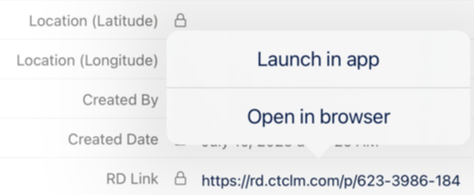
Click the invitation link to start the CLM presentation.
-
In the pop-up menu, select Launch in app or Open in browser.
-
Click the Presenter Login button in the top right corner of the screen.
-
If you enter participant details and click Join, you can log out on the next screen and re-enter as the presenter. Also, you can return to the CT Presenter site and join the meeting by entering the Meeting ID.
-
If you start the Remote Detailing meeting from the CT Mobile app, you do not need to re-enter as the presenter. The CLM presentation will be launched in the new app window.
-
You are logged in and the meeting is started. In case of the first login, grant the requested permissions.
Manage a Remote Detailing meeting
Please note, that the following features are available only for browser version of Remote Detailing and are not available for the in-app version:
-
Zooming in\out and entering full-screen mode.
-
Recording audio part of the meeting.
-
Screen sharing.
-
Sharing control to participants.
-
Likes On/Off option.
Also, the presentation controls are located in the lower part of the sidebar.
Main Screen
|
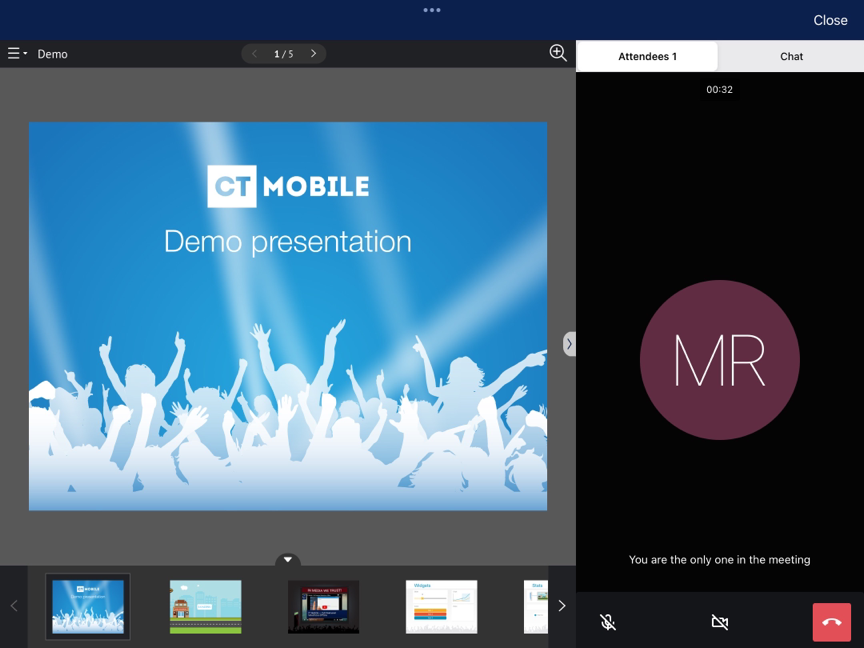
When you started the meeting, the meeting screen is opened. Now, participants can join the meeting.
|
Sidebar
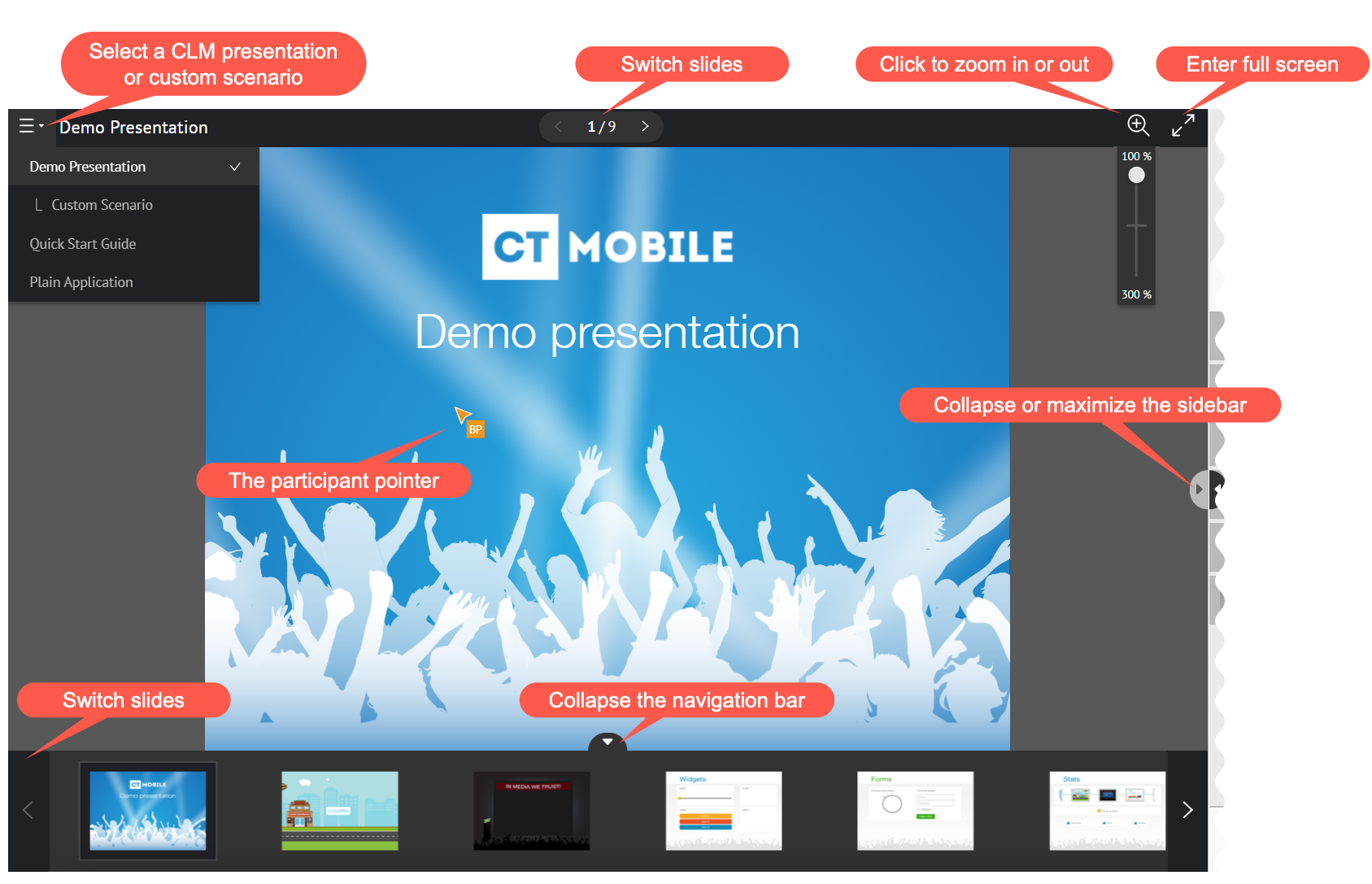
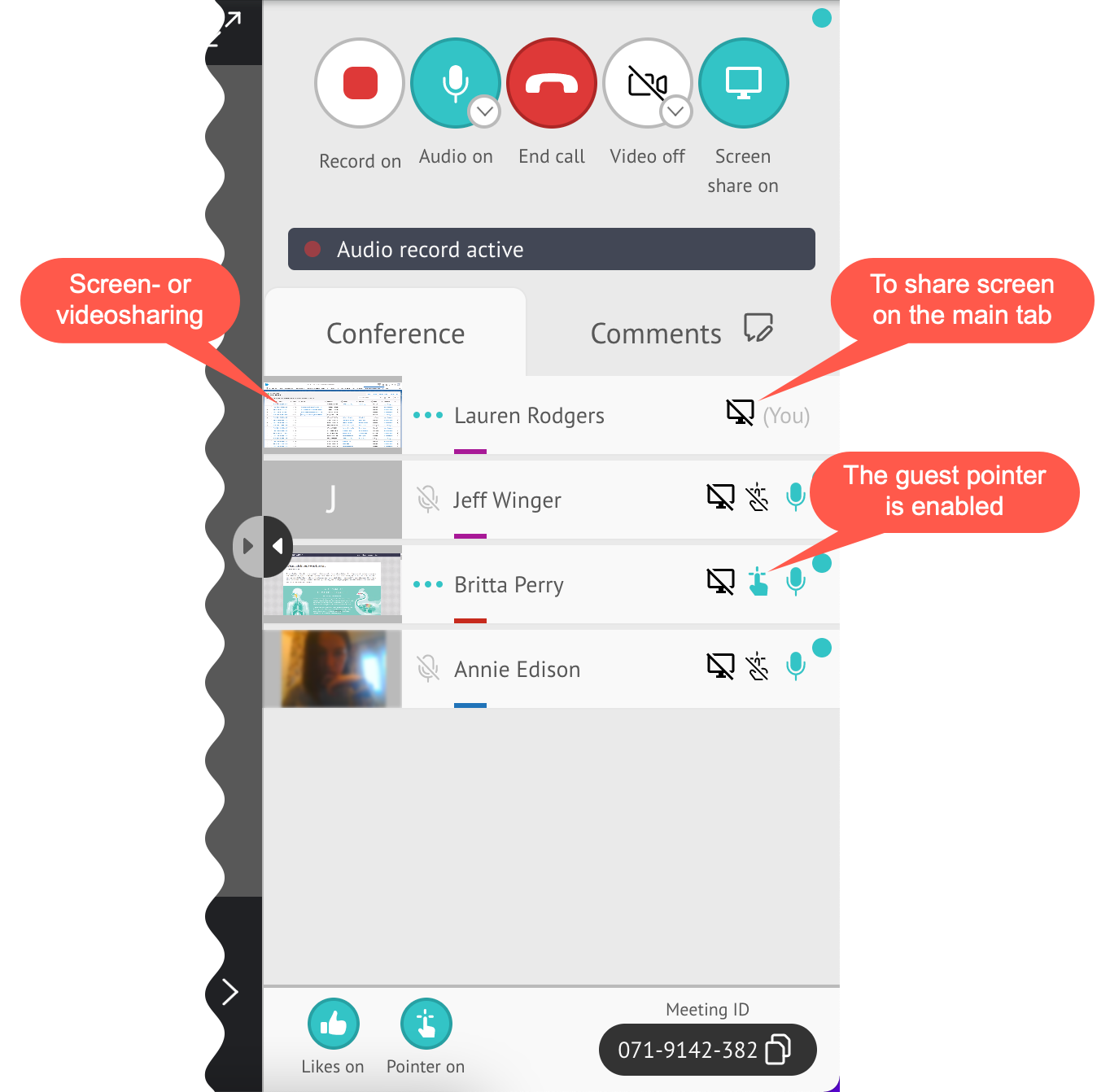
The sidebar has the Conference tab to manage the Remote Detailing meeting, select audio and video options, and enable participant actions.
If specified in the CT Mobile Control Panel: Presenter / CT Mobile Control Panel 2.0: Remote Detailing, the Comments tab will be displayed and all users can leave a comment. The red dot on the tab indicates the unread messages. Record on
If allowed in the CT Mobile Control Panel: Presenter / CT Mobile Control Panel 2.0: Remote Detailing tab, click to record the audio of the meeting.
Audio/Video On/Off
Screen Share On/Off
End Call Click to leave the meeting. If call repeat is allowed in the CT Mobile Control Panel: Presenter / CT Mobile Control Panel 2.0: Remote Detailing tab, you can launch it again. Likes On/Off
Enable the ability to like or dislike slides for participants. To view the participants' likes/dislikes in the CLM Presentation statistics, the Track slide likes/dislikes option should be enabled on the CLM presentation record. Pointer On/Off Click to enable the presenter pointer display on participants' screens. Manage Participants
|
|
Finish a Remote Detailing session
Click End call to finish the meeting.
-
All participants forcibly leave the meeting.
-
Allow the repeated meeting on the CT Mobile Control Panel: Presenter / CT Mobile Control Panel 2.0: Remote Detailing tab to have the ability to restart the finished meeting.
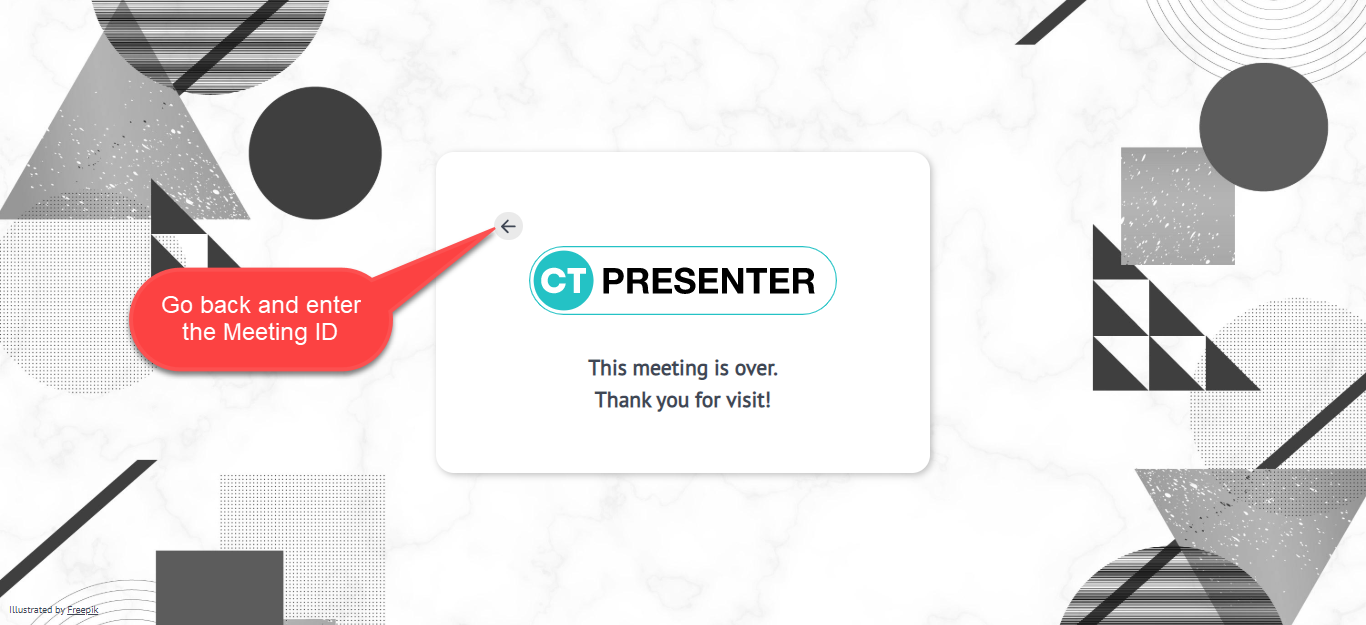
You can enter the Meeting ID and join as a participant in another Remote Detailing meeting.