The CT Presenter app: Interactions during the Remote Detailing Meeting
| This application is an outdated solution. It is recommended that you use the Safari browser. |
Working with the CLM presentation in the CT Presenter app is the same as in the browser window.
Grant Access
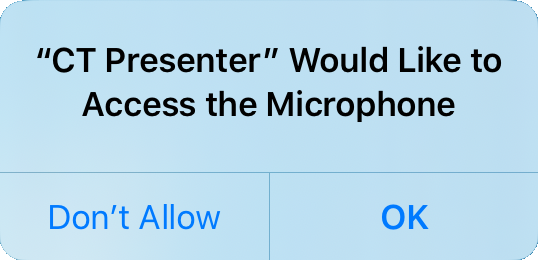
When a participant joined the meeting, they should grant access to the device’s camera or microphone. The pop-ups with the requested permission will be displayed when the participant taps on the camera or microphone icon in the sidebar.
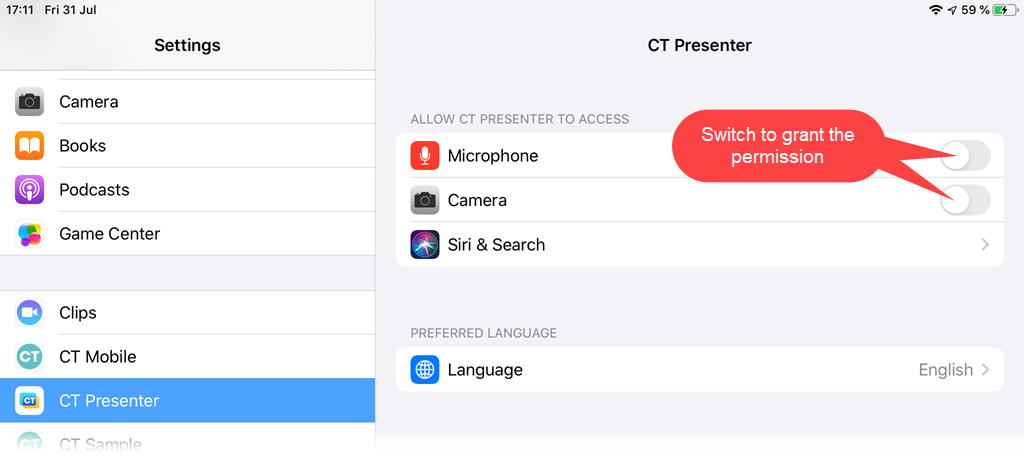
If the participant decided to change the permission, they could open the device Settings and specify the required permissions.
Using Sidebar
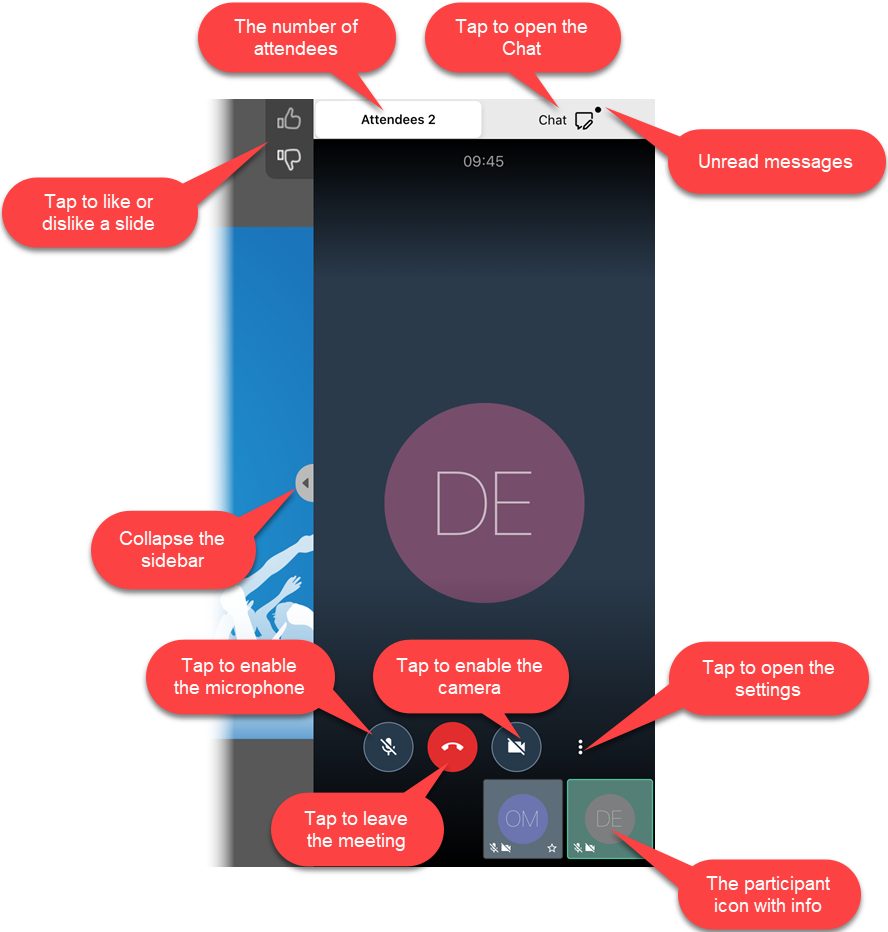
On the right side of the screen, the sidebar is displayed.
-
According to Remote Detailing settings, video streaming, audio calls, and chat will be available for participants.
-
On the participant icon, there is info about the enabled participant’s camera and microphone.
-
The sidebar can be hidden.
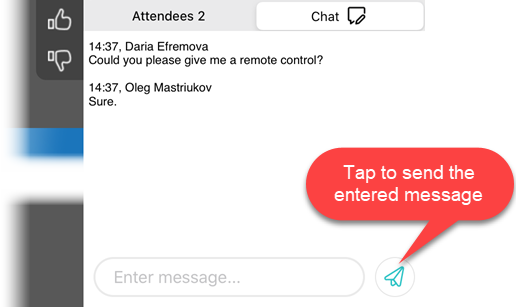
The sidebar has two tabs if video streaming, audio calls, and chat are enabled:
The Chat section if video streaming, audio calls, and chat are enabled.
| When somebody sends a message, the pop-up with the text will be displayed. Click the Chat tab to view the message. |
The settings of the sidebar:
-
Select the sound device (a phone or a speaker).
-
Enable low bandwidth mode in the case of a slow connection.
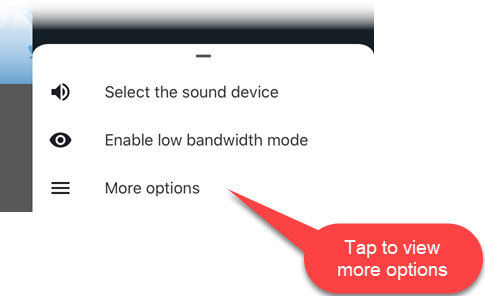
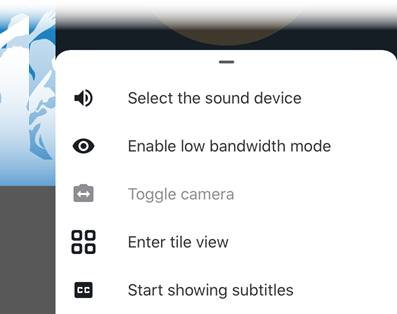
Tap More options to open other settings:
-
Toggle the camera if available.
-
Enter the tile view to display several participants' videos.
-
Start showing subtitles if available.
Presentation Remote Control
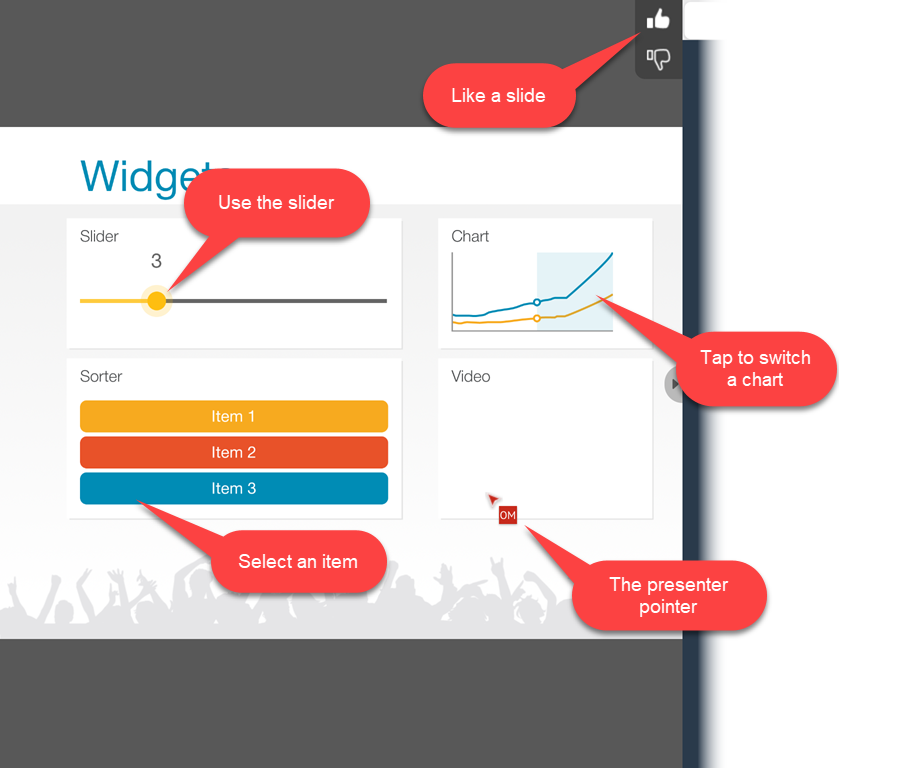
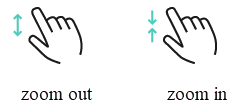
Participants could zoom in and zoom out a slide with the two-finger pinch gesture.
The presenter could grant permission to participants:
-
Like and dislike slides.
-
View the presenter pointer.
-
Remote control of the presentation. The participant can interact with the presentation, for example, enter data, toggle switchers, or answer questions.