Fast Synchronization
To run fast synchronization, tap the Sync button in the top right corner of the Home Screen or long tap the Sync button and select Fast synchronization from the picklist.
| Due to the iOS platform limitations, do not collapse the application and do not turn off the screen during fast or mixed synchronization. |
-
The mixed synchronization will be launched if certain conditions are met.
-
The fast and mixed synchronization processes are not interrupted in case of errors with records. The unsynchronized records containing errors can be synchronized after the errors are corrected.
-
During the fast or mixed synchronization, the application is available for work except for the Applications module.
Sync Steps
-
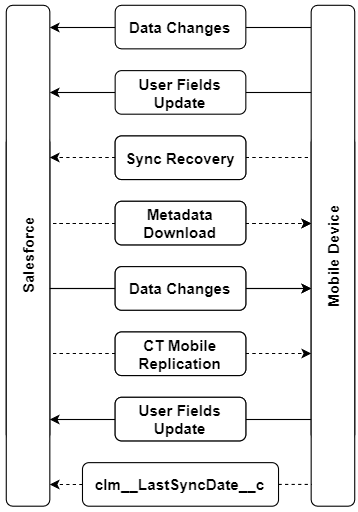
Data changes in the application, such as deletions, insertions, and updates, are sent to Salesforce.
-
The changes in the audit fields of the current user’s record are sent to Salesforce.
The clm__LastSyncDate__c field will be updated only if the previous synchronization was successful, but has been interrupted before the field sync date was updated. -
If enabled, records with errors will be sent using the Sync Recovery functionality.
-
The system compares the date of the last successful synchronization in the clm__LastSyncDate__c field of the current user’s record with the date of the last metadata change in the clm__MetadataLastModifiedDate__c field of the Mobile Application Setup record for the current user’s profile (if this record exists) or for the current user’s Salesforce organization. To find out how to manually or automatically update the clm__MetadataLastModifiedDate__c field, go to Metadata Checker.
-
If the date of the last metadata change is a date earlier than the date of the last successful synchronization, the application runs the fast synchronization;
-
If the date of the last metadata change is later than the date of the last successful synchronization or not specified, the application runs the mixed synchronization to download metadata components and update the current database.
Metadata components are downloaded from ZIP archive(s) or directly using administrator credentials depending on the CT Mobile package version. The cloud token should be valid to retrieve components from the ZIP archive(s) (refer to CT Mobile Control Panel: Tools / CT Mobile Control Panel 2.0: Tools). The synchronization process can proceed without a valid cloud token or administrator credentials, and in that case, validation rules, offline reports, and some operators in formulas might not operate properly.
-
-
Records of the custom settings, custom metadata types, offline objects, and objects, which are necessary for activated modules, are downloaded if the value in the SystemModstamp field is a date later than the date of the last successful synchronization and a record matches the conditions set in related list filters.
-
If configured, the records of the specified objects mentioned in the CT Mobile Replication setting are updated.
-
The audit fields of the current user record are updated.
The clm__LastSyncDate__c field will be updated only if fast/mixed synchronization was successful or partially successful. This field shows that the actual information is downloaded on the device.