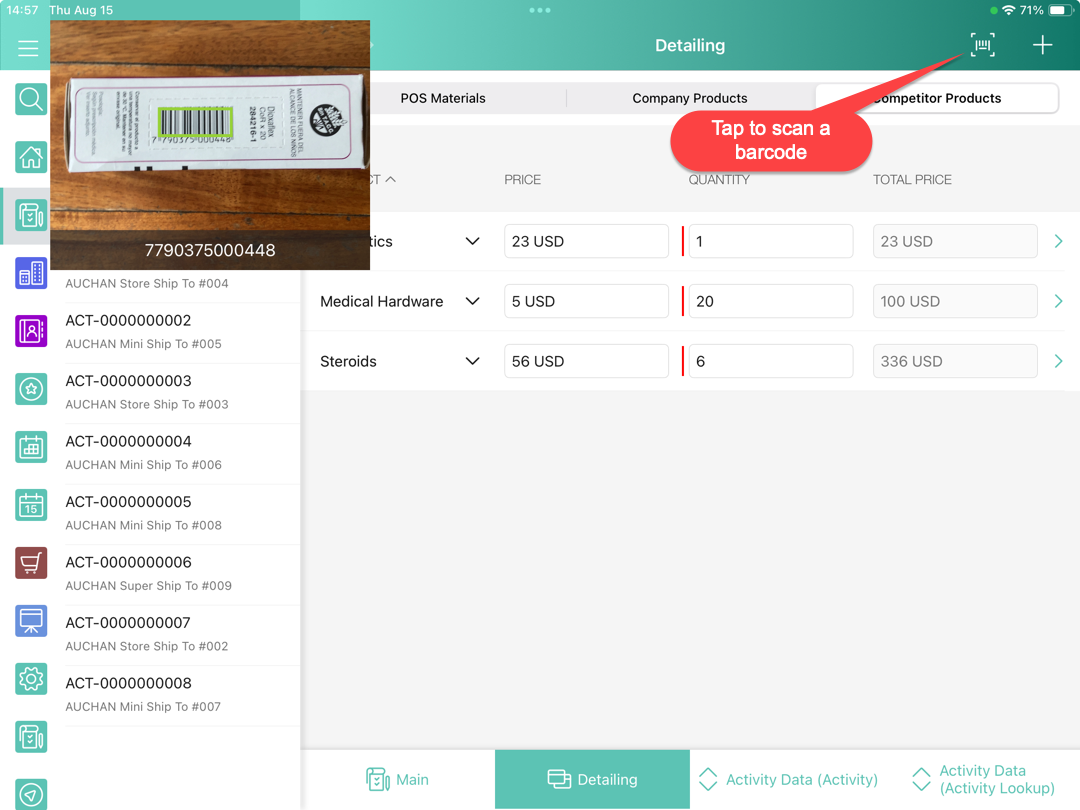
Barcode Scanner
The barcode scanner allows a user to add a product record to a custom related list. The product record should have a field in which the number encoded in the barcode is specified.
-
The following types of barcodes are supported: EAN-13, EAN-8, UPC-E, Code-39, Code-128, PDF417, QR Code, Aztec Code, and Data Matrix.
-
The following types of barcodes can be supported if needed: Code-39 mod 43, Code-93, ITF-14, and Interleaved 2 of 5.
To display the barcode scanner button on the custom related list screen, the following are required:
-
Create a ProductCode or ProductCode__c field with the text type on a Product object. Specify in the field the number encoded in the barcode.
On the CT Mobile Control Panel: General tab, the Product object should be selected in the Product Object API Name field. -
On the Activity Data object:
-
add a field with the lookup relationship type to link the Activity Data object with the Product object;
-
add a field with the lookup relationship type to link the Activity Data object with the Activity object.
-
-
Create a custom related list of the Activity object with the Activity Data object as a child object.
-
add a field with the lookup relationship type, which links the Activity Data object with the Product object, as a column of the list.
-
-
Add the Activity,Activity Data, and Product objects to offline objects.
The user’s profile should have access to read and edit records of all the objects mentioned above.
To create a record using the barcode scanner:
-
In the CT Mobile app open the Activity record screen.
-
Go to the Detailing tab and tap the custom related list subtab.
-
Tap the barcode scanner button to switch on the camera for scanning barcodes. The product information will be added as a record in the custom related list if the product record with that number encoded in the barcode is found.
A new record is created.
-
When rescanning previously added barcodes, duplicate records are not created.
-
If the Start/Finish functionality is enabled, the barcode scanner button will be available after the activity is starting.