Security Token
| For users of CT Mobile package version below 3.54. |
When you access Salesforce from an IP address that is outside your company’s trusted IP range using a desktop client or the API, you need a security token to log in. A security token is a case-sensitive alphanumeric code that you append to your password or enter it in a separate field in a client application.
In case the security token is expired, some application functionality may be unavailable. The log will contain the following message: Administrator credentials are not valid. Validation rules and dashboards may work not properly in offline mode.
Updating Security Token
To update the security token:
-
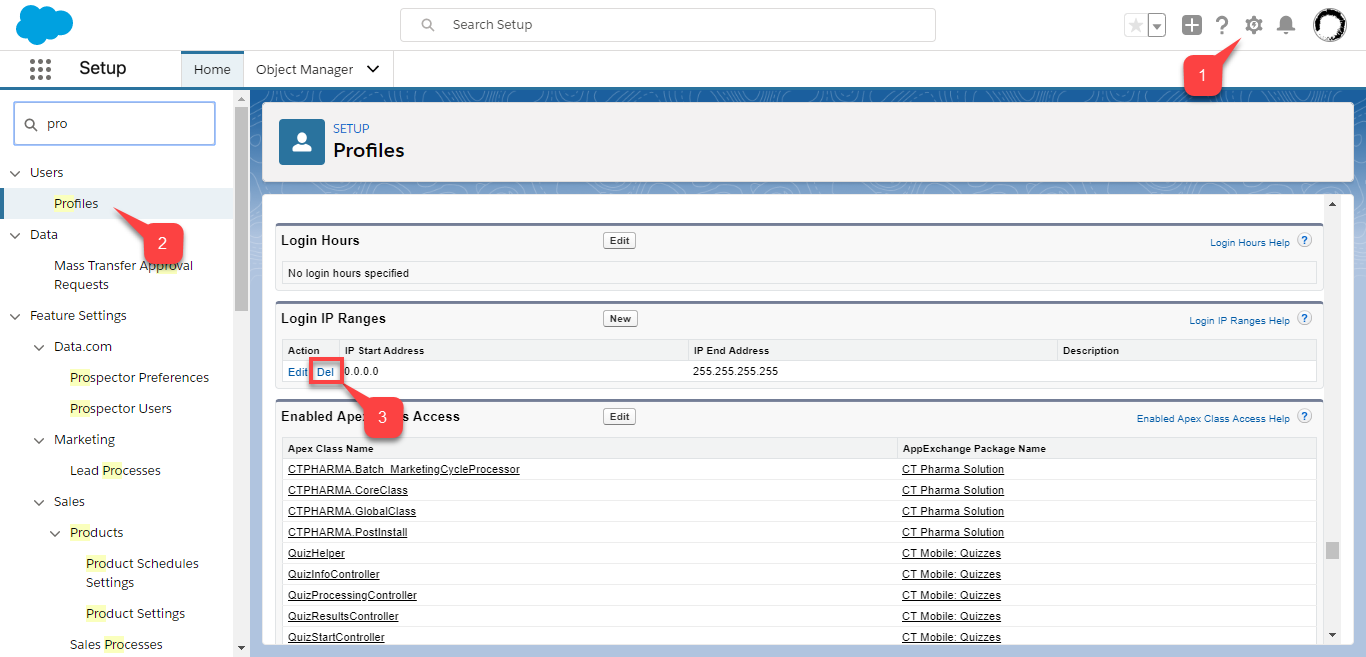
Go to Setup → Users → Profiles and click the profile of your org administrator.
-
Look for the Login IP Ranges section and back up all the settings for further use.
-
Delete all the settings from the Login IP Ranges section.
-
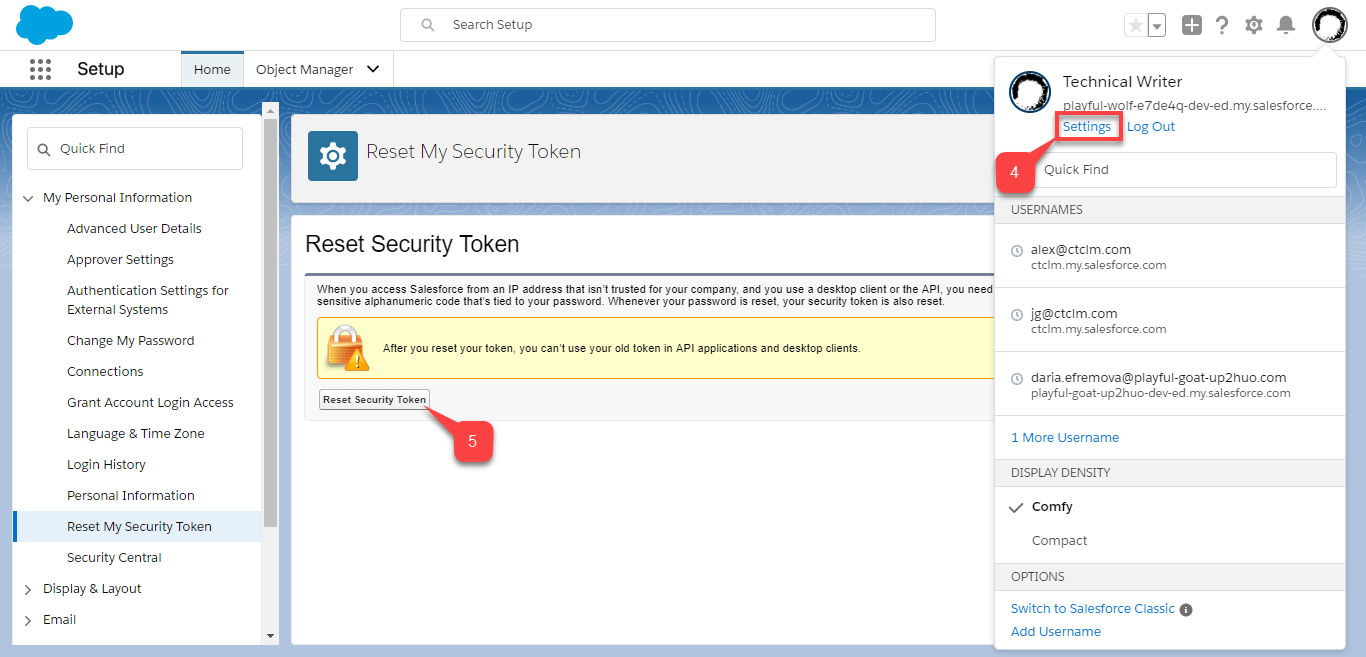
Go to Profile Settings.
-
In the Reset My Security Token section, click Reset Security Token to send the new security token to your email address.
-
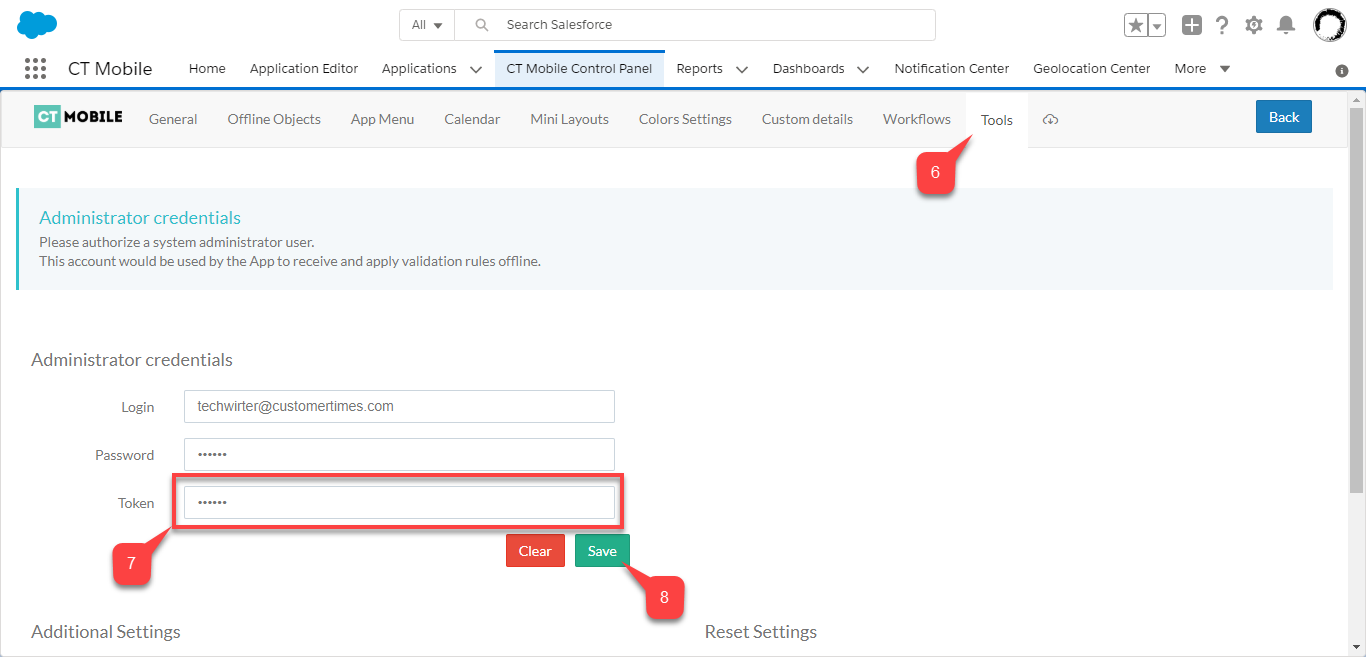
Go to the CT Mobile Control Panel: Tools tab.
-
Insert your new security token in the Token field.
-
Click Save.
-
Go to Setup → Users → Profiles and click the profile of your org administrator.
-
In the Login IP Ranges section, restore all the settings.
The security token is updated, and the application is ready for use. Run the full synchronization of the mobile app to apply the changes.