CT Mobile Control Panel 2.0: Offline Objects
The Offline Objects tab is intended for managing offline objects (objects that should be available on the mobile app) and standard related lists.
According to the selected profile, settings on this tab will be saved in the records of the CTM Settings object with the Offline Objects and Standard Related List record type.
| To add a Custom Metadata Type object, create a record in the CTM Settings with the Offline Object record type. |
In the left part:
-
Use the search box to find offline objects in the Available list.
-
Use the Show Advanced List option to display all objects in the Available list, regardless of whether the object has a page layout.
Objects with the clm__ prefix and Library objects are not displayed in the list and should be added as modules in the App Menu. -
Click the object name in the Selected list to set up the user’s permissions to work with this object and standard related lists.
The tab has the following sections:
Main
For each object, you can enable creating and deleting records by selecting the corresponding checkboxes in the Allowed to section.
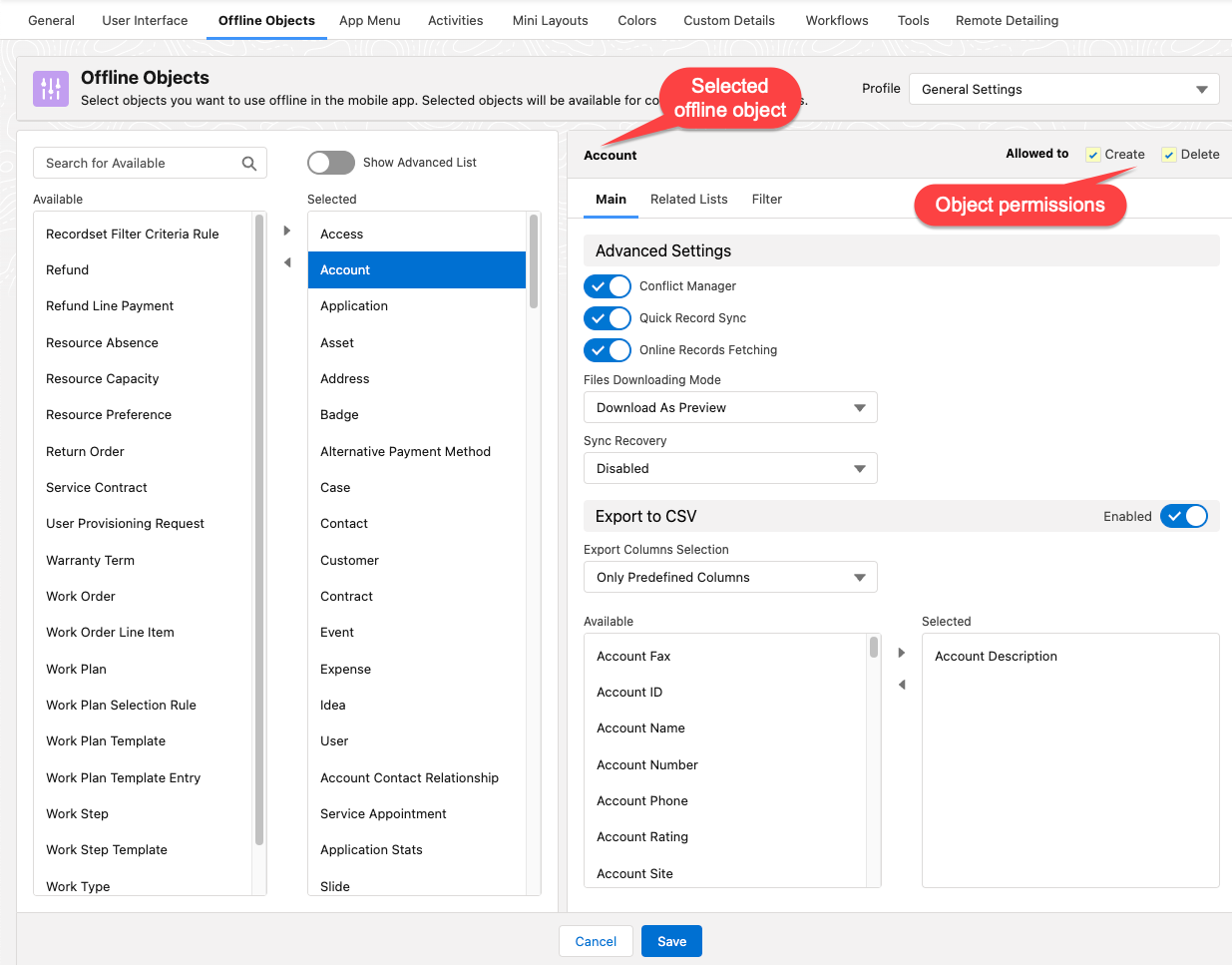
Advanced Settings
Conflict Manager
If enabled, the Conflict Manager will track changes made to the same record in CT Mobile and Salesforce. In the event of a conflict, the mobile user can choose which change to save.
This option is not available for CT Order, Delivery, Order Line Item, Delivery Line Item and Calculated Discount objects.
Quick Record Sync
If enabled, a mobile user with the corresponding profile can sync a single record and its child records by applying the pull-to-refresh gesture on the record’s layout.
This option is not available for CT Order, Delivery, Order Line Item, Delivery Line Item and Calculated Discount objects.
Online Records Fetching
If enabled, a user can load additional records via the Load more records button in the application.
-
Records should be available for the current user and not downloaded according to SOQL filters.
-
This option is not available for CT Order, Delivery, Order Line Item, Delivery Line Item and Calculated Discount objects.
Files Downloading Mode
Defines the way how files attached to the offline object must be downloaded during synchronization. Available values:
-
Skip Download: files will not be downloaded (the default value).
-
Download As Preview: only preview images will be downloaded. Tap on the preview image to download the entire file.
-
Full Size: the entire file will be downloaded.
Sync Recovery
If enabled, records with errors will still be sent to Salesforce. Available values:
-
Disabled (is set by default).
-
Use Direct access for pushing the changes directly to an object via the additional web service.
-
Use Proxy object for pushing the changes as a JSON file attached to the Sync Log record via the additional web service. In Salesforce, you can apply the custom logic for JSON files.
This option is not available for CT Order, Delivery, Order Line Item, Delivery Line Item and Calculated Discount objects.
For more information, refer to Sync Recovery.
Export to CSV
If enabled, then the Export to File item is displayed in the Actions menu of the offline object.
Export Columns Selection
Defines the list of fields that user can select in the Export to File dialog window. Available values:
-
Only Predefined Columns: only the fields selected below will be available for export.
-
User-Selected Columns: user can select fields to export.
-
Predefined and User-Selected Columns: fields selected below will be displayed as required, and user can add other fields to export.
Related Lists
On this tab, you can configure related lists for selected record type:
-
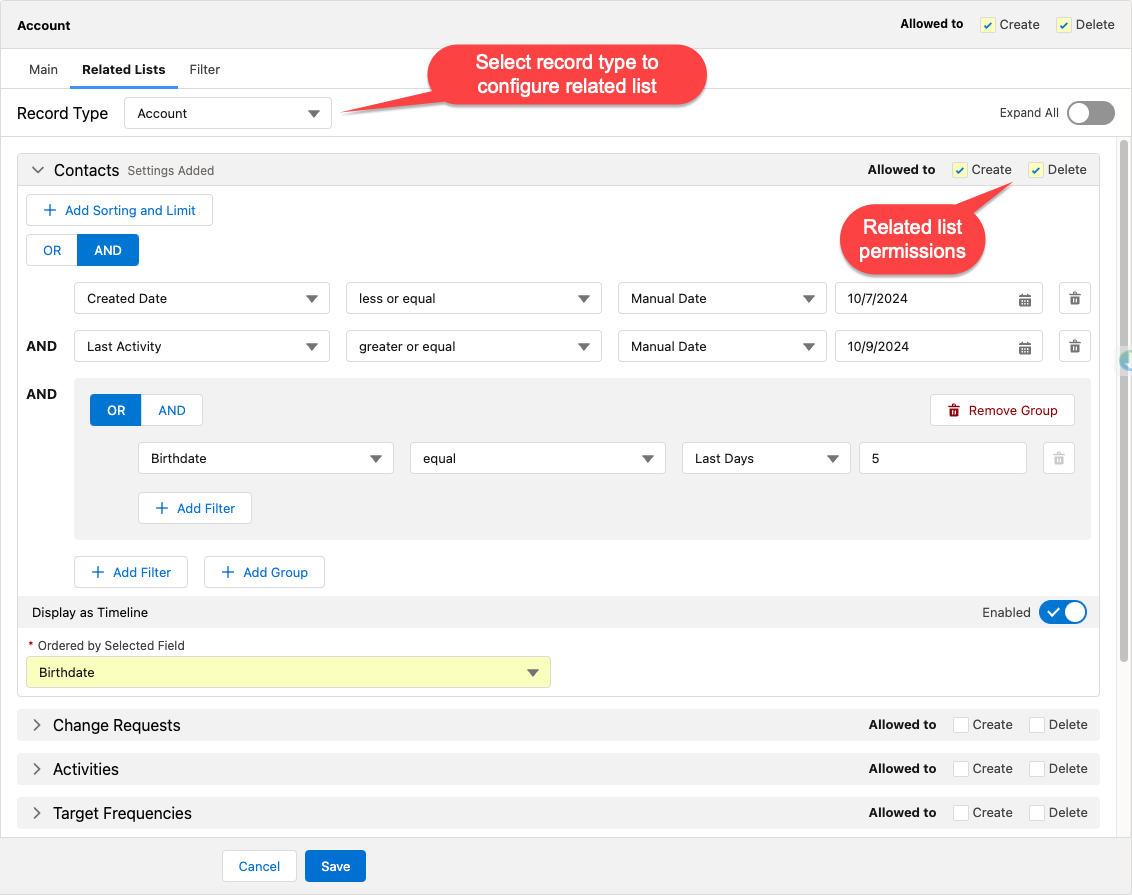
In the Allowed to section, restrict the profile permissions to create or delete records of the standard related lists, which are added to the page layout of an offline object and available for the selected record type.
-
Click Add Filter to set up SOQL filters for using a toggle in the CT Mobile app to display all records or only records that match the criteria.
-
Toggle the Display as Timeline to enable the timeline view. If enabled, select a field from the Ordered by Selected Field list.
To configure a related list, first select a record type from the list.
| If a record has no custom record type associated with it, then the Master record type will be used. |
Click  to view settings of the desired related list. Click Expand All to view settings of all related lists.
| If the record type has a mobile layout, related lists added to this layout will be displayed. Otherwise, related lists of general layout will be displayed, according to the record type. |
Filter
Click Add Filter to set up a SOQL filter for the offline object. The records of an offline object will be downloaded to the CT Mobile app according to the filter conditions. If no filter is set, all records available to the user will be downloaded. Using a filter is beneficial as it reduces sync time and ensures only relevant records are available in the mobile app.
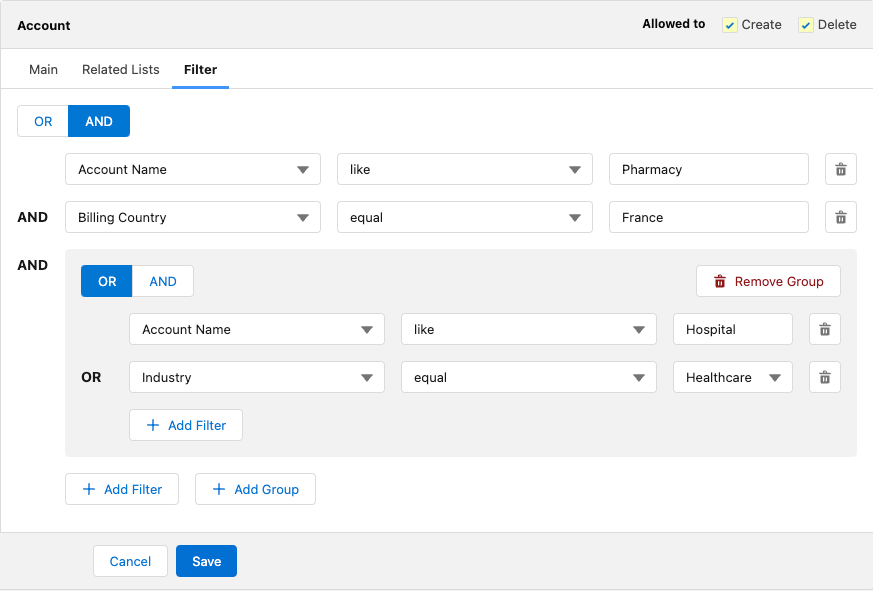
Click Save to apply new settings.
AI Features
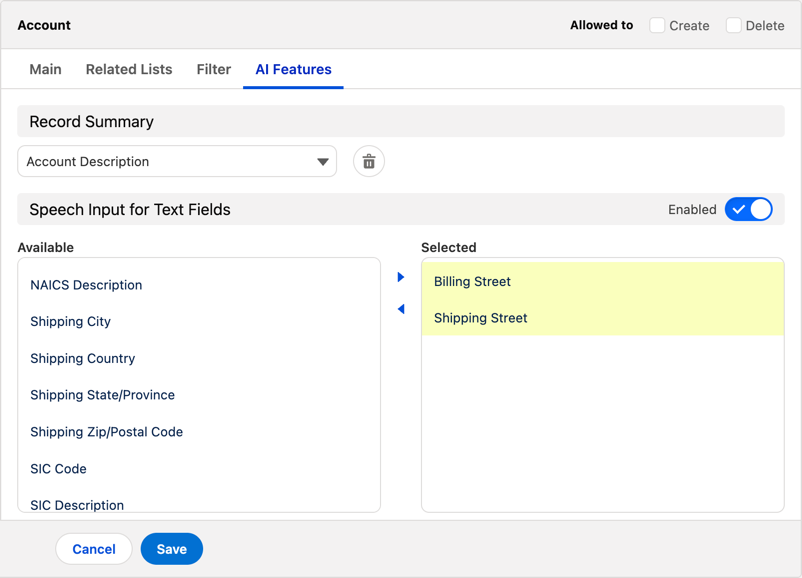
Enable AI features for the selected offline object:
Record Summary
-
Click Add Summary Field and select from the picklist a field of the offline object containing information used for the Summary feature of the CT Mobile app.
To achieve best results, the field should be of the Rich Text Area type and filled out by AI, which can be enabled by a project customization. Please reach out to your account manager for more information. -
Click
 to remove the selected field.
Speech Input for Text Fields
If enabled, you can fill out the selected text fields by speech input in the CT Mobile app.
Move the fields for which you want to enable the voice input from Available list to the Selected list. Only fields of the Text type are supported (except Rich Text Area).