CT Mobile Description and Deployment
CT Mobile Description
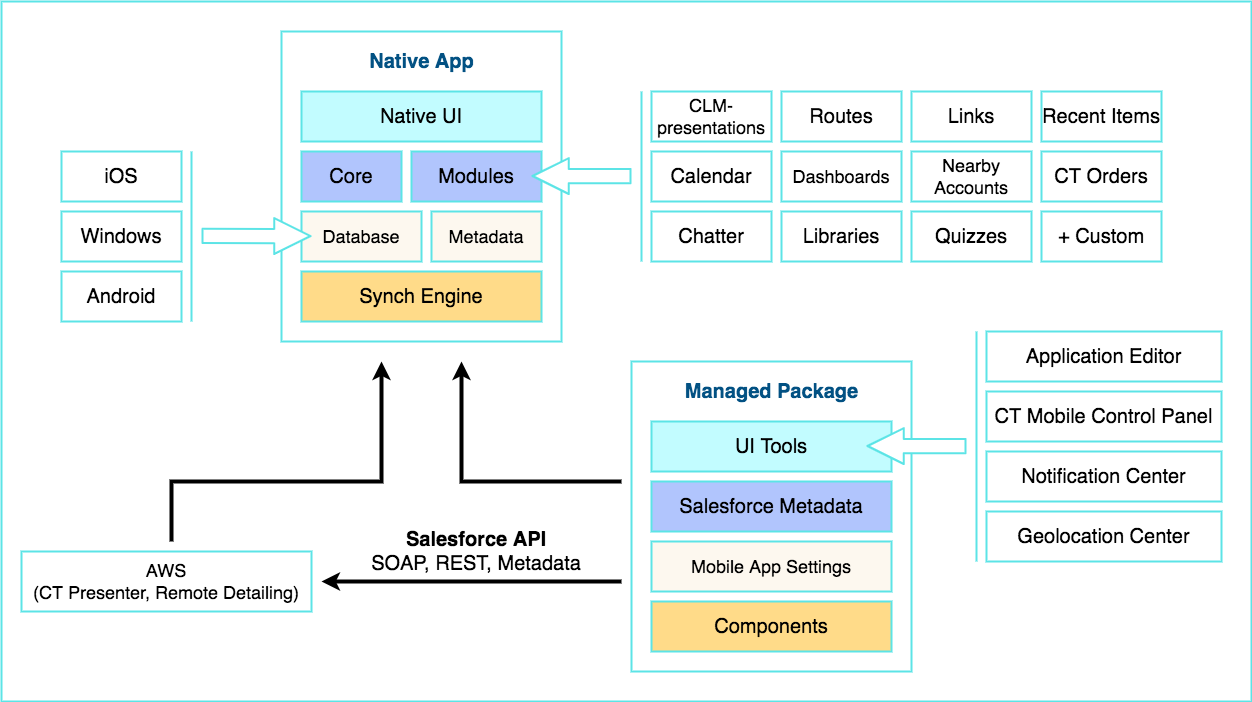
CT Mobile is provided as three connected components:
-
The managed package is available on Salesforce’s AppExchange platform.
-
The native CT Mobile app.
-
The core of the CT Mobile app is designed to ensure offline operation for most of the standard and custom objects.
-
The additional modules enhance the functionality. The set of available modules differs depending on the device platform and the CT Mobile app version.
-
-
AWS for the CT Presenter functionality.
Deployment Steps
CT Mobile is deployed in the following order:
-
Install the CT Mobile package in your Salesforce organization.
-
Integrate the CT Mobile package with the target system.
-
Install the CT Mobile app on your mobile device.
-
Log in to the CT Mobile app and perform the first synchronization.
-
Set up desired integrations, for example, with CT Orders, CT Sign, CG Cloud, etc.
To find out more about integrations, go to Other modules availability and Integrations.
CT Mobile Package Installation
CT Mobile package is available for the following Salesforce editions:
-
Enterprise
-
Unlimited
-
Force.com
-
Developer
-
Performance
CT Mobile is an add-on to Salesforce that is provided as an Appexchange ISV product and allows users to work with Salesforce offline.
Follow the guide to install the CT Mobile package. After installation, set up remote site settings.
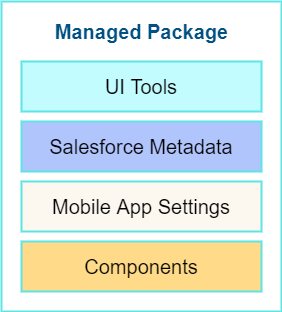
CT Mobile Package Description
UI Tools
Salesforce Metadata
Mobile App Settings
Components
|
|
Integration of CT Mobile with the Target System
The CT Mobile app is a solution that allows users to operate with the target system data in offline mode. The target system is a client Salesforce organization with the installed CT CPG or CT Pharma package.
To create a relationship between CT Mobile package components and a client system:
-
Fill out the Product Object API Name and Reference Object API Name fields on CT Mobile Control Panel: General, or Relate Contact to Multiple Accounts by Junction Object in CT Mobile Control Panel 2.0: General.
-
Create the lookup field to the required Activity object on the Application Stats object. In the case of using several Activity objects, the relationship field has to be created for each of them. A field with the lookup type for the Activity object will be automatically created for each Activity object specified on the CT Mobile Control Panel: Calendar (or CT Mobile Control Panel 2.0: Activities).
-
Create the lookup field to the specified Product object on the Application object.
| CT mobile allows identifying the records created or edited in the CT Mobile app. |
CT Mobile Solution Configuration
We kindly ask you to perform all customization via CT Mobile Control Panel / CT Mobile Control Panel 2.0 and set up a separate profile for a user who configures the system.
-
The user should have the Modify All Data and Modify Metadata Through Metadata API Functions permission and access to all fields and objects.
-
Assign the CT Mobile Administrator permission set that contains all required permissions listed above and access to all required Apex classes for the correct operation of the CT Mobile package and CT Mobile app.
Assign the CT Mobile User permission set to all profiles of users who will work with the CT Mobile app.
The CT Mobile solution provides offline record management and customized screen forms for the CT Mobile app to simplify and upscale the field sales force teams' work. In your Salesforce organization, you can:
-
Customize the Home Screen.
-
Add objects and modules to the main menu.
-
Specify available offline objects (refer to CT Mobile Control Panel: Offline Objects / CT Mobile Control Panel 2.0: Offline Objects), custom related lists, list views, SOQL filters, lookup filters, and actions. Person Accounts are supported.
-
Specify screen forms, such as compact layouts, mini layouts, mobile layouts, custom fields display, custom color settings, add the custom icon for the main tab of the record screen, and rename ui elements.
-
Configure CT Mobile workflows (refer to CT Mobile Control Panel: Workflows or CT Mobile Control Panel 2.0: Workflows).
-
Configure sync options, such as CT Mobile Replication, Conflict Manager, online record fetching, and quick record sync (refer to CT Mobile Control Panel: Offline Objects or CT Mobile Control Panel 2.0: Offline Objects).
-
Configure Geolocation Center and Notification Center.
-
Implement JS Bridge methods in CLM presentations and set up the Remote Detailing functionality.
CT Mobile App Installation
Before installation, read the technical requirements. To install the CT Mobile app, go to the article.
Contact the Customertimes team if you want to use the custom CT Mobile build.
CT Mobile app description
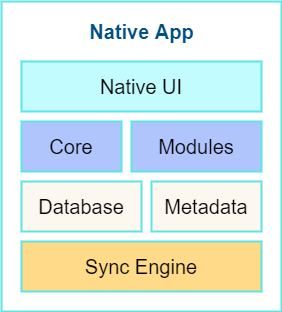
The core version consists of all main functionality and a set of modules interacting with each other via the application interface. Core and Modules
|
|
Customization It is possible to implement a custom process with a code in the CT Mobile app. For Enterprise clients, the following options are available:
The custom builds can be released as public or corporate applications. The customization impacts the maintainability and evolution of the solution. |
|
Logging in to the CT Mobile app
Log in to the CT Mobile app using your Salesforce credentials to a production environment, sandbox instance, or custom domain.
CT Mobile is implemented with OAuth 2.0 and supports Single Sign-On.
For the full functionality of CT Mobile on devices, it is necessary to allow CT Mobile access to certain data, e.g., geolocation data or access to the device gallery.
Synchronization in the CT Mobile app
After the first logging in, perform the first synchronization to download all data and metadata to the mobile device.
-
The exchange of data between the CT Mobile app and Salesforce servers is performed via Salesforce API with no intermediate proxies or infrastructure. All data exchange is performed via 256-bit SSL connect, TLS1.2.
-
All uploaded data is stored in separate temporary storage. The current database will be replaced after the synchronization is complete to avoid data discard if synchronization is interrupted.
To learn more about the sync process and sync modes, refer to Synchronization.