Links
The Links module allows a mobile user to work with external links from the CT Mobile app.
Adding Links to the Menu
To add the Links module to the app menu:
-
In CT Mobile Control Panel
-
In CT Mobile Control Panel 2.0
-
Go to CT Mobile Control Panel: App Menu tab.
-
Select the required profile in the Location picklist. To apply settings to all the profiles, select General Settings.
-
Click the
 button to open the Add menu item tool.
 -
Select the LinkList item.
-
Click Add to close the Add menu item tool.
-
Click Save.
-
Go to CT Mobile Control Panel 2.0: App Menu tab.
-
Select the required profile in the Profile picklist. To apply settings to all the profiles, select General Settings.
-
Click Show Module Menu.
-
On the All or Application Modules tab, select the LinkList item.
-
Click Save.
The setup is complete.
Add a Link
To add a new link to the Links module:
-
In CT Mobile Control Panel
-
In CT Mobile Control Panel 2.0
-
Go to CT Mobile Control Panel: App Menu tab.
-
Select the required profile in the Location picklist. To apply settings to all the profiles, select General Settings.
-
Select the LinkList item.
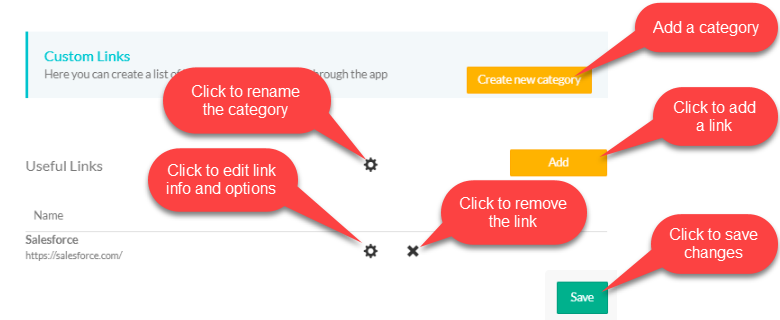
On the right sigh of the screen, the links settings appear.
-
Click the Create new category button to open the link editor.
-
Enter Link Name, Description, URL.
-
Enable Navigation to navigate a site within the mobile application.
The number of links within a category is unlimited. 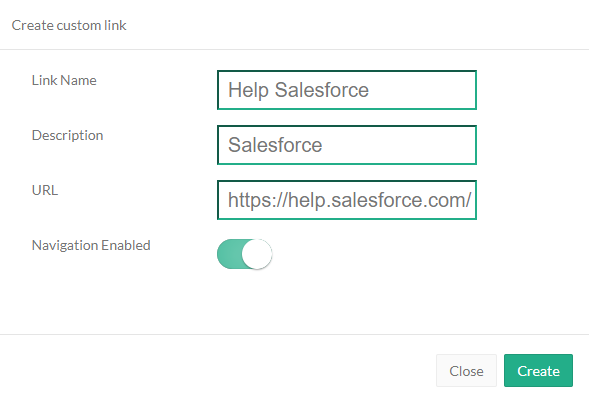
-
-
Click Save.
-
Go to CT Mobile Control Panel 2.0: App Menu tab.
-
Select the required profile in the Profile picklist. To apply settings to all the profiles, select General Settings.
-
Select the Link List item in the Selected column.
-
Click Add Category.
-
Enter category name and click
 to confirm.
 -
Fill In Name, URL, and Description fields.
-
Enable Navigation to navigate a site within the mobile application.
-
Click Add Link to add another link. The number of links within a category is unlimited.
-
Click Save.
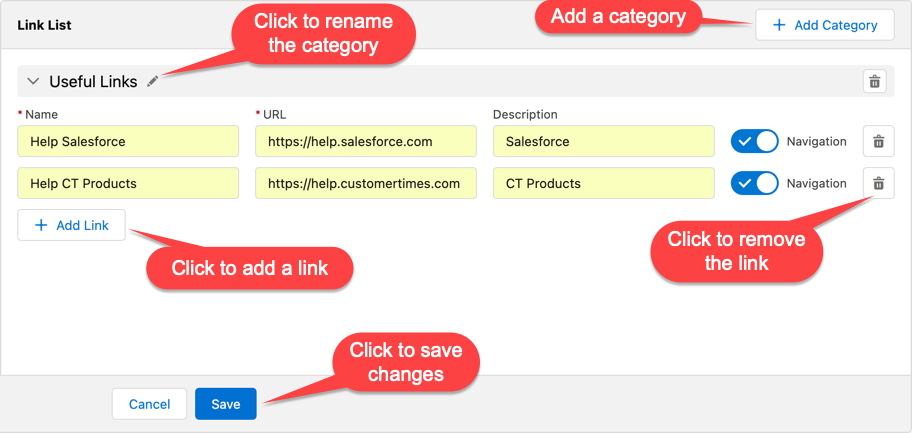
The link is added and will be available in the Links module of the mobile application. You can configure links.
If a link leads to salesforce.com, CT Mobile attempts to send the session code in order to avoid repeated authorization in Salesforce.
Using Links
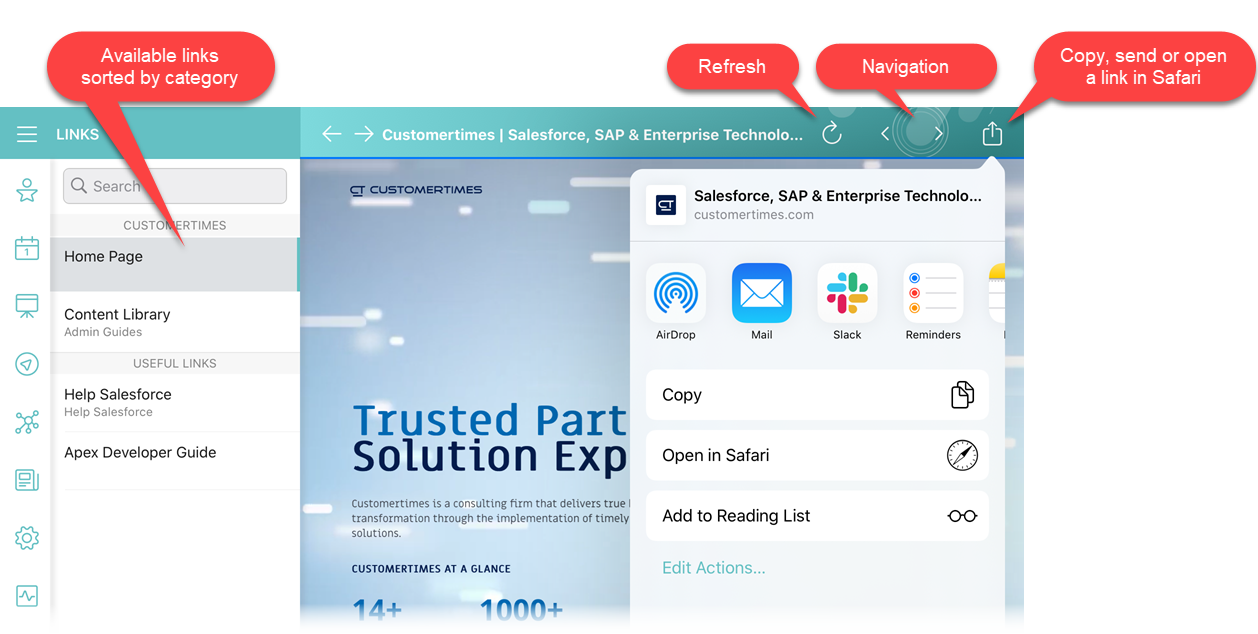
All links are sorted alphabetically in the main menu. Tap a link in the left menu to view the link page:
-
refresh the page
-
use the history buttons to go to the previous page or the next one if enabled
-
share the link
-
open the link in Safari.
Salesforce Maps
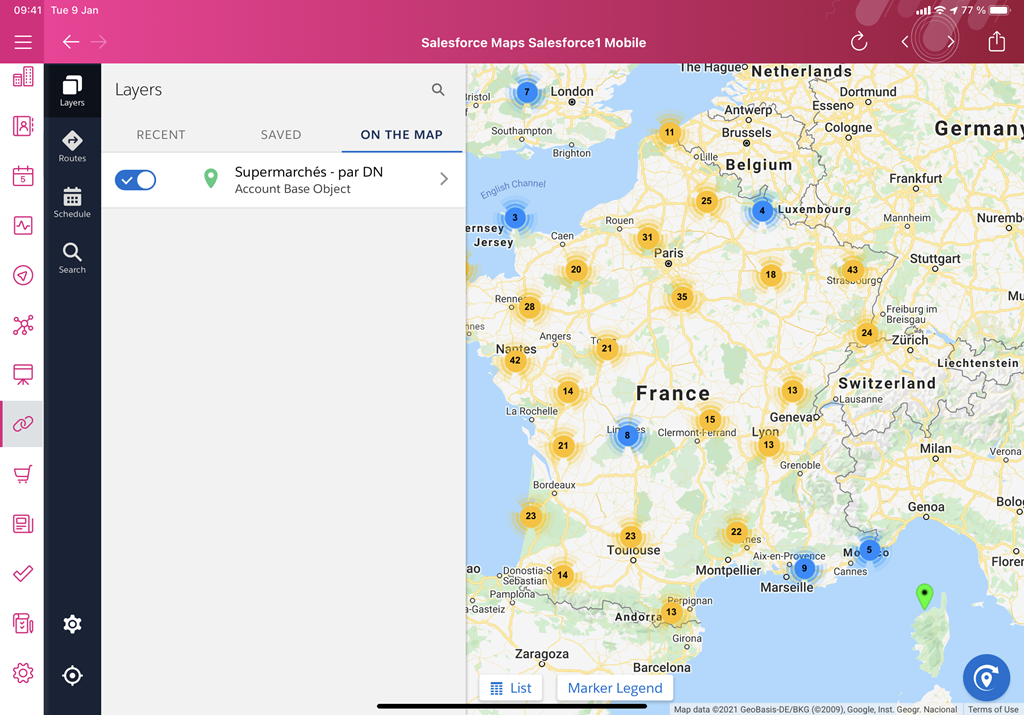
Customers who have a Salesforce Maps license can integrate this product with the CT Mobile app. Follow the link to find out more about the functionality.
Add the direct link to the Link module and use Salesforce Maps features on a mobile device:
-
visualizing data helps to interact with and change data as needed
-
using territory planning, determine how many field forces are needed in a specific territory and exactly where they need to be to maximize sales resource capacity
-
tracking live location
-
optimizing routes and schedules.