Actions
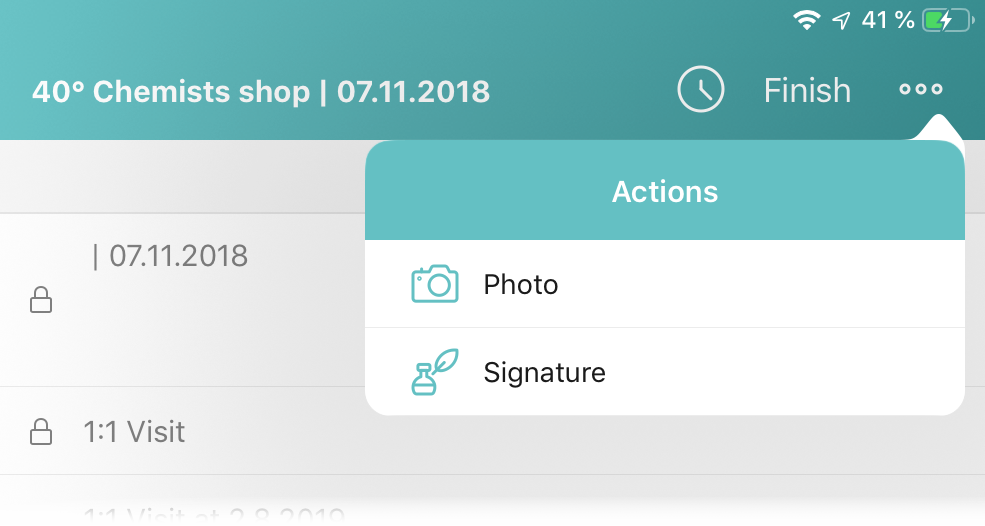
The Actions combo menu allows additional actions to be performed on a record details screen.
-
On the Account record
-
On the Activity record
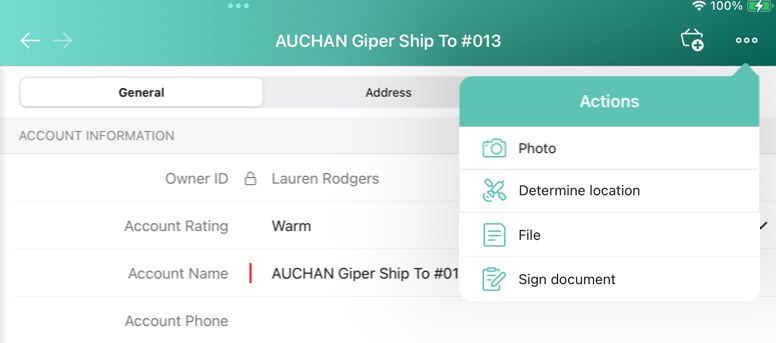
Determine Location
Tap the Determine Location button to determine the current device location data for an Account or Activity record and write them into the specific field.
-
When a mobile user has permission to edit records (refer to Managing Offline Objects in CT Mobile Control Panel or CT Mobile Control Panel 2.0: Offline Objects).
-
When the mobile user has permission to edit the geolocation type field.
-
A geolocation type field on the Account object used to store the geolocation of the organization.
-
A geolocation type field on the Activity objects used to store the geolocation of the activities.
-
-
If the Start/Finish functionality is on Capture Geoposition is enabled, and a mobile user has forenamed permissions for a record of an Activity object, the geolocation is automatically captured and the Determine Location button is hidden.
The Determine Location button is available on the records of other objects:
-
When a geolocation type field on the Account object is specified (refer to CT Mobile Control Panel: General → Account Geolocation Field or CT Mobile Control Panel 2.0: General → Account Geolocation Field).
-
The API name of the geolocation type field on the required object is the same as the API name of the geolocation type field on the Account object.
-
The mobile user has permission to edit the geolocation type field.
File
Add files to a record. Tap the File button to select one or several files from the device storage. View files on the Files tab of the record.
The File button is available on any object—the records of Accounts, Contacts, and Activity objects:
-
When a mobile user has permission to edit records.
-
When a record is available for a mobile user according to Sharing Settings, for example, with Public Read/Write access, if there is a sharing rule, or if the access was granted manually.
To know more about attaching and viewing files in the Files section, refer to Attachments in the Files Section.
Photo
Add pictures to a record. Tap the Photo button to select one or several photos from the device gallery, or take a new one. View photos on the Files tab of the record.
The Photo button is available on any object—the records of Accounts,Contacts, and Activity objects:
-
When a mobile user has permission to edit records.
-
When a record is available for a mobile user according to Sharing Settings, for example, with Public Read/Write access, if there is a sharing rule, or if the access was granted manually.
If the Start/Finish functionality is on and a mobile user has fore-named permissions for a record of an Activity object:
-
When the activity was not started, a mobile user can view photos, but cannot take photos or choose photos from the device gallery.
-
When the activity was started, a mobile user can take photos or choose photos from the device gallery.
Add Post
Add a post in the Chatter feed. Click Add Post. In the open modal window:
| The user profile should have permission to edit records of the object to which the Chatter tab is added. |
-
Tap
 to add a link.
 -
Tap
 to add a photo or audio message from the device. You can also take another photo or audio message.
Signature
Add a signature on records of the Activity objects. View the signature on the Files tab of the record.
| Since CT Mobile 2.2, this action is hidden, but you can add it by code. |
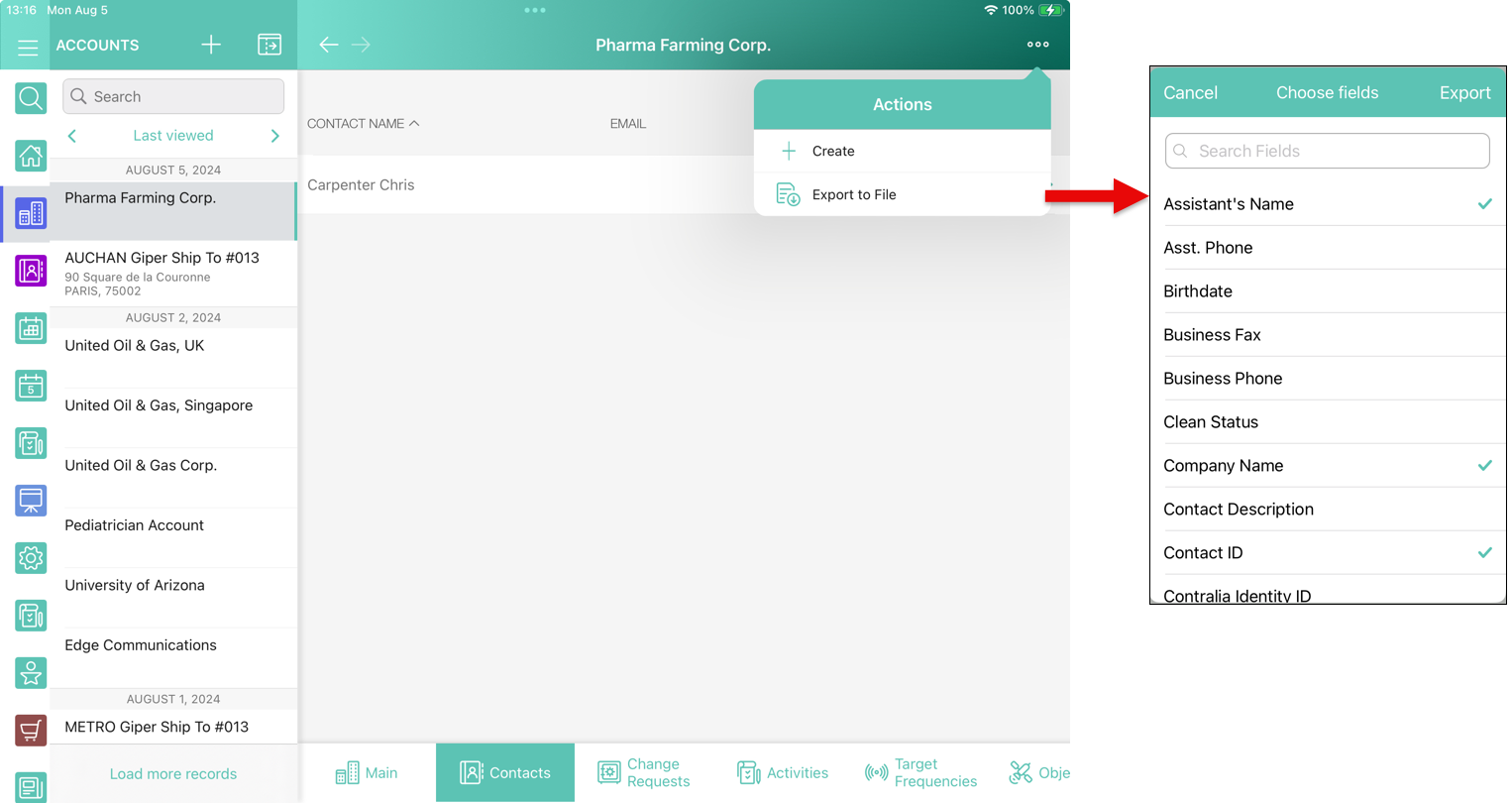
Export to File
Tap to export selected fields to a CSV file.
-
The menu item is displayed on related records, if the Export Allowed checkbox is set to true (refer to Offline Objects → Export Allowed or CT Mobile Control Panel 2.0: Offline Objects → Export to CSV).
-
Default fields should be specified in the Default Columns field of the Offline Object or in CT Mobile Control Panel 2.0: Offline Objects → Export Columns Selection.
-
Custom fields can be selected for export if the Select Export Columns checkbox is set to true or Export Columns Selection is set to User-Selected Columns or Predefined and User-Selected Columns.
| To export selected fields to file for the main object, switch to detailed list view. |
Sign document
To sign a document offline, follow the steps in the CT Sign guide.