Metadata Checker
Enable the metadata checker to reduce sync time and API calls and, during the mixed synchronization, download only metadata that has been updated. To create the metadata archive:
-
The user should have access to the Mobile Application Setup. If the user does not have this access, grant it by assigning one of the preconfigured CT Mobile permission sets.
-
The cloud token must be valid (refer to CT Mobile Control Panel: Tools / CT Mobile Control Panel 2.0: Tools).
Collecting Metadata Archive
Metadata archive is created for the whole Salesforce organization, i.e., for General Settings, configured and non-configured profiles.
-
When some metadata changes, a value in the clm__MetadataLastModifiedDate__c field of the Mobile Application Setup record is updated for the current user profile (or organization if there is no the Mobile Application Setup record for the current user’s profile).
-
If configured, the metadata archive will be created automatically. Otherwise, it should be manually collected.
-
The modified metadata archive with actual metadata will be downloaded during the current user’s synchronization.
A metadata archive may not exist, for example, if the metadata checker was not launched before in the Salesforce organization or if the cloud token is invalid. In these cases, the mobile application downloads metadata via the Metadata API using administrator credentials.
To understand metadata download criteria, consider the example with the Salesforce organization. The Mobile Application Setup record exists for General Settings, Profile A, and Profile B.
-
For Profile A:
If a value in the clm__MetadataLastModifiedDate__c field has changed on the Mobile Application Setup record for Profile A, the metadata archive is downloaded during mixed synchronization.
-
For Profile B and C:
If a value in the clm__MetadataLastModifiedDate__c field has changed on the Mobile Application Setup record for Profile A, mixed synchronization is not applicable.
-
For Profile C:
If a value in the clm__MetadataLastModifiedDate__c field has changed on the Mobile Application Setup record for General Settings, the metadata archive is downloaded during mixed synchronization.
-
For Profile A and B:
If a value in the clm__MetadataLastModifiedDate__c field has changed on the Mobile Application Setup record for General Settings, the mixed synchronization is not applicable.
To collect the metadata archive, one of the below is necessary:
-
Enable the metadata checker.
-
Customize automatic or manual metadata archiving.
If changes are made in the picklist values, it is necessary to launch manual metadata archiving and then synchronize it.
Enable Metadata Checker
On the Salesforce side, the metadata checker is intended:
-
For tracking any changes in metadata components.
-
For archiving metadata components.
-
For auto-updating a value in the clm__MetadataLastModifiedDate__c field of the Mobile Application Setup records.
To enable metadata checker:
-
Enable Scheduled metadata check.
The metadata checker is enabled.
The system launches Apex class once per hour to track changes in the metadata components.
-
If any metadata component has changed since the previous Apex class launch, the process of the ZIP archive creation will be initialized, and the value in the clm__MetadataLastModifiedDate__c field of the Mobile Application Setup record will be updated.
-
The metadata checker will also be triggered if the changes have been made to reports and dashboards that are added:
-
To the Home screen of the CT Mobile app.
-
If created, in a custom folder that starts with the CLM keyword.
-
Set up a Schedule For Creating Metadata Archive
It is possible to modify the default schedule of the metadata checker launch. To schedule the metadata archive generating:
-
Go to the CT Mobile Control Panel: Tools tab.
-
Disable Scheduled metadata check.
-
Go to Setup → Custom Code → Apex Classes and click Schedule Apex.
-
Enter any Job Name.
-
Find Schedule_LastModifiledDate in the Apex Class field.
-
Set a schedule.
-
Click Save.
The schedule is set up.
-
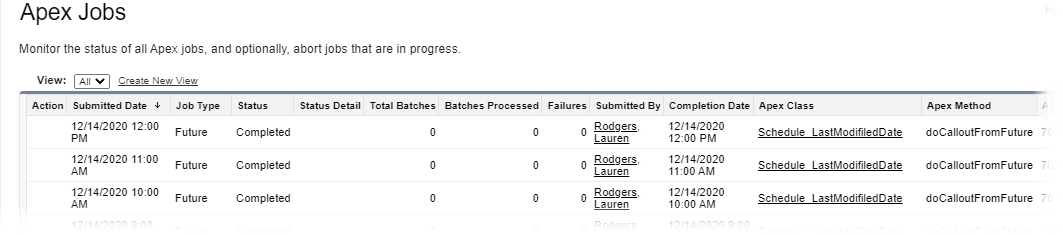
To view the job status, go to the Setup → enter Apex Jobs in the Quick Find box → click the Apex Jobs page.
-
For further information, please refer to Developer Salesforce: Apex Scheduler.
Manually Create Metadata Archive
To manually create the metadata archive, we recommend using the Refresh metadata archive button on the CT Mobile Control Panel: Tools / CTMobile Control Panel 2.0: Tools tab.
If the metadata checker is disabled or the metadata archive needs to be created off the schedule, manually collect the metadata in the ZIP archive.
The manual metadata archiving is intended:
-
For tracking any changes in metadata components used in the CT Mobile app.
-
For archiving metadata components.
-
For auto-updating a value in the clm__MetadataLastModifiedDate__c field of the Mobile Application Setup records.
To manually archive metadata components:
-
Go to Setup → Developer Console.
-
Press CTRL + E to open Execute Anonymous Apex Window.
-
Enter the code below:
List<clm__ApplicationSetup__c> listDates = [SELECT id, clm__MetadataLastModifiedDate__c FROM clm__ApplicationSetup__c limit 50000]; for(clm__ApplicationSetup__c aps : listDates){ aps.clm__MetadataLastModifiedDate__c = null; } update listDates; clm.Schedule_LastModifiledDate.doCalloutFromFuture(); -
Click Execute.
The process of archive creation is commenced and will be finished in several minutes.