Navigation in CLM Presentations
There is a list of management tools to control CLM presentations:
-
The Application module, Carousel of CLM presentations on the mobile layout and Home Screen.
-
The Remote Detailing functionality.
The UI of the Remote Detailing functionality is adapted for the co-browsing session. The presenter UI is intended to show slides and enable remote controls for participants, such as, like/dislike slides, stream video, calls, etc. The participant’s UI is adapted according to the presenter’s choice. Additionally, the following is available:
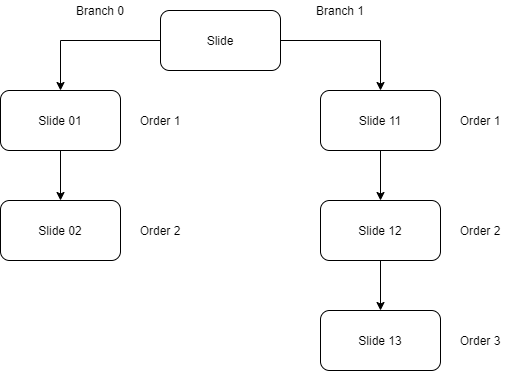
Branches
Slides from one or several CLM presentation(s) may be organized in the branches, and each branch will be launched depending on the choice of the user.
| Double tap at the bottom of the screen to display slides in a branch for rapid switching between the slides. To jump to another branch, use one of the JS Bridge methods for navigation. |
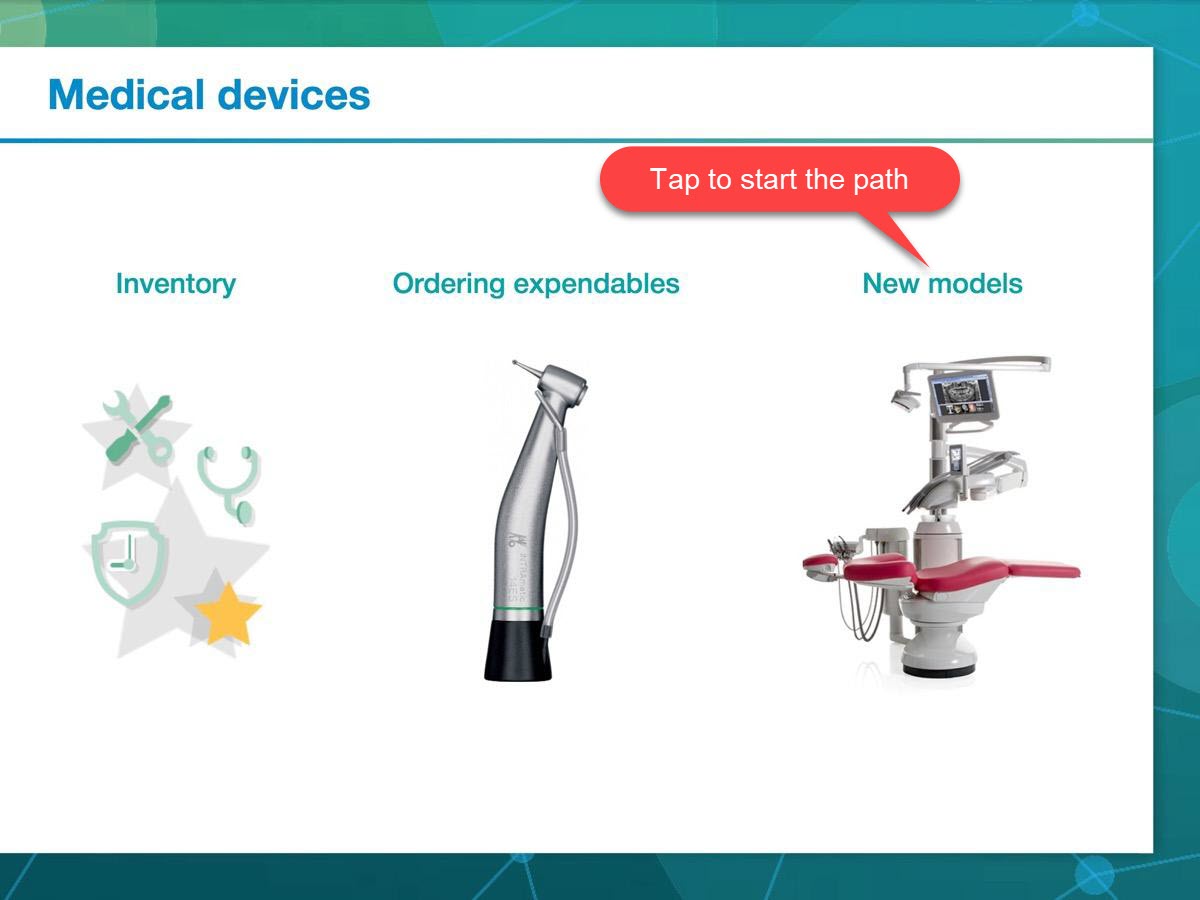
For example, the presentation may include a home page that contains buttons for navigating through the presentation. On this slide, a user can choose what path of the presentation to take by tapping one of the headers.
Each slide should have a unique order number.
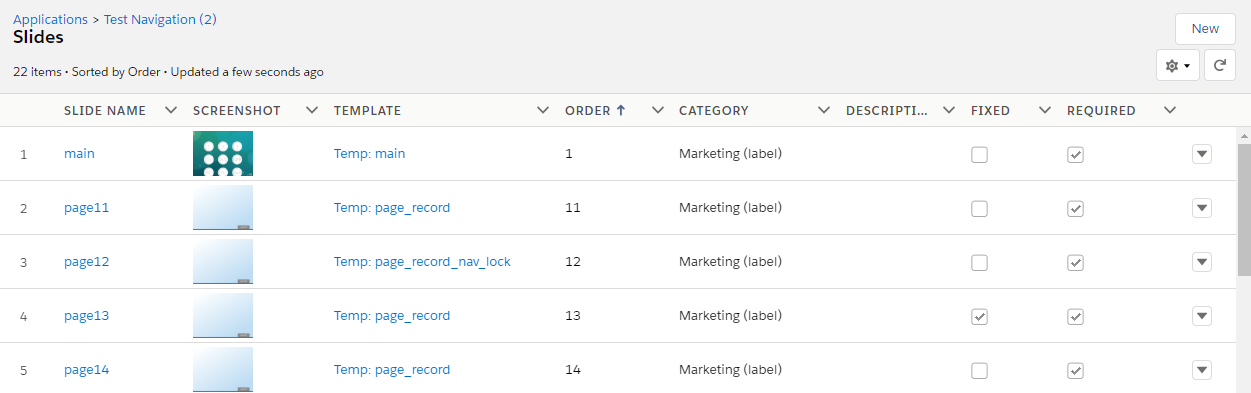
It is recommended to number branches as 0, 1, 2, etc., and number slides as 01, 02, …, 11, 12, etc., where a first number is a branch number, and a second is an order slide number in this branch.