Automatic Synchronization
| Applies to CT Mobile iOS versions starting from 3.0. |
-
Once you switch to the new settings saving model and log in to the mobile app, the Sync button will change its appearance and position in the CT Mobile app:
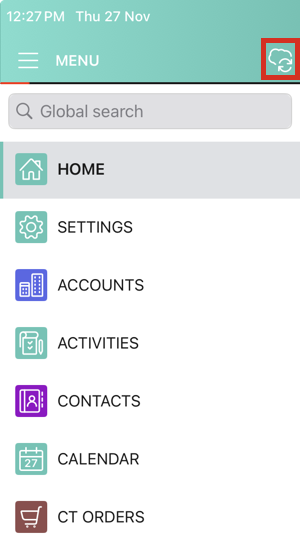
The synchronization model will become automatic, making it easier, faster, and less demanding to keep your data up to date. While you are not performing any actions in the app and it remains open, synchronization will launch automatically.
To set the sync time interval, go to the Auto Sync section of the CT Mobile Control Panel 2.0.
-
After switching to the new sync mode, the app will require a settings update:
This kind of update will run every time the metadata changes. 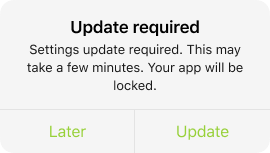
If you tap Later, you can run update the settings by tapping the
 icon:
icon: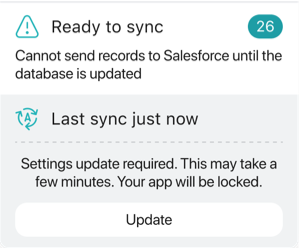
-
In the confirmation dialog, tap Yes to update settings.

During the settings updating process, the app will be locked.
Do not close or minimize the application, turn off the screen, or power off your iPad. 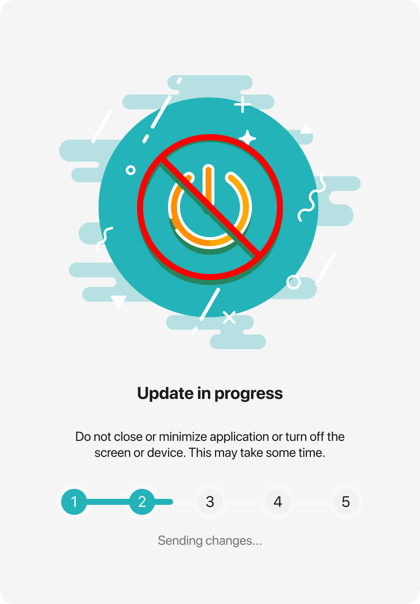
-
After the update is completed, the sync will run automatically at regular intervals while you are not using the app. You can also long tap the
 icon to run either Fast or Full sync: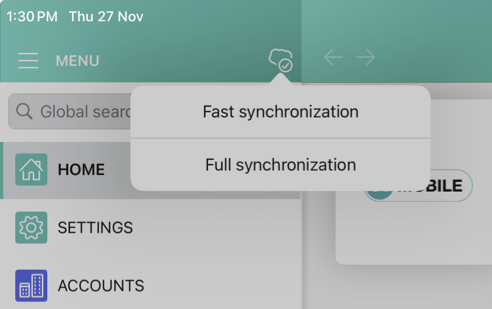
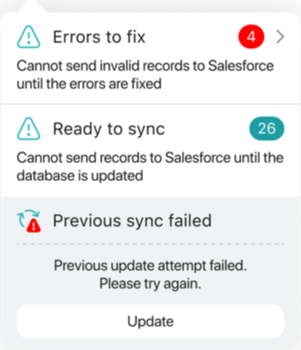
If any errors occur that need to be fixed, you will see this message in the sync reminder: