Creating Application Record
Creating Application Record on Application Editor Tab
-
Go to the Application Editor tab and click New.
-
In the New Application window, select the Application record type.
-
Specify fields:
-
Enter the CLM presentation name in the Application field.
-
Select Record Type:
-
Application to create presentation with interactive elements;
-
Plain Application to create presentation without interactive elements.
-
-
Set Active to make the CLM presentation available for users.
-
To make the CLM Presentation available to download as PDF while using the Self Detailing functionality, select the Available for Download checkbox. If later you want to disable this option, uncheck this checkbox and renew slides.
-
Select the Slide reordering enabled checkbox if you plan to create a custom scenario.
-
Check the required boxes to track actions and collect statistics in the Application Stats record.
Read the description of each parameter here. 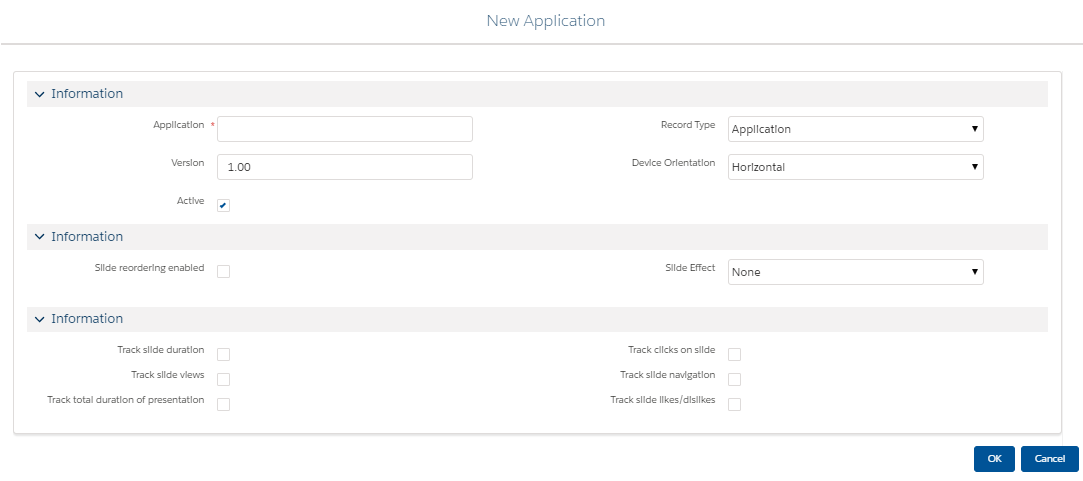
-
-
Click OK.
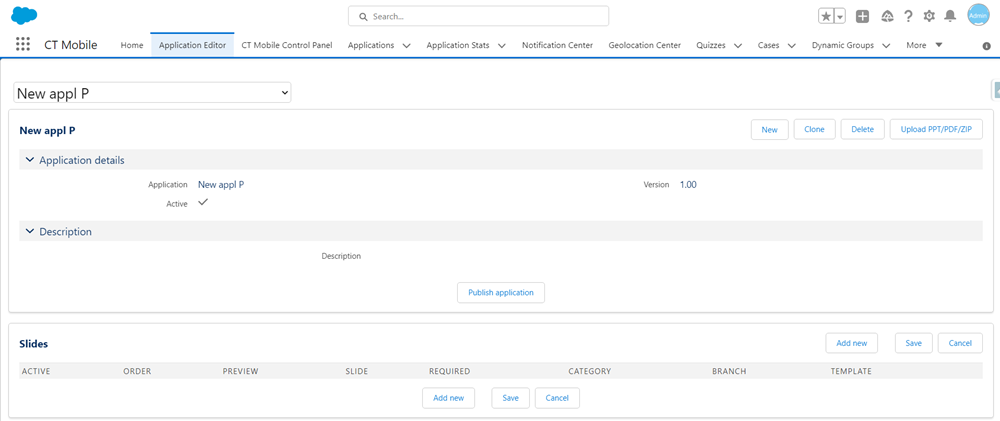
The new CLM presentation record is created:
Creating CLM Presentation from the Application Tab
-
Click New.
-
Select the Application record type:
-
Application to create presentation with interactive elements;
-
Plain Application to create presentation without interactive elements.
-
-
Specify all required fields. To make the CLM Presentation available to download as PDF while using the Self Detailing functionality, select the Available for Download checkbox.
-
Click Save.