Synchronization Launch
Synchronization involves several stages of aligning CT Mobile with Salesforce, during which updated records are sent from CT Mobile to Salesforce and vice versa.
Synchronization Modes
For information about settings for tracking and gathering the synchronization statistics, refer to Sync Logs.
First Full Synchronization
The entire database of the CT Mobile app, metadata components, and app settings will be downloaded from Salesforce to the mobile device.
-
This synchronization should be used after the authorization of the current user.
-
The first full synchronization may take a lot of time according to the database size.
For more information, go to First Full and Full Synchronization.
Full Synchronization
The entire database of the CT Mobile app, metadata components, and app settings will be replaced on the mobile device based on changes in Salesforce.
Full synchronization may take a lot of time according to the database size.
For more information, go to First Full and Full Synchronization.
Fast Synchronization
Data changes, such as deletions, insertions, and updates of records, will be sent from CT Mobile to Salesforce and vice versa.
-
This type is intended to align the records' main information, for example, to send new records from CT mobile app to Salesforce.
-
The CT Mobile app will not be locked during the fast synchronization.
-
Enable CT Mobile Replication if territory coordinates have been altered to download all actual data on the mobile device.
-
Set up Sync Recovery to have the ability to upload records with the errors to Salesforce.
For more information, go to Fast and Mixed Synchronization.
Mixed Synchronization
This type is intended to upload the data differential since the specific date mentioned in the clm__MetadataLastModifiedDate__c field of the Mobile Application Setup custom setting and all metadata to avoid the full synchronization performing, reduce synchronization time, and use the CT Mobile app during the synchronization.
| Enable Metadata Checker to automatically update the date in the clm__MetadataLastModifiedDate__c field if the metadata was changed in Salesforce. |
For more information, go to Fast and Mixed Synchronization.
Other Synchronization Modes
-
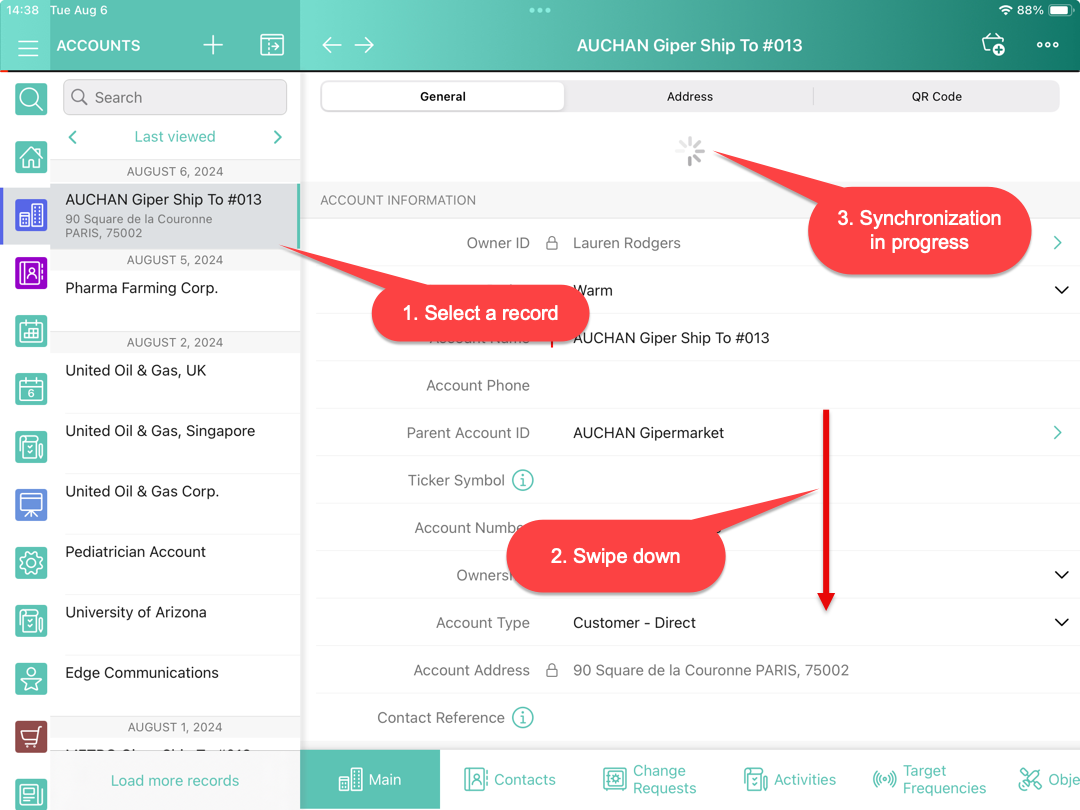
Used to update a single record and its child records by using the pull-to-refresh gesture on the record’s layout. Requires permission (refer to CT Mobile Control Panel: Offline objects / CT Mobile Control Panel 2.0: Offline Objects).
You can update the Chatter feed the same way, but this functionality does not depend on permission to quick record synchronization.
-
This mode of synchronization is run when CT Mobile Workflow conditions are triggered.
-
This mode of synchronization is triggered when the sync() method of JS Bridge is requested.
For more information, go to Other Synchronization Modes.
Launch Synchronization
| Due to the iOS platform limitations, do not collapse the application and do not turn off the screen during the full or fast synchronization. |
To launch the synchronization:
-
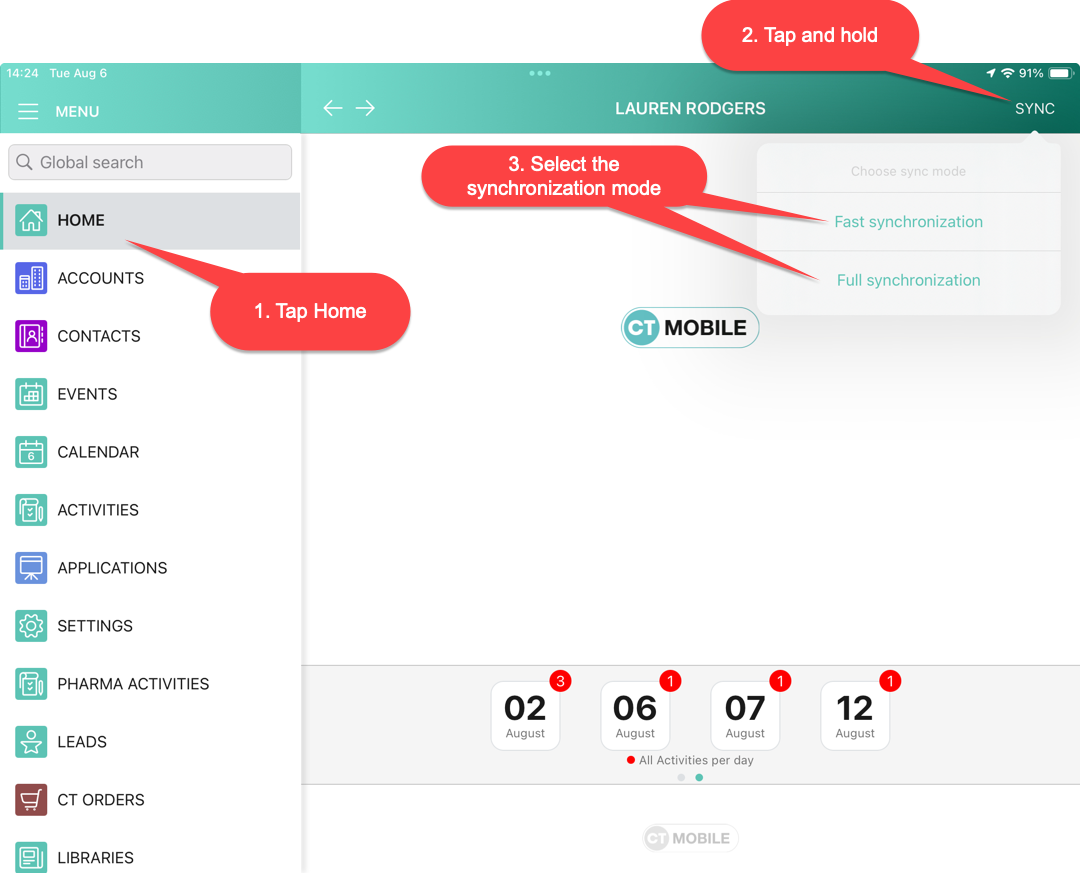
Open the Home screen.
-
Tap and hold the Sync button.
-
In the pop-up, select the synchronization mode.
The synchronization process is commencing.
-
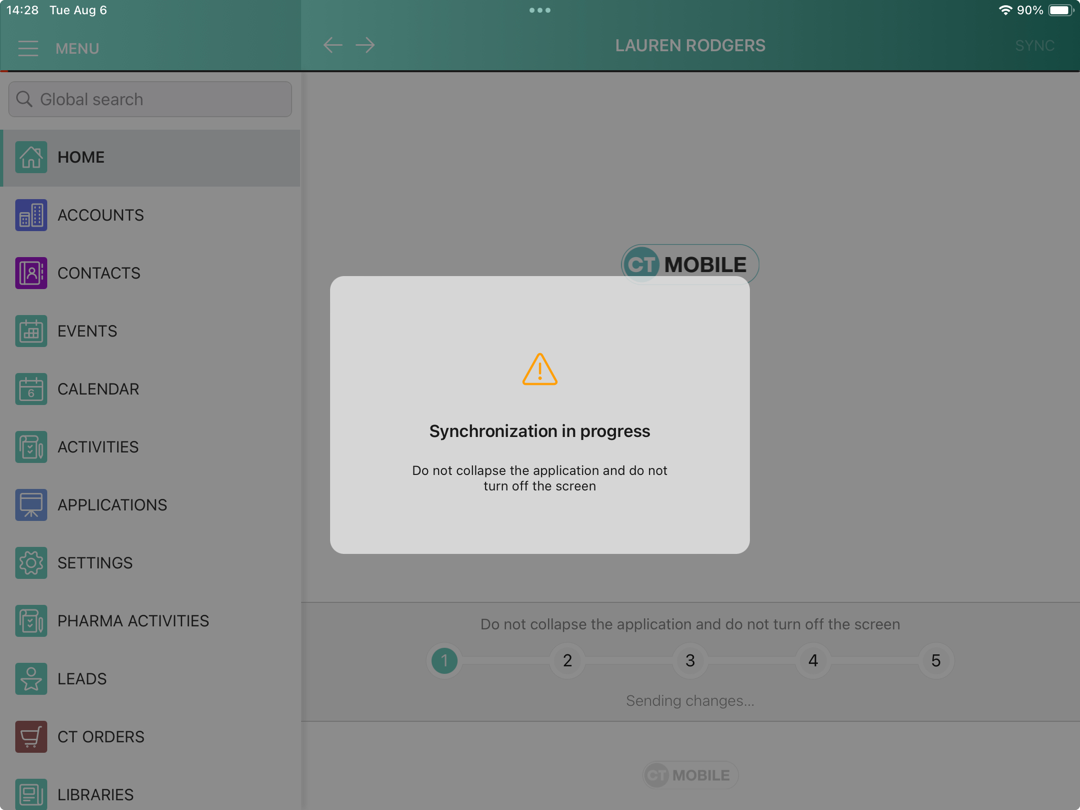
During the sync process, the sync timeline is displayed with a short description of each step.
-
Here is an example of the full synchronization:
Resume Synchronization
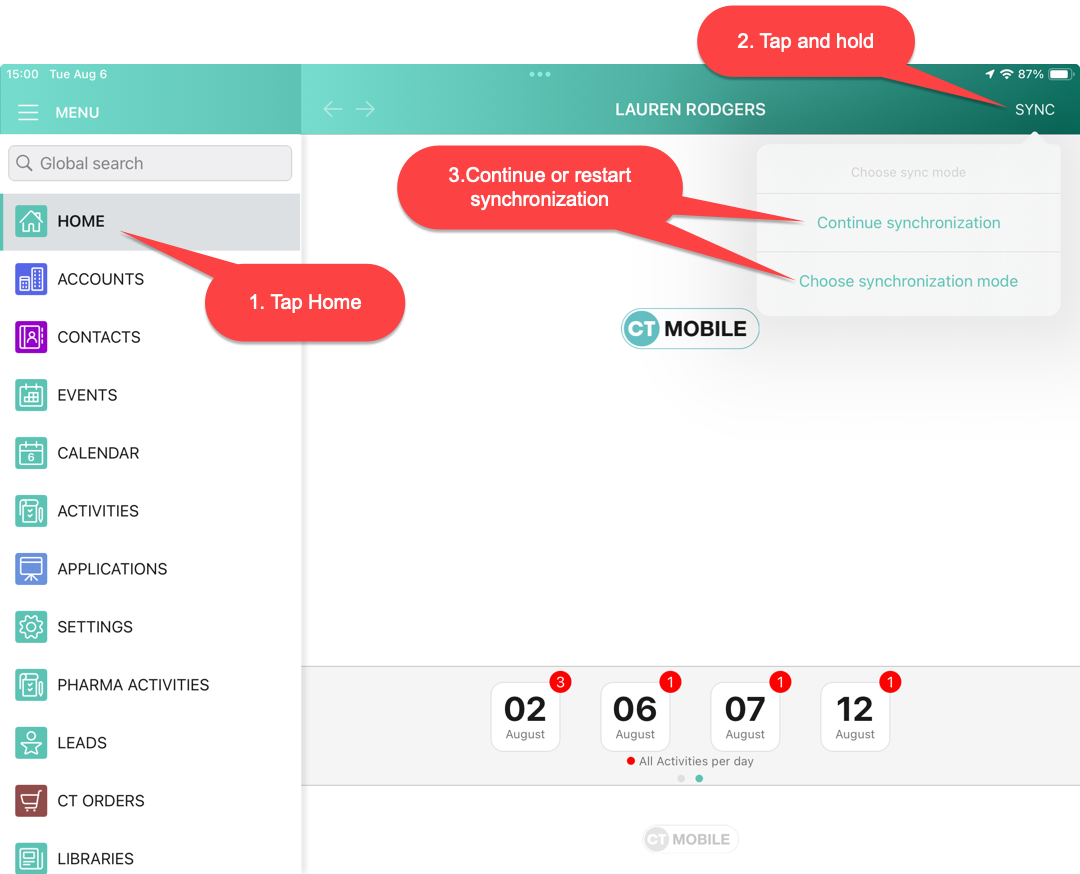
If the sync process has been interrupted due to connection loss, tap Sync to resume synchronization. The sync process continues from the last successful stage.
Alternatively, you can restart the synchronization.
-
Open the application Home screen.
-
Tap and hold the Sync button.
-
Tap Choose synchronization mode.
-
Tap Fast or Full synchronization.
The synchronization starts.