CT Mobile Control Panel: Tools
The Tools tab is intended to set up the security parameters for the proper operation of the CT Mobile app.
| Since CT Mobile package version 3.54, the administrator credentials are not used |
Click to view the interface
| The interface may vary according to the CT Mobile package version and environments. The current interface is related to the production environment. |
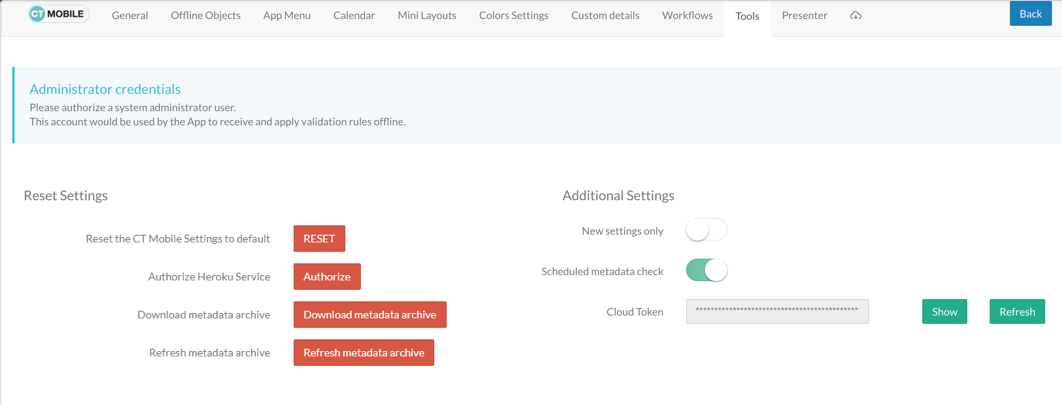
Administrator Credentials
| For users of CT Mobile package version below 3.54. |
Specify the Login, Password, and Token fields. Please refer to the Security Token article for additional information.
CT Mobile receives metadata components within a ZIP archive. Administrator credentials should be valid to retrieve metadata components from ZIP-archive.
-
If the mobile user is the administrator, all data, and metadata will be downloaded directly.
-
The synchronization process can proceed without using administrator credentials and ZIP-archive with metadata components. In that case, some functionality, for example, validation rules, will not operate properly.
The Administrator profile must have the Modify All and Modify Metadata Through Metadata API Functions permission, the assigned CT Mobile Administrator permission set, and access to all fields and objects.
-
It is highly recommended to set up a separate Administrator account that would not be used elsewhere by anyone else. This will help to avoid account lock-out in the future.
-
It is recommended to turn off password expiration for the Administrator profile, go to Setup → Users → Profiles → select the required profile → Administrative Permissions → set a flag next to Password Never Expires.
Administrator credentials are stored encrypted in Salesforce. The downloading of metadata during the synchronization process includes the following steps:
-
User authorization, uploading the general settings.
-
The Modify All permission verification. If the user has the Modify All permission, all further requests are made on behalf of this user. Otherwise, the system proceeds to the steps described below.
-
If a ZIP-archive with metadata components has been generated, the application downloads it. Otherwise, the system proceeds to the next step.
-
Requesting the encrypted administrator credentials.
-
Receiving the encrypted administrator credentials. The system attempts to decrypt credentials and log in.
-
If the authorization is successful, the system sends requests for validation rules metadata and UserRole guide data. After that, the session completes, and all further requests are sent on behalf of the current user.
Reset Settings
Reset the CT Mobile Settings to default
Settings can be reset to those configured when the CT Mobile package was installed for the first time.
| This action is irreversible. |
Authorize Heroku Service
| This feature is available since the CT Mobile Package version 3.89. |
Authorize the Heroku service before refreshing the metadata archive (System Administrator profile permissions are required):
-
Click Authorize button next to Authorize Heroku Service.
-
Click Allow in the appeared authorization window.
Download metadata archive
To work with the metadata archive, specify the Cloud Token first. Read more about the metadata archive here.
Use the Download metadata archive button to download the metadata archive to the device. It can be useful for QA support in case of any issues with CT Mobile.
Refresh metadata archive
| Since the version 3.89 of CT Mobile package, please remove the archive component custom metadata type before refreshing the metadata archive. |
To work with the metadata archive, specify the Cloud Token first. Read more about the metadata archive here.
Use the Refresh metadata archive button to refresh the metadata archive instead of the manual metadata archive collecting.
This button is displayed only for users with the Modify All permission or who have been assigned the CT Mobile Administrator_ permission set.
Refresh CTM Settings
| This feature is available until the CT Mobile Package version 3.89. |
Use the Refresh CTM Settings button to correct consistency errors between CTM Settings and Custom Settings. All records of CTM Settings will be deleted and re-created according to the corresponding records of custom settings.
Click four times on the Administrator Credentials inscription to display the hidden setting.
CTM Settings record with the custom record types will not be deleted.
Remove metadata archive from the server
| This feature is available until the CT Mobile Package version 3.89. |
To work with the metadata archive, specify the Cloud token first. Read more about the metadata archive here.
Use the Remove metadata archive from the server button to remove the metadata archive from the server. This option is useful for QA purposes. Click four times on the Administrator Credentials inscription to display the hidden setting.
Additional Settings
New Settings Only
When enabling the setting:
-
Records of Menu Settings and Offline Objects and Related List Filters corresponding to the CTM Settings records will be deleted and will not be created when new settings are saved in the CT Mobile Control Panel.
-
The CTM Settings record with the Offline Object record type and the New Settings Only value in the Description field is created.
-
The Refresh CTM Settings button will be hidden after the page is refreshed.
When turning off the setting:
-
Records of Menu Settings and Offline Objects and Related List Filters are created based on the CTM Settings records. New settings in the CT Mobile Control Panel will be saved as CTM Settings and corresponding custom parameter records.
-
The CTM Settings record with the Offline Object record type and the New Settings Only value in the Description field will be deleted.
-
On CTM Settings records, the External Id field will be filled in.
-
The Refresh CTM Settings button will be available after refreshing the page.
Scheduled metadata check
Metadata Checker is intended to track any changes in the metadata components used in the CT Mobile app. This option helps maintain metadata consistency by rebuilding the metadata archive to reduce sync times and API calls.
This toggle is displayed only for users with the Modify All permission or who have been assigned the CT Mobile Administrator permission set.
Cloud Token
| To use cloud token, check remote site settings. |
Click Show to view the cloud token value. Click the Refresh button to update a cloud token.
-
The cloud token update is necessary in case of a cloned sandbox. Also, the corresponding record should be activated again in Remote Site Settings.
-
When the current token is changed, the previous one is stored in the Cloud-token-history document in the CT СLM folder. To view the history of token modifications, switch to Salesforce Classic, then go to the Documents → CT CLM → open the cloud-token-history document.
Cloud token:
-
Is a password, which encrypts a data dump before sending it to support via e-mail or to Salesforce, depending on settings in CT Mobile Control Panel: General.
-
Is a part of the salt key that is used for encrypting administrator credentials.
-
Is used to create an archive with actual metadata of the current Salesforce organization and download this metadata archive to the device.
-
Is used when sending requests to external CT CLM services, such as:
-
Creating and updating slides in the Application Editor, including PowerPoint and PDF files converting.
-
The Plain Applications Editor, including PowerPoint files converting.
-
The Remote Detailing functionality for CT Mobile iOS and CT Mobile Windows users.
-
Content Restore
| Available only in the Sandbox environments. |
Production ID
This option helps you keep data consistent and make CLM presentations on the Customertimes server available to your Sandbox environment.
-
All slide screenshots, attachments, and sources of CLM presentations available in your Production org are stored on the Customertimes server in the folder named the Org ID of this Production org.
-
When you created the Sandbox, enter the Org ID of the Production org and click Copy to copy all sources of all active CLM presentations from this folder to the folder named the Org ID of the Sandbox environment.
-
CLM presentations will be available for the Remote Detailing and Self Detailing meetings launched from the Sandbox environment.
-
During synchronization, CT Mobile will download screenshots for each slide.
If there is no CLM presentation on the Customertimes server, CT Mobile will take screenshots of the slides during synchronization.
-