Application Settings
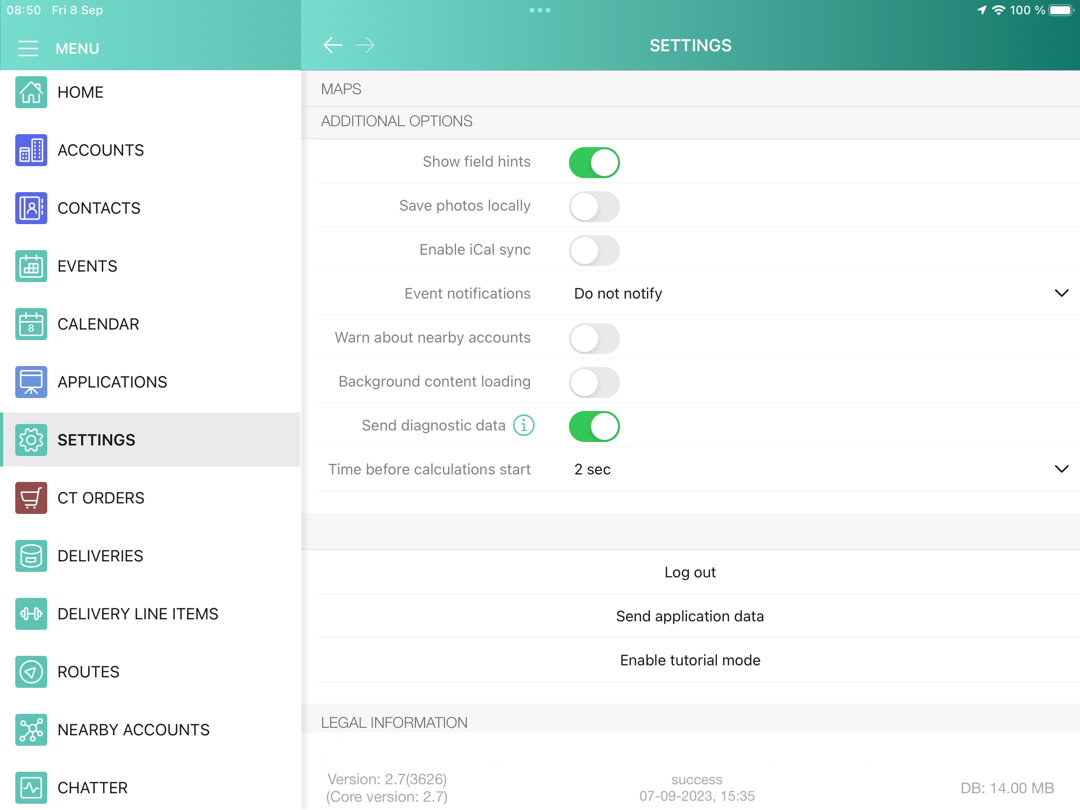
The Settings screen allows you to manage additional functions and control individual options.
The application version, the date, type, and result of the last synchronization, and the current database volume are displayed at the bottom of the screen.
Authorization
Authorization Settings
Tap to view the current user’s authorization details, such as full name and username.
-
Tap Change password to change the current user’s password. If you authorize using Single Sign-On, the Change Password option is not available.
-
Tap Cancel to close the pop-up.
Demonstration Mode
Show touch indicator
If enabled, the demonstration mode allows displaying touches and gestures performed by the user on the screen.
Additional Options
Show field hints
If enabled, the icon is displayed next to a field. Tap the icon to see a help text.
Save photos locally
If enabled, the photos taken in the CT Mobile app will be saved in the device gallery. The new photos in the CT Mobile gallery will have a dotted border.
Enable iCal sync
If enabled, the CT Mobile calendar can be one-way or both way synchronized ;with the device’s standard calendars.
-
iCal calendar to save activities
Select a calendar to save the activities from the CT Mobile Calendar.
-
iCal calendar to show
Select calendars to show their activities in the CT Mobile Calendar.
Event notifications
If enabled, the current user will receive a notification of upcoming events. The available options are 15 mins, 30 mins, 1 hour, or 2 hours before the event.
Warn about nearby accounts
If enabled, the current user will receive a notification of nearby accounts.
Background content loading
If enabled, the files in Libraries will be downloaded in the background mode after the full synchronization is complete.
-
Unloaded files have no preview image in the Libraries module. Tap the file to download it.
-
In case of internet connection loss or switching to another app, the background content loading will be resumed.
-
If the CT Mobile app was manually retrieved from memory, or it was retrieved by iOS, for example, in the case of a large number of open apps, the background content loading will not be resumed.
-
If the user turns off the screen during the background content loading, iOS will stop the sync process after a while and resume it when the CT Mobile app is opened again.
Send diagnostic data
If enabled, the CT Mobile app anonymously sends diagnostic data to developers, such as application crash, current username, time, iOS version, and characteristics of a mobile device, as well as methods that caused the crash.
Time before calculations start
Time before calculating prices after making changes to the order cart, in seconds. Default value is 2 seconds. Applies only if:
-
Order module application is added to the App menu.
-
The Web Service is not enabled.
General Options
Change Passcode
Change the passcode. The option is visible when the passcode is enabled in CT Mobile Control Panel: General / CT Mobile Control Panel 2.0: General.
Log out
Logging out to reset all application data.
CT Mobile asks the confirmation. After logging out, all the current user’s data from the mobile device will be removed.
Send application data
CT Mobile allows sending a dump with the current user’s data from the mobile device to the Salesforce or support service.