Remote Detailing: F.A.Q.
- For which devices and browsers the Remote Detailing functionality is available?
- How to start the Remote Detailing meeting as the presenter?
- What types of invitation links are available?
- What to do if the invitation link does not appear on the activity record?
- What to do in case of connection errors?
- What to do if «TypeError: Cannot read properties of undefined (reading “init”)» is displayed on the Welcome screen?
- How to join the Remote Detailing meeting as a participant?
- How many participants can join the meeting?
- What to do in case of sound and video issues during the Remote Detailing meeting?
- What is the recommended bandwidth for the Remote Detailing meeting?
- What are the requirements for the CLM presentations? What features are available?
- How can I manage a CLM presentation during the Remote Detailing meeting?
The F.A.Q. list:
For which devices and browsers the Remote Detailing functionality is available?
The remote CLM presentation is available on the following browsers depending on the device. We recommend using browsers based on Chromium and launching the Remote Detailing meetings on PC.
Windows
| The Remote Detailing functionality | Request access to camera/microphone | Video call | Call | Chatting | |
|---|---|---|---|---|---|
Google Chrome |
Yes |
Yes |
Yes |
Yes |
Yes |
Edge Chromium (v. 81) |
Yes |
Yes |
Yes |
Yes |
Yes |
Opera |
Yes |
Yes |
Yes |
Yes |
Yes |
Firefox |
Yes |
Yes |
Yes |
Yes |
Yes |
Edge (v. 44) |
No |
No |
No |
No |
No |
Internet Explorer 11 |
No |
No |
No |
No |
No |
iOS
| Available for devices running iOS 12 or higher. |
iPad
| The Remote Detailing functionality | Request access to camera/microphone | Video call | Call | Chatting | |
|---|---|---|---|---|---|
Safari |
Yes |
Yes |
Yes* |
Yes* |
Yes |
Google Chrome |
Yes |
No |
No |
No |
Yes |
*Video calls and calls may not work correctly.
iPhone
| The Remote Detailing functionality | Request access to camera/microphone | Video call | Call | Chatting | |
|---|---|---|---|---|---|
Safari |
Yes |
Yes |
Yes* |
Yes* |
Yes |
Google Chrome |
Yes |
Yes |
No |
No |
Yes |
*Video calls and calls may not work correctly.
How to start the Remote Detailing meeting as the presenter?
The Remote Detailing UI and path for the presenter are available here.
Salesforce Side
In Salesforce, click the invitation link or the Remote Detailing button. In the open CLM presentation window, click the Presenter Login button.
-
you will automatically be logged in if the active Salesforce user’s session is saved in the browser;
-
you should enter your credentials if there is no active Salesforce user session in the browser.
If you click the Join button for login, click the Log out button and re-enter as the presenter on the next screen.
The CT Mobile App
As the presenter, you do not need to enter your credentials or tap any buttons to open the CLM presentation. Tap the invitation link and the remote CLM presentation starts.
What types of invitation links are available?
The number of invitation links is unlimited. Links are not expired until the presenter clicks End Call during the Remote Detailing meeting. If you try to open this link, you will see the Meeting is over screen.
Functionality |
CT Mobile Package |
|
below v. 3.63 |
v. 3.63 and higher |
|
Remote Detailing |
|
|
Self Detailing |
You can start the Self Detailing meeting any time you like. |
|
|
The invitation link: https://rd.ctclm.com/s/137-9788-974 |
|
What to do if the invitation link does not appear on the activity record?
In Salesforce, the invitation link is generated when you create a new Activity record or update the existing one. If the invitation link did not appear on the Activity record page, refresh the page.
In the CT Mobile app, pull the record’s screen to download the invitation link to the Activity record created in the app.
If the invitation link appeared neither in Salesforce nor in the CT Mobile app:
-
Check Apex Classes and Trigger are created. It is necessary to specify the correct API name of the Activity object.
-
On the Mobile Application Setup record assigned for the current user’s profile, the Activity object or the Start Date field is not specified. Go to the CT Mobile Control Panel: Calendar / CT Mobile Control Panel 2.0: Activities tab and set up Activity settings for the current user’s profile.
-
The current Activity record has no assigned CLM presentations and custom scenarios. Click the Applications button to specify the CLM presentations set.
-
The incorrect record of CLM Settings for the current user’s profile. The Remote Detailing should be enabled in CT Mobile Control Panel: Presenter / CT Mobile Control Panel 2.0: Remote Detailing.
What to do in case of connection errors?
Please contact your administrator to check the UDP/10000 port availability. The port connection can be blocked by Windows Firewall, antivirus solution, or corporate firewall.
What to do if «TypeError: Cannot read properties of undefined (reading “init”)» is displayed on the Welcome screen?
Administrators must configure the firewall to allow access to Remote Detailing domains. In the firewall settings:
-
add exceptions for HTTP and WebSocket for the api.rd.ctclm.com domain
-
add an exception for HTTP for the meet.jit.si domain
-
add UDP input and UDP output exceptions (for WebRTC) for the meet.rd.ctclm.com domain
How to join the Remote Detailing meeting as a participant?
The Remote Detailing UI and path for a participant are available here.
All invitation links have the unique digital Meeting ID, for example, 273-4657-890, which can be easily dictated by phone. Enter Meeting ID in the special field on the CT Presenter site to join the remote CLM presentation. On the Welcome screen, enter a username, and e-mail (optionally), and click Join to enter as a participant.
-
If the presenter closed the meeting tab and will be absent for more than 2 minutes, all participants will be pushed out of the meeting.
-
To log in as a participant in the same meeting you previously logged in as the presenter, clear cookies, refresh the page, and log in as a participant.
How many participants can join the meeting?
The remote CLM presentation can be streamed simultaneously to up to 35 participants. The number of participants depends on the bandwidth and connection of each participant’s device. The optimal number of participants for the medium bandwidth and connection is 10.
What to do in case of sound and video issues during the Remote Detailing meeting?
Due to Apple’s limitations, the device’s microphone and camera do not work in web view and may also not work correctly in mobile browsers due to their limitations.
The sound and video issues can be related to the device’s camera and microphone settings:
-
Previously, check the supported browsers on devices.
-
Check camera and microphone permissions on your device:
-
Windows 10
Firstly, check the privacy settings for the camera and microphone. In case of sound issues, read this article and check sound settings as described in answer to question 5. You can also adjust the volume by tapping the volume control icon in the taskbar or setting up the volume in the App volume and device preferences section on the Sound tab in Settings.
-
Android
Go to Settings → Apps → click a browser you use and check permissions.
-
iPad & iPhone
Go to Settings → Privacy → Camera/Microphone → check if there are any permissions for the browser you use.
-
-
Check camera and microphone permissions for the browser:
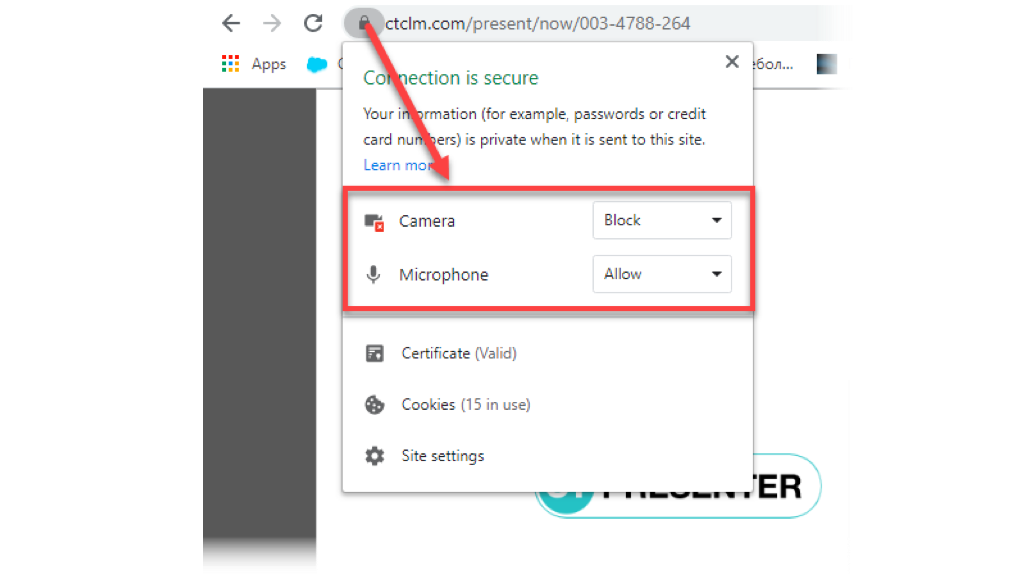
What is the recommended bandwidth for the Remote Detailing meeting?
To avoid issues with the quality of video and audio calls during the session, we recommend not transferring any files and closing apps that use the internet, e.g., media players. If issues appear, check your bandwidth.
| Option during Remote Detailing session | Minimum download / Upload speed | Recommended Download / Upload Speed |
|---|---|---|
Calling (presenter and participants if enabled) |
128 kbps / 128 kbps |
300 kbps / 300 kbps |
Video calling (presenter) |
400 kbps / 400 kbps |
500 kbps / 500 kbps |
Group video calling (presenter and 2 participants) |
512 kbps / 128 kbps |
2 Mbps / 512 kbps |
Group video calling (presenter and 4 participants) |
2 Mbps / 128 kbps |
4 Mbps / 512 kbps |
What are the requirements for the CLM presentations? What features are available?
The same CLM presentations and custom scenarios as for the Application module in the CT Mobile app can be used for Remote Detailing.
-
CLM presentation should be active and available for Remote Detailing. For Remote Detailing 2.0, If CLM presentations are not set for the Activity record, all active and available for Remote Detailing meetings CLM presentations will be available during the Remote Detailing meeting.
-
Check requirements and media file formats for CLM presentations.
-
Use simple clicks in CLM presentations, which will be shared during the Remote Detailing meeting in a browser. Double clicks and long clicks cannot be tracked for the statistics.
-
Add processing the tap event along with the click event into the slide markup to display the presenter tap or click movement for participants.
-
-
Specify the CRM Data Streaming Enabled / CRM Data Sharing attribute to use the available JS Bridge methods implemented on the slide markup.
-
Several CLM presentations and custom scenarios can be presented in one session. Specify CLM presentations manually in Salesforce Classic or add and use the Applications button on the Activity record in Lightning Experience.
-
For Remote Detailing 2.0, you can switch the scenario in the open CLM presentation.
-
During the Self Detailing session, only one remote CLM presentation can be displayed.
-
-
In the CT Mobile app, switch between the meeting window and record details with one tap, for example, creating an order during the remote CLM presentation. Resume the CLM presentation from the last checkpoint.
-
Click the Web Share button on the Application record to copy and insert the code of the CLM presentation for displaying on your website.
-
The independent zoom for the presenter and each participant helps to display CLM presentations with good quality. Pinch with two fingers to zoom in or out up to x300 on the mobile device or use the zoom slider on the PC.
-
For the Self Detailing meeting, it is necessary to previously renew slides for CLM presentations to make screenshots for the slide navigation bar and store the slide order.
How can I manage a CLM presentation during the Remote Detailing meeting?
JS Bridge methods used in CLM presentations launched from the Application module, the record mobile layout, or from the Carousel of CLM presentations from the CT Mobile app may not be available for CLM presentations launched during the Remote Detailing meeting. Get familiar with the list of the available JS Bridge methods during the Remote Detailing functionality.