Libraries
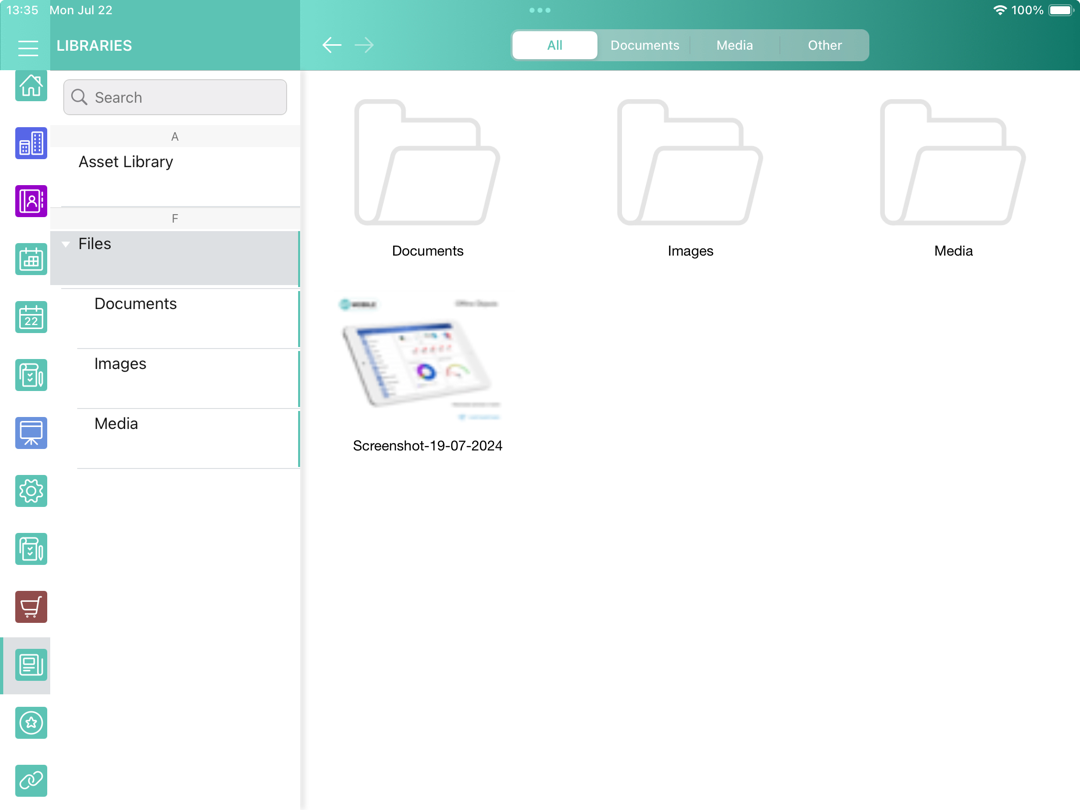
The Libraries module allows viewing files and documents uploaded to Salesforce CRM Content.
-
For the full module operation, follow the link to enable Salesforce CRM Content in your Salesforce org and set up permissions for users.
-
Upload documents to Files and grant user access to documents. Documents can be stored by folder.
-
Tap the file name to send the file by e-mail using email templates if available.
-
Enable background content loading to download Salesforce Content documents in background mode. You can also select the Files Download Enabled checkbox for Library to adjust the background downloading process.
-
Tap on a document screenshot to open a preview and send the document via email. Tapping on the document information line will open a pop-up window with detailed information on the document.
-
The file size should not exceed 10MB.
-
We recommend not enabling the Use POST requests for cross-domain sessions option to avoid the display of the white screen with no files in the Libraries module. For more information, refer to Salesforce Help: Modify Session Security Settings.
-
Adding Libraries to the Menu
| If ContentDocument, ContentVersion, ContentDocumentLink objects are added as offline objects, the Libraries module will not work correctly. |
To add the Libraries module to the app menu:
-
In CT Mobile Control Panel
-
In CT Mobile Control Panel 2.0
-
Go to CT Mobile Control Panel: App Menu tab.
-
Select the required profile in the Location picklist. To apply settings to all the profiles, select General Settings.
-
Click the
 button to open the Add menu item tool.
 -
Select the Salesforce Content item.
-
Click Add to close the Add menu item tool.
-
Click Save.
-
Go to CT Mobile Control Panel 2.0: App Menu tab.
-
Select the required profile in the Profile picklist. To apply settings to all the profiles, select General Settings.
-
Click Show Module Menu.
-
On the All or Application Modules tab, select the Salesforce Content item.
-
Click Save.
The setup is complete.
Using Libraries
Libraries include two main sections:
-
Left menu
The list of available for the current user workspaces and folders.
-
Main screen
The screenshots of available documents. Documents are grouped by content type.
For files larger than 20MB, the screenshots are not displayed.
Available content types:
-
All
The general list of all the documents and folders in the workspace.
-
Documents
Files of MS Office, text documents, etc.
-
Media
Audio and video files.
-
Other
Other file formats.
Supported files:
-
documents: .xls, .doc, .pdf, .txt
-
media: .jpg, .jpeg, .ppt, .png, .mp4