Mobile Layouts: Applications
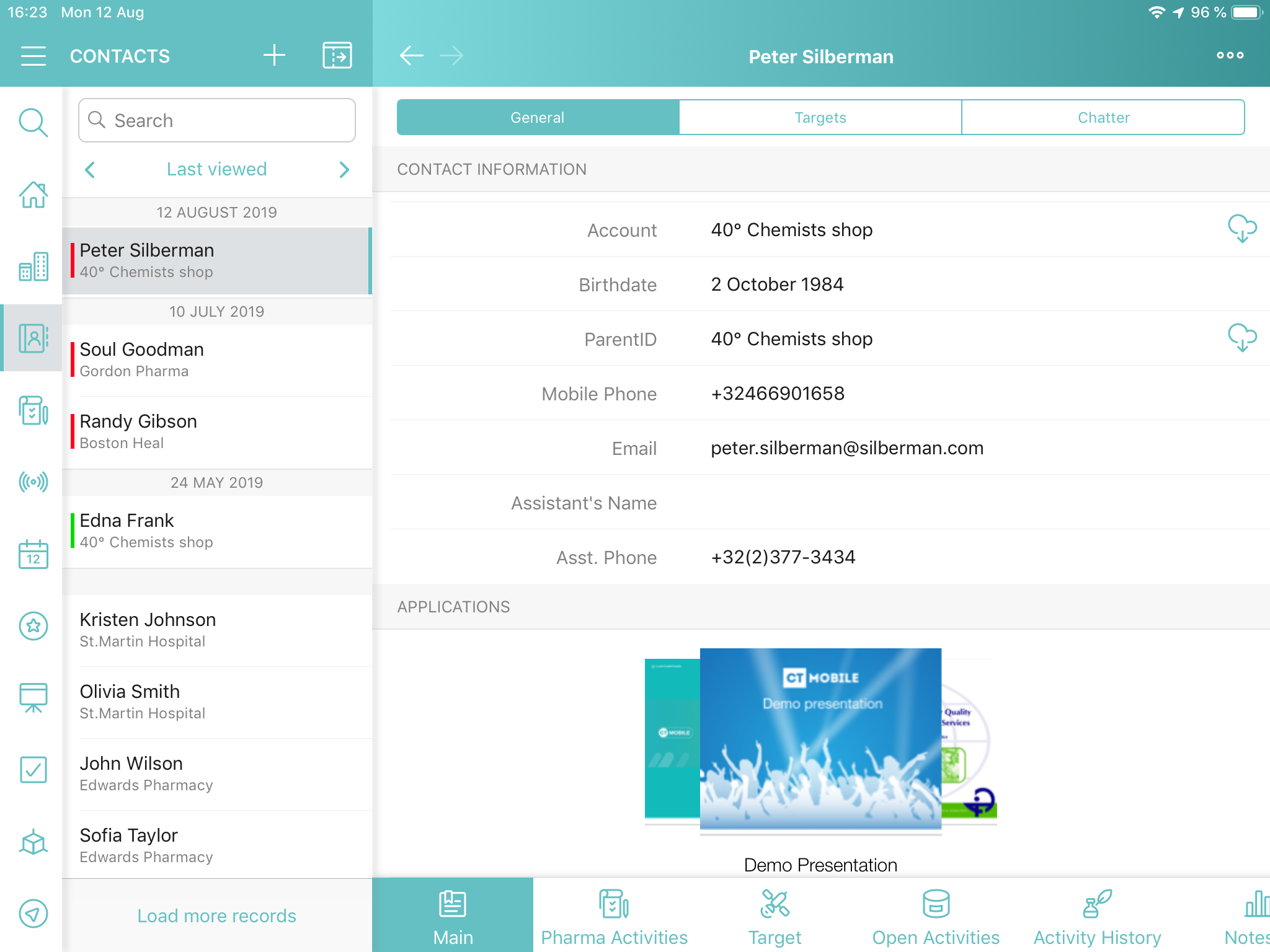
The Applications widget allows you to display a carousel with favorite CLM presentations and custom scenarios on the record details screen. The carousel becomes scrollable if it contains more than two screenshots.
The Applications widget is also available on the Home screen.
To learn more about CLM presentation controls, refer to Gestures in CLM presentations and CLM presentation Controls.
Add Applications to the Menu
To add the Applications module to the app menu:
-
In CT Mobile Control Panel
-
In CT Mobile Control Panel 2.0
-
Go to CT Mobile Control Panel: App Menu tab.
-
Select the required profile in the Location picklist. To apply settings to all the profiles, select General Settings.
-
Click the
 button to open the Add menu item tool.
 -
Select the Applications item.
-
Click Add to close the Add menu item tool.
-
Click Save.
-
Go to CT Mobile Control Panel 2.0: App Menu tab.
-
Select the required profile in the Profile picklist. To apply settings to all the profiles, select General Settings.
-
Click Show Module Menu.
-
On the All or Integrations tab, select the Applications item.
The setup is complete.
Add Applications to the Mobile Layout
To add the Applications widget to the mobile layout:
-
Go to Setup → Object Manager → select an object.
-
Click Page Layouts and select the mobile layout.
-
Drag and drop the Section element to the area below the existing tab on which you want to display the carousel.
-
In the Section Properties window, enter APPS in the Section Name field, and select the 1-Column layout. Ensure that the Display Section Header On checkbox is enabled.
Do not translate the APPS section name. It is responsible for displaying Applications on the mobile layout and should be left intact. -
Click OK.
-
Drag and drop the Blank Space element below the APPS element.
-
Click Save.
The Applications widget is configured.
-
All standard scenarios and favorite custom scenarios are displayed.
-
The statistics will be collected and automatically linked to the Activity record from which the CLM presentation was started.
-
If Start/Finish functionality with the Lock/Unlock Record option is applied, any CLM presentation from the carousel on the record details screen can be launched only after the start of the activity.