Order Management
| Before starting to work with orders, please check that you have at least the Read permission to the Logging Mode field on the Sales Organization object. |
Order Management is a combination of settings that match your business purposes.
Order Taking Overview
The Order Life Cycle allows using advanced sales strategies with multiple conditions. The optional integration with ERP helps to easily create orders based on all provided data.
-
Order differentiation based on territories and roles in a company, as well as the ability to customize the order page for each client.
-
Set up comprehensive pricing procedures, long and short-term promotions, and discounts based on different conditions.
-
Define your order types or use the pre-configured ones to cover specific needs per each client.
-
Add the same products with different price conditions in one order, for example, from an ordinary catalog or a short-term promotion.
-
Specify bundles to add them with ordinary products in one order.
-
Create multiple deliveries for several addresses based on the available dates, products, and specific limits.
-
Real-time calculation based on all provided details.
-
Specify your order stages or re-use pre-configured ones to build order processes according to the company needs.
-
Apply validations to be sure to have the ability to correct all order/delivery issues.
Order management allows you to create online and offline orders:
-
Accept online orders at the call center or provide the customer access to create online orders.
-
Use field sales forces to create offline orders and then synchronize all data from the CT Mobile app with CRM.
Offline orders are available in CT Orders version 1.5 and higher.
The CT Orders tab
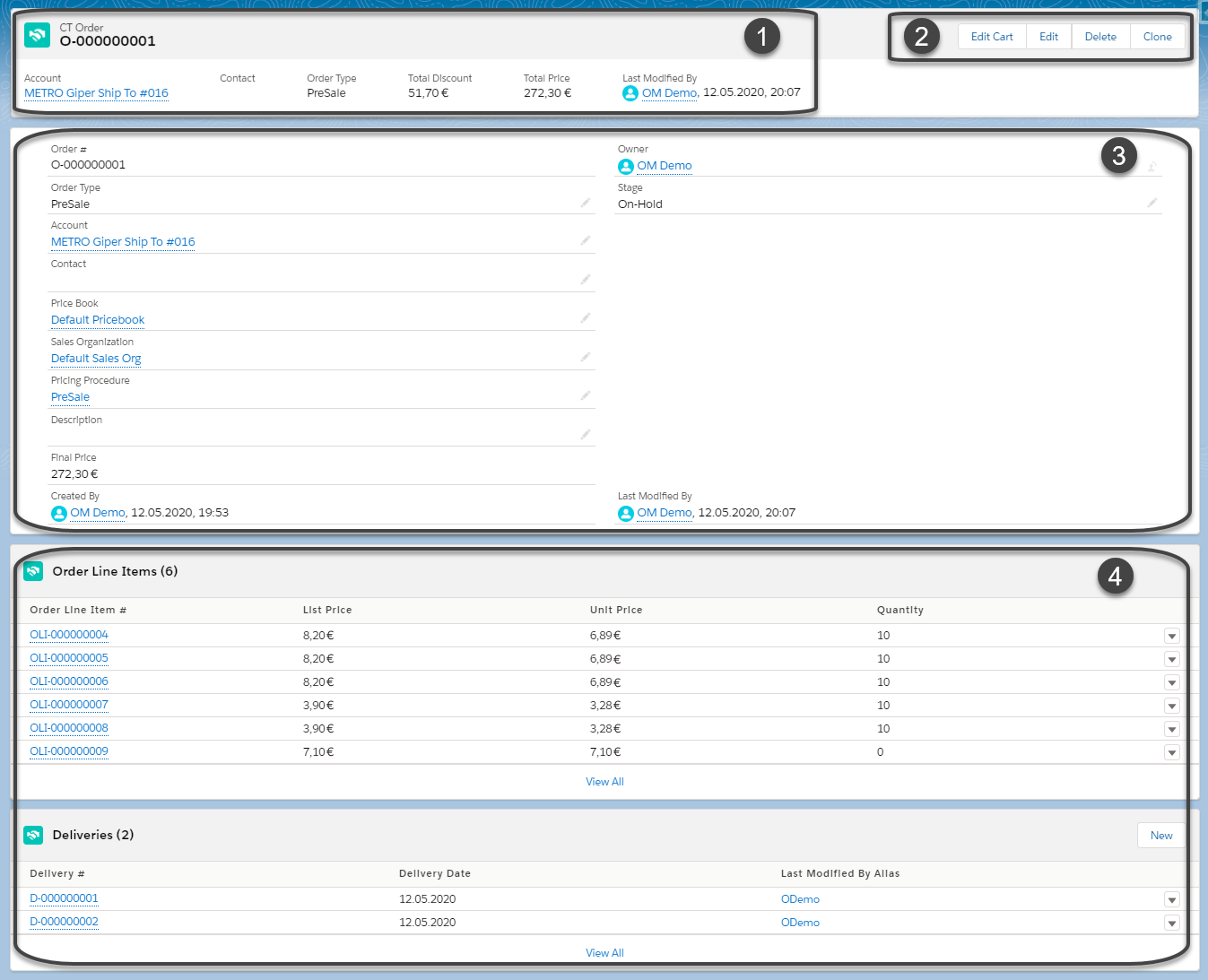
The CT Orders tab is the standard Salesforce page to monitor all order records, create, edit, and delete orders. Click on the appropriate order to view the order details.
-
Set up a header with all the necessary order information.
-
The CT Order button panel:
-
Click Edit Cart to form orders and set up deliveries.
-
Click Edit to make some changes in the main order information, such as specify Account, Price Books, Sales Organizations, etc.
-
Click Delete to remove the order.
-
Click Clone to create a new Order record with the same order information.
-
-
Specify the display of the main order info.
-
Specify the display of available related lists on the order layout.
-
Order Line Items are the records of CT Products added to the current order.
-
Deliveries are the number of order deliveries with the Delivery Line Items that represent CT Products in the current delivery.
-
Order Types
| The CT Order object has no record types by default. You can specify record types according to your needs and create the specific Layout Settings record for each record type. In this case, when you create a CT Order record, you should first select the record type and then the order type. |
By default, the following order types are available:
-
Order
Create a standard order and set up deliveries.
-
Return
Select this type for an order that should be returned.
-
Pre-Sale
Select this type for an order with CT Products that have not been released to the public yet.
Order Stages
There are several pre-configured stages, which are different for mobile devices and Salesforce. The available stages:
-
On-Hold
-
Completed
-
Finalized
-
Validated
Create a custom flow and add new stages to match your business flow. Consider the following:
-
The standard flow does not include the Validated stage.
-
The Completed and Finalized stages cannot be overridden.
Online Order in Salesforce
When a user creates a new online order and clicks the Save Draft button on the order details page, the order moves to the On-Hold stage. It marks that the current order could have been saved with errors, for example:
-
Delivery dates in the past for orders with the Return order type.
-
Products from expired promotions or not available catalogs.
-
A not specified number of products for deliveries.
When a user clicks the Finalize button on the order details page, the current order will be validated. If it met all validations, it moves to the Finalized stage, will be locked, and cannot be edited anymore.
| You can create business logic to send finalized orders to the ERP system if applied. |
-
All products in the order are from available (and optionally assigned for the current Sales Organization) catalogs and promotions.
-
The delivery rules are applied.
-
All corresponding discounts are applied.
Offline Order in the CT Mobile app
When a user creates a new offline order and clicks the Save Draft button on the order details screen, the order moves to the On-Hold stage. It marks that the current order could have been saved with errors, the same as in Salesforce.
When a user clicks the Complete button on the order details screen, the current order will be validated, and if it met all validations, it moves to the Completed stage.
| Do not manually change the Stage value on the Order record screen to avoid missing validations. |
Once completed, an order cannot be edited on a mobile device. Perform a synchronization to edit if necessary and finalize the order in Salesforce. Also, finalized orders received from Salesforce cannot be edited on the mobile device.
Process Path
The following steps must be performed by the administrator to configure the order:
-
Check the representative and manager permissions to target system objects. Also, if the additional custom objects will be created, for example, Address__c, specify permission for representatives and managers. A representative should have at least permission to read records and all fields of the Settings object and all objects of the CT Orders package. Users with the manager role can also have permission to edit records.
-
Create the Setting record with the Object Settings record type for an instance.
-
Set up delivery rules, Address Setting, and, optionally, specify Limit Setting.
-
If you use the custom Address object, configure the Delivery object. A representative should have permission to create, edit, and delete the Delivery and Delivery Line Item records. If applied, a representative should have permission to read the custom Address object. Users with the manager role can also have permission to edit Address records.
-
Specify Catalogs and Promotions based on CT Products and Price Books and assign Products. The Catalog/Promotion record should include CT Product records, be assigned to at least one Account record that relates to selected CT Products, and be active as well as Catalog Line Items/Promotion Line Item records should be active too. It is required to configure the Order Line Item and Promotion Line Item object.
-
Assign Catalogs, Price Books, and Promotions. If no Sales Organization is defined for a Catalog, Price Book, and Promotion record, these catalogs, price books, and promotions will not be applied.
-
Specify pricing procedures. A representative should have permission to create, edit, and delete the Calculated Discount records.
-
Create Layout Settings for Order Line Item, Catalog Line Item, and Promotion Line Item. Additionally, specify Catalog and Promotion Assignments. If the Layout Setting is not specified for an object, the necessary fields for creating order will not be available.
-
Add permission for creating orders for the corresponding Account record.
-
Specify the Totals Panel Setting to display overview metrics on the order creation page.
-
Additionally, specify Split Setting to split the finalized order into deliveries according to specific logistic conditions.
The setup is complete. The representative can create online or offline orders and set up deliveries.
See also: